If you’re not a fan of the news feed and content on the New Tab Page on the Microsoft Edge browser, you might find the notifications icon the most irritating and annoying also. It shows the number of unread news for you to check with the count over bell icon, here is how you can turn that off with ease.
Microsoft Edge New Tab comes preloaded with News, Bing image of the day, and Quick links. You can customize the appearance of these from the New Tab Page itself, you can even set Edge NTP to blank.
You need to click on the gear icon and choose a “custom” Page layout, from then, you can turn off Quick Links, greeting, background image, and News Feed.
While everything can be controlled when comes to the Microsoft Edge’s New Tab Page, not the bell icon that shows notifications count.

Since Edge’s launch, till now, Microsoft hasn’t offered an option to get rid of it.
The settings option still not working as of writing the article.
The notifications icon has been expanded and now appearing on NTP in several countries, not just United States.
Disable or turn off Notifications Icon on Microsoft Edge New Tab Page
- Launch Microsoft Edge browser
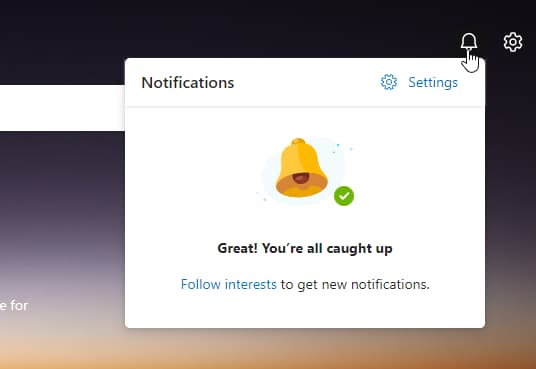
- Open NTP, click on the bell icon
- Click on the three-dot icon for a Top Story card and select “Turn off all news notifications”

- Done. If you now click the bell icon, you’ll be told all notifications have been caught up.
Microsoft is aware of this for months but has yet to roll out a fix. Let us hope Redmond giant takes this as a high priority and addresses it in the future.
Aren’t you irritated or annoyed with the Notifications icon? Let us know in the comments below.
More on Microsoft Edge:
How to enable Stacked Tabs in Microsoft Edge
Microsoft Edge integrates Microsoft Editor features for better writing
Microsoft Edge Apps Interface refreshed with Grid view, Sorting options, and more
Microsoft Edge Web Widget gets Visual Refresh for Windows 11