Today, we reported Google is removing Stacked tabs from Chrome citing minimum usage, as Chrome still supports feature in 2021, you can expect stacked tabs to work in Chromium Microsoft Edge also. Here is how you can enable the feature in the Edge browser.
What is the stacked tabs feature?
The stacked Tabs feature appeared first as flag 8 years back in Chrome. When enabled, tabs never shrink, instead, they’ll stack one over another on left and right with plenty of tabs open when there is not enough space on the tab strip for allocation of new tabs.

Enable Stacked Tabs in Microsoft Edge
1. Right-click on Edge shortcut on the desktop
2. Select Properties
3. In the target field at the end after giving space append following
--force-stacked-tab-strip-layout
4. click Apply.
Now, Launch Edge and open tabs, you can see tabs stacked on left and right.
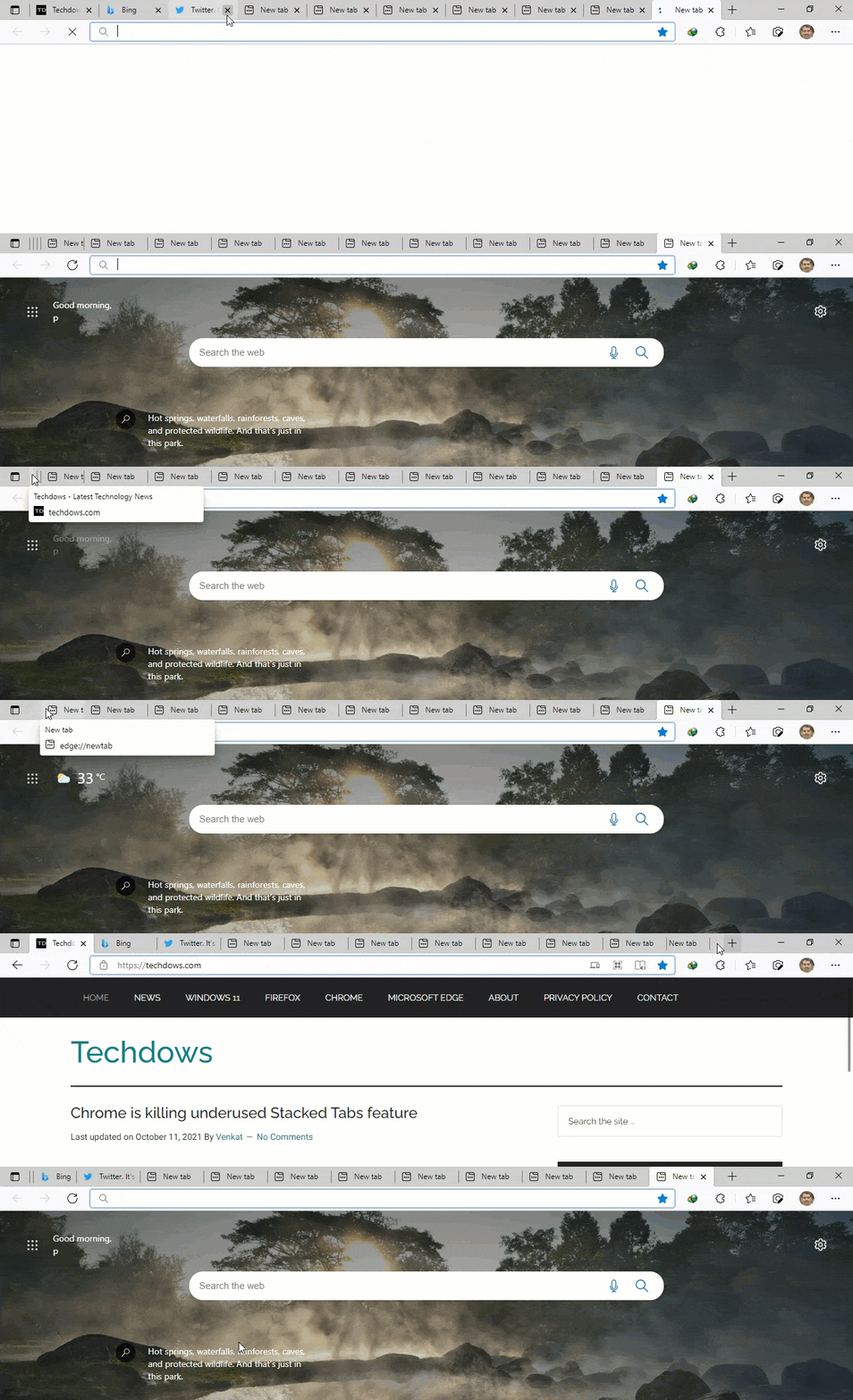
Google is removing support for the feature in Chrome, this may take some time. Till then, you can continue to use the command line shortcut for the Tab Stacking feature in the Microsoft Edge browser.
Tab organization in Microsoft Edge won’t be difficult with Vertical Tabs and Tab Groups available out of the box. Edge might even get Chrome’s Scrollable Tabstrip in the future, do you still want to Stack tabs in Edge? Let us know in the comments below.
More on Microsoft Edge:
Microsoft Edge integrates Microsoft Editor features for better writing
Microsoft Edge Apps Interface refreshed with Grid view, Sorting options, and more
Microsoft Edge Web Widget gets Visual Refresh for Windows 11
Microsoft Edge adds Picture in Picture button to Videos

![How to add another OneDrive account [use multiple accounts]](https://techdows.com/wp-content/uploads/2026/10/Microsoft-support-page-for-adding-an-account-in-OneDrive-with-Windows-tab-select-600x338.jpg)