Microsoft is carrying on its good work to make PDF Viewer/Reader in the new Microsoft Edge better or equal with Edge Legacy. Till now the company has brought most of the requested PDF features, now it is adding more such as Document properties, Presentation mode, Thumbnail view, and more.
Microsoft Edge PDF Reader
Microsoft Edge is easily one of the best Web browser-based PDF viewers out there.
Apart from basic reading and navigation features, till now Edge got Two Page view, Read aloud, inking, caret mode browsing, Highlight mode, Add Text, and comments options.
Edge PDF Reader also supports digital signatures verification, Smooth scrolling, the company is now trying to bring the following features with a future update to Edge.
Thumbnail View mode
Edge supports navigating through PDF documents having a Table of contents. Now with another new feature, Microsoft is making it easier to see what page it is.
When you click on the TOC icon, a navigation pane appears on left with a list view by default for contents. Clicking the icon above it launches a Thumbnail view for you to take a glance at each page’s contents.

Document Properties
After Chrome, Edge got the ability to show PDF document properties inside it you’re viewing.
The information displayed by Edge under “Description” generally includes PDF Filename, Size, Created and Modified date, and used software (Creator).
Edge PDF Viewer also shows PDF’s Advanced properties such as Page count, Page size, PDF producer name, PDF version number, etc.

You can check the above details for a PDF in Edge by clicking Settings and more icons on toolbar> View document properties.
Presentation mode
Chrome has FullScreen mode or presentation mode available for built-in PDF Viewer.
Microsoft Edge too received albeit available to some via controlled rollout at the moment.
What the feature does is clear all menus, toolbars, and navigation elements and show PDF content only on full screen.
To enter PDF in Full-screen mode in Edge, click
on the two-way arrow icon on the toolbar.
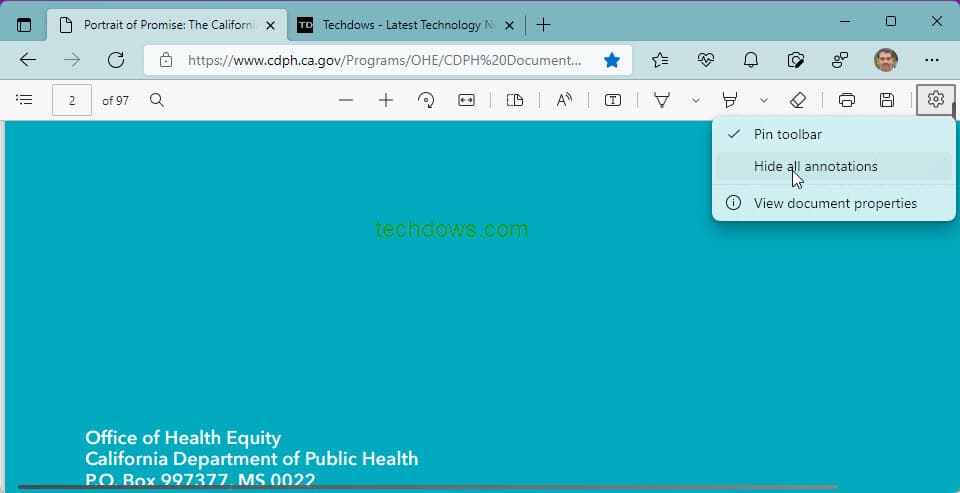
Hide all annotations
Any annotations or text comments you have added to PDF can be hidden now. All you need to do is click on the Settings icon on the toolbar and select “Hide all annotations”
Note: some of the PDF features are still being tested in Canary/Dev or rolling out and are not available to all users. Expect these features to reach the public with a future Edge update.
Final words: Microsoft is making Edge PDF Viewer more useful with fullscreen mode for presentations, Thumbnail view for easier navigation, and giving the ability to display document properties and hide all annotations.
More on Microsoft Edge:
How to enable or disable Office Sidebar in Microsoft Edge
How to manually add sites to automatically switch Profiles in Microsoft Edge
Microsoft Edge may get beautiful Bing’s Daily Image & Search Widgets on Android
How to create a Custom Primary Password in Microsoft Edge
Microsoft Edge v100 Enables Tab Search in Dev channel





