To reinstall audio drivers in Windows 10, open Device Manager, right-click your sound device under Sound, video and game controllers, select Uninstall device, and restart the PC so Windows installs the driver again.
This guide covers that quick reinstall, a clean reinstall that deletes the old driver, Windows Update and manufacturer drivers, rollback, Realtek, HDMI and USB audio, and fixes when sound still does not work.
Method 1: Reinstall audio drivers using Device Manager
This is the fastest reinstall and works on every edition of Windows 10. Windows keeps the driver package, so it puts the same driver back on the next start.
- Type device manager in the search box on the taskbar, then select Device Manager from the results.
- Select the arrow next to Sound, video and game controllers to expand it.
- Right-click your sound card or audio device and select Uninstall device.
- Leave Delete the driver software for this device cleared, then select Uninstall.
- Save your work, then select Start > Power > Restart.
- If the device does not come back after the restart, open Device Manager again and select Action > Scan for hardware changes.
Windows detects the hardware at startup and loads the driver it already has. If the old driver was the problem, use Method 2 instead so Windows cannot reuse it.
Which audio driver reinstall method should you use on Windows 10?
| Your situation | Use this | Why |
|---|---|---|
| Sound stopped for no clear reason | Method 1: Device Manager reinstall | Fastest; Windows restores the same driver on restart |
| The current driver itself seems corrupt | Method 2: clean reinstall | Deletes the driver files so Windows has to load a fresh one |
| No driver comes back after a restart | Method 3: Windows Update | Windows 10 installs recommended drivers through Windows Update |
| You need the maker's control panel or full features | Method 4: manufacturer's driver | PC and sound card makers publish drivers built for your model |
| You have a downloaded driver folder or want the generic driver | Method 5: manual install | Points Device Manager at an exact driver |
| Sound broke right after an update | Method 6: roll back | Restores the driver you had before the update |
| Nothing above works and the problem is recent | System Restore | Returns system files and drivers to an earlier restore point |
Quick checks before you reinstall audio drivers in Windows 10
These checks take two minutes and can save time, because many no-sound problems have nothing to do with the driver. Microsoft lists them first for that reason.
- Select the Speakers icon on the taskbar, open the device list with the arrow, and pick the speakers or headphones you want to use.
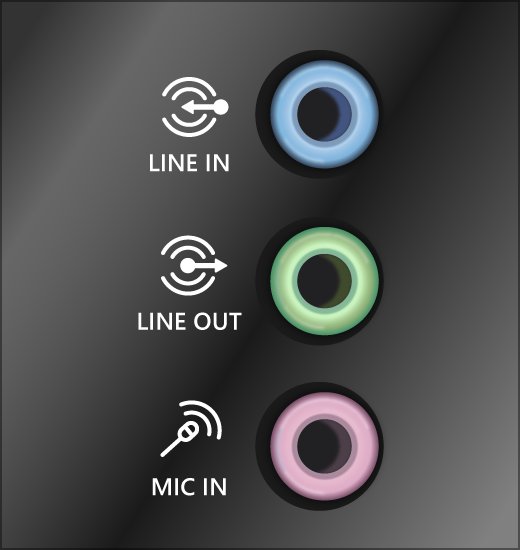
- Check that cables are firmly plugged into the right jack and that powered speakers are switched on.
- Make sure nothing is muted, and turn up the volume in Windows, in the app, and on the speakers themselves.
- Unplug headphones to test the speakers, and try a different USB port for a USB headset.
- Select Start > Settings > Update & Security > Troubleshoot, select Playing audio, then select Run the troubleshooter.
If the troubleshooter reports a driver problem, or Device Manager shows a warning icon on the audio device, continue with a reinstall.
How audio drivers work in Windows 10
An audio driver is the software that lets Windows talk to the sound hardware. Windows 10 ships several audio drivers of its own, and hardware makers add their own on top.
| Audio hardware | Driver Windows 10 uses | Where a reinstall comes from |
|---|---|---|
| Built-in sound chip on the motherboard (Realtek, IDT and others) | The maker's driver, or the generic High Definition Audio Device driver included in Windows | Windows Update, the PC or motherboard maker, or the generic driver already on the PC |
| USB headset, USB microphone or USB DAC | Microsoft's in-box USB audio class drivers (usbaudio.sys, and usbaudio2.sys from Windows 10 version 1703) | Already in Windows; a maker's driver on the PC or on Windows Update takes priority |
| Monitor or TV speakers over HDMI or DisplayPort | An audio device that belongs to the graphics hardware | Windows Update or the current graphics driver from your PC or graphics maker |
| Bluetooth headphones and speakers | Windows Bluetooth audio drivers on top of the Bluetooth adapter driver | Reinstall the Bluetooth adapter driver |
All of these audio drivers for Windows 10 appear in Device Manager under Sound, video and game controllers. Uninstalling one only affects that device, so you can reinstall the HDMI audio driver without touching the speakers.
What audio device do I have in Windows 10?
Before you download anything, find the exact sound device name. The name tells you whose driver to get.
| Where to look | What it shows |
|---|---|
| Device Manager > Sound, video and game controllers | Every audio device and its maker's name, such as Realtek, Intel or a USB headset brand |
| Start > Settings > System > Sound, under Output | The speaker or headphone device Windows is sending sound to right now |
pnputil /enum-devices /class Media in an administrator Command Prompt (Windows 10 version 1903 and later) |
Every sound device with its status, so a stopped or disabled device stands out |
| Your PC or motherboard maker's support page for your model | The audio driver that maker supplies for that model |
Method 2: Delete the driver and force a clean audio driver reinstall
A clean reinstall removes the previous driver files, so Windows cannot simply reload them. Use it when Method 1 brought the same fault back.
- Download the current audio driver for your model from the PC or sound card maker first, in case Windows does not find one on its own.
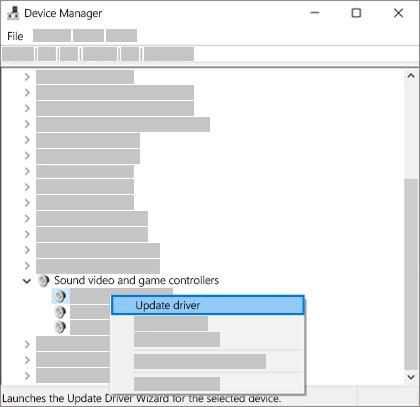
- Open Device Manager and expand Sound, video and game controllers.
- Right-click the audio device and select Uninstall device.
- Select the Delete the driver software for this device check box, then select Uninstall.
- Repeat for any other entry from the same audio maker that you want to clear.
- Restart the PC from Start > Power > Restart.
- If Windows does not reinstall a driver on its own, run the installer you downloaded in step 1, or use Method 3.
Uninstalling previous drivers this way is also the right first step before you switch from a PC maker's driver to the generic Windows driver, or the other way round.
Method 3: Reinstall audio drivers from Windows Update
Windows 10 installs recommended drivers automatically through Windows Update. Optional driver updates are not installed automatically, so check that list as well.
- Select Start > Settings > Update & Security > Windows Update.
- Select Advanced options and turn on Receive updates for other Microsoft products when you update Windows.
- Go back to Windows Update and select Check for updates.
- If updates are listed, select Install now and let them finish.
- If View optional updates appears, select it, tick any audio driver offered, and select Download and install.
- Restart the PC, even if Windows does not ask you to.
Windows 10 reached the end of support on October 14, 2025. If Windows Update offers no audio driver, get it from the hardware maker with Method 4.
Method 4: Download and install the manufacturer's audio driver
The PC or sound card maker's driver often includes features the generic driver lacks, such as jack detection and the maker's audio control panel. Get it only from the maker's own support site.
- Find your exact PC model, laptop model, or motherboard model.
- Open the support or drivers page on the maker's own website and enter that model.
- Choose Windows 10 and the correct 64-bit or 32-bit version, then download the audio driver.
- Close any apps that are playing sound.
- Run the downloaded installer and follow the maker's instructions.
- Restart the PC when the installer finishes.
If the download is a folder of driver files with no installer, install it with Method 5 instead.
Method 5: Manually install an audio driver through Device Manager
Use this when you have a driver folder rather than an installer, or when you want to switch to the generic driver that comes with Windows.
- Open Device Manager and expand Sound, video and game controllers.
- Right-click the audio device and select Update driver.
- Select Browse my computer for drivers.
- To use a downloaded driver, select Browse…, pick the extracted driver folder, select OK, then select Next.
- To use the generic driver instead, select Let me pick from a list of device drivers on my computer.
- In the list, select High Definition Audio Device, select Next, and follow the prompts.
- Restart the PC.
The generic High Definition Audio Device driver is a reliable fallback when a maker's driver keeps failing. Microsoft suggests it specifically for PCs with an IDT High Definition Audio CODEC.
Method 6: Roll back a bad audio driver in Windows 10
If sound worked before Windows Update or a driver install and now does not, roll back to the previous driver instead of reinstalling the new one.
- Open Device Manager and expand Sound, video and game controllers.
- Right-click the audio device and select Properties.
- Select the Driver tab, then select Roll Back Driver.
- Follow the prompts and select Yes to confirm.
- Restart the PC and test the sound.
If Roll Back Driver is greyed out, Windows has no earlier driver stored for that device. Use System Restore, or reinstall an older driver from the maker with Method 5.
How to reinstall Realtek audio drivers in Windows 10
Realtek chips sit on most desktop motherboards and many laptops. The driver that suits your PC usually comes from the PC or motherboard maker, not from a generic download.
- Open Device Manager, expand Sound, video and game controllers, and find the Realtek entry.
- Right-click it, select Uninstall device, and tick Delete the driver software for this device for a clean reinstall.
- Select Uninstall, then restart the PC.
- If Windows loads a driver on restart, test the sound before you change anything else.
- If the Realtek entry is missing or shows a warning, download the Realtek audio driver for your model from the PC or motherboard maker and run its installer.
- Restart once more after the installer finishes.
Newer Realtek drivers move the settings into a separate app; you can install the Realtek Audio Console on Windows 10 once the driver is back.
How to reinstall HDMI or DisplayPort audio drivers
Sound through a monitor or TV uses an audio device that belongs to the graphics hardware. If the monitor is the only audio device and you switch it off, Windows loses its audio endpoint by design, so check that first.
- Turn the monitor or TV on and make sure its own volume is up and not muted.
- Select Start > Settings > System > Sound, and choose the monitor or TV under Output.
- If it is missing, open Device Manager, expand Sound, video and game controllers, right-click the display or HDMI audio entry, and select Uninstall device.
- Restart the PC with the monitor or TV connected and switched on.
- If the entry still does not return, install the current graphics driver for Windows 10 from your PC maker or graphics card maker, then restart.
A monitor without built-in speakers can still be picked as the default output. If it is, Windows sends sound nowhere, so set your real speakers as the output.
How to reinstall USB headset, microphone, or DAC drivers
USB audio devices normally use drivers built into Windows 10, so there is nothing to download. If the maker publishes its own driver, Windows prefers that one.
- Unplug the USB headset, microphone or DAC.
- Open Device Manager, select View > Show hidden devices, and expand Sound, video and game controllers.
- Right-click each greyed-out entry for that device and select Uninstall device, then select Uninstall.
- Restart the PC.
- Plug the device into a different USB port and wait for Windows to install it.
- If the maker offers a Windows 10 driver or app for that model, install it from the maker's site and restart.
A USB Audio 2.0 device may appear as USB Audio Class 2 Device when it does not report its own product name. Wireless headsets are different: for those, reinstall the Bluetooth driver for the adapter rather than an audio driver.
Use System Restore if the audio problem started recently
System Restore returns system files, drivers and installed programs to an earlier point without touching your personal files. Use it when rollback is greyed out and the problem started after a recent change.
- Press Win + R, type
rstrui.exe, and press Enter. You can also open Control Panel > Recovery > Open System Restore. - Select Next.
- Choose a restore point from before the sound stopped. Tick Show more restore points if you need an older one.
- Select Scan for affected programs to see what the restore will change.
- Select Next, then Finish, and let the PC restart.
Advanced option: remove audio driver packages with Command Prompt
Device Manager removes the driver from one device, but older packages can stay in the driver store. PnPUtil, built into Windows, deletes a package outright. Open Command Prompt as administrator and run pnputil /enum-drivers first to find the published name of the audio driver package, such as oem12.inf.
pnputil /delete-driver oem12.inf /uninstallReplace oem12.inf with the published name from the list. /delete-driver removes that third-party package from the driver store, and /uninstall first removes it from any device using it. Both need Windows 10 version 1607 or later. Add /force only if Windows refuses because a device still uses the package.
You should see: PnPUtil reports that the driver package was deleted. Restart the PC, or run pnputil /scan-devices on Windows 10 version 2004 and later, and Windows installs the next best driver it has.
Delete only packages you can identify as audio drivers. Removing the wrong oem file can take another device offline until you reinstall its driver.
Restart Windows Audio services
A stuck audio service gives the same silence as a broken driver. Restarting the services takes a minute and needs no reboot.
- Type services in the search box on the taskbar and select Services.
- Right-click Windows Audio, select Restart, and select Yes if asked.
- Do the same for Windows Audio Endpoint Builder.
- Do the same for Remote Procedure Call (RPC).
- Play a sound to test.
Check sound settings after reinstalling the audio driver
A fresh driver can reset the default device or leave it disabled. These steps prove the reinstall worked.
- Open Device Manager and confirm the audio device shows under Sound, video and game controllers with no yellow warning icon.
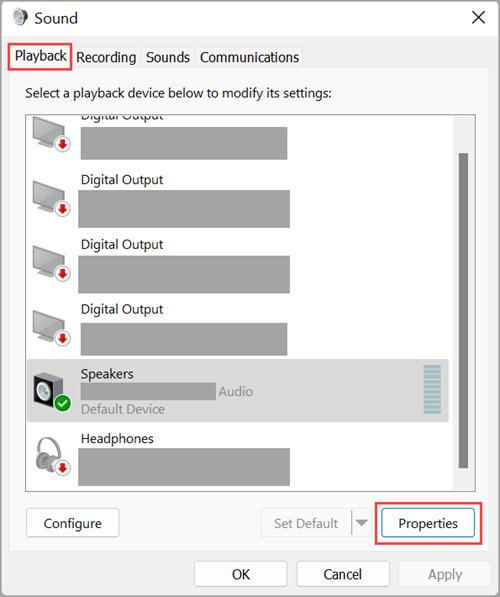
- Select Start > Settings > System > Sound and pick your speakers or headphones under Output.
- Select Device properties and make sure the Disable check box is cleared.
- Under Related settings, select Sound Control Panel, select your device on the Playback tab, and select Set Default.
- Right-click the Speakers icon, select Open Volume mixer, and unmute anything showing a red circle.
- Play a video or music file and watch the volume bar move on the Playback tab.
Fix the no audio output device is installed error in Windows 10
This message means Windows sees no working output device. The device is usually disabled, hidden, or left without a driver after the uninstall.
The audio device is listed but disabled
The device was turned off in Device Manager or in Sound settings.
- Open Device Manager and expand Sound, video and game controllers.
- Right-click the device with a down-arrow icon and select Enable device.
- Restart the PC and test the sound.
The audio device is missing from Device Manager
Windows has not re-detected the hardware since the driver was removed.
- In Device Manager, select View > Show hidden devices.
- Select Action > Scan for hardware changes.
- If the device appears with a warning icon, install its driver with Method 3 or Method 4.
- Restart the PC.
The device returns but still has no driver
Windows Update has no driver for it and none is stored on the PC.
- Download the latest audio driver for Windows 10 from the PC or sound card maker.
- Run the installer, or install it with Method 5.
- Restart the PC.
Audio still not working after reinstalling the driver in Windows 10
No sound, but the driver shows no error
Windows is sending sound to the wrong output device.
- Open Control Panel > Hardware and Sound > Sound.
- On the Playback tab, right-click your speakers or headphones and select Set as Default Device.
- Select OK and test again.
Sound is distorted, crackles or cuts out
Audio enhancements or the sample format do not suit the new driver.
- In Control Panel > Hardware and Sound > Sound, right-click Default Device on the Playback tab and select Properties.
- On the Enhancements tab, tick Disable all enhancements and select Apply.
- On the Advanced tab, choose a different setting under Default Format, select OK, and test.
- Try another format if the first one does not help.
Sound stopped after a Windows update
The update installed a driver that does not suit your hardware.
- Roll back the driver with Method 6.
- If rollback is greyed out, use System Restore to go back to a point before the update.
- If your PC lists IDT High Definition Audio CODEC, switch it to the High Definition Audio Device driver with Method 5.
Speakers work but the microphone does not
Microphone access is turned off in privacy settings.
- Select Start > Settings > Privacy > Microphone.
- Under Allow access to the microphone on this device, select Change and turn it on.
- Turn on access for the app you are using, then restart that app.
Reinstall audio drivers Windows 10 FAQ
How do I uninstall audio drivers in Windows 10?
Open Device Manager, expand Sound, video and game controllers, right-click the audio device and select Uninstall device. Tick Delete the driver software for this device to remove the files too, select Uninstall, and restart. Windows reinstalls a driver at startup unless none is available.
How do I delete and reinstall audio drivers?
Uninstall the audio device in Device Manager with Delete the driver software for this device ticked, then restart. Windows loads a fresh driver from Windows Update or the generic one. If none appears, install the driver you downloaded from the PC or sound card maker.
How do I install an audio driver on Windows 10 if none is installed?
Run Windows Update first, including View optional updates, because Windows 10 installs recommended drivers that way. If nothing arrives, download the Windows 10 audio driver for your model from the PC or sound card maker's site, run it, and restart.
How do I install an audio driver on Windows 10 Pro?
Windows 10 Pro uses exactly the same steps as Home: Device Manager, Windows Update or the maker's installer. You need an administrator account to install or remove drivers. On a work PC, a managed policy may block driver changes, so ask your IT team.
Should I update or reinstall audio drivers?
Update first if sound works badly, because Update driver keeps your settings and only replaces the driver if a newer one exists. Reinstall when the device shows an error, sound is gone completely, or an update did not help. Roll back if the trouble began after an update.
Can I reinstall audio drivers on Windows 10 for free?
Yes. Device Manager, Windows Update and the generic High Definition Audio Device driver are all part of Windows 10, and PC and sound card makers publish their drivers free on their support sites. You never need a paid driver updater to reinstall an audio driver.
How do I reinstall audio drivers in Windows 11?
The steps are the same in Device Manager, but the uninstall check box reads Attempt to remove the driver for this device. On an HP PC, get the HP audio drivers for Windows 11 from HP's support site, and fix Realtek audio on Windows 11 26H2 if sound broke with that update.
Does reinstalling audio drivers fix the microphone?
It can, when the microphone's driver is damaged. Reinstall the device that holds the microphone, such as the sound card or USB headset, then check Settings > Privacy > Microphone on Windows 10. A blocked privacy setting causes the same silence and no driver reinstall fixes it.
Bottom line: the best way to reinstall audio drivers on Windows 10
Start with the Device Manager uninstall and restart, move to a clean reinstall or the maker's driver if the fault returns, and roll back when sound broke after an update. Each step costs a few minutes and uses only tools built into Windows 10 or the maker's own driver, so you never risk a third-party driver tool on a working PC.