Most Bluetooth audio and wireless display problems in Windows 10 clear up once you select the right output device, remove and re-pair the device, and update its driver.
This guide covers silent or poor-quality Bluetooth headphones and speakers, Miracast casting that will not connect, missing sound on a wireless display, and how to tell when the hardware is the real limit.
Quick Fixes That Solve Many Bluetooth and Wireless Display Problems
Run these in order before anything else. Each one takes under a minute and clears the most common causes on both the Bluetooth and the Miracast side.
- Open Start > Settings > Network & Internet > Airplane mode and make sure Airplane mode is off.
- Open Start > Settings > Devices > Bluetooth & other devices, turn Bluetooth off, wait 10 seconds, and turn it back on.
- Select the Network icon at the far right of the taskbar and check that the Wi-Fi quick action is on. Miracast needs Wi-Fi even when you are not connected to a network.
- Power the headset, speaker or wireless display off and on again, and check that it has enough battery charge and is within range.
- Open Start > Settings > System > Sound and, under Choose your output device, select your Bluetooth device or wireless display.
- Restart your PC, then reconnect the device and test with a local music file or video.
If sound or the picture is still missing, use the table in the next section to jump to the fix for your exact symptom.
Before You Start: Confirm What You Are Trying to Fix
Bluetooth audio and wireless display use different radios. Miracast runs over Wi-Fi Direct, not Bluetooth, so a casting failure and a silent headset rarely share a cause.
| What you see | Likely area | Go to |
|---|---|---|
| Headset or speaker never appears or will not pair | Discovery, airplane mode, driver | Fix Bluetooth Audio Pairing and Connection Problems |
| Device shows Connected but plays nothing | Wrong output device or audio format | Fix Bluetooth Audio That Connects but Does Not Play Sound |
| Music sounds thin or muffled, often during calls | Hands-Free device selected instead of Stereo | Understand Stereo and Hands-Free Bluetooth modes |
| Audio crackles, stutters or drops out | Interference, enhancements, format | Fix Poor Bluetooth Sound Quality, Stutter, and Lag |
| Bluetooth toggle or adapter is missing | Driver or adapter | Repair Bluetooth Drivers and Services |
| TV, monitor or PC never appears after Windows logo key + K | Miracast support, Wi-Fi, receiver | Fix wireless display and Miracast problems |
| Picture reaches the TV but sound stays on the laptop | Output device selection | Fix Audio Problems When Using a Wireless Display |
| Desktop projects but one program shows nothing | That app's graphics path | Windows 10 Miracast limitation with OpenGL applications |
Fix Bluetooth Audio Pairing and Connection Problems
Start here when Windows cannot find the headset or speaker, or the pairing fails. Keep the device away from unshielded USB 3.0 devices, which Microsoft notes can interfere with Bluetooth connections.
- Put the headset or speaker into pairing mode. The manual gives the exact button press for your model.
- Open Start > Settings > Devices > Bluetooth & other devices and confirm Bluetooth is on.
- If your device does not appear, select More Bluetooth options, open the Options tab, check Allow Bluetooth devices to find this PC, and select OK.
- If the device is already listed but will not connect, select it, choose Remove device, and confirm with Yes.
- Select Add Bluetooth or other device and select your device from the list.
- Follow any on-screen prompt, then play a test sound to confirm the connection.
Fix Bluetooth Audio That Connects but Does Not Play Sound
A device that pairs but stays silent is usually connected to Windows while another output device still has the sound. This is the fix for Bluetooth audio when the device is connected but silent.
- Select the Sound icon in the taskbar and check that your Bluetooth device is the selected playback device.
- Open Start > Settings > System > Sound and pick your Bluetooth device under Choose your output device.
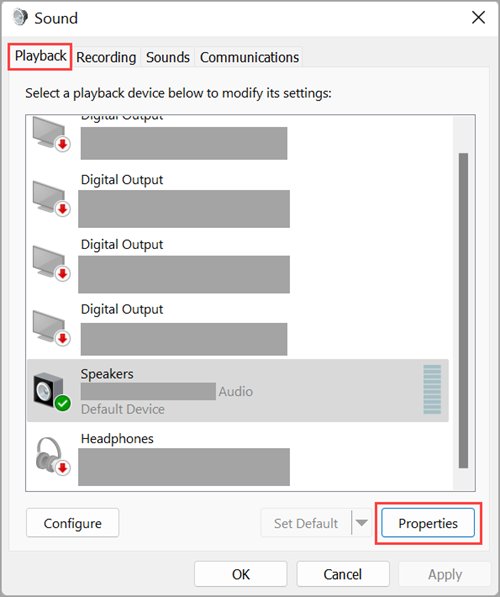
- Right-click the Sound icon and select Sounds, then open the Playback tab.
- Select your Bluetooth device and select Properties, then open the Advanced tab.
- Under Default Format, select 2 channel, 16 bit, 48000 Hz (DVD Quality), then select Apply and OK.
- Open Start > Settings > Devices > Bluetooth & other devices, select the device, choose Remove device, and pair it again with Add Bluetooth or other device.
Also check that the headset is not muted on its own controls and is not still playing to a phone it is paired with.
Understand Stereo and Hands-Free Bluetooth modes
Many headsets appear in Windows 10 as two playback devices with the same name: one ending in Stereo and one ending in Hands-Free. Microsoft's own Surface Headphones guidance uses Stereo for music and Hands-Free for calls.
| Device entry | Use it for | Microphone | What to check |
|---|---|---|---|
| <device name> Stereo | Music, video, games | Not used | Set as the default output in Settings > System > Sound for listening |
| <device name> Hands-Free | Calls and meetings | Used | Set as the default input when others cannot hear you |
| A2DP support (device spec) | Higher-quality audio streaming | Not applicable | Microsoft advises confirming the device supports A2DP in its manual or on the maker's site |
If music suddenly sounds muffled after a call, check which of the two entries is selected under Choose your output device and switch back to Stereo.
Fix Poor Bluetooth Sound Quality, Stutter, and Lag
Crackling and dropouts come from radio interference, distance, or processing added to the stream. Work through the physical checks first, then the settings.
- Move closer to the PC and remove obstacles between the PC and the device.
- Move unshielded USB 3.0 devices and hubs away from the Bluetooth adapter or laptop.
- Disconnect the headset from other paired phones or tablets so only the PC is streaming to it.
- Right-click the Sound icon, select Sounds, select your device on the Playback tab, and select Properties.
- On the Enhancements tab, check Disable all enhancements (or Disable all sound effects), then select OK.
- On the Advanced tab, try a different option under Default Format and test after each change.
- Make sure the Stereo entry, not Hands-Free, is the output device for music.
Repair Bluetooth Drivers and Services
Outdated or damaged drivers are a common cause of connection failures. Restarting the Windows audio services clears a stuck audio pipeline without a full reboot.
- Select Start, type Device Manager, and open it.
- Expand Bluetooth, right-click your adapter (its name may include radio), and select Update driver > Search automatically for updated driver software. Restart if prompted.
- If that changes nothing, right-click the adapter again, select Uninstall device, and restart. Windows reinstalls the driver automatically.
- If the adapter does not return, open Device Manager and select Action > Scan for hardware changes.
- Select Start, type services.msc, and press Enter.
- Right-click Windows Audio and select Restart, then do the same for Windows Audio Endpoint Builder.
- Test playback again.
If Windows cannot find a newer driver, get the latest Bluetooth driver from your PC maker's support site and install it.
Bluetooth repair sequence for Windows 10
When the quick fixes fail, escalate in this order. Each step rules out one cause, so stop as soon as sound returns.
| Step | Action | What it rules out |
|---|---|---|
| 1 | Turn Bluetooth off for 10 seconds, then on | A stuck radio state |
| 2 | Run the Bluetooth troubleshooter: Start > Settings > Update & Security > Troubleshoot > Bluetooth > Run the troubleshooter (or the Bluetooth troubleshooter in the Get Help app) | Settings Windows can detect and correct itself |
| 3 | Remove device, then Add Bluetooth or other device | A corrupted pairing record |
| 4 | Set the output device and Default Format | Sound routed to the wrong place or an unsupported format |
| 5 | Update the adapter driver in Device Manager | An outdated driver |
| 6 | Uninstall device and restart | A damaged driver install |
| 7 | Test another Bluetooth audio device on the same PC | A fault in the headset or speaker itself |
Fix wireless display and Miracast problems
Windows 10 casts to TVs, monitors and other PCs with Miracast, which uses a direct Wi-Fi link between the PC and the receiver. These are the Wireless Display and Miracast connection checks Microsoft lists for Windows 10.
- Select Start, type Connect, and open the Connect app. Its text tells you whether your Windows 10 device supports Miracast.
- Check that Wi-Fi is on from the Network icon on the taskbar.
- Confirm the TV or monitor supports Miracast and that screen mirroring is turned on. If it does not support Miracast, plug a Miracast adapter into its HDMI port.
- If the target is another Windows 10 PC, open Start > Settings > System > Projecting to this PC on that PC, select Optional features > Add a feature, check Wireless Display, and select Install.
- Update the display, adapter or dock firmware using the maker's support site or its Microsoft Store app.
- Restart the PC and the wireless display.
- Open Settings > Devices > Bluetooth & other devices, select the wireless display or adapter, choose Remove device, then press Windows logo key + K and connect again.
If the receiving PC still does not show up, type wireless display in the taskbar search box on it and open the result so it waits for a connection. On Windows 11 the menus differ; see how to enable and use Wireless Display in Windows 11.
Fix Audio Problems When Using a Wireless Display
A common case is video on the TV while sound keeps playing from the laptop speakers. Point Windows at the display as the audio output.
- Connect to the display with Windows logo key + K and wait for the picture.
- Open Start > Settings > System > Sound.
- Under Choose your output device, select the wireless display or TV.
- Raise the volume on the TV itself and check it is not muted.
- If the display entry is missing, disconnect, restart both devices, and connect again.
- If sound crackles, move the PC closer to the receiver. Microsoft's own adapter works best within 23 feet (7 m) of the display.
Windows 10 Miracast limitation with OpenGL applications
When the desktop projects fine but one program shows a black or frozen window on the wireless display, the Miracast link is working. The fault lies in how that program draws to the screen, and some OpenGL-based programs are affected.
- Drag a browser or File Explorer window onto the wireless display to confirm the connection itself works.
- Press Windows logo key + P and switch between Duplicate and Extend, then reopen the program.
- Check the program's own graphics or renderer settings for a DirectX option and switch to it if one exists.
- Update the graphics driver from your PC maker or GPU maker.
- If the program still fails, connect the display with an HDMI or DisplayPort cable for that program.
Advanced Fixes for Persistent Wireless Problems
Use these when both Bluetooth and casting keep failing after the steps above. They target the Wi-Fi driver, graphics driver and radio environment.
- Install the latest Windows updates from Start > Settings > Update & Security > Windows Update.
- In Device Manager, expand Network adapters, right-click your Wi-Fi adapter, select Uninstall device, and restart so Windows reinstalls it.
- In Device Manager, expand Display adapters and update the graphics driver.
- Move Miracast adapters and Bluetooth devices away from microwave ovens, cordless phones and baby monitors.
- Reset the Miracast adapter using the maker's instructions and update its firmware.
- Remove and re-pair every affected Bluetooth device once more after the driver changes.
When the Problem Is Hardware or Compatibility
Some failures are not fixable in settings. Use this table to confirm the limit before spending more time.
| Check | How to confirm | What to do |
|---|---|---|
| PC lacks Bluetooth | No Bluetooth entry in Device Manager and no toggle in Settings | Check the PC's specifications; add a USB Bluetooth adapter if it has none |
| PC does not support Miracast | The Connect app says the device does not support it | Use an HDMI cable instead of casting |
| TV lacks Miracast | No screen mirroring option in the TV's menus | Plug a Miracast adapter into an HDMI port |
| Headset lacks A2DP | Spec sheet lists only hands-free or headset profiles | Expect call-quality sound only on that device |
| Headset fault | Another Bluetooth device plays fine on the same PC | Charge fully, update firmware, or contact the maker |
| LE Audio earbuds | Microsoft documents LE Audio support for Windows 11, not Windows 10 | Expect Classic Bluetooth audio on Windows 10 |
How to check the fix worked
- Open Start > Settings > Devices > Bluetooth & other devices and confirm the headset is listed as connected.
- Open Start > Settings > System > Sound and confirm the correct device is selected under Choose your output device.
- Play a local music file for two minutes and listen for dropouts or muffled sound.
- Press Windows logo key + K, connect to the display, and confirm both picture and sound reach it.
- Restart the PC once and confirm the device reconnects without re-pairing.
Fix Bluetooth audio devices in Windows 10 by symptom
Bluetooth audio quality drops during calls
The Hands-Free entry is carrying the audio instead of Stereo.
- End the call or close the app using the microphone.
- Open Settings > System > Sound.
- Select the Stereo entry under Choose your output device.
Bluetooth earbuds play in only one ear
Only one earbud paired during setup, or the left and right balance is uneven.
- Charge both earbuds fully.
- Remove the earbuds in Bluetooth & other devices and pair them again.
- Check that the Left and Right balance levels for the device are set to the same value.
- Test with another Bluetooth audio device to rule out a fault in the earbuds.
Bluetooth audio drivers missing or the toggle has disappeared
The adapter driver is damaged or disabled.
- Open Device Manager and expand Bluetooth.
- Right-click the adapter and select Uninstall device, then restart.
- If it does not return, select Action > Scan for hardware changes.
Bluetooth audio settings show the device but nothing plays
Sound is routed to another output, or the audio format is unsupported.
- Select the device under Choose your output device.
- Set Default Format to 2 channel, 16 bit, 48000 Hz (DVD Quality).
- Restart Windows Audio and Windows Audio Endpoint Builder in services.msc.
FAQ
How do I fix Bluetooth audio in Windows 10?
Select the Bluetooth device under Choose your output device in Settings > System > Sound. If it is still silent, remove the device, pair it again, and set Default Format to 2 channel, 16 bit, 48000 Hz (DVD Quality) in its Properties.
How do I fix Bluetooth audio quality in Windows 10?
Select the Stereo entry for your headset, not Hands-Free, as the output device. Then disable audio enhancements on the Enhancements tab, move away from USB 3.0 devices, and keep the headset close to the PC.
How do I fix Bluetooth that will not turn on or connect?
Turn off Airplane mode, switch Bluetooth off and on in Settings > Devices > Bluetooth & other devices, and run the Bluetooth troubleshooter. If that fails, update or reinstall the Bluetooth adapter driver in Device Manager.
Why is my Bluetooth headset connected but producing no sound in Windows 10?
Windows is usually sending sound to another output device. Pick the headset under Choose your output device in Settings > System > Sound, and check the headset is not muted or still streaming to a phone.
Why does Bluetooth audio quality become poor when I join a call?
Calls use the Hands-Free entry, which carries the microphone. Microsoft's Surface guidance uses Stereo for music and Hands-Free for calls, so switch the output back to the Stereo entry after the call.
Does wireless display use Bluetooth?
No. Miracast wireless display is built on Wi-Fi Direct, a direct Wi-Fi link between the PC and the receiver. Wi-Fi must be on to cast, even if you are not connected to a network.
Do I need Wireless Display to cast from Windows 10 to a TV?
No. The Wireless Display optional feature is only needed on a Windows PC that receives a projection. To cast to a Miracast TV, press Windows logo key + K and select the TV.
Why does an OpenGL program fail on my Miracast display?
If the desktop projects but one program shows nothing, the link works and the program's graphics path is the problem. Try a DirectX renderer in the program, update the graphics driver, or use an HDMI cable for that program.
The Bottom Line
Check the output device first, then remove and re-pair, then update the driver, and for casting confirm Miracast support in the Connect app before anything else. Wrong output selection and stale pairings cause most silent Bluetooth audio, and a PC or TV without Miracast cannot be fixed in settings, so confirming support first saves the most time.

![How to Check RAM on Windows 11 [Step by Step Guide]](https://techdows.com/wp-content/uploads/2026/09/Windows-11-Task-Manager-Performance-tab-showing-the-Memory-pane-600x338.jpg)
![How To Set Your Time And Zone Manually Windows 11/10 [Guide]](https://techdows.com/wp-content/uploads/2026/09/Windows-11-Date-and-time-settings-page-in-dark-mode-600x338.jpg)