Microsoft gave Windows 11 a completely modern look right from Start Menu, Taskbar, File Explorer, context menus, Microsoft Store. The centered Start Menu by default displays recently added and open apps, files, and folders in the Recommended section under Pinned. You can disable or hide it if you don’t like files appearing whenever you press the Win key.

Recommended Section in Windows 11 Start Menu
Reasons to hate or dislike the Recommended Section in Centered Start Menu and here is what Microsoft should do:
- It shows half of the Start Menu without actually showing something useful.
- If you’re using Windows 11 in your office or home, everything you open displays when anyone presses Win+Key, a privacy concern.
- Recommended doesn’t open files in their default apps.
- Microsoft should provide an option to clear the whole section or hide it to avoid the hassle of removing individual items manually from the list.
- The Start Menu should show more Pinned apps in place of Recommended section.
- The Redmond firm should move this to Search where it displays Top Apps, Recent and Quick Searches.
The above sums up, Microsoft should provide the option to Turn off or remove Recommend area to improve Windows 11 Start Menu which provides more room for Pinned apps to appear.
As of now, the Recommended area can’t be collapsed or disappeared, but you can hide the content that appears for sure. Here is how you can do that.
Disable Recommended Section in Windows 11 Start Menu
- Visit Settings > Personalization
- Select Start
- Turn off the following.
“Show recently added Apps”
“Show recently opened items in Start, Jump Lists, and File Explorer”
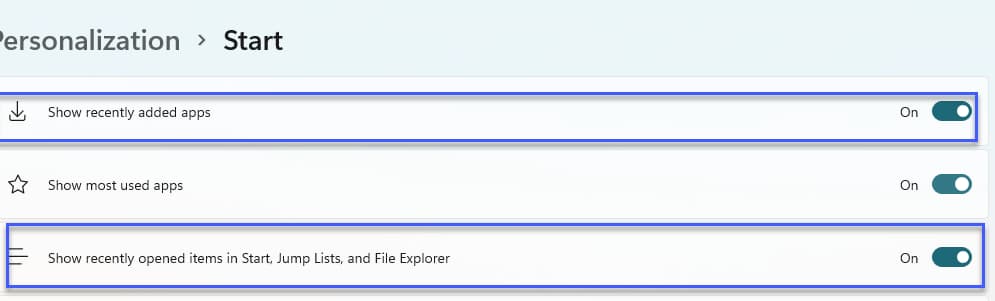
Here is how the Start Menu looks after that.

To restore items in the Recommended area, toggle the above said Start Settings.
What’s your take on Windows 11 Start Menu? Have you liked it when compared with Windows 10’s? Let us know in the comments below.
More on Windows 11:
Here’s how to change to Windows 11 Beta from Dev Channel in Insider Program
Fix Windows 11 Insider Settings Missing the Beta Channel option
Microsoft Edge on Windows 11 gets its first UI changes
VLC Win32 App makes an Entry into Windows 11’s Microsoft Store

Windows 11 Classic Start Menu: How to Get It Back - Techdows
[…] 11 updates, so match the wording on your screen. Techdows has an older walkthrough on how to disable the Recommended section in Windows 11 Start from the first Windows 11 […]