As of now, the new Microsoft Edge Chromium supports only exporting passwords, but not import. Thanks to Microsoft for making the Microsoft Authenticator app available as you can import passwords from a CSV file into it which further syncs them to Edge on all devices.
How to Import passwords into Edge Chromium
Consider a use case here:
- a user exports passwords in new Edge to CSV file
- but, to get them into Edge on a new device, Edge doesn’t offer an import option
Luckily, if you’ve installed Microsoft Authenticator App on your phone on Android/iOS,
- you can bring the CSV file to the phone
- and can import it into Authenticator as they will be synced to Edge browser on all devices.
Microsoft Authenticator supports importing passwords from Chrome, Firefox, and popular Password Managers such as Roboform, Bitwardem, and LastPass.
Btw, here is how you can export passwords from Edge
- Launch Edge
- Select the 3-dot icon and select Settings
- Visit Profiles > Passwords >Saved Passwords
- Click on the More actions (…) icon and select ” Export Passwords”
- Click Export Passwords, type Windows Account Password
- Choose the location and click the Save button.
Check this article on how to export passwords from Firefox to a CSV file.
Imports Passwords from CSV into Microsoft Edge with Microsoft Authenticator App
- First things first, download and install the Authenticator app from the Play store here.
- Sign in with your Microsoft Account
- Open Authenticator,
- Tap on Passwords at the bottom and give permission to sync Passwords with Microsoft Account
Note: Ensure you use the same Microsoft Account for Edge and Authenticator app.

- Tap on the three-dot icon on the top right and select Settings
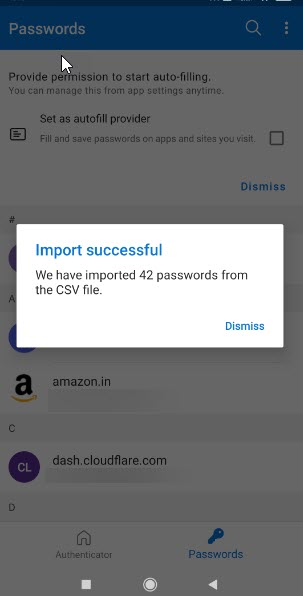
- Scroll down to the bottom and tap on “import Passwords”
- Tap on Import from CSV. The app here also offers the option to import from Chrome.

- Navigate to the Downloads folder and select the file containing the passwords
- Launch Edge on your PC
- Visit edge://settings/passwords to notice all the passwords synced by the Authenticator app

The method is not straightforward. You have to use Smartphone here. If Microsoft bakes the option to import passwords into Edge, that makes things easier for users.
What do you say? Have you found the article useful? Let us know in the comments below.
Related articles:
Disable Edge’s Widget from running on Startup
Microsoft Edge 89 lets you control extensions from Toolbar
Microsoft Edge adds mini Context menu for PDFs
Enable or disable Edge’s new Downloads Menu





