To fix Microsoft Compatibility Telemetry high CPU usage, confirm the load comes from CompatTelRunner.exe in System32, let the scan finish once, install pending Windows updates, and then turn off the Microsoft Compatibility Appraiser task in Task Scheduler if the spikes keep returning.
This guide covers what the process does, Microsoft's own diagnostic data settings and policies for limiting it, how to repair the files it depends on, and how to switch the task back on before a Windows upgrade.
How to stop Microsoft Compatibility Telemetry high CPU usage fast
Microsoft Compatibility Telemetry is a scheduled scan, so a single spike usually ends on its own. These steps cover the case where it keeps coming back.
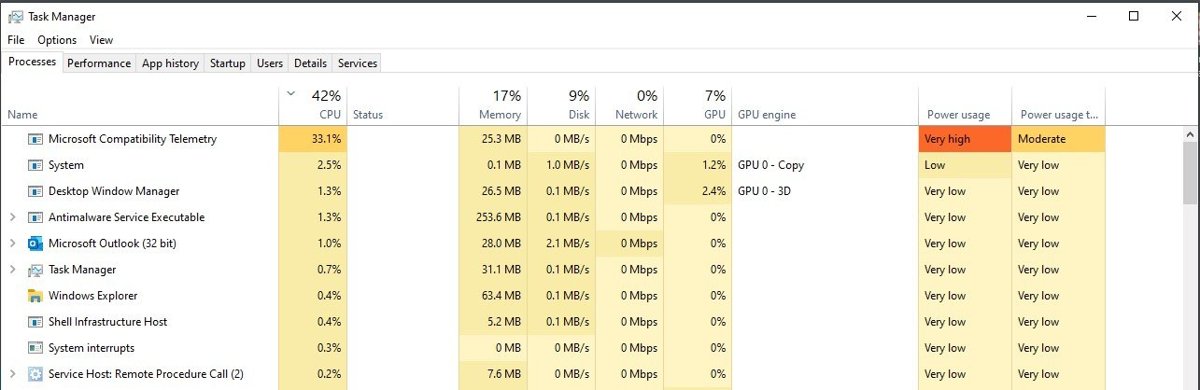
- Press Ctrl + Shift + Esc to open Task Manager and find Microsoft Compatibility Telemetry on the Processes tab.
- Let the scan finish if it started after a restart or an update; it ends on its own.
- Open Settings > Windows Update, select Check for updates and install everything offered.
- Search for Task Scheduler from Start and open it.
- Go to Task Scheduler Library > Microsoft > Windows > Application Experience.
- Right-click Microsoft Compatibility Appraiser and select Disable.
- Restart the PC and check Task Manager again.
Disabling the task stops the app and driver compatibility checks Windows Update uses before a feature upgrade. Re-enable it before you upgrade Windows, as shown later in this guide.
What is Windows Compatibility Telemetry (CompatTelRunner.exe)?
Microsoft calls the component behind this process the Appraiser, also known as Device Appraiser or Microsoft Compatibility Appraiser. It checks the apps and drivers on your PC for compatibility with the latest version of Windows.
| Question | Answer |
|---|---|
| Name in Task Manager | Microsoft Compatibility Telemetry |
| File name and location | CompatTelRunner.exe in %windir%\System32, working with appraiser.dll in the same folder |
| What starts it | The Microsoft Compatibility Appraiser scheduled task under Application Experience |
| What it collects | Which apps, drivers and accessories are installed, and whether the PC meets the requirements for the next Windows version |
| Where the data goes | Into Windows required diagnostic data, sent by the Connected User Experiences and Telemetry (DiagTrack) service |
| Why CPU climbs | It inventories every installed program and driver, so a large or changed software list means more work per run |
Which Microsoft Compatibility Telemetry fix should you use?
| Your situation | Use this fix | Why |
|---|---|---|
| One spike after a restart or update | Wait for it to finish | The scan is scheduled work and ends on its own |
| Spikes return every day on a home PC | Disable the Microsoft Compatibility Appraiser task | Stops the scan without changing other Windows services |
| You want less data sent to Microsoft | Turn off optional diagnostic data in Settings | Microsoft's own control; the PC stays just as secure |
| Pro, Enterprise or Education PC, or a managed fleet | Set Allow Diagnostic Data in Group Policy | Enforces one level that users cannot raise |
| CompatTelRunner.exe crashes or errors repeatedly | Install updates, then run DISM and SFC | Fixes known bugs and damaged system files |
| The file is outside System32 or unsigned | Run a Microsoft Defender full or offline scan | A real copy only lives in System32 |
Confirm that CompatTelRunner.exe is the problem
Check the process before you change anything. High CPU from a different process needs a different fix.
- Press Ctrl + Shift + Esc to open Task Manager.
- On Processes, select the CPU column header to sort by CPU use.
- Find Microsoft Compatibility Telemetry near the top of the list.
- Open the Details tab and look for
CompatTelRunner.exewith high CPU. - Right-click
CompatTelRunner.exeand select Open file location. - Confirm the folder is
C:\Windows\System32; any other folder means you should scan for malware first.
Several copies of CompatTelRunner.exe can appear during one scan. That alone is not a sign of a problem if they all live in System32.
1. Disable the Microsoft Compatibility Appraiser task
This is the most direct fix, because the scheduled task is what launches the scan. You need an administrator account.
- Right-click Start, select Search, type
task schedulerand open Task Scheduler. - In the left pane, expand Task Scheduler Library > Microsoft > Windows.
- Select Application Experience.
- Right-click Microsoft Compatibility Appraiser and select Disable.
- Check that its Status column now shows Disabled.
- To do the same from an administrator Command Prompt, run
schtasks /change /tn "\Microsoft\Windows\Application Experience\Microsoft Compatibility Appraiser" /DISABLE.
A running scan does not stop when you disable the task. End it by restarting the PC.

2. Reduce optional diagnostic data
Optional diagnostic data adds app activity, device health and enhanced error reports on top of the required level. Microsoft states the device is just as secure and works normally with required data only.
- On Windows 11, open Settings > Privacy & security > Diagnostics & feedback.
- On Windows 10, open Settings > Privacy > Diagnostics & feedback.
- Expand Diagnostic data.
- Turn off the option to send optional diagnostic data, leaving required data only.
- Under Delete diagnostic data, select Delete if you also want to clear what was already collected.
Required data still includes app compatibility data, so the Appraiser keeps running at this level. Use this step with method 1, not instead of it, if CPU use is the main concern.
If the options are greyed out with Some settings are hidden or managed by your organization, a policy sets the level; use method 3 or ask your IT team.
3. Configure diagnostic data through Group Policy
The Allow Diagnostic Data policy applies to Pro, Enterprise, Education and IoT Enterprise editions. It also stops users from raising the level in Settings.
- Press Win + R, type
gpedit.mscand press Enter. - Go to Computer Configuration > Administrative Templates > Windows Components > Data Collection and Preview Builds.
- Double-click Allow Diagnostic Data; on Windows 10 version 1809 and earlier it is called Allow Telemetry.
- Select Enabled.
- Under Options, choose Send required diagnostic data, or Diagnostic data off on Enterprise and Education.
- Select OK, then run
gpupdate /forceor restart.
Microsoft documents that Appraiser runs are skipped when diagnostic data is set to the Security level (Diagnostic data off). That level only works on Enterprise, Education and Server; on other editions it behaves like required data.
Microsoft recommends at least Required diagnostic data on PCs that rely on Windows Update, because update failure reports are not sent when diagnostic data is off.
Microsoft diagnostic data policy names and values
Use these when you manage the setting with a script or MDM instead of the Group Policy editor.
| Level | Policy value | Editions |
|---|---|---|
| Diagnostic data off (Security) | 0 | Enterprise, Education, Server; treated as 1 elsewhere |
| Required (Basic) | 1 | All editions; the default since Windows 10 version 1903 |
| Enhanced | 2 | Windows 10 version 1809 and earlier only |
| Optional (Full) | 3 | All editions |
The Group Policy value is stored as the DWORD AllowTelemetry under HKEY_LOCAL_MACHINE\SOFTWARE\Policies\Microsoft\Windows\DataCollection. The matching MDM policy is System/AllowTelemetry in the Policy CSP.
4. Install Windows updates
Microsoft ships Appraiser fixes through cumulative updates. For example, KB5123099 on September 8, 2026 fixed recurring Event ID 1000 crashes of CompatTelRunner.exe on some Windows Server 2016 devices after KB5120418.
- Select Start > Settings > Windows Update.
- Select Check for updates.
- Install every update offered, including cumulative updates.
- Restart when Windows asks.
- If updates fail, open Settings > System > Troubleshoot > Other troubleshooters and run the Windows Update troubleshooter.
5. Repair Windows system files
A damaged appraiser.dll or other system file can make the scan fail and restart. Run DISM first, then System File Checker, both from an administrator Command Prompt.
DISM.exe /Online /Cleanup-image /Restorehealth
sfc /scannow
DISM repairs the Windows component store using Windows Update as the source. SFC then checks protected system files and replaces damaged ones from that store. Keep the window open until verification reaches 100%.
You should see: Windows Resource Protection did not find any integrity violations, or Windows Resource Protection found corrupt files and successfully repaired them.
If SFC reports it could not perform the requested operation, run it again in Safe Mode.
6. Check the task history for repeated failures
A task that fails and retries can look like constant CPU use. The task's result and history show whether that is happening.
- Open Task Scheduler and go to Task Scheduler Library > Microsoft > Windows > Application Experience.
- Select Microsoft Compatibility Appraiser and read the Last Run Time and Last Run Result columns.
- Open the History tab below the task list to see when it started and finished.
- For more detail, open Event Viewer and go to Applications and Services Logs > Microsoft > Windows > TaskScheduler > Operational.
- In Windows Logs > Application, look for Application Error events (Event ID 1000) that name
CompatTelRunner.exe. - If you see repeated failures or crashes, install updates and run DISM and SFC before disabling the task.
7. Scan for malware if the file looks suspicious
The genuine file only lives in System32. A copy elsewhere, or a process using that name from a user folder, needs a scan.
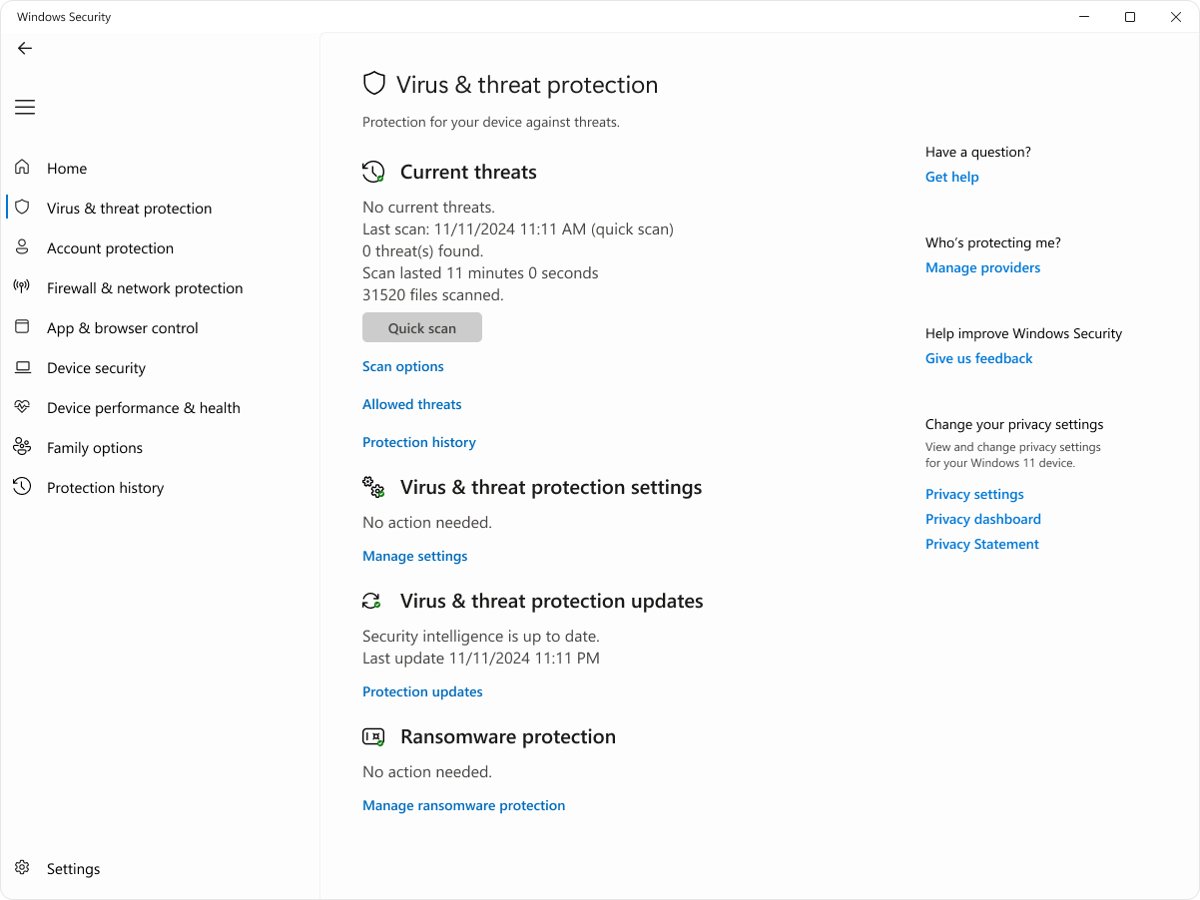
- Open Windows Security and select Virus & threat protection.
- Under Current threats, select Scan options.
- Select Full scan and start the scan.
- If the threat returns, go back to Scan options, select Microsoft Defender Antivirus (offline scan) and start it; save your work first, because the PC restarts.
- Open Protection history to see what was found and removed.
Defender uses more CPU while it scans. If Antimalware Service Executable high CPU stays high after the scan finishes, deal with that separately.
Run the compatibility task manually when needed
Re-enable and run the task before a Windows feature upgrade, or after you change hardware. It refreshes the compatibility and Windows 11 eligibility data Windows Update uses.
- Open Task Scheduler and go to Task Scheduler Library > Microsoft > Windows > Application Experience.
- Right-click Microsoft Compatibility Appraiser and select Enable if it is disabled.
- Right-click it again and select Run.
- Wait until Status shows Ready; select Action > Refresh to update the view.
- Or run
schtasks.exe /Run /TN "\Microsoft\Windows\Application Experience\Microsoft Compatibility Appraiser"from an administrator Command Prompt and wait a few minutes. - Open Settings > Windows Update and select Check for updates.
Windows Update can take up to 24 hours to show refreshed eligibility on its own. If Task Scheduler says the user account does not have permission to run this task, sign in as an administrator or use the Command Prompt route.
How to check Microsoft Compatibility Telemetry CPU usage dropped
- Restart the PC and let startup activity settle for a few minutes.
- Press Ctrl + Shift + Esc and sort Processes by CPU.
- Confirm Microsoft Compatibility Telemetry is absent or near 0%.
- In Task Scheduler, confirm the Microsoft Compatibility Appraiser status matches what you set: Disabled, or Ready after a clean run.
- Recheck the next day, since the task runs on a schedule rather than continuously.
To track overall load over a longer period, check CPU usage in Windows 11 with Task Manager's Performance tab and Resource Monitor.
When a high CPU spike is normal
| Situation | Normal? | What to do |
|---|---|---|
| Short spike after a restart or cumulative update | Yes | Let the scan finish |
| Spike after installing or removing many apps or drivers | Yes | The inventory changed; let it finish once |
| Spike while Windows checks for a feature upgrade | Yes | Upgrade checks rely on this data |
| High CPU for hours, every day | No | Check task history, update, then disable the task |
| Repeated Event ID 1000 crashes for CompatTelRunner.exe | No | Install the latest cumulative update, then run DISM and SFC |
| File runs from outside System32 | No | Run a Microsoft Defender full scan |
Other Windows background processes behave the same way, such as WSAPPX during Microsoft Store updates.
Microsoft Compatibility Telemetry still using high CPU
CompatTelRunner.exe uses 100 percent CPU every day
The Appraiser task runs on a schedule and re-inventories a large app and driver list.
- Check Last Run Result and the History tab for failed runs.
- Install pending updates and run DISM and SFC.
- Disable Microsoft Compatibility Appraiser if runs succeed but still load the CPU.
Diagnostic data options are greyed out
A policy sets the level, shown as "Some settings are hidden or managed by your organization".
- On a work or school PC, ask your IT team before changing anything.
- On your own Pro PC, open
gpedit.mscand check Allow Diagnostic Data under Data Collection and Preview Builds. - Set it to Not Configured to let Settings control the level again, or pick the level you want there.
Recurring Application Error events (Event ID 1000) for CompatTelRunner.exe
A known update issue on some Windows Server 2016 devices after KB5120418, or damaged system files.
- Install KB5123099 or any later cumulative update through Windows Update.
- Run
DISM.exe /Online /Cleanup-image /Restorehealth, thensfc /scannow. - Restart and check Windows Logs > Application for new events.
"The user account does not have permission to run this task"
The Appraiser task needs administrator rights.
- Sign in with an administrator account.
- Or open Command Prompt with Run as administrator and use
schtasksinstead of Task Scheduler.
Is it safe to delete CompatTelRunner.exe? What not to do
| Do not | Why | Do this instead |
|---|---|---|
| Delete or rename CompatTelRunner.exe or appraiser.dll | They are protected system files; SFC and updates restore them, and compatibility checks break | Disable the scheduled task |
| Disable the Connected User Experiences and Telemetry service | Microsoft advises leaving Windows services at their default configuration | Lower the diagnostic data level in Settings or Group Policy |
| Use third-party debloat or privacy tools | They change undocumented settings that are hard to undo | Use Settings, Group Policy or MDM policies |
| Block Microsoft endpoints such as settings-win.data.microsoft.com | Microsoft says that endpoint is required to configure diagnostics settings and does not upload diagnostic data | Set the policy level instead |
| Leave the task disabled before a feature upgrade | Windows Update relies on its compatibility data | Enable and run the task, then check for updates |
Microsoft Compatibility Telemetry FAQ
What is Windows Compatibility Telemetry?
It is the Microsoft Compatibility Appraiser, run by CompatTelRunner.exe from System32. It checks installed apps, drivers and hardware for compatibility with the next Windows version and adds the results to the required diagnostic data Windows sends to Microsoft.
Is Microsoft Compatibility Telemetry needed?
It is not needed for day-to-day use, and Windows keeps working with the task disabled. Windows Update uses its data to check upgrade compatibility and Windows 11 eligibility, so enable and run the task before a feature upgrade.
Is Microsoft Compatibility Telemetry safe?
Yes, when CompatTelRunner.exe runs from C:\Windows\System32. It is a Microsoft system file. A file with the same name in any other folder is suspicious; scan it with a Microsoft Defender full or offline scan.
How do I disable Windows Compatibility Telemetry?
Open Task Scheduler, go to Task Scheduler Library > Microsoft > Windows > Application Experience, right-click Microsoft Compatibility Appraiser and select Disable. You can also run schtasks /change with the /DISABLE switch from an administrator Command Prompt.
Can I permanently disable Microsoft Compatibility Telemetry?
On Enterprise and Education, setting Allow Diagnostic Data to Diagnostic data off makes Appraiser skip its runs. On Home and Pro, the lowest level is required data, so disabling the scheduled task is the practical option. Recheck the task after major updates.
Why does CompatTelRunner.exe use 100 percent CPU?
It inventories every installed app and driver, which is CPU-heavy on PCs with large software lists or slow disks. Repeated failures make it worse, because the task runs again. Updates, DISM and SFC fix failures; disabling the task stops the scan.
Should I disable the Connected User Experiences and Telemetry service instead?
No. Microsoft advises leaving Windows services at their default configuration. The service handles all Windows diagnostic data, not only the compatibility scan. Lower the diagnostic data level through Settings or Group Policy, and disable the Appraiser task if CPU use is the problem.
Does Microsoft Compatibility Telemetry work the same on Windows 10?
Yes. Windows 10 uses the same CompatTelRunner.exe and Application Experience task, and the diagnostic data setting is under Settings > Privacy > Diagnostics & feedback. Windows 10 support ended on October 14, 2025, so upgrade to Windows 11 where the hardware allows.
Bottom line: should you disable Microsoft Compatibility Telemetry?
Install updates and repair system files first, then disable the Microsoft Compatibility Appraiser task if CompatTelRunner.exe still loads the CPU every day. The task only feeds compatibility checks, so disabling it is safe for daily use and easy to undo before an upgrade, while Microsoft's diagnostic data settings and policies control what is sent without breaking Windows services.