Microsoft Edge and Google Chrome are both built on the open-source Chromium project, so the real choice comes down to ecosystem: Edge fits a Microsoft account, Windows and Copilot, while Chrome fits a Google account, Gemini and Chromebooks.
This comparison covers the shared engine, memory and battery tools, sync and passwords, privacy controls, platform support, recent Edge changes, how to switch between them, and fixes for the problems people hit most.
Microsoft Edge vs Chrome at a glance
Each row compares what Microsoft and Google document for the current desktop versions of their browsers.
| Area | Microsoft Edge | Google Chrome |
|---|---|---|
| Engine | Chromium | Chromium |
| Account for sync | Microsoft account (Apple account sign-in rolling out on Windows and macOS) | Google Account |
| Built-in AI | Copilot, page summaries, Copilot Vision | Gemini in Chrome, AI Mode |
| Memory tool | Sleeping tabs | Memory Saver |
| Battery tool | Energy saver (Balanced or Maximum) | Energy Saver |
| Tracker blocking | Tracking prevention: Basic, Balanced or Strict | Third-party cookie setting: allow or block |
| Malicious site warnings | Microsoft Defender SmartScreen | Google Safe Browsing |
| Private window | InPrivate (Ctrl + Shift + N) | Incognito (Ctrl + Shift + N) |
| Extension stores | Edge Add-ons and the Chrome Web Store | Chrome Web Store |
| Major release cadence | Every two weeks | Every four weeks |
| Chromebook support | Not supported | Built into ChromeOS |
If you already use one company's account for email and files, pick that company's browser and you lose nothing important on the web itself.
Edge and Chrome use the same underlying technology
Google describes Chromium as the open-source browser project behind Google Chrome and other browsers. Microsoft states that Edge is built on Chromium and adopts nearly all of the Chromium project's web platform changes.
Microsoft keeps control of what ships in Edge and can defer or reject a change, so a few Chromium changes land in Edge one or two releases after Chrome.
| What the shared engine means | Effect for you |
|---|---|
| Same rendering and JavaScript base | A site that works in Chrome works in Edge, and the reverse |
| Same extension format | Edge installs most extensions straight from the Chrome Web Store |
| Same web platform deprecations | Changes such as the retirement of the unload event reach both browsers |
| Different services on top | Sync, AI, password storage, search defaults and security filters come from Microsoft or Google |
Edge vs Chrome performance and memory
Neither Microsoft nor Google publishes a RAM comparison against the other browser. Real memory use depends on how many tabs, extensions and web apps you keep open.
Both browsers ship tools that free memory from tabs you are not using. The settings below are where you control them.
| Tool | Microsoft Edge | Google Chrome |
|---|---|---|
| Idle tab unloading | Sleeping tabs: background tabs sleep after two hours of inactivity by default, and the timer is adjustable | Memory Saver: Moderate, Balanced (recommended) or Maximum, each deactivating tabs sooner |
| Settings location | Settings and more > Settings > System and performance > Performance | More > Settings > Performance |
| Sites that never sleep | Always keep these sites active | Always keep these sites active |
| Battery saving | Energy saver: Balanced or Maximum; sleeps background tabs after 30 or 5 minutes | Energy Saver: turns on when unplugged or the battery is low |
| Problem alerts | Performance detector under More tools > Performance | Performance issue alerts, on by default |
| Per-tab memory view | Tabs performance list with Sleep tab and Close tab | Show tab memory usage on the tab hover card (under Appearance) |
| Gaming | PC gaming boost cuts browser resource use when a game launches | No equivalent listed by Google |
Windows 11's Task Manager also has an Efficiency mode for processes. It is separate from the Edge setting, so turning one off does not turn off the other.
Edge vs Chrome features and everyday workflow
Most daily tools exist in both browsers under different names. The differences are in the extras each company adds.
| Task | Microsoft Edge | Google Chrome |
|---|---|---|
| Two pages side by side | Split screen in one tab | Split view |
| Organise tab sets | Workspaces (colour-coded, shareable task groups) | Tab groups |
| Tabs down the side | Not documented on Microsoft's current feature page | Vertical tabs |
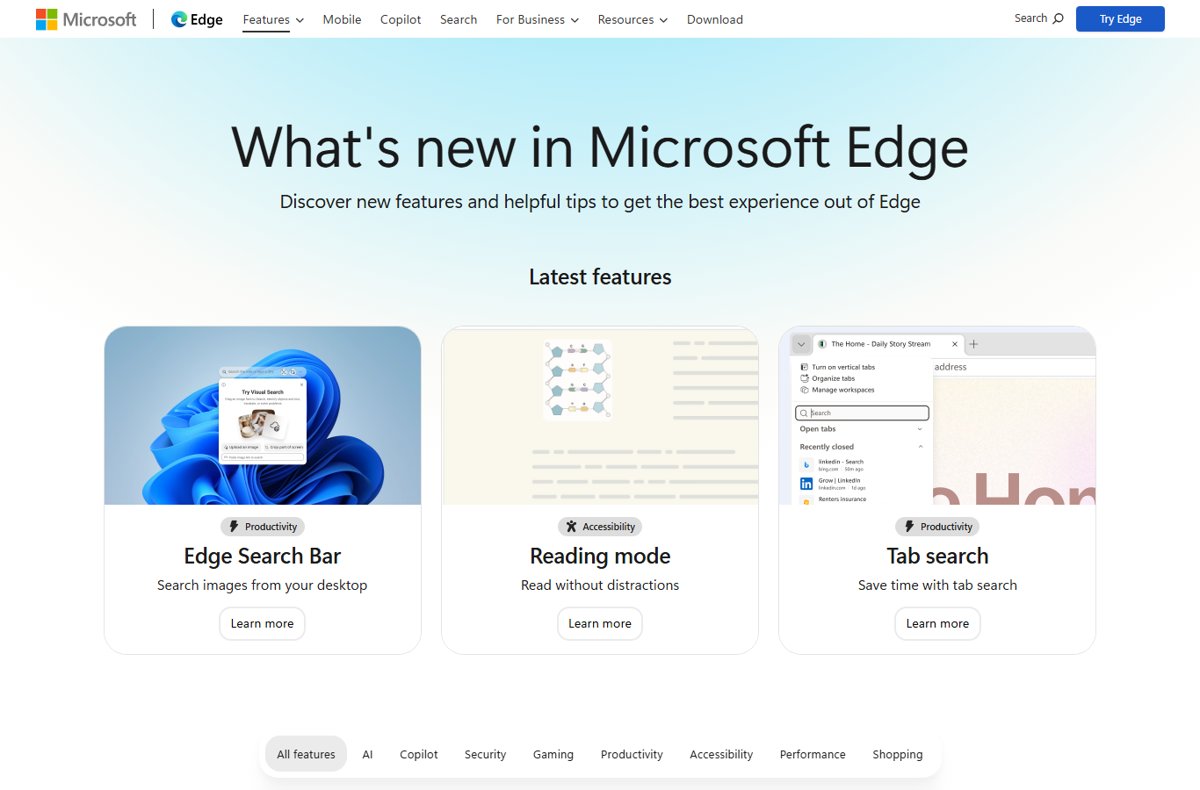
| Distraction-free reading | Immersive Reader or reading mode (F9) | Not listed on Google's feature page |
| Listen to a page | Read Aloud (Ctrl + Shift + U) | Not listed on Google's feature page |
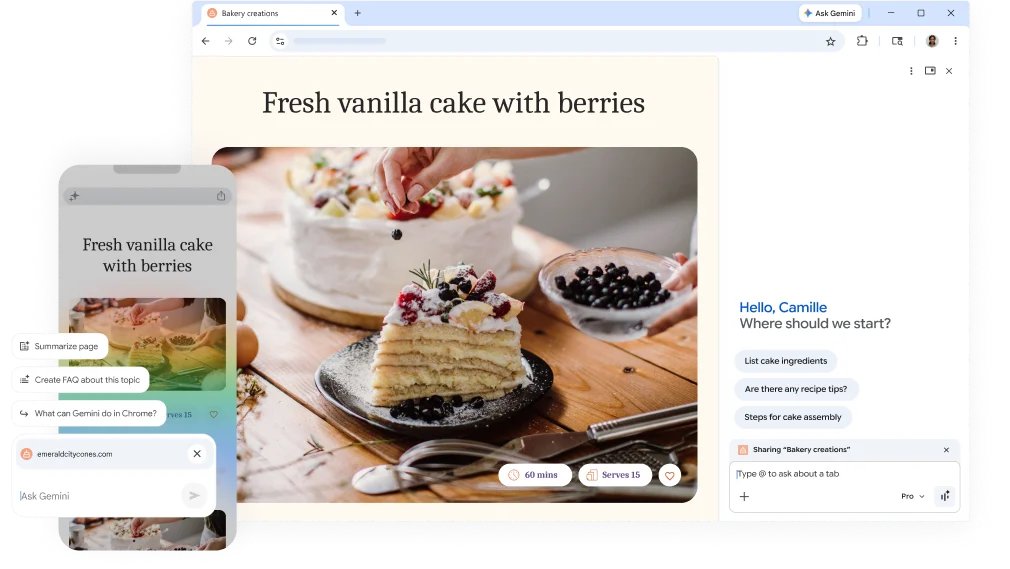
| Ask AI about a page | Copilot summaries and Compare across tabs | Gemini in Chrome, which works with open tabs |
| Search what you see | Edge Search Bar for desktop image search | Google Lens |
| Pick up past browsing | Journeys | History and tab sync |
| Web apps in a side pane | Sidebar for sites and extensions | No equivalent listed by Google |
Edge's reader view strips ads and clutter from long articles before you start Read Aloud.
Edge and Chrome accounts, sync and passwords
Both browsers sync once you sign in, and both store passwords in the account you sign in with. The main difference is who holds that data and how you can encrypt it.
| Item | Microsoft Edge | Google Chrome |
|---|---|---|
| Sign in | Profile icon > Sign in to sync data | Sign in to Chrome with your Google Account |
| What syncs on a computer | Favorites, passwords, history, extensions, settings, open tabs, autofill and payment info | Bookmarks, reading list, passwords, payment info, extensions, web apps, settings; tabs and history after you turn on History and tabs |
| Choose sync items | Settings > Profiles > Sync | Settings > You and Google > your account > Choose what to save in your Google Account |
| Extra encryption | No custom passphrase documented | Encryption options > Use your own passphrase to encrypt all the Chrome data in your Google Account |
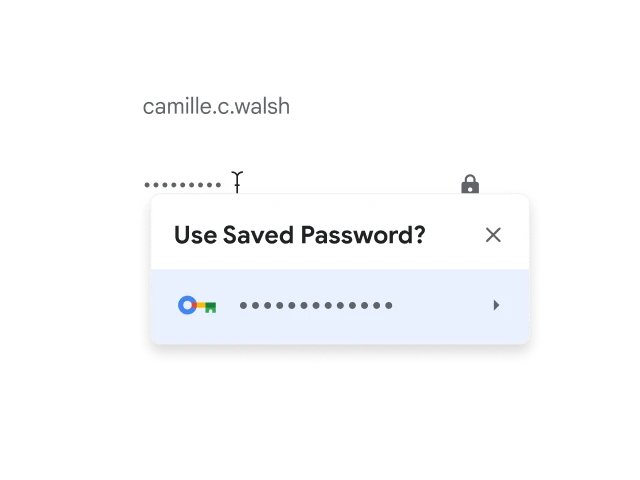
| Password tools | Password generator, passkeys, and a key icon panel that shows saved credentials and notes | Google Password Manager with strong password suggestions and Safety Check |
Chrome's custom sync passphrase has trade-offs. You must enter it on every device, you cannot view saved passwords at passwords.google.com, and only typed addresses sync from history.
Changing or removing the passphrase deletes the encrypted data from Google's servers and signs you out everywhere, so export your passwords first.
Privacy: Edge versus Chrome
Edge has a built-in tracker blocker with three levels. Chrome's main control is the third-party cookie setting, with third-party cookies blocked by default only in Incognito.
| Control | Microsoft Edge | Google Chrome |
|---|---|---|
| Tracker blocking | Tracking prevention: Basic, Balanced (Recommended) or Strict under Privacy, search, and services | Third-party cookies: Allow third-party cookies or Block third-party cookies under Privacy and security |
| Site exceptions | Exceptions > Add a site | Sites allowed to use third-party cookies > Add |
| Private window | InPrivate deletes history, cookies, cache, passwords and autofill when you close every InPrivate window | Incognito keeps no site data or history after you close every Incognito window |
| Dangerous site protection | Microsoft Defender SmartScreen, Scareware blocker, Enhanced security mode | Safe Browsing: Standard protection (default) or Enhanced protection |
| Public Wi-Fi | Edge Secure Network protects the connection and reduces IP-based tracking | No equivalent listed by Google |
| Guided review | No equivalent documented | Safety Check and Privacy Guide |
Neither private mode hides your activity from your employer, school or internet provider. Microsoft suggests setting tracking prevention to Strict for InPrivate sessions, though some sites can break at that level.
Edge and Chrome installation, updates and platform support
Edge ships with Windows and Microsoft calls it an essential component that cannot be uninstalled. You can still install Chrome and make it the default browser at any time.
| Platform | Microsoft Edge | Google Chrome |
|---|---|---|
| Windows | Windows 10 1709 or later and Windows 11; updates on Windows 10 22H2 continue until at least October 2028 | Windows 10 or later (Windows 11 on ARM) |
| macOS | macOS 13 Ventura or later from Edge 151 | macOS 13 Ventura or later |
| Linux (64-bit) | Ubuntu 18.04+, Debian 10+, openSUSE 15.5+, Fedora 39+ | Ubuntu 18.04+, Debian 10+, openSUSE 15.5+, Fedora 39+ |
| Android | Android 10 or later on ARM devices | Android 10 or later |
| iPhone and iPad | iOS 18 or later | Available; Google lists no minimum on its requirements page |
| Chromebook | Not supported | Built in |
| Last Windows 7 and 8.1 version | Edge 109 | Chrome 109 |
| Check for updates | Settings and more > Help and feedback > About Microsoft Edge | More > Help > About Google Chrome |
Both browsers install updates when you restart them. Edge can also download updates over metered connections if you turn that toggle on in About Microsoft Edge.
Recent Microsoft Edge changes worth knowing
Microsoft's Stable channel release notes list these changes for Edge 152 (August 27, 2026) and Edge 155 (October 8, 2026). Several roll out gradually, so they can appear later on your PC.
| Change | Version | What it means for you |
|---|---|---|
| Two-week major release cycle | 152 | New Edge versions arrive twice as often as Chrome's four-week cycle |
| Sign in with an Apple account | 152 | Sync works without a Microsoft account on Windows and macOS |
| Scam notification auto-unsubscribe | 152 | Edge stops notifications from sites SmartScreen blocks as scams |
| Key icon credential panel | 152 | Copy a username or password and add notes from the address bar |
| Drop retired | 152 | Use OneDrive or another app to move files between devices |
| Real-time video translation retired | 155 | The feature is gone from Edge |
| Tab organisation suggestions | 155 | Edge suggests groups, names and labels for tabs and Workspaces |
Edge or Chrome: which browser should you choose?
| Your situation | Choose | Why |
|---|---|---|
| You use Outlook, OneDrive and Microsoft 365 with a Microsoft account | Edge | Sync and Copilot use the account you already have |
| You use Gmail, Google Drive and an Android phone | Chrome | Passwords, bookmarks and Gemini sit in your Google Account |
| You own a Chromebook as well as a PC | Chrome | Edge does not support Chromebooks |
| You want trackers blocked without extra setup | Edge | Tracking prevention has three built-in levels |
| You want sync data encrypted with your own passphrase | Chrome | Google documents a custom sync passphrase; Microsoft does not |
| You rely on Read Aloud or Immersive Reader | Edge | Both are built in with keyboard shortcuts |
| You need one browser for work and one for personal accounts | Both | They install side by side and keep separate profiles |
Using both is a sound setup: keep work sign-ins in one browser and personal accounts in the other.
How to move from Chrome to Microsoft Edge
Edge can pull favorites and other data straight from Chrome on the same PC.
- Open Edge and select Settings and more > Settings.
- Select Profiles, then Import browser data.
- Next to Import data from Google Chrome, select Import.
- Under Choose what to import, tick Favorites or bookmarks and any other items you want.
- Select Import, then Done when it finishes.
For passwords, export them from Chrome as a CSV file. In Edge, go to Import browser data, select Import next to Import passwords now, choose Passwords CSV file, then pick the file.
How to move from Edge to Chrome
Chrome imports bookmarks from an HTML bookmarks file exported from Edge.
- Open Chrome and select More at the top right.
- Select Bookmarks and lists > Import bookmarks and settings.
- Select Choose file.
- Pick the HTML file you exported from Edge and select Open.
- Select Done.
If Chrome already has bookmarks, the imported set lands in an Other bookmarks folder at the end of the bookmarks bar.
How to install Chrome extensions in Microsoft Edge
- Open the Chrome Web Store in Edge and go to the extension's page.
- Select Get extension in the banner at the top, or Get on the page.
- If prompted, select Allow under Allow extensions from other stores.
- Review the permissions and select Add extension.
- Select Extensions next to the address bar, then Manage extensions, to confirm it is listed and turned on.
Installed web apps work in both browsers too, and you can uninstall PWAs from Chrome and Edge the same way.
Set Edge or Chrome as the default browser in Windows
- Open Settings and go to Apps > Default apps.
- Under Set defaults for applications, select Microsoft Edge or Google Chrome.
- Select Set default at the top of the page.
- Close Settings and open a link from another app to confirm the right browser opens.
You can also open the same page by typing ms-settings:defaultapps in the Run box.
Check which Edge or Chrome version you have
- In Edge, select Settings and more > Help and feedback > About Microsoft Edge, or type
edge://settings/helpin the address bar. - Read the version number and wait for Edge to report that it is up to date, or select Restart if it offers one.
- In Chrome, select More > Help > About Google Chrome.
- Select Relaunch if it appears; if there is no Relaunch button, Chrome is already current.
Edge 155 was the current Stable version on October 8, 2026.
Common Edge and Chrome problems and fast fixes
Edge or Chrome uses too much RAM
Background tabs, extensions and web apps stay loaded until something unloads them.
- In Edge, go to Settings > System and performance > Performance and turn on Automatically put tabs to sleep.
- Shorten Put inactive tabs to sleep after a set time.
- In Chrome, go to Settings > Performance, turn on Memory Saver and choose Maximum.
- Add sites you need live to Always keep these sites active in either browser.
- Turn off extensions you do not use from Manage extensions.
A Chrome Web Store extension will not install in Edge
Edge blocks other stores until you allow them.
- Go back to the extension page in the Chrome Web Store.
- Select Get extension, then Allow under Allow extensions from other stores.
- Select Add extension again.
Bookmarks or passwords do not sync to another device
The other device is signed in with a different account, or that data type is turned off.
- Confirm both devices use the same Microsoft account (Edge) or Google Account (Chrome).
- In Edge, open Settings > Profiles > Sync and turn the missing data type on.
- In Chrome, open Settings > You and Google, select your account and check Choose what to save in your Google Account.
- If Chrome uses a sync passphrase, enter it on the second device.
A site breaks or a video will not play in Edge
Strict tracking prevention can block content the site depends on.
- Select View site information in the address bar.
- Turn tracking prevention off for that site.
- Reload the page.
- Leave the global level at Balanced (Recommended) if many sites break.
Update toggles in About Microsoft Edge are dimmed
Your organisation manages Edge updates by policy.
- Open About Microsoft Edge and confirm the update toggles are dimmed or missing.
- Contact your IT administrator to request the update.
Microsoft Edge vs Chrome FAQ
Is Microsoft Edge better than Chrome?
Neither browser is better for everyone. Both use the Chromium engine, so sites behave the same. Edge suits people who use a Microsoft account, Copilot and built-in tracking prevention; Chrome suits people who use a Google Account, Gemini, Android and Chromebooks.
Does Edge use Chrome's engine?
Yes. Microsoft Edge is built on Chromium, the open-source project behind Google Chrome. Microsoft adopts nearly all Chromium web platform changes but keeps control of what ships, so Edge adds its own services such as SmartScreen, Copilot and tracking prevention.
Which browser uses less RAM, Edge or Chrome?
Neither Microsoft nor Google publishes a comparison, and memory use depends on your tabs and extensions. Both can unload idle tabs: Edge with sleeping tabs and Chrome with Memory Saver. Turning either on is the most direct way to cut memory use.
Can I use Chrome extensions in Edge?
Yes. Open the extension's page in the Chrome Web Store in Edge, select Get extension, allow extensions from other stores when prompted, and then select Add extension. Edge also has its own Edge Add-ons store.
Is Incognito safer than Edge InPrivate?
No. Both delete browsing history, cookies and site data when you close every private window, and neither hides activity from your employer, school or internet provider. Chrome blocks third-party cookies in Incognito by default; Microsoft suggests Strict tracking prevention for InPrivate.
Can Edge and Chrome be installed on the same computer?
Yes. Edge comes with Windows and cannot be uninstalled, and Microsoft states you can install other browsers and change the default at any time. Each browser keeps its own profiles, sync account and settings.
What browser is this?
Open the browser's About page to see its name and version. In Edge, select Settings and more, then Help and feedback, then About Microsoft Edge. In Chrome, select More, then Help, then About Google Chrome.
What is the purpose of the browser?
A web browser loads and displays websites and web apps, and stores your bookmarks, passwords and history. Edge and Chrome also sync that data across devices and warn you about phishing sites and dangerous downloads.
What does the browser do?
A browser fetches web pages and runs web apps, and saves history, cookies, passwords and autofill on your device. When you sign in, Edge and Chrome sync that data to your Microsoft account or Google Account. You choose which data types sync in Edge's Profiles settings or Chrome's You and Google settings.
Where is the browser located on Windows?
Microsoft Edge is preinstalled on Windows 10 and Windows 11 and appears in the Start menu and usually on the taskbar. Chrome appears in the Start menu after you install it from Google's website; search for its name if you cannot see it.
The bottom line: Edge vs Chrome
Use Edge if your accounts, files and work live with Microsoft; use Chrome if they live with Google or you own a Chromebook. Both browsers share the Chromium engine and extension catalogue, so web compatibility is a tie. What separates them is the account they sync to, the AI assistant built in, and the privacy defaults: Edge has built-in tracking prevention levels, while Chrome offers a custom sync passphrase.