Microsoft Edge is located at C:\Program Files (x86)\Microsoft\Edge\Application\msedge.exe on Windows 11 and Windows 10, and at /Applications/Microsoft Edge.app on a Mac.
This guide covers the program folder for every Edge channel, where your profile and cache live, and how to control the location Edge shares with websites.
Microsoft Edge location in the C drive
Stable Edge installs for all users under Program Files (x86), even on 64-bit Windows. Open the folder directly with these steps.
- Press Win + R to open Run.
- Type
%ProgramFiles(x86)%\Microsoft\Edge\Applicationand press Enter. - File Explorer opens the Edge program folder. The browser itself is msedge.exe.
- Double-click msedge.exe to start Edge from here, or copy the path from the address bar for a script or shortcut.
The program folder only holds the browser. Your favorites, history and passwords sit in a separate profile folder, covered further down.
Locating Microsoft Edge in Windows
Most people looking for Edge just want to open it. Edge ships with Windows 11 and Windows 10, so it is already on the PC even if its icon has gone from the taskbar.
- Select Start and type
Edgein the search box. - Select Microsoft Edge in the results to open it.
- To keep it handy, right-click Microsoft Edge in the results and select Pin to taskbar or Pin to Start.
- If search finds nothing, open the program folder from the previous section and double-click msedge.exe.
- Still missing? Go to Start > Settings > Apps > Installed apps and check that Microsoft Edge is listed.
Find the msedge.exe file path with PowerShell
When Edge is running, PowerShell shows exactly which file it started from. This settles where Edge lives on a PC that uses a non-default install or a preview channel.
Get-Process -Name msedge -FileVersionInfoLists the file behind every running msedge.exe process. Open Windows PowerShell from the Start menu while Edge is open, then run it.
You should see: The FileName column shows the full path, normally C:\Program Files (x86)\Microsoft\Edge\Application\msedge.exe for Stable Edge.
Microsoft Edge file location for Stable, Beta, Dev and Canary
Each Edge channel installs to its own folder, so Beta and Canary never overwrite Stable. Microsoft lists these as the default locations; group policy or a custom install can change them.
| Channel | Windows 11 and Windows 10 | macOS | Linux |
|---|---|---|---|
| Stable | %ProgramFiles(x86)%\Microsoft\Edge\Application\msedge.exe |
/Applications/Microsoft Edge.app |
/usr/bin/microsoft-edge |
| Beta | %ProgramFiles(x86)%\Microsoft\Edge Beta\Application\msedge.exe |
/Applications/Microsoft Edge Beta.app |
/usr/bin/microsoft-edge-beta |
| Dev | %ProgramFiles(x86)%\Microsoft\Edge Dev\Application\msedge.exe |
/Applications/Microsoft Edge Dev.app |
/usr/bin/microsoft-edge-dev |
| Canary | %LOCALAPPDATA%\Microsoft\Edge SxS\Application\msedge.exe |
/Applications/Microsoft Edge Canary.app |
No Canary channel on Linux |
Canary is the odd one out on Windows. It installs per user under AppData\Local, not under Program Files, so it never appears in the Program Files folder.
Locating Microsoft Edge on macOS
On a Mac, Edge is a single app bundle in the Applications folder. The program file Microsoft documents is inside that bundle at /Applications/Microsoft Edge.app/Contents/MacOS/Microsoft Edge.
- In the Finder, choose Go > Go to Folder, type
/Applicationsand press Return. - Find Microsoft Edge in the list and double-click it to open the browser.
- To see the program file, Control-click Microsoft Edge and choose Show Package Contents from the shortcut menu. A new Finder window opens at the top level of the app bundle.
- Open Contents > MacOS. The file named Microsoft Edge is the browser executable.
- To open your Edge profile folder, select Go > Go to Folder in Finder, type
~/Library/Application Support/Microsoft Edgeand press Return.
Beta, Dev and Canary each appear as their own app in Applications, with matching profile folders such as ~/Library/Application Support/Microsoft Edge Beta.
Understanding Edge profiles and user data management
Edge keeps everything personal in a user data folder, apart from the program files. Updating or repairing Edge leaves this folder alone, which is why your favorites survive a repair.
| Item | Default location or detail |
|---|---|
| User data folder on Windows (Stable) | %LOCALAPPDATA%\Microsoft\Edge\User Data |
| User data folder on macOS (Stable) | ~/Library/Application Support/Microsoft Edge |
| User data folder on Linux (Stable) | ~/.config/microsoft-edge |
| Your first profile | A folder named Default inside User Data |
| Exact folder for the profile you are using | Type edge://version in the address bar and read Profile path |
| What a profile holds | Favorites, history, saved passwords, cookies, extensions and settings for that profile |
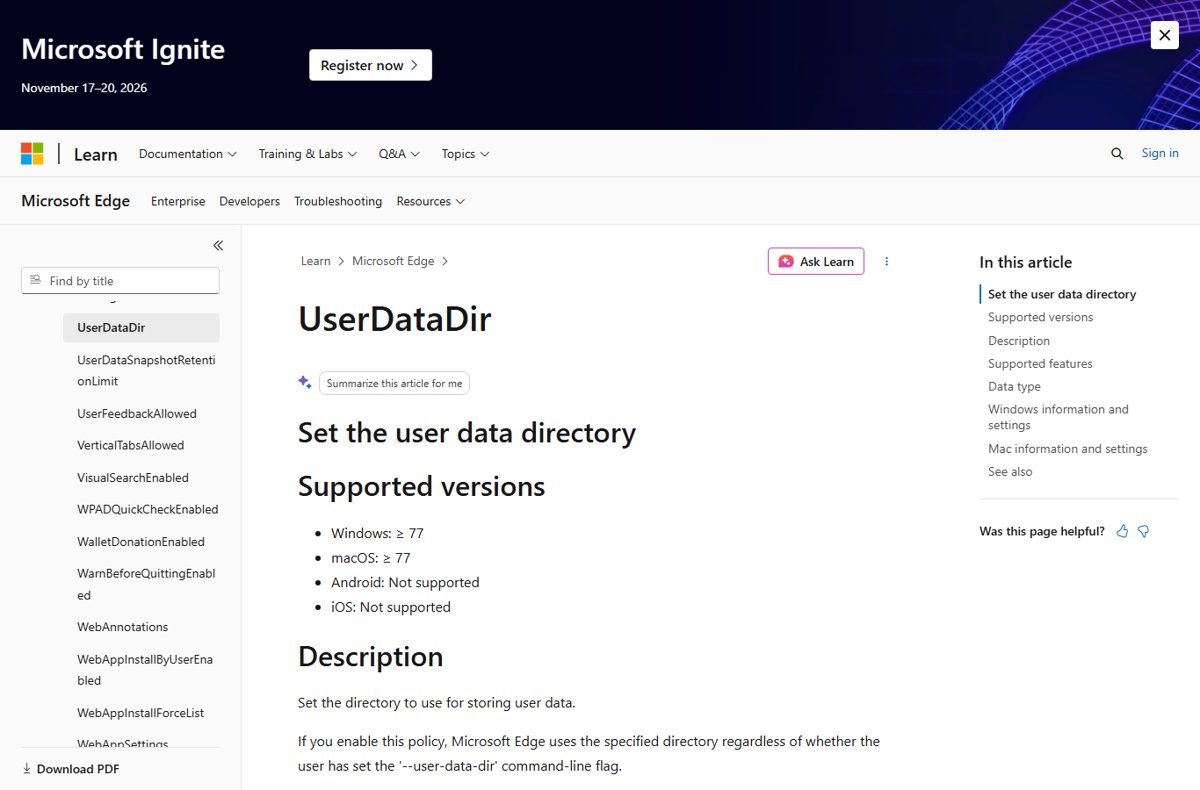
| Moving the folder | IT admins can set the UserDataDir policy; anyone can start Edge with --user-data-dir="path" |
| Keeping data across PCs | Sign in to the profile and turn on sync, rather than copying folders by hand |
Close every Edge window before you copy, rename or back up the User Data folder. Edge locks files in it while it runs.
Understanding Edge’s cache and temporary files
The cache stores copies of images and scripts from sites you visit so pages load faster next time. Edge manages the cache folder itself, so clear it from Edge's settings rather than deleting files in File Explorer.
| Task | How to do it | What to expect |
|---|---|---|
| Clear the cache | Settings > Privacy, search, and services > Clear browsing data > Choose what to clear, tick Cached images and files, select Clear now | Sites load a little slower once while Edge fetches their files again |
| Clear only this PC | Turn off sync under Settings > Profiles > Sync before clearing | With sync on, cleared data is removed from every signed-in device |
| Move the cache to another drive | Start Edge with --disk-cache-dir="path" |
Edge uses that folder until started without the flag |
| Move the cache for every user | IT admins set the DiskCacheDir policy | Overrides the command-line flag; needs a browser restart |
| Test with a clean, temporary profile | Run "C:\Program Files (x86)\Microsoft\Edge\Application\msedge.exe" --user-data-dir="%TEMP%\edge-test-profile" |
Edge opens with no history, cache or extensions |
Never point a cache or user data folder at the root of a drive or at a folder used for something else. Microsoft warns that Edge manages the folder's contents and can delete files in it.
How does Microsoft Edge determine your location?
The other meaning of Microsoft Edge location is the place Edge tells websites you are. Edge only shares a precise location with sites you allow, but sites can still estimate a rough one.
| Source | When it is used | Can you control it? |
|---|---|---|
| Windows location service (GPS, nearby Wi-Fi access points, IP address) | On Windows 11 and Windows 10, when a site you allowed asks for your precise location | Yes: Edge site permissions and Windows Location settings |
| Edge's own estimate from IP address and nearby Wi-Fi | On macOS and other systems, for sites you allowed | Yes: Edge site permissions |
| Your IP address, read by the website | Any site, without asking Edge | Not through Edge settings; a VPN changes the address sites see |
| Windows default location | When Windows cannot detect a better location, common on desktop PCs without Wi-Fi | Yes: Set default under Windows Location |
Edge does not store your location with your Microsoft account. InPrivate windows follow the location setting of the profile they were opened from, and Guest mode always asks first.
How to turn off location in Microsoft Edge
Turning off the prompt blocks every site from getting your precise location. Sites that estimate your area from your IP address are not affected.
- Open Edge and select Settings and more (…) > Settings.
- Select Privacy, search, and services.
- Select Site permissions > All permissions > Location.
- Turn off Ask before accessing (recommended) to block all sites.
- Check the Allow list on the same page and remove any site you no longer trust.
- To turn location back on, switch Ask before accessing (recommended) on again.
Allow or block location for one site in Microsoft Edge
Use this when a map or store finder needs your location but you want everything else blocked, or when one site keeps asking.
- Open the website in Edge.
- Select the lock, info or warning icon at the left of the address bar.
- Select Permissions for this site.
- Next to Location, choose Allow, Block or Ask (the default).
- Reload the page so the site picks up the new setting.
Change your location in Microsoft Edge on Windows
Edge has no box to type a location. On Windows it uses what the Windows location service reports, so correct the location there. Setting a default location helps most on desktop PCs without Wi-Fi.
- Select Start > Settings > Privacy & security > Location.
- Make sure Location services is on. Only an administrator sees this switch.
- Make sure Let apps access your location is on for your account.
- Under Default location, select Set default.
- Pick your spot on the map or type your address, then select Save.
- Restart Edge and reload the site that showed the wrong place.
To remove the default later, clear the address box and select Save. Windows then stops offering that location to apps.
Check Microsoft Edge's profile path and location permission
Two quick checks confirm where Edge keeps your data and what it shares with sites.
- Type
edge://versionin the Edge address bar and press Enter. - Read Profile path. It should end in User Data\Default for your first profile, or match the folder your administrator set.
- Open a site you blocked and select the lock icon. Location should read Block.
- On Windows, open Settings > Privacy & security > Location and check the time Edge last used your location under Let apps access your location.
- Watch the notification area: a location icon appears while an app is using your location, and hovering over it names the app.
Troubleshooting common Microsoft Edge location issues
Microsoft Edge shows the wrong location
The site is reading your IP address, a VPN is active, or Windows has no accurate location and no default set.
- Check whether the site has location permission: select the lock icon and set Location to Allow for a precise result.
- If you use a VPN in Microsoft Edge or on Windows, turn it off and reload; sites estimate your area from the VPN server's address.
- Set a Default location under Settings > Privacy & security > Location.
- Restart Edge and reload the page.
Microsoft Edge keeps using my location after I turned it off
Sites can estimate your area from your IP address without asking Edge, and that is not a location permission.
- Confirm Ask before accessing (recommended) is off under Site permissions > All permissions > Location.
- Remove the site from the Allow list on that page.
- Clear the site's cookies through Clear browsing data if it remembered your earlier location.
- Accept that a city-level guess from your IP address can remain; only a VPN or a different network changes it.
Microsoft Edge is not in Program Files or cannot be found
You are on Canary, which installs under AppData, or the installation is damaged.
- Check
%LOCALAPPDATA%\Microsoft\Edge SxS\Applicationfor a Canary install. - Run
Get-Process -Name msedge -FileVersionInfowhile Edge is open to see the real path. - Go to Settings > Apps > Installed apps, select Microsoft Edge > Modify > Repair.
- If Edge is gone entirely, download Microsoft Edge again from Microsoft and reinstall it.
Edge opens a blank window or crashes after you move its folders
The profile is damaged, or old Edge processes are still holding the folder.
- Press Ctrl + Shift + Esc and end every msedge.exe task.
- Start Edge with the temporary profile command from the cache section.
- If that works, close Edge, rename Default in
%LOCALAPPDATA%\Microsoft\Edge\User Datato Default.old, and start Edge again. - Copy items such as Bookmarks from Default.old into the new Default folder once Edge is stable.
Microsoft Edge location FAQ
Where is Microsoft Edge located?
On Windows 11 and Windows 10, Microsoft Edge is located at C:\Program Files (x86)\Microsoft\Edge\Application\msedge.exe. On a Mac it is /Applications/Microsoft Edge.app. Your profile data is stored separately, in %LOCALAPPDATA%\Microsoft\Edge\User Data on Windows.
Where can I find Microsoft Edge on my PC?
Select Start, type Edge, and select Microsoft Edge. You can also open C:\Program Files (x86)\Microsoft\Edge\Application in File Explorer and double-click msedge.exe. Right-click it in the Start search results and choose Pin to taskbar to keep it one click away.
How do I turn off location in Microsoft Edge?
Go to Settings > Privacy, search, and services > Site permissions > All permissions > Location and turn off Ask before accessing (recommended). That stops every site from getting your precise location. Sites can still estimate a rough area from your IP address.
How do I block location for a website in Microsoft Edge?
Open the site, select the lock icon in the address bar, select Permissions for this site, and set Location to Block. The block applies only to that site, so other sites can still ask for your location.
Why is Microsoft Edge using my location?
A site asked for it and was allowed, either by you or because you clicked Allow on an earlier prompt. Edge asks before sharing a precise location by default. Remove the site from the Allow list under Site permissions > Location to stop it.
Why is my location wrong on Microsoft Edge?
The site is usually reading your IP address, which can point to your provider's or VPN server's city. On Windows, Edge's precise location comes from the Windows location service. Allow location for the site, turn off any VPN, and set a Default location in Windows Settings.
How does Microsoft Edge know my location?
On Windows 11 and 10, Edge gets your location from Windows, which combines GPS, nearby Wi-Fi access points and your IP address. On other systems, Edge estimates it from your IP address and nearby Wi-Fi. Edge shares the precise result only with sites you allow.
Can I change my location on Microsoft Edge?
Not inside Edge itself. On Windows, open Settings > Privacy & security > Location, select Set default under Default location, choose a place and select Save. Windows uses it when it cannot detect a better location.
Does Microsoft Edge save my location to my Microsoft account?
No. Microsoft says Edge does not store location information with your Microsoft account. Windows itself can save your last-known location to the cloud when you are signed in with a Microsoft account and location services are on; clear it with Clear location activity at account.microsoft.com.
What is an edge location?
In cloud networking, an edge location, also called a point of presence (PoP), is a content delivery network site close to users. In Azure Front Door, for example, a user's connection ends at a nearby edge location, which can answer from its cache instead of contacting the origin server. It is unrelated to the Microsoft Edge browser or the location Edge shares with websites.
Can I delete the Microsoft Edge folder in Program Files?
No. Deleting the folder breaks Edge and Windows features that open web content in it, and outside the European Economic Area Microsoft treats Edge as a Windows component that cannot be uninstalled. In the EEA you can remove Microsoft Edge from Installed apps instead.