Windows 11 is free to install on any PC that runs a genuine, activated copy of Windows 10 and meets the Windows 11 hardware requirements: open Settings, go to Windows Update and select Download and install when the upgrade is offered.
This guide covers who qualifies, the three official install routes, backing up first, setup after the upgrade, and fixes when the upgrade does not appear or fails.
Installing Windows 11
Windows Update is the route Microsoft recommends, because it offers the upgrade only after it has checked your hardware and known compatibility issues. Your files, apps and settings come with you.
- On Windows 10, select Start, then Settings, then Update & Security, then Windows Update.
- Select Check for updates and install any pending Windows 10 updates first, then restart.
- When the message says Windows 11 is ready, select Download and install.
- In the Software License Terms window, select Accept and install.
- When the status changes to Pending restart, select Restart now.
- Let the PC restart several times, then sign in at the Windows sign-in screen to finish.
The upgrade costs nothing, but the download is large. If you are on a metered connection, your provider may charge for the data.
Understanding Windows 11
"Free" has a precise meaning here. Microsoft gives the upgrade at no cost to Windows 10 devices that meet the requirements; it does not give away new licenses for PCs that have none.
| Your PC | Is Windows 11 free? | What to do |
|---|---|---|
| Activated Windows 10, meets requirements | Yes | Upgrade through Windows Update, the Installation Assistant or installation media |
| Windows 10 reinstalled on the same PC that already had a digital license | Yes | Choose I don't have a product key during setup; the license reactivates |
| Activated Windows 10, fails the hardware check | No supported upgrade | Microsoft recommends staying on Windows 10 or moving to a new Windows 11 PC |
| New self-built PC with no Windows license | No | Buy a product key, or install and buy a digital license from Settings, System, Activation |
| New PC sold with Windows 11 | Already included | The key in the firmware applies automatically on reinstall |
Windows 10 support ended on October 14, 2025. Windows 10 PCs still work, but they no longer get free security fixes from Windows Update, which is the main reason to move.
Preparing for Installation
Run the PC Health Check app on Windows 10 to test your hardware. It checks everything below except the graphics card and display, which nearly every compatible PC meets.
| Requirement | Minimum for Windows 11 |
|---|---|
| Processor | 1 GHz or faster, 2 or more cores, on a compatible 64-bit processor or SoC |
| RAM | 4 GB |
| Storage | 64 GB or larger |
| System firmware | UEFI, Secure Boot capable |
| TPM | Trusted Platform Module version 2.0 |
| Graphics card | DirectX 12 or later with a WDDM 2.0 driver |
| Display | 720p, larger than 9 inches diagonally, 8 bits per color channel |
| Internet and Microsoft account | Required during setup for Windows 11 Home and Windows 11 Pro for personal use |
| USB drive (media method only) | Blank, at least 8 GB; everything on it is erased |
Sign in to Windows 10 with a Microsoft account before you upgrade so files and favorites follow you, and free up disk space if the drive is nearly full.
Data Backup
An in-place upgrade keeps your files by default, but Microsoft still recommends a backup. A clean install from USB wipes the drive completely.
- Sign in to OneDrive on Windows 10 with your Microsoft account.
- Turn on OneDrive backup for your Documents, Pictures and Desktop folders.
- Copy anything outside those folders, such as game saves or a downloads folder, to an external drive.
- Note the apps you use and any product keys or sign-ins they need.
- Confirm the files open from OneDrive or the external drive before you start the upgrade.
Which free install method should you use?
| Your situation | Use this | What happens to your files |
|---|---|---|
| Windows Update shows Windows 11 is ready | Windows Update | Kept, along with apps and settings |
| PC passes PC Health Check but Windows Update has not offered it yet | Windows 11 Installation Assistant | Kept, along with apps and settings |
| You want to upgrade several PCs or work offline later | Installation media, run setup.exe from Windows 10 | Your choice: keep files and apps, files only, or nothing |
| You want a fresh, clean copy of Windows 11 | Boot from installation media | Everything on the drive is erased |
Upgrade with the Windows 11 Installation Assistant
The Installation Assistant is Microsoft's upgrade app for PCs that already run Windows 10. Download it from Microsoft's Download Windows 11 page.
- Run the Windows 11 Installation Assistant on your Windows 10 PC.
- If it asks for more information, run the PC Health Check app, then select Refresh in the assistant.
- When it offers Windows 11, select Accept and install.
- When prompted, select Restart now.
- Wait through the automatic restarts and sign in at the Windows sign-in screen.
If the assistant reports This PC doesn't meet the minimum system requirements to install Windows 11, Microsoft recommends leaving the PC on Windows 10.
Install Windows 11 free from a USB drive
Installation media lets you upgrade in place or install a fresh copy. Create it with the Media Creation Tool, as covered in the guide to download Windows 11 installation media.
- On the Download Windows 11 site, under Create Windows 11 Installation Media, select Download Now and run MediaCreationTool.exe to write the files to a blank 8 GB USB drive.
- To upgrade in place, plug the drive into the Windows 10 PC and select Run setup.exe. If no prompt appears, open File Explorer, select This PC, right-click the drive and select Install or run program from your media.
- On the Ready to install page, keep Keep personal files and apps, or select Change what to keep.
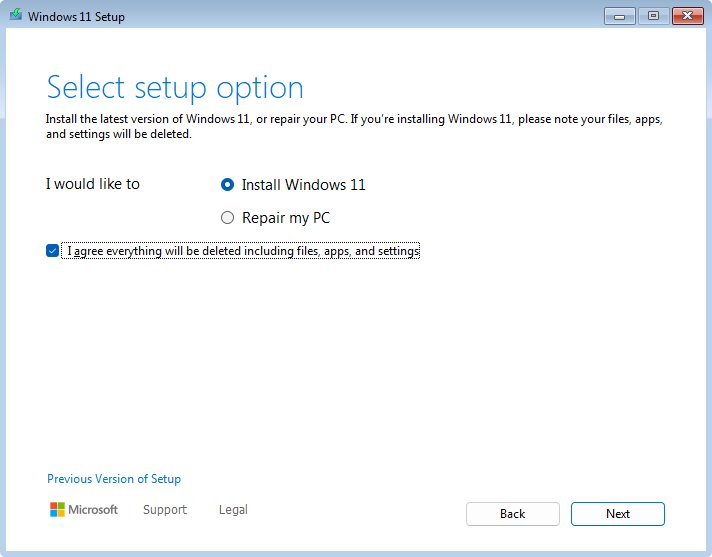
- For a clean install instead, shut down, then start the PC and open its boot menu with the key your manufacturer uses (usually one of F1 to F12 or Del).
- Select the USB drive in the boot menu and follow Windows Setup.
- If asked for a product key on a PC that already had activated Windows, select I don't have a product key and choose the same edition you had, such as Home.
Do not continue with a clean install if you have no product key and no license linked to your Microsoft account; the result will not activate.
How to check Windows 11 is installed and activated
- Select Start, then Settings, then System, then Activation.
- Confirm the activation state says Windows is activated, with a digital license or product key.
- Select System, then About, and confirm the edition reads Windows 11 Home or Pro.
- If it is not activated and you have a key, select Change product key on the Activation page.
Post-Installation Setup
- Go to Settings, then Windows Update, and select Check for updates until nothing is left to install.
- On the same page, install any optional updates, which often carry device drivers.
- Visit your PC maker's support site for drivers Windows Update does not supply.
- Review the privacy choices from setup under Settings, then Privacy & security.
- Restore files from OneDrive or your external drive, and reinstall any apps a clean install removed. The guide on installing apps on a Windows PC covers Store and desktop installers.
- If you upgraded in place and files are missing, look in the Windows.old folder on the C: drive.
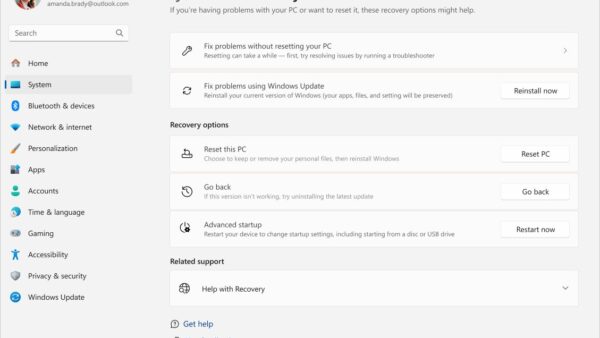
You have 10 days after an upgrade to go back to Windows 10 with your files intact. After that, going back means a clean install.
Troubleshooting Common Installation Issues
Windows Update never offers the free upgrade
Pending Windows 10 updates, a known compatibility hold, or hardware that fails the requirements.
- Install every pending Windows 10 update, restart, and select Check for updates again.
- Run the PC Health Check app to see which requirement fails.
- If the PC passes, use the Windows 11 Installation Assistant instead of waiting.
"What needs your attention" appears during the upgrade
The PC may not meet the minimum requirements, or an app or driver has a known issue.
- Read the item listed in the message.
- Check the PC against the requirements table and run PC Health Check.
- Update or remove the named app, then run the upgrade again.
Error messages about disk space
The Windows 11 upgrade needs much more free space than a monthly update.
- Delete or move large files you no longer need.
- Empty the Recycle Bin and uninstall apps you do not use.
- Run the upgrade again; Windows also tries to free space automatically.
Installation hangs or fails midway
The upgrade takes longer than a normal update and restarts several times on its own.
- Leave the PC plugged in and wait through the automatic restarts.
- If it rolls back to Windows 10, check Windows Update for the error and install pending updates.
- Try the Installation Assistant or run setup.exe from installation media as an alternative route.
Windows 11 is not activated after a clean install
A different edition was installed, or the PC never had a Windows license.
- Open Settings, System, Activation and read the status.
- Reinstall the edition that matches your old license, such as Home for Home.
- If the PC never had a license, enter a purchased key with Change product key.
Frequently asked questions
Is it free to install Windows 11?
Yes, if you are upgrading from Windows 10. Microsoft states that upgrades from Windows 10 to Windows 11 are free, provided the PC meets the Windows 11 minimum requirements. A PC with no Windows license needs a paid product key or digital license.
How do I install the free Windows 11 upgrade?
Open Settings, Update & Security, Windows Update and select Check for updates. When Windows 11 is ready, select Download and install, accept the license terms, and restart when prompted.
How do I install Windows 11 free from a USB drive?
Use the Media Creation Tool from Microsoft's Download Windows 11 page to write a blank USB drive of at least 8 GB. Run setup.exe from it on Windows 10, or boot from it for a clean install. Choose I don't have a product key if the PC had activated Windows.
How do I install Windows 11 on a laptop for free?
A laptop running activated Windows 10 that passes the PC Health Check app can upgrade free through Windows Update or the Installation Assistant. The process is the same as on a desktop.
Why isn't Windows 11 free for everyone?
The free offer is an upgrade for licensed Windows 10 devices. A new PC, or one built without Windows, has no license to upgrade, so it needs a Windows 11 license bought as a product key or digital license.
Is the free Windows 11 upgrade still available after Windows 10 support ended?
Yes. Microsoft's upgrade FAQ still states that upgrades from Windows 10 are free. Windows 10 support ended on October 14, 2025, and Microsoft recommends moving eligible PCs to Windows 11.
Can I go back to Windows 10 after the free upgrade?
Yes, within 10 days of upgrading, and your files stay in place. After 10 days you must back up your files and do a clean install of Windows 10.
How do I install Microsoft Office free on Windows 11?
Office is not part of the Windows 11 upgrade. For free use, sign in at office.com with a Microsoft account to use Word, Excel and PowerPoint in the browser. The desktop apps need a Microsoft 365 subscription or an Office 2024 license.