Windows 11 26H2 has no setting that switches the redesigned Start menu back to the old one, but you can get close by hiding the scrolling All section, turning off Recent and setting a fixed Start size.
This guide covers the Settings route every edition has, the Group Policy route on Pro that restores the separate All apps button, and why rolling back from 26H2 does not bring the old layout back.
Restore the original Start menu design on Windows 11
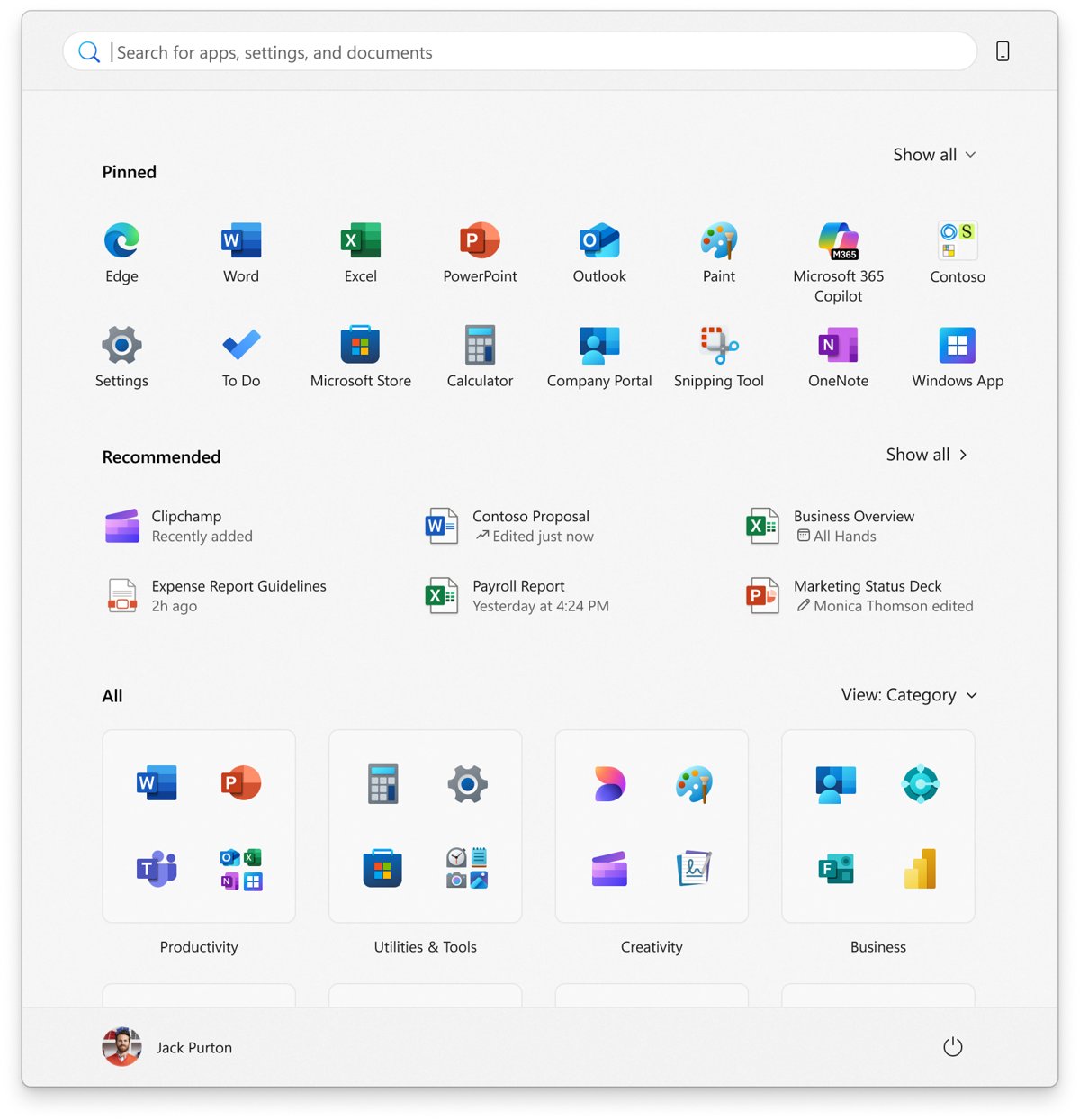
The old Windows 11 Start showed pinned apps on top, a recommendations list underneath, and all apps behind a separate button. These Settings changes bring the redesigned menu closest to that look.
- Right-click Start and select Settings.
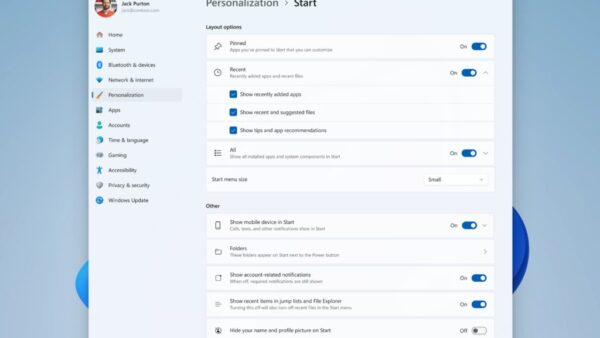
- Select Personalization > Start.
- Turn off the toggle for the All section so Start stops showing the long scrolling app list.
- Keep the Pinned toggle on, and keep Recent on if you liked the old Recommended list.
- Open Start menu size and choose the small or large size instead of Automatic.
- Open Start to check the result.
With the All section hidden, search is the fastest way to reach an app that is not pinned: press the Windows key and start typing its name.
How Do I Restore the Old Start Menu in Windows 11?
Microsoft documents no switch that restores the pre-redesign Start. What you can change depends on your edition and what you missed most.
| What you miss | Change this | Where |
|---|---|---|
| Pinned apps first, no long list | Hide the All section | Settings > Personalization > Start |
| The separate All apps button | Set Remove All Programs list from the Start menu to Collapse | Group Policy, Pro and above |
| A plain alphabetical list instead of categories | Use grid or list view, or enable Hide Category view in the Start menu | The All section, or Group Policy |
| A compact menu | Pick a fixed Start menu size | Settings > Personalization > Start |
| No recommendations at all | Turn off Recent, or enable Remove Recommended section from Start Menu | Settings, or Group Policy |
| A cleaner header | Turn on Hide your name and profile picture on Start | Settings > Personalization > Start |
| The Windows 10 tiles menu | Not possible with Microsoft's settings | No official option exists |
The long-standing ways to get a Windows 10-style classic Start menu rely on third-party shells, and that route has its trade-offs.
What changed in the Windows 11 26H2 Start menu
The redesign is not new to 26H2. It reached 24H2 and 25H2 PCs through monthly updates first, and 26H2 carries it forward as part of the 26H2 feature set.
| Area | Old Windows 11 Start | 26H2 Start |
|---|---|---|
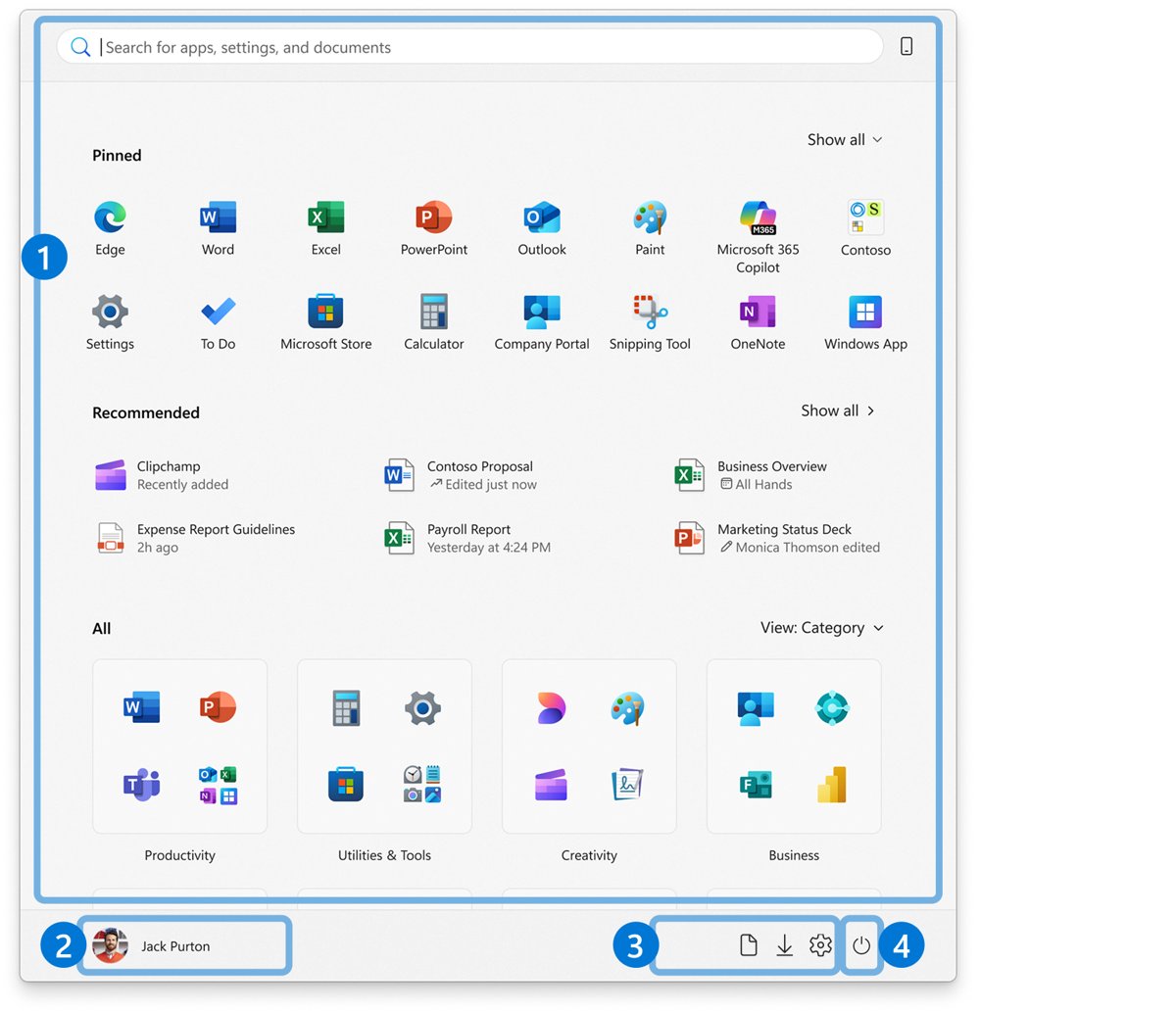
| Layout | Pinned pages plus Recommended, All apps on a separate page | One scrollable menu with Pinned, Recent and All sections |
| All apps list | Alphabetical list behind an All apps button | Built into Start with category, grid and list views |
| Recommendations | Called Recommended | Renamed Recent |
| Size | Fixed | Automatic by default, or small or large |
| Section control | Limited | Pinned, Recent and All can each be shown or hidden |
| Account area | Name and picture always shown | Can be hidden |
Category view groups apps automatically, while grid and list views sort them alphabetically. If you want to try the redesign properly first, turn on the new Start menu and explore each part.
Bring back the All apps button with Group Policy
This is the closest match to the old two-page Start. The Collapse option hides the app list and puts an All apps button on Start instead. Group Policy is not available on Home, one of the differences between 26H2 Home and Pro.
- Open the Local Group Policy Editor with an administrator account.
- Go to User Configuration > Administrative Templates > Start Menu and Taskbar.
- Open Remove All Programs list from the Start menu and select Enabled.
- Choose Collapse in the options list, then select OK.
- Sign out and back in, then open Start and look for the All apps button.
Collapse and disable setting does the same but stops users turning the list back on in Settings. Remove and disable setting removes the list completely, so avoid it unless you rely on search.
Remove the category view and the Recent section
These two policies strip out the parts of the redesign that feel least like the old menu. Both sit in the same Group Policy folder as the previous method.
- In the Local Group Policy Editor, go to User Configuration > Administrative Templates > Start Menu and Taskbar.
- Open Hide Category view in the Start menu, select Enabled and select OK. Start then uses a grid as its default view.
- Open Remove Recommended section from Start Menu, select Enabled and select OK.
- Optionally open Remove Personalized Website Recommendations from the Recommended section in the Start Menu and enable it if you keep the section.
- Sign out and back in to apply the changes.
The category view policy needs Windows 11 24H2 with KB5067036 or later, so any 26H2 PC has it. On Home, turn the Recent section off in Settings instead; older builds called it Recommended, and the steps to disable the Recommended section show that earlier layout.
Lock your Start layout on managed PCs
IT admins who want every PC to open the same pinned set can push a layout instead of relying on each user.
- Arrange the pinned apps on a reference PC the way you want them.
- Export the layout to a JSON file with the Export-StartLayout PowerShell cmdlet.
- Apply it with the Configure Start Pins policy under Administrative Templates > Start Menu and Taskbar, or the ConfigureStartPins CSP in Intune.
- Enable Prevent users from customizing their Start if users should not pin or unpin items.
- Apply the other policies above to hide category view and the All list.
The Configure Start Pins Group Policy needs 24H2 with KB5062660 or later. If an upgrade seems to reset these settings, check whether 26H2 changed your Group Policy settings before reapplying them.
How to check the old-style layout is applied
- Press the Windows key to open Start.
- Confirm Start opens on your pinned apps with no long app list underneath.
- If you used the Collapse policy, select All apps and confirm the full list opens.
- If a Settings toggle is greyed out, a policy now controls it; that is expected on PCs where you set one.
How to go back to the default 26H2 Start menu
- Open Settings > Personalization > Start.
- Turn the All, Pinned and Recent sections back on.
- Set Start menu size to Automatic.
- In the Local Group Policy Editor, set each Start policy you changed back to Not Configured.
- Sign out and back in.
Why rolling back or unofficial tools will not help
| Tempting fix | What actually happens |
|---|---|
| Uninstall 26H2 and return to 25H2 | The redesigned Start reached 24H2 and 25H2 through monthly updates, so the layout stays the same |
| Pause updates to avoid the new Start | It is already on the PC once the qualifying monthly update installed; pausing only delays later changes |
| Feature-flag tools that switch the redesign off | Microsoft does not document or support them, and a later update can undo the change |
| Registry edits from forum posts | Microsoft publishes no registry value for the old layout; use the documented policies instead |
If you still want to leave 26H2 for other reasons, follow the steps to uninstall Windows 11 26H2 safely. The documented 26H2 registry tweaks cover changes Microsoft actually supports.
Frequently asked questions
Can you remove the new Start menu in Windows 11 26H2?
No. Windows 11 26H2 has no setting or policy that removes the redesigned Start menu. You can hide its All section, turn off Recent, set a fixed size and, on Pro, bring back a separate All apps button.
Will uninstalling Windows 11 26H2 bring the old Start menu back?
No. The redesigned Start reached Windows 11 24H2 and 25H2 through monthly updates before 26H2 shipped. Going back to 25H2 leaves the same Start menu in place.
How do I get the All apps button back in Windows 11?
On Pro, Enterprise or Education, enable Remove All Programs list from the Start menu in Group Policy and choose Collapse. Start then hides the app list and shows an All apps button that opens it.
How do I turn off the category view in Start?
Switch the All section to grid or list view, or enable the Hide Category view in the Start menu policy. With the policy on, Start no longer offers category view and uses a grid by default.
Where did the Recommended section go in Windows 11 26H2?
Microsoft renamed it Recent. You can show or hide it in Settings > Personalization > Start, or remove it with the Remove Recommended section from Start Menu policy.
Can I make the Windows 11 26H2 Start menu smaller?
Yes. Open Settings > Personalization > Start > Start menu size and choose the small size instead of Automatic. Hiding the All section also makes the menu much shorter.
Does Microsoft support tools that switch off the new Start menu?
No. Microsoft's Start documentation lists Settings options and Group Policy or CSP policies only. Tools that flip hidden feature flags are not documented by Microsoft, and a later update can reverse their changes.
Bottom line
Hide the All section and set a fixed Start size in Settings; on Pro, add the Collapse policy to restore the All apps button. That combination rebuilds the old pinned-first layout with supported settings, survives monthly updates, and avoids tools Microsoft does not support.

How to enable the new Start menu in Windows 11 26H2 - Techdows
[…] Microsoft documents no switch that restores the previous Start design. You can trim the new one back to a pinned grid with a Recent list, which is close to the earlier layout; the full options are in how to get the old Start menu back. […]