Open Settings > Apps > Installed apps, find McAfee WebAdvisor, select More, then select Uninstall.
The browser extension is a second, separate install, so this guide also covers Chrome and Edge, the Control Panel route, and what to do when the uninstall fails.
Uninstall McAfee WebAdvisor from Windows Settings
This removes the Windows program. The browser extension needs its own pass afterwards.
- Select Start > Settings > Apps > Installed apps.
- Scroll to McAfee WebAdvisor in the app list.
- Select More next to the entry, then select Uninstall.
- Select Uninstall again, then confirm the prompt that asks for permission to continue.
- Follow the uninstaller's on-screen instructions and close Settings when it finishes.
Windows 10 lists the same entry under Settings > Apps > Apps & features.
Which removal route should you use?
| Your situation | Use this | Why |
|---|---|---|
| The app is listed in Settings | Settings > Apps > Installed apps | Shortest route, nothing extra to install |
| Settings offers no Uninstall command | Control Panel > Programs > Programs and Features | Some desktop programs register their uninstaller only there |
| The Windows app is gone but the toolbar rating icon is not | The browser's own extensions page | The extension is a separate install from the Windows app |
| The uninstaller reports an error | McAfee Support, for a removal tool built for its own products | A vendor tool clears what its installer wrote |
| You want the warnings quiet for now, not gone forever | Turn the extension off instead | One toggle, and it is reversible |
Check Whether McAfee WebAdvisor Is Installed
A Windows entry and a browser entry are two different installs. Clearing one leaves the other in place.
| Where to look | What to open | What confirms it |
|---|---|---|
| Windows 11 app list | Settings > Apps > Installed apps | A McAfee WebAdvisor row with a publisher and an install size |
| Windows 10 app list | Settings > Apps > Apps & features | The same entry, listed alphabetically |
| Start menu | Start > All apps | A McAfee entry you can right-click for Uninstall |
| Control Panel | Control Panel > Programs > Programs and Features | A WebAdvisor row offering Uninstall or Uninstall/Change |
| Google Chrome | chrome://extensions/ |
A WebAdvisor card among the installed extensions |
| Microsoft Edge | edge://extensions/ |
A WebAdvisor entry under installed extensions |
| Mozilla Firefox | about:addons |
A WebAdvisor entry in the add-ons manager |
A McAfee folder under Program Files is not proof on its own. The app list, Control Panel and the extensions pages are.
A different McAfee leftover is covered in How to Remove RaptorClient.exe Installed by McAfee Stinger?
Where the uninstall entry lives in Windows 11 and Windows 10
| Windows version | Path to the uninstall command | Second route |
|---|---|---|
| Windows 11 | Settings > Apps > Installed apps, then More > Uninstall | Start > All apps, right-click the app, select Uninstall |
| Windows 10 | Settings > Apps > Apps & features, then Uninstall | Start > All apps, right-click the app, select Uninstall |
| Either version, when Settings shows nothing | Control Panel > Programs > Programs and Features | Right-click the program, select Uninstall or Uninstall/Change |
Microsoft moved the Apps page between these two versions, which is why the label differs. The uninstall command behind it is the same one.
Remove the McAfee WebAdvisor Browser Extension
Uninstalling the Windows program does not always pull the extension out with it. Start with Chrome, the browser most of these leftovers sit in.
- Open Google Chrome.
- Type
chrome://extensions/in the address bar and press Enter. - Find the McAfee WebAdvisor card in the list.
- Select Remove on that card.
- Select Remove again to confirm.
Faster alternative: right-click the extension's icon to the right of the address bar and select Remove from Chrome.
Mozilla Firefox keeps the same list at about:addons, reached from the browser's settings or by typing that address.
Remove it from Microsoft Edge
- Open Microsoft Edge.
- Select Extensions, to the right of the address bar.
- Select More actions next to McAfee WebAdvisor.
- Select Remove from Microsoft Edge, then select Remove.
If Extensions is not shown beside the address bar, select Settings and more > Extensions instead.
Right-clicking the extension's icon beside the address bar and selecting Remove from Microsoft Edge does the same thing.
Use Control Panel or McAfee’s Removal Tool if Needed
Some desktop programs expose their uninstaller to Control Panel and nowhere else.
- In the search box on the taskbar, enter
Control Paneland select it from the results. - Select Programs > Programs and Features.
- Right-click McAfee WebAdvisor in the program list.
- Select Uninstall or Uninstall/Change.
- Follow the directions on the screen, then close Control Panel.
When that entry still refuses to uninstall, look on McAfee Support for a removal tool covering the product on the PC, and take it only from that site.
Removing the wider security suite is a different job, covered in How to Uninstall McAfee on Windows & Mac — Complete Step-by-Step Guide
Delete Leftover Files and Restart Windows
Restart first. An uninstaller commonly finishes its file cleanup during the next boot, before anything is checked.
- Select Start > Power > Restart.
- Open Settings > Apps > Installed apps and confirm no McAfee WebAdvisor entry remains.
- Open Control Panel > Programs > Programs and Features and confirm the same list is clear.
- Open
chrome://extensions/andedge://extensions/and confirm no WebAdvisor card is listed. - Load a search results page in each browser and confirm no WebAdvisor rating icons appear.
Leave leftover folders under Program Files alone unless a vendor tool removes them. Deleting program folders by hand strands the registration behind them and breaks any later repair.
How to stop McAfee WebAdvisor without uninstalling it
Turning the extension off silences its warnings and search annotations while the app stays installed.
- In Chrome, open
chrome://extensions/and turn the McAfee WebAdvisor toggle off. - In Edge, select Extensions > Manage extensions, then turn the toggle next to McAfee WebAdvisor off.
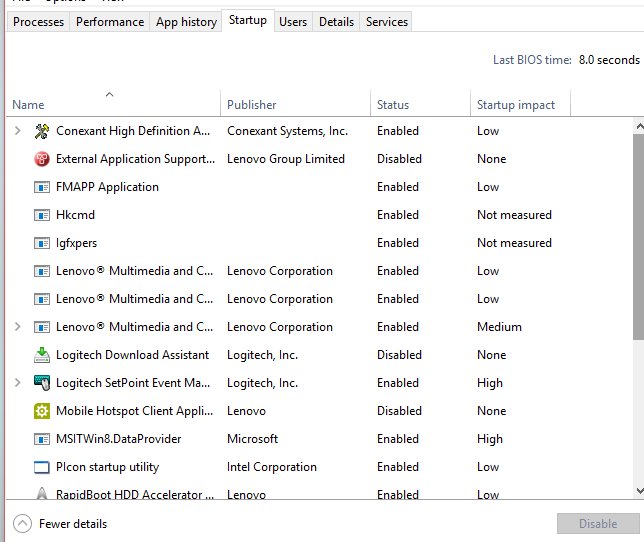
- Open Task Manager and select the Startup apps tab.
- Select any McAfee WebAdvisor item shown as Enabled, then select Disable.
- Restart the PC so the startup change takes effect.
Reverse any of this the same way. Nothing has been deleted, so a full uninstall still works later.
Fix Common McAfee WebAdvisor Uninstall Problems
Work down the symptoms in order. Each fix assumes the one above it did not settle the problem.
Safe mode asks for the BitLocker recovery key on an encrypted device, so have it to hand before the last group.
McAfee WebAdvisor does not appear in Windows Settings
The program is registered with Control Panel only, or nothing but the browser extension is left.
- Select Start > All apps and look for a McAfee entry in the list.
- Right-click it and select Uninstall if it is there.
- Open Control Panel > Programs > Programs and Features and check that list too.
- If neither list shows it, remove the leftover from
chrome://extensions/,edge://extensions/orabout:addons.
The uninstaller stops partway or returns an error
A background service or startup item is still running while the uninstaller tries to work.
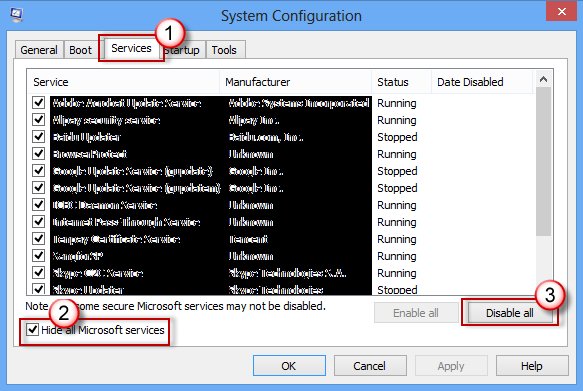
- Select Search, type
msconfig, then select System Configuration from the results. - On the Services tab, select Hide all Microsoft services, select Disable all, then select Apply.
- On the Startup tab, select Open Task Manager, then select each Enabled item on the Startup apps tab and select Disable.
- Restart the PC and run the uninstall again from Settings > Apps > Installed apps.
- Return to System Configuration, select Normal Startup on the General tab, and re-enable everything you disabled.
The uninstall needs administrator rights
The signed-in account is a standard account, so it cannot remove a machine-wide program.
- Sign in with an account that is an administrator on this PC.
- Open Settings > Apps > Installed apps and select McAfee WebAdvisor.
- Select More > Uninstall and confirm the permission prompt.
- From Control Panel, right-click the entry and select Uninstall instead.
The entry is listed but nothing happens when you select Uninstall
The installation is damaged, so its own uninstaller cannot start. Not every desktop app offers repair or reset.
- Open Settings > Apps > Installed apps and select McAfee WebAdvisor.
- Select Advanced options.
- Select Repair.
- If the problem continues, select Reset.
- Go back to Installed apps and select Uninstall.
The browser extension comes back after you remove it
Chrome saves extensions in your Google Account and restores them on every device signed in to it.
- Remove the extension on every computer signed in to the same Google Account.
- In Chrome, select More > Settings > You and Google.
- Select your account name.
- Clear Extensions under the list of information saved in your Google Account.
- Reopen
chrome://extensions/on each device and confirm the card is gone.
The uninstall still fails after a clean start
A driver or service loads too early to be stopped from System Configuration.
- Start the PC into the Windows Recovery Environment.
- Select Troubleshoot > Advanced options > Startup Settings > Restart.
- On the Startup Settings screen, press the key for Enable Safe Mode.
- Run the uninstall from Control Panel > Programs > Programs and Features.
- Restart the PC normally to leave safe mode.
What you give up when WebAdvisor is gone
Remove it if its site ratings duplicate a check the browser already runs, and confirm the built-in protection is switched on first. Microsoft Defender SmartScreen alerts you to suspicious pages, blocks reported phishing and malicious sites, and screens downloads in Microsoft Edge. Chrome's Safe Browsing does the same job at its Standard or Enhanced level. Check SmartScreen under Settings and more > Settings > Privacy, search, and services > Security, and Chrome under Settings > Privacy and security > Security.
Frequently Asked Questions
How do I remove McAfee WebAdvisor from Chrome?
Type chrome://extensions/ in the address bar, press Enter, find the McAfee WebAdvisor card and select Remove, then select Remove again to confirm. Right-clicking the extension icon beside the address bar and choosing Remove from Chrome does the same thing.
How do I stop McAfee WebAdvisor?
Turn the extension off rather than removing it. Open chrome://extensions/ in Chrome, or Extensions > Manage extensions in Edge, and switch the WebAdvisor toggle off. Then disable any WebAdvisor item on the Startup apps tab in Task Manager.
How do I disable McAfee WebAdvisor in Microsoft Edge?
Select Extensions to the right of the address bar, select Manage extensions, then switch off the toggle next to McAfee WebAdvisor. The extension stays installed and can be switched back on from the same page at any time.
How do I get rid of McAfee WebAdvisor on Windows 10?
Open Settings > Apps > Apps & features, select the McAfee WebAdvisor entry and select Uninstall. Windows 10 uses the Apps & features page where Windows 11 uses Installed apps. Control Panel > Programs > Programs and Features works on both versions.
Should I delete WebAdvisor by McAfee?
Delete it if its ratings repeat a warning your browser already shows. Microsoft Edge runs Microsoft Defender SmartScreen and Chrome runs Safe Browsing, both of which flag phishing and malicious sites and check downloads before they open.
Is McAfee WebAdvisor the same as McAfee antivirus?
No. WebAdvisor installs as its own entry in the Windows app list and adds its own browser extension. Uninstalling it does not touch a McAfee antivirus product, and removing the antivirus does not reliably take WebAdvisor with it.
Will removing McAfee WebAdvisor make Windows 11 or Windows 10 less secure?
Not on its own. Windows Security and Microsoft Defender SmartScreen keep running, and Chrome's Safe Browsing setting is untouched by the uninstall. Confirm SmartScreen is on under Privacy, search, and services > Security in Edge afterwards.
What should I do if McAfee WebAdvisor does not appear in Windows Settings?
Check Start > All apps and Control Panel > Programs > Programs and Features, because some programs register their uninstaller only there. If no list shows it, what is left is the browser extension, which you remove from the browser's own extensions page.
Can I delete McAfee WebAdvisor leftover folders manually?
Avoid it. Deleting folders under Program Files by hand leaves the program's registration behind and blocks any later repair or clean uninstall. Restart first, since uninstallers finish their cleanup during the next boot, then check the app list again.
How do I delete McAfee WebAdvisor when the uninstall keeps failing?
Start a clean boot with msconfig, disabling non-Microsoft services and every startup item, then run the uninstall again. If that fails, use Repair and then Reset under Advanced options in Installed apps before uninstalling.
Bottom Line
Uninstall from Settings > Apps > Installed apps, clear the extension in every browser you use, then restart and check both lists again. The Windows program and the browser extension are separate installs, so one pass almost always leaves the other behind. The restart matters because file cleanup finishes at the next boot, and the second check is what proves the removal took.

How to Uninstall McAfee on Windows & Mac — Complete Step-by-Step Guide - Techdows
[…] Settings > Apps > Installed apps, search for WebAdvisor by McAfee, select the three-dot icon and Uninstall. Confirm with Uninstall, select No thanks, just uninstall […]