Microsoft Office icons stop showing because Windows has lost the link between .docx or .xlsx files and the Office app, because the Windows icon cache is corrupt, or because the Office installation itself is damaged.
This guide shows how to tell which of the three you have, then walks through each fix in order, from resetting default apps to a full Online Repair and reinstall, plus separate notes for Mac and work PCs.
The fastest way to get Office file icons back
Most blank Word and Excel file icons come from a broken file association. This fix works on Windows 11 and Windows 10 and takes under a minute.
- Right-click a Word or Excel file that shows a blank or generic icon and select Properties.
- On the General tab, read the Opens with line to see which app Windows currently uses.
- Select Change, then More apps.
- Select Word (or Excel for a workbook) and tick Always use this app.
- Select OK, then OK again to close Properties.
If the file icons come back, you are done. If the Office app icons on the desktop, Start menu or taskbar are blank too, go to Fix 4 and rebuild the icon cache.
What “Office Icons Not Showing” Usually Means
The phrase covers several different symptoms. Match what you see to a row before you start changing things.
| What you see | What it usually means | Start with |
|---|---|---|
| Word or Excel documents show a white page or generic icon | The .docx or .xlsx file type is no longer linked to Office | Fix 1 or Fix 2 |
| Desktop, Start menu or taskbar shortcuts for Word or Excel are blank, but still open the app | The Windows icon cache is damaged | Fix 3, then Fix 4 |
| Office icons are missing and the apps will not open at all | The Office installation is damaged or incomplete | Fix 6, then Fix 13 |
| Outlook is running but has no taskbar icon | The Hide When Minimized option is on | Troubleshooting section below |
| Files in a OneDrive or SharePoint folder show extra status marks or odd icons | Those are sync status overlays, not a broken icon | Fix 11 |
| Icons are missing only on a work or school PC | A policy or an unassigned license may be involved | The IT section below |
Why Microsoft Office Icons Stop Showing
| Cause | How it happens | Where it shows up |
|---|---|---|
| File association changed | Another app, a second office suite, or a reset of default apps claims .docx, .xlsx or .pptx | Document icons in File Explorer and on the desktop |
| Corrupt icon cache | Windows stores icons in IconCache.db; when that file is damaged, shortcuts show blank icons even though the app still opens | Desktop, Start menu and taskbar shortcuts |
| Damaged Office files | An interrupted update or install leaves Office components missing | App icons and document icons, often with errors when opening |
| Leftover older Office versions | Two versions of Office installed side by side compete for the same file types | Document icons switch between versions or go generic |
| Outdated Office or Windows | Fixes for Office and Windows ship through their own update channels | Any of the above |
| Account or license problem | A work or school account without an assigned Microsoft 365 license cannot install the desktop apps | Office apps missing entirely on business PCs |
On Mac, the usual causes are an out-of-date Office build or a damaged app bundle; the Mac section below covers both.
Which Fix Should You Try First?
| Your situation | Try this first | Why |
|---|---|---|
| Only document icons are wrong, Office opens fine | Fix 1 or Fix 2 | The file type points to the wrong app; nothing else is broken |
| Shortcut icons are blank, the apps still start | Fix 3, then Fix 4 | Microsoft documents a corrupt icon cache as the cause of blank shortcut icons |
| Office icons are missing and Office will not start | Fix 6 (Quick Repair, then Online Repair) | Repair replaces damaged Office files without removing your documents |
| You recently removed or added another office suite | Fix 9, then Fix 1 | The other suite may still own the Office file types |
| Office came from Microsoft Store | Fix 12 | Store apps have their own Repair and Reset buttons |
| Nothing above worked | Fix 13 | A clean reinstall rebuilds every Office file and registration |
| It is a work or school PC | The IT section | Default apps and installs may be controlled by policy |
First: Check Whether Office Still Opens
This one check decides whether you are fixing an icon problem or an Office problem.
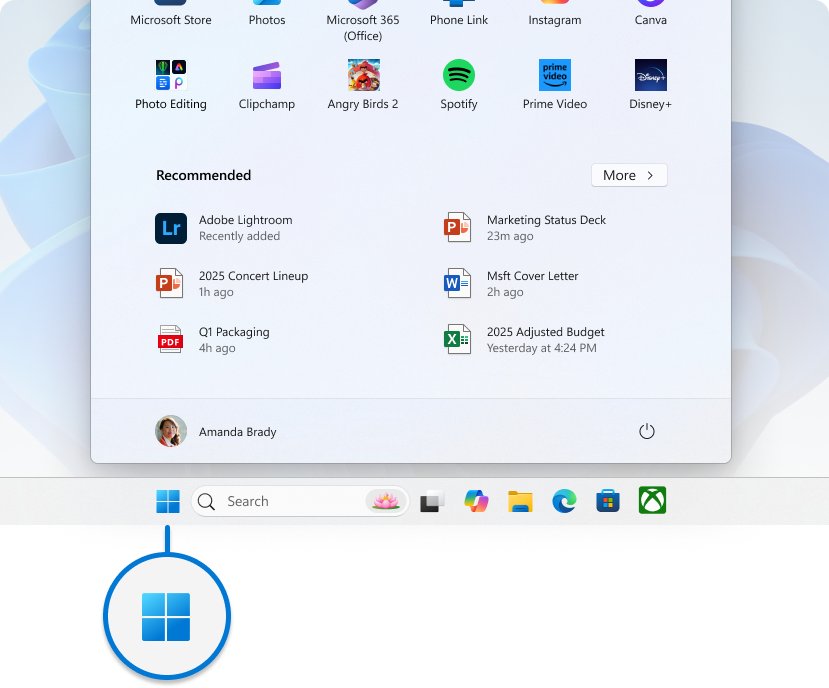
- Select the Start button and type Word.
- Select the Word icon in the search results.
- If Word opens and accepts the license agreement, Office works; the problem is file associations or the icon cache, so go to Fix 1.
- If Word does not appear in the results, or appears but fails to open, Office is damaged or missing; go to Fix 6.
- Repeat the search for Excel if only Excel icons are affected.
Fix 1: Set Office Apps as the Default Programs for Office Files
Use this when several Office file types lost their icons at once, for example after installing another office suite or PDF editor.
- Open Settings and select Apps > Default apps.
- In the search box, type .docx and select the result that appears.
- Choose Word from the list of apps.
- Repeat for .doc, .xlsx, .xls and .pptx, choosing Excel or PowerPoint as appropriate.
- To check every file type an app owns, select the app (for example Word) under Set defaults for applications and change any type that points elsewhere.
- Open File Explorer and confirm the documents now show the Office icons.
Fix 2: Use “Open With” to Repair One File Type Quickly
When only one file type is wrong, fix it from the file itself. Microsoft documents this route for both Windows 10 and Windows 11.
- Copy the affected file to your desktop so it is easy to find.
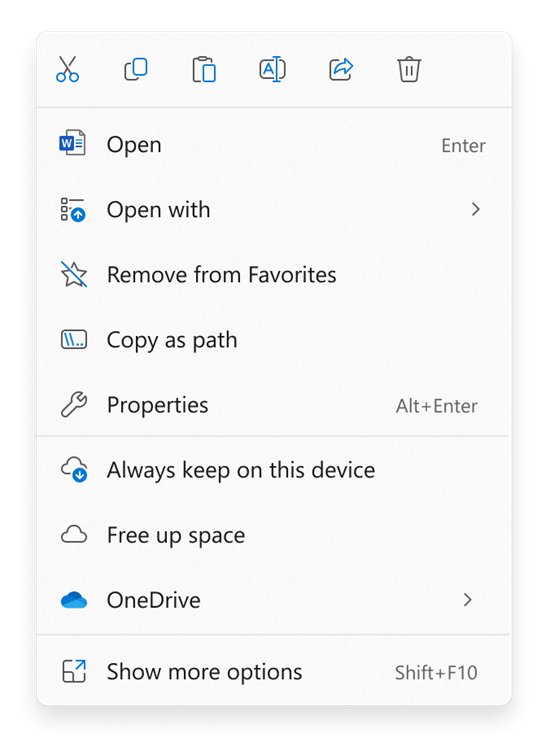
- Right-click the file and select Properties.
- On the General tab, check Type of file; the extension shows in brackets, such as (.xlsx).
- Next to Opens with, select Change.
- Select More apps, choose the Office app, and tick Always use this app.
- Select OK to apply the change to every file of that type.
Fix 3: Refresh File Explorer
Restarting Windows Explorer redraws the desktop, taskbar and File Explorer windows. Save open work first, because the taskbar disappears for a moment.
- Press Ctrl + Shift + Esc to open Task Manager.
- On the Processes tab, find Windows Explorer.
- Right-click Windows Explorer and select End task.
- In Task Manager, select File > Run new task.
- Type
explorer.exeand press Enter; the taskbar and desktop return.
If the icons are still blank after the refresh, the cache itself is bad. Continue with Fix 4.
Fix 4: Rebuild the Windows Icon Cache
Microsoft's own troubleshooting article for blank desktop, Start menu and taskbar icons names the icon cache as the cause and gives this procedure. It deletes only the cache file; Windows rebuilds it.
- Save your work, then press Ctrl + Shift + Esc to open Task Manager.
- On the Processes tab, right-click Windows Explorer and select End task.
- Select File > Run new task, type
cmd.exe, tick the option to create the task with administrative privileges, and select OK. - In Command Prompt, type
CD /d %userprofile%\AppData\Localand press Enter. - Type
DEL IconCache.db /aand press Enter. - In Task Manager, select File > Run new task again, type
explorer.exeand press Enter. - Check the desktop, Start menu and taskbar; the Office icons should redraw.
If the icons stay blank, the same Microsoft article adds two deeper checks, covered under "Desktop and taskbar icons are still blank" in the troubleshooting section.
Fix 5: Clear the Thumbnail Cache
Thumbnail previews are stored separately from the icon cache. Microsoft does not publish a standalone thumbnail-cache procedure, so use the temporary-file cleanup it does document.
- Select Start > Settings > System > Storage.
- Select Temporary files.
- Review the categories and tick the cached items you want to remove; select a thumbnails entry if one is listed.
- Select Remove files.
- Alternatively, select Start, type Disk Cleanup, open it, and choose the drive where Windows is installed.
- Restart Windows Explorer (Fix 3) and check the folder again.
Fix 6: Repair Microsoft 365 or Microsoft Office
Repair fixes the whole Office suite, even if only Word or Excel lost its icon. It keeps your documents. Close all Office apps before you start.
- Right-click the Start button and select Installed apps on Windows 11, or Apps and Features on Windows 10.
- Find your Microsoft 365 or Office entry and select Modify (on Windows 11, open the More menu next to it first).
- In How would you like to repair your Office Programs, select Quick Repair > Repair for a fast first attempt.
- If the icons are still missing, run it again and select Online Repair > Repair; this takes longer but fixes everything Quick Repair can miss.
- For an MSI-based Office install, select Repair in Change your installation, then Continue.
- Restart the PC if prompted, then check the icons.
Quick Repair only detects and replaces corrupted files. Online Repair is the one Microsoft recommends to make sure everything gets fixed. For repairing other broken programs the same way, see how to repair broken apps and programs in Windows 11/10.
Fix 7: Update Office and Windows
- Open any Office app, such as Word.
- Select File > Account > Update Options > Update Now.
- Wait for Office to download and install the update, then close the app.
- Select Start > Settings > Windows Update > Check for updates.
- Select Download & install if updates are listed, and restart if Windows asks.
- Check Advanced options > Optional updates for any pending driver or quality updates.
Fix 8: Recreate Broken Desktop, Start Menu, or Taskbar Shortcuts
A pinned shortcut can keep pointing at an old Office path after a reinstall or upgrade. Replace it with a fresh pin from search.
- Right-click the blank Office icon on the taskbar and select Unpin from taskbar.
- Delete the blank Office shortcut from the desktop if there is one.
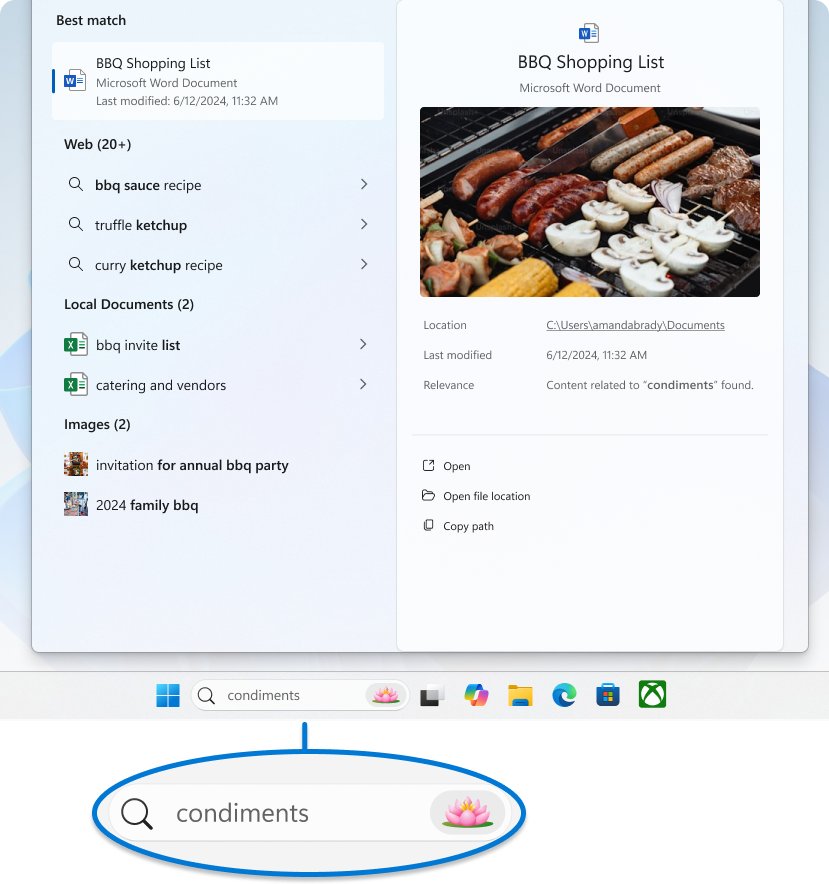
- In the Search box on the taskbar, type Word (or Excel, PowerPoint, Outlook).
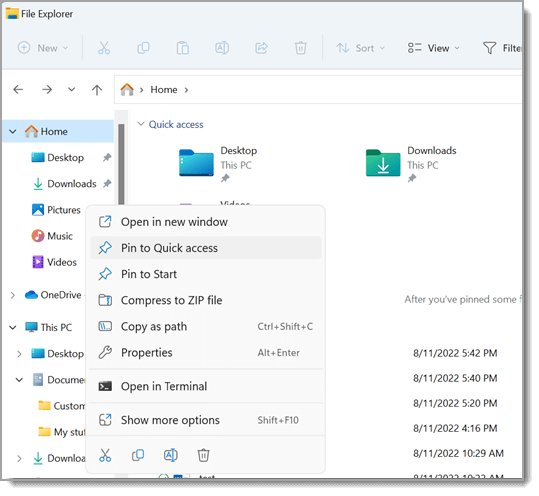
- Right-click the app in the results and select Pin to taskbar.
- Right-click it again and select Pin to Start to replace the Start menu tile.
Fix 9: Remove Old Office Versions or Conflicting Office Suites
Two Office versions, or Office plus another suite, fight over the same file types. Remove what you no longer use, then reset the defaults.
- Select Start > Settings > Apps > Installed apps.
- Find the old Office version or the other office suite you no longer need.
- Select More options (…) next to it, then Uninstall, and follow the prompts.
- Restart the PC.
- Run an Online Repair of the Office version you kept (Fix 6).
- Set Word, Excel and PowerPoint as defaults again (Fix 1).
If an old Office 2016 install will not uninstall normally, see how to remove Office 2016 with Microsoft's Fix It tool.
Fix 10: Check File Explorer View and Folder Options
Some views make icons look missing when they are just very small. Switch the folder to an icon view before assuming anything is broken.
- Select Start > File Explorer and open the folder with the Office files.
- Select View on the command bar.
- Choose Large icons or Medium icons instead of List or Compact view.
- Select View > Show > File name extensions to confirm each file really ends in .docx, .xlsx or .pptx.
- Rename any file with a wrong or missing extension back to its Office extension.
Fix 11: Check OneDrive and SharePoint Sync Icons
Files in OneDrive or synced SharePoint libraries carry status marks from OneDrive. These overlays sit on top of the Office icon and are not a fault in Office.
| OneDrive icon you see | What it means | What to do |
|---|---|---|
| Red circle with a white cross | A file or folder can't be synced | Select the OneDrive icon in the notification area to see the problem |
| Grayed-out cloud with a line through it | You are not signed in, or OneDrive setup isn't complete | Press the Windows key, search for OneDrive and open the desktop app |
| Paused symbol on the cloud | Files are not currently syncing | Select the OneDrive icon and choose Resume syncing |
| Yellow warning triangle | Your account needs attention | Select the icon to read the message in the activity center |
| Red "no entry" circle | The account is blocked | Follow Microsoft's steps for a frozen OneDrive account |
Fix 12: Reset the Office Apps from Microsoft Store Installations
If your Office apps were installed from Microsoft Store, Windows gives them their own Repair and Reset buttons. Not every app shows these options.
- Select Start > Settings > Apps > Installed apps.
- Select More (…) next to the Office app, then Advanced options.
- Select Repair and wait for it to finish.
- Test the icons; if they are still wrong, return to the same page and select Reset.
- On Windows 10, the same buttons are under Settings > Apps > Apps & features > the app > Advanced options.
Reset can delete the app's local data and settings, so use Repair first.
Fix 13: Reinstall Microsoft 365 or Office
Reinstall when repair did not help. Your documents are not stored inside Office, so they stay where they are.
- Uninstall Office from Settings > Apps > Installed apps > More options (…) > Uninstall.
- Restart the PC.
- Go to m365.cloud.microsoft/apps and sign in with the account linked to your Office license.
- Select Install apps, then Install (with a work or school account, select Microsoft 365 apps).
- Run the downloaded setup file and select Yes at the User Account Control prompt.
- Wait for You're all set! Office is installed now, then select Close.
- Open Word from Start and accept the license agreement to activate.
The 64-bit version installs by default unless a 32-bit Office app is already on the PC.
Fixes for Microsoft Office Icons Not Showing on Mac
On a Mac, stale Dock icons and blank app icons usually clear once Office is current. Microsoft AutoUpdate handles Office for Mac updates.
- Open an Office app, such as Word.
- Choose Help > Check for Updates to start Microsoft AutoUpdate.
- Install every listed Office update, then quit and reopen the app.
- If the icon is still blank, sign in at m365.cloud.microsoft/apps, select Install apps, and reinstall Office on the Mac.
When the Problem Is an IT or Work Account Issue
On a work or school PC, several fixes above may be blocked or undone by your organization. Stop and contact IT in these cases.
| Sign | Likely reason | What to ask IT |
|---|---|---|
| No install option after signing in at m365.cloud.microsoft/apps | No Microsoft 365 license is assigned to your account | Assign a license that includes the desktop apps |
| Default app choices revert after a restart | File associations are set by policy | Confirm the managed default for .docx and .xlsx |
| Repair or uninstall options are missing or greyed out | You lack admin rights, or Office was deployed centrally | Run the repair or redeploy Office |
| Office was bought through a volume license | IT may use a different install method | Reinstall through the company's own process |
How to check the Office icons are fixed
- Open File Explorer on a folder with .docx, .xlsx and .pptx files and switch to Large icons.
- Confirm each file shows the Word, Excel or PowerPoint icon, not a white page.
- Right-click one file, select Properties, and confirm Opens with names the right Office app.
- Double-click the file and confirm it opens in the Office desktop app.
- Restart the PC and check the desktop, Start menu and taskbar icons again; a real fix survives a restart.
Fix Office icons that still will not show
Excel icon is not showing, or double-clicking a workbook opens a blank Excel window
Microsoft traces this to broken Excel file associations, a damaged install, or add-ins.
- Reset the association with Properties > Opens with > Change and pick Excel (Fix 2).
- Run an Online Repair of Office (Fix 6).
- In Excel, select File > Options > Add-ins, choose COM Add-ins in Manage, select Go, and clear add-ins one at a time.
- Reopen the workbook after each change to find the add-in at fault.
Desktop and taskbar icons are still blank after rebuilding the icon cache
Microsoft's blank-icons article adds a Shell Experience Host re-registration and a shortcut handler check.
- Open Windows PowerShell as an administrator.
- Run
Get-AppXPackage -AllUsers | Where-Object {$_.InstallLocation -like "*ShellExperienceHost*"} | Foreach {Add-AppxPackage -DisableDevelopmentMode -Register "$($_.InstallLocation)\AppXManifest.xml"}. - Restart the PC.
- If icons are still blank, back up the registry, open regedit, and check that
HKEY_CLASSES_ROOT\lnkfile\shellex\IconHandlerhas the (Default) value{00021401-0000-0000-C000-000000000046}. - Under
HKEY_CLASSES_ROOT\CLSID\{00021401-0000-0000-C000-000000000046}, confirm (Default) isShortcutand theInProcServer32subkey's (Default) isC:\Windows\System32\windows.storage.dll.
Outlook icon is not showing on the taskbar while Outlook is running
The Outlook option Hide When Minimized is on, so a minimized Outlook lives only in the notification area.
- Start Outlook if it is not running.
- Select the Outlook icon in the notification area.
- Select Hide When Minimized to turn it off.
- Minimize Outlook and confirm its icon stays on the taskbar.
Word icon is not showing after an Office update or upgrade
Pinned shortcuts still point at the old Office location.
- Unpin the blank Word icon from the taskbar and delete any blank desktop shortcut.
- Search for Word from Start, right-click it and select Pin to taskbar.
- If search does not find Word, run an Online Repair (Fix 6).
How to Prevent Office Icons from Disappearing Again
- Keep Office current with File > Account > Update Options > Update Now, or leave automatic updates on.
- Install Windows updates from Settings > Windows Update as they arrive.
- When another app asks to become the default for documents, decline unless you want it to replace Office.
- Remove old Office versions instead of leaving them installed next to the current one.
- Close Office apps before shutting down so updates and installs are not interrupted.
- Pin Office apps fresh from Start search after any reinstall rather than reusing old shortcuts.
Frequently Asked Questions
Why are Microsoft Office icons not showing?
Office icons disappear when .docx, .xlsx or .pptx files are no longer linked to Office, when the Windows icon cache is corrupt, or when the Office installation is damaged. Reset default apps first, then rebuild the icon cache, then run an Online Repair.
Why is the Excel icon not showing?
The Excel icon usually goes blank because .xlsx files are associated with another app. Right-click a workbook, select Properties, then Change next to Opens with, pick Excel and tick Always use this app. If that fails, run an Online Repair.
Why are icons not showing on the desktop?
Blank desktop icons that still open their app point to a corrupt icon cache. Microsoft's fix is to end Windows Explorer in Task Manager, delete IconCache.db from your AppData\Local folder, and start explorer.exe again.
Why are my icons not showing after an update?
An update or reinstall can leave shortcuts pointing at old paths or leave the icon cache stale. Unpin and re-pin the app from Start search, then rebuild the icon cache. If Office itself was updated, run a Quick Repair.
Why is the Windows icon not working on the taskbar?
If the Start button or taskbar icons do not respond or show blank, restart Windows Explorer from Task Manager first. Microsoft also documents re-registering Shell Experience Host in an elevated PowerShell window when taskbar icons stay blank.
Will repairing Office delete my documents?
No. Quick Repair and Online Repair repair the Office programs, not your files. Your Word, Excel and PowerPoint documents are stored separately and stay where they are, so repair is safe to try before a reinstall.
What is the difference between Quick Repair and Online Repair?
Quick Repair is faster but only detects and then replaces corrupted files. Online Repair takes longer, and Microsoft recommends it to make sure everything gets fixed, so run it when Quick Repair leaves the icons missing.
Why are icons not showing on the desktop of a work PC?
On a managed PC, file associations and Office installs can be controlled by policy, and missing apps can mean no license is assigned. Try restarting Explorer, then ask IT to confirm the license and the managed default apps.

![How to Check RAM on Windows 11 [Step by Step Guide]](https://techdows.com/wp-content/uploads/2026/09/Windows-11-Task-Manager-Performance-tab-showing-the-Memory-pane-600x338.jpg)
![How To Set Your Time And Zone Manually Windows 11/10 [Guide]](https://techdows.com/wp-content/uploads/2026/09/Windows-11-Date-and-time-settings-page-in-dark-mode-600x338.jpg)