Seems Chrome is relaunching desktop reader mode. The feature that never launched, developed for a while and is available behind flags in Canary builds of Chrome. The feature’s new implemenation via the side panel with the name “Reading mode” is now available for testing, here is how you can enable and use it right now in Chrome.
What happened to Chrome’s Reader Mode?
Google has tried to bring Reader Mode from Chrome on Android to the desktop using Dom Distiller. We’ve covered vastly about it. So here is a recap.
As other Reader View features in Firefox, Opera, and new Microsoft Edge browsers, you can able to read webpages on Chrome in a clutter-free layout without ads and toolbars by clicking the button in the address bar.
The chrome team readied a dark theme for the same and reduced white space and it can be enabled from settings even in the release.
All these improvements are behind a flag name “Enter ReaderMode. The flag is still available. The flag and all the work are obsolete, and the feature was never released to the public.
In a Reader Mode bug thread, a Chrome employee confirmed they’re working on a new implementation for Reader Mode.
“This is now being tracked in crbug.com/1266555 which tries another way of implementing the feature. The work here is obsolete but the work on a Reader Mode feature continues.”
So we’ve now Reading mode available.

Enable Reading mode in Chrome
- Launch Chrome Canary
- visit chrome://flags
- Search for read, find and enable “Read anything”

Read anything flag - Restart Chrome
How to use the new Reader Mode in Chrome
- Open Chrome
- Visit any reader-friendly webpage
- Open Side panel that can be moved to the left
- Select Reading mode, and choose a font. Controls are available to adjust the font size as well as the theme among light, yellow, dark, and blue.
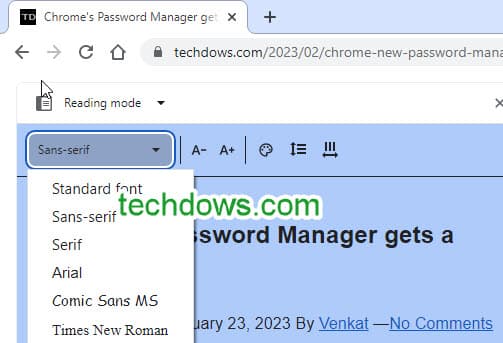 You can change line height and letter spacing using tight, default, loose, and very loose options.
You can enlarge the Side Panel towards the right by dragging the resize button, so reading won’t be an issue.

You can change the font for the page to Sans-Serif or Serif or Avenir or Comic Neue or Comic Sans MS or Poppins, more options and controls to improve Read anything may come later and could show up in Side Panel.
To exit or close Chrome’s Reading mode, just click the close button on top.
Looks as If this is a work in Progress.
When Reading mode will be available ?
Reader Mode was never added to Chrome on desktop, so there is no guarantee when or timeline when this will be available to the public.
Meanwhile, you can use Chrome canary to see what Google is working on to make webpages in Chrome Readable.
Opera, Firefox, and the new Microsoft Edge have Reader View, when does Google Chrome for Windows, Mac, and Linux will get it? We don’t know.
What’s your take on Chrome’s new Read anything Reader Mode feature? Have you liked it? Let us know in the comments below.
Summary: Google has deemed its work on Reader Mode in Chrome till now as redundant and is implementing feature via side panel. The feature’s early look can be seen in Chrome Canary. The article covers the instructions on enabling Reading Mode in Chrome browser.




Google Chrome gets built-in Notes feature, here’s how to enable - Techdows
[…] Like Reading mode, Reading list, and Bookmarks, Notes are available in the Side panel. […]