You can only download and install WordPad on Windows 11 version 23H2 or earlier, where it is a free optional feature in Settings; Microsoft removed WordPad from all editions of Windows starting with Windows 11, version 24H2.
This guide covers how to check your version, reinstall WordPad where it still exists, pin it and make it the RTF default, fix it when it goes missing, and pick a replacement on 24H2 and later.
Is WordPad still available in Windows 11?
WordPad is still available on Windows 11 versions 23H2 and 22H2, but not on version 24H2 or any later release. Microsoft's removal notice says WordPad is gone from all editions of Windows starting in Windows 11, version 24H2 and Windows Server 2025.
Find your Windows version in the table below, then follow the action in the same row.
| Your Windows version | Can you get WordPad? | What to do |
|---|---|---|
| Windows 11, version 22H2 or 23H2 | Yes, as a free optional feature | Reinstall it from Settings > System > Optional features (steps below) |
| Windows 11, version 24H2 or later | No | Use Microsoft Word, Word for the web or Notepad instead |
| Upgraded to 24H2 less than 10 days ago | Only by rolling back the whole upgrade | Use Go back in Settings > System > Recovery, if it is offered |
| Windows 10, version 2004 or later | Yes, as a free optional feature | Same Optional features steps; note Windows 10 support ended on October 14, 2025 |
| Windows Server 2025 | No | Use Word or Notepad |
There is no official standalone WordPad installer for 24H2 and later. Microsoft recommends Microsoft Word for rich text documents such as .doc and .rtf, and Notepad for plain text files such as .txt.
How to download and install WordPad on Windows 11
WordPad is not downloaded from a website. On versions that still include it, Windows fetches it from Windows Update as a Feature on Demand, so the PC must be online.
Pick the route that matches your situation. Every route here is an official Microsoft one.
| Your situation | Use this route | Why |
|---|---|---|
| Windows 11 23H2 or earlier, you prefer menus | Optional features in Settings | No commands; Windows Update supplies the files |
| Windows 11 23H2 or earlier, you manage PCs or prefer a terminal | DISM /Add-Capability command |
One line, easy to repeat on several PCs |
| Just upgraded to 24H2 and need WordPad back | Go back to the previous version | Restores the old Windows build that still had WordPad, within the rollback window |
| Windows 11 24H2 or later, no rollback option | A WordPad alternative | Microsoft removed the WordPad files (wordpad.exe, wordpadfilter.dll, write.exe) from Windows |
Websites that offer a WordPad download or installer for 24H2 are repackaging Windows files that Microsoft does not distribute. Microsoft does not supply or support those copies, so skip them.
How to check your Windows 11 version
Check the Windows version first, because it decides whether the WordPad optional feature exists on your PC.
- Right-click Start and select Settings.
- Select System, then select About.
- Scroll to Windows specifications.
- Read the Version line. 23H2 or 22H2 means WordPad can be reinstalled; 24H2 or higher means it cannot.
The same Windows specifications block also shows your edition. Edition does not matter here, because the removal applies to Home, Pro, Enterprise and Education alike.
Can you install WordPad through Optional Features?
Yes, on Windows 11 23H2 and earlier, WordPad is listed as an optional feature that you can add back in Settings. On 24H2 and later the feature no longer exists, so it will not appear in the list.
- Open Settings and select System, then Optional features. On some builds this page sits under Settings > Apps > Optional features instead.
- Select View features next to Add an optional feature.
- Type WordPad in the search box.
- Tick the box next to WordPad and select Next.
- Select Add and wait while Windows Update downloads and installs it.
- Open Start and type WordPad to launch it.
Microsoft lists the WordPad Feature on Demand at 6.57 MB once installed. It opens, edits and creates .rtf, .docx and .txt files.
Install WordPad with DISM on Windows 11 23H2 or earlier
DISM adds the same WordPad Feature on Demand from Windows Update. Open Command Prompt or Terminal as administrator and run the command below. It fails on 24H2 and later because the capability is gone.
DISM /Online /Add-Capability /CapabilityName:Microsoft.Windows.WordPad~~~~0.0.1.0/Online targets the running copy of Windows, /Add-Capability installs a Feature on Demand, and /CapabilityName names WordPad's capability. With no /Source, DISM pulls the files from Windows Update.
You should see: DISM reports that the operation completed successfully, and WordPad appears when you search for it from Start.
Run DISM /Online /Get-CapabilityInfo /CapabilityName:Microsoft.Windows.WordPad~~~~0.0.1.0 to see the capability's install state before or after.
Get WordPad back after upgrading to 24H2 with Go back
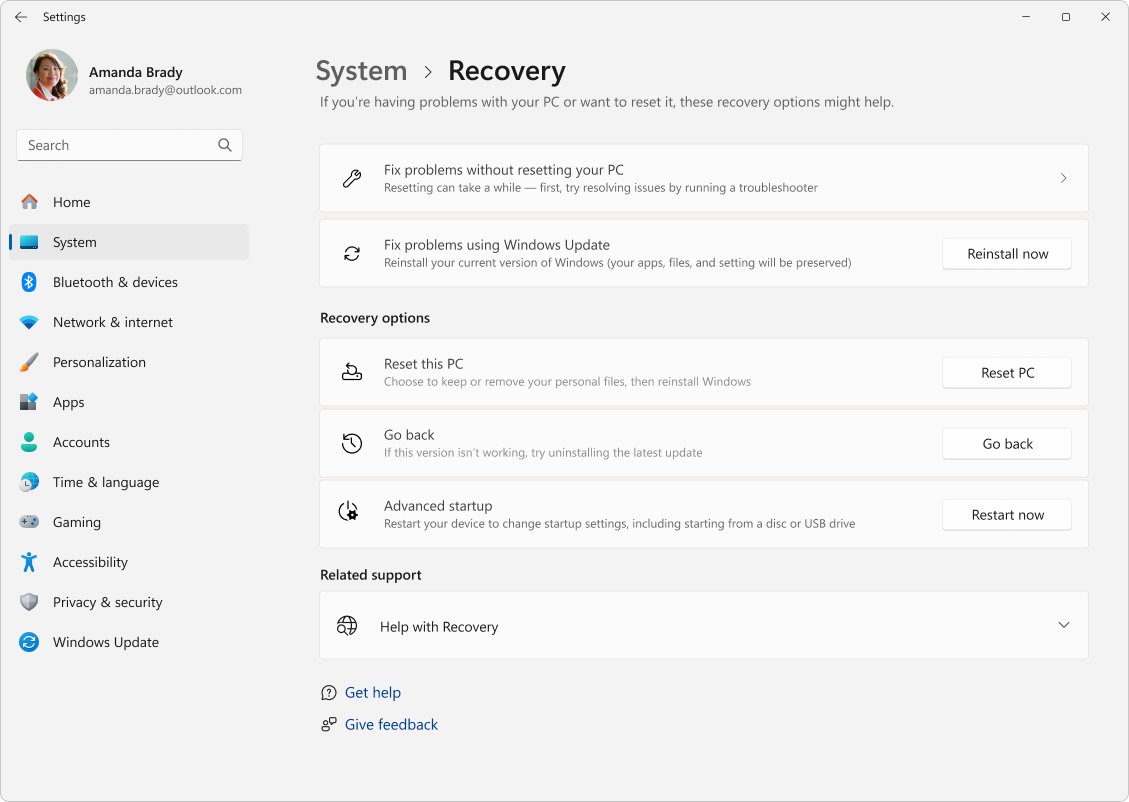
If WordPad disappeared because you just upgraded to 24H2, the only official way to get it back is to roll back the whole upgrade. Microsoft gives you 10 days in most cases, and only if the windows.old and $windows.~bt folders are still intact.
- Open Settings and select System > Recovery.
- Select Go back if it is offered. If it is missing, the rollback window has passed.
- Follow the prompts. Your personal files stay, but apps and drivers installed after the upgrade and any settings changes are removed.
- After the restart, check Settings > System > About shows your earlier version.
- Reinstall WordPad from Optional features if it is not already present.
Remove any user accounts added after the upgrade before you start, and keep the USB drive handy if you upgraded with one. Copying files out of windows.old by hand is not a supported way to restore WordPad.
Rolling back only delays the change, because the next feature update removes WordPad again. Moving to a newer release, such as when you install Windows 11 26H2, leaves you without it.
How to check WordPad is installed
- Open Start and type WordPad. The app should appear as a result you can open.
- Open Settings > System > Optional features and search the Installed features list for WordPad.
- Open WordPad and use File > Open on an .rtf file to confirm formatting displays.
How to open WordPad from the Run dialog or program file
If WordPad is still on your PC but missing from search results, start it by its program name. WordPad runs from two files, wordpad.exe and write.exe, and both are removed in version 24H2.
- Press Windows + R to open the Run dialog.
- Type write and select OK to start WordPad.
- To open the program file directly, open File Explorer, select This PC, and search for wordpad.exe.
- Double-click wordpad.exe in the results, or right-click it and select Show more options > Send to > Desktop (create shortcut) for a desktop shortcut.
If Run reports that Windows cannot find write and File Explorer finds no wordpad.exe, WordPad is gone from this PC. Reinstall it with the Optional features steps above, or use Word or Notepad on 24H2 and later.
How to add WordPad to the Start menu and taskbar
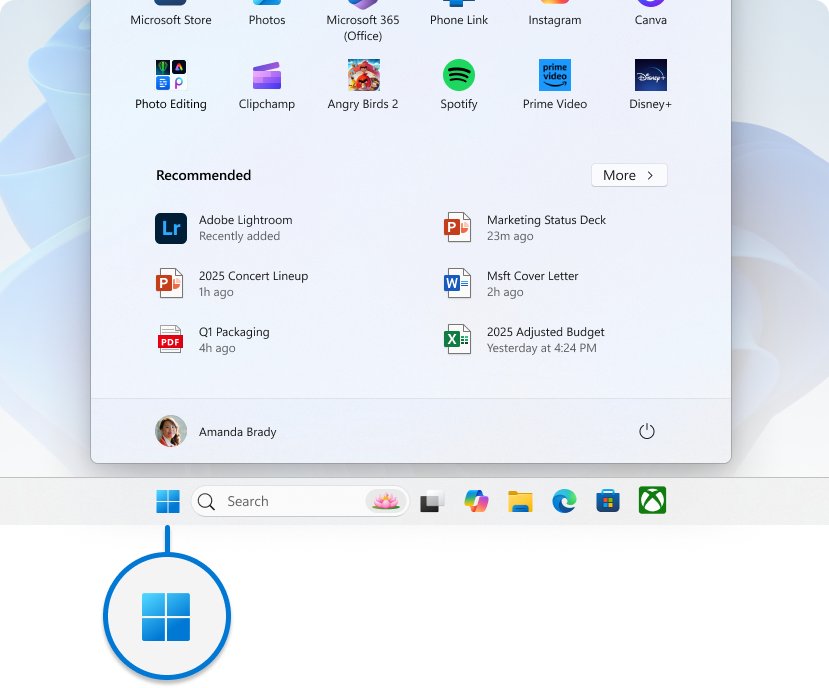
Pin WordPad so it opens with one click instead of a search.
- Type WordPad in the Search box on the taskbar or in Start.
- Right-click the WordPad result and select Pin to Start.
- Right-click the same result again and select Pin to taskbar.
- If WordPad is already open, right-click its icon on the taskbar and select Pin to taskbar.
- Drag the pinned icon in Start or on the taskbar to the position you want.
To remove a pin later, right-click it and select Unpin from Start or Unpin from taskbar.
How to set WordPad as the default RTF editor
Once WordPad is reinstalled, another app may still own .rtf files. Change the default in Settings.
- Open Settings and select Apps > Default apps.
- Type .rtf in the search bar at the top.
- Select the .rtf result that appears.
- Choose WordPad from the list of apps.
- Repeat for .docx or .txt if you also want WordPad to open those.
On 24H2 and later, Windows no longer has a built-in default RTF reader. Set Microsoft Word or LibreOffice Writer as the .rtf default with the same steps.
WordPad not working after installation? Try these fixes
WordPad is gone after a Windows update
The PC moved to Windows 11 24H2 or later, where Microsoft removed WordPad from all editions.
- Check Settings > System > About. If the Version reads 24H2 or higher, WordPad cannot be reinstalled.
- If the upgrade happened in the last 10 days, use Settings > System > Recovery > Go back.
- Otherwise switch to Word, Word for the web, Notepad or LibreOffice Writer.
WordPad does not appear in Optional features
Either the PC runs 24H2 or later, or a group policy hides the Optional features page.
- Confirm the Windows version in Settings > System > About.
- On a work or school PC, ask the administrator: the Hide "Windows Features" policy hides the page that adds optional features.
- On 23H2 or earlier, try the DISM command above from an administrator Command Prompt.
Adding WordPad fails or stays stuck
Optional features download from Windows Update, so the PC must be online and able to reach it.
- Connect to the internet and open Settings > Windows Update.
- Install pending updates and restart.
- Return to Optional features and add WordPad again.
WordPad does not appear in Windows Search
The install did not finish, or the feature was never added.
- Open Settings > System > Optional features and look for WordPad under Installed features.
- If it is missing, add it again with View features.
- Restart the PC and search Start for WordPad again.
WordPad shows a missing DLL error or will not open
This usually means WordPad files were copied from another PC or a download site, which Microsoft does not support; wordpadfilter.dll is one of the removed binaries.
- Delete the copied WordPad files and any shortcuts that point to them.
- On 23H2 or earlier, reinstall WordPad through Optional features, which installs a matching, supported copy.
- On 24H2 and later, use a supported alternative instead.
RTF files open in another application
Another app is set as the .rtf default.
- Open Settings > Apps > Default apps.
- Search for .rtf, select it, and choose WordPad or your preferred editor.
Best free WordPad alternatives for Windows 11
On 24H2 and later, these free, official options cover what WordPad did. Microsoft itself points to Word and Notepad.
| Alternative | Cost | Opens .rtf / .docx? | Who it suits |
|---|---|---|---|
| Word for the web | Free with a Microsoft account | Yes, files are saved in and shared from OneDrive | Anyone who wants Word formatting without paying, and does not mind working online |
| Notepad (built into Windows 11) | Free, preinstalled | Plain text; recent versions add bold, italic, links, lists and headings using Markdown | Quick notes and simple formatted text without opening another app |
| LibreOffice Writer | Free and open source | Full word processor for anything from quick notes to books | People who want a full desktop word processor that works offline |
| Microsoft Word (desktop) | Paid, part of Microsoft 365 | Yes | Heavy document work; Microsoft's recommended replacement for .doc and .rtf |
Word for the web gives you 5 GB of cloud storage with a free Microsoft account, so set up OneDrive on Windows 11 if you want those files in File Explorer.
Microsoft began rolling out Notepad's formatting toolbar in 2025. You can return to plain text from the toolbar or Edit menu, or turn formatting off in Notepad's settings.
WordPad vs Notepad vs Microsoft Word
| WordPad | Notepad | Microsoft Word | |
|---|---|---|---|
| Availability on Windows 11 24H2+ | Removed | Preinstalled, updated through the Microsoft Store | Separate app, Microsoft 365 |
| Price | Was free, built in | Free | Paid desktop app; free web version |
| File types | .rtf, .docx, .txt | Plain text and source code; Markdown formatting in recent versions | .docx, .doc, .rtf and more |
| Rich formatting | Rich text (.rtf) documents | Lightweight: bold, italic, links, lists, headings | Full layout, styles, tables, review tools |
| Best for | Older PCs still on 23H2 | Plain text and quick notes | Rich text and .rtf documents on current Windows |
WordPad on Windows 11: frequently asked questions
What is WordPad?
WordPad is the basic word processor that came built into Windows for decades. It creates, opens and edits .rtf, .docx and .txt files, sitting between Notepad's plain text and Microsoft Word's full layout tools. Microsoft removed it starting with Windows 11, version 24H2.
Why was WordPad removed?
Microsoft stopped updating WordPad in 2023 and removed it from all editions of Windows starting in Windows 11, version 24H2 and Windows Server 2025. Its stated replacements are Microsoft Word for rich text documents like .doc and .rtf, and Notepad for plain text like .txt.
Why is WordPad gone from my PC?
WordPad disappears when a PC updates to Windows 11, version 24H2 or later, because Microsoft removed it from those releases. Check Settings > System > About; if the version reads 24H2 or higher, WordPad cannot be reinstalled from Optional features.
Is the WordPad app free?
Yes. WordPad was always free and built into Windows, and on Windows 11 23H2 or earlier you can reinstall it at no cost from Settings > System > Optional features. Microsoft has never sold WordPad, and it offers no paid or Store version for 24H2.
Can I reinstall WordPad on Windows 11 24H2 or later?
No. Microsoft removed WordPad's files, including wordpad.exe and wordpadfilter.dll, from Windows 11 starting with version 24H2, so Optional features and DISM cannot add it back. The only official route is rolling back a recent upgrade with Go back, usually within 10 days.
Is WordPad available in the Microsoft Store?
Microsoft does not offer WordPad as a Store app. Its removal notice names Word and Notepad as the replacements, and Notepad is the one that Microsoft updates through the Microsoft Store.
Where is WordPad in Windows 11?
On Windows 11 23H2 or earlier, search Start for WordPad; if it is missing, add it from Settings > System > Optional features. On 24H2 and later, WordPad is not anywhere on the PC because Microsoft removed it.
Can WordPad open DOCX files?
Yes. Microsoft describes the WordPad feature as able to create, open and edit .rtf, .docx and .txt files. Complex Word layouts are better opened in Microsoft Word or Word for the web, which are Microsoft's recommended replacements.
Can a WordPad document open in Word?
Yes. Word opens .rtf and .docx files, and Microsoft recommends Word for rich text documents like .doc and .rtf. Open the file from Word's File > Open, or make Word the .rtf default in Settings > Apps > Default apps.
Is there a WordPad online version?
No. Microsoft does not offer an online WordPad. The closest free online option is Word for the web, which works in a browser with a free Microsoft account and saves files to OneDrive.
What can I use instead of WordPad on Windows 11?
Use Microsoft Word or the free Word for the web for .rtf and .docx files, Notepad for plain text and light formatting, or LibreOffice Writer for a free offline word processor. Microsoft itself recommends Word and Notepad.
Should you reinstall WordPad or switch now?
Reinstall WordPad from Optional features only if your PC runs Windows 11 23H2 or earlier and you need it today; on 24H2 and later, set Word for the web, Microsoft Word or LibreOffice Writer as your .rtf default. Microsoft has removed WordPad from every current Windows 11 release, so a reinstall on an older build lasts only until the next feature update, while the alternatives keep receiving updates.