Outlook hides emails from the Inbox when a filter is applied, when Focused Inbox puts them on the Other tab, when a rule or Junk filter moves them, or when classic Outlook only downloads the last few months of mail.
This guide covers each cause in Outlook.com, Outlook on the web, new Outlook for Windows, classic Outlook and Outlook for Mac, with the exact setting to change and a test to prove the fix.
The fastest way to show all emails in the Outlook inbox
These four checks find most missing messages in under two minutes, in any version of Outlook.
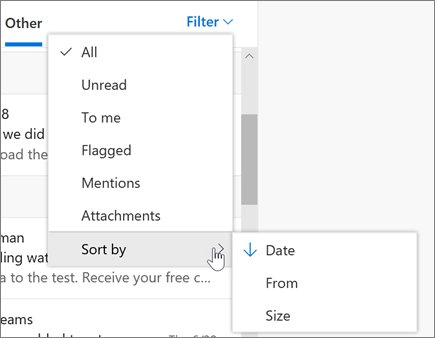
- Select Filter above the message list and choose All so no unread, flagged or category filter is hiding mail.
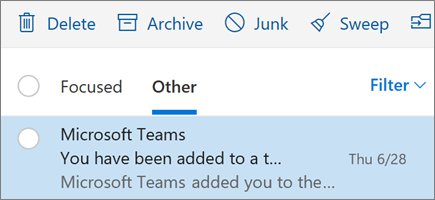
- Select the Other tab at the top of the Inbox if you see Focused and Other tabs.
- Type the sender's address or a word from the subject in the Search box at the top of the window and widen the search to every folder.
- Open Junk Email, Archive and Deleted Items and look for the message.
- Move any message you find back with Move to > Inbox, or select Report > Not junk for mail sitting in Junk Email.
If the message is missing everywhere, including Outlook on the web, the problem is delivery or sync rather than display. Continue with the diagnosis table below.
Quick diagnosis table
Match what you see to the row that fits, then jump to the numbered fix.
| What you see | Likely cause | Fix to try |
|---|---|---|
| The Inbox shows only unread or flagged mail | A filter is applied to the message list | 1. Clear the Inbox filter |
| Mail from newsletters and services never appears | Focused Inbox sorts it to the Other tab | 2. Check the Focused and Other tabs |
| One sender's mail never arrives | Junk filtering, a rule or a Sweep rule | 3. Junk Email, then 7. rules |
| Messages vanish after they arrive | An Inbox rule, Sweep rule or another app deletes or archives them | 4. Deleted Items, 5. Archive, 7. rules |
| A conversation shows one line instead of several emails | Conversation view groups the thread | 6. Change the message-list view |
| Emails older than a year are missing in classic Outlook | Cached Exchange Mode downloads only part of the mailbox | 11. Download all old email in classic Outlook |
| New mail shows in Outlook on the web but not in the desktop app | Outlook is offline or not synchronizing | 10. Confirm the account and synchronization status |
| Gmail messages are missing in Outlook for Mac | IMAP or labels are not shared with Outlook | 9. Check Gmail-connected accounts in Outlook for Mac |
| No new mail arrives at all and senders get a bounce | The mailbox or Microsoft cloud storage is full | 14. Check mailbox storage limits |
| Outlook reports a damaged data file or folders look empty | A corrupted .pst or .ost file | 15. Repair a damaged Outlook data file or profile |
1. Clear the Inbox filter
A filter left on Unread, Flagged or a category hides every other message without any warning in the folder.
- Open your Inbox.
- In Outlook.com, Outlook on the web and new Outlook, select Filter above the message list and choose All.
- In classic Outlook, open the Filter drop-down on the message list and choose to show all messages.
- In Outlook for iOS or Android, tap the filter shown above the message list to clear it.
- Scroll the Inbox and confirm older read messages are back.
Sorting is set in the same menu. If the list is sorted by sender or size instead of date, recent mail lands in the middle of the list and looks missing.
2. Check the Focused and Other tabs
Focused Inbox splits the Inbox into Focused and Other tabs and sends automated and bulk mail to Other. Check Focused Inbox and the current view before anything else, because mail on the Other tab is still in the Inbox.
Focused Inbox does not work in a shared mailbox, so this check applies to your own mailbox only.
- Select the Other tab at the top of the Inbox and look for the message.
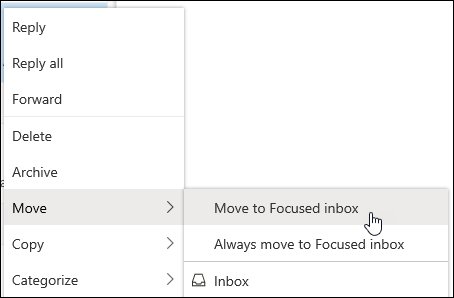
- To keep a sender on the main tab, right-click the message and select Move > Move to Focused inbox, or Always move to Focused inbox for all future mail from that sender.
- To turn Focused Inbox off in new Outlook, select View > View Settings, open Mail > Message List, clear Sort messages into Focused and Other and select Save.
- In Outlook.com and Outlook on the web, open Settings > Mail > Message List, clear Sort messages into Focused and Other and select Save.
- In classic Outlook, select the View tab and select Show Focused Inbox to turn the tabs on or off.
With Focused Inbox off, every message appears in one list again.
3. Look in Junk Email
Outlook's junk filter, or another email app connected to the same account, can mark a real message as junk. Junk Email keeps messages for 30 days, then removes them permanently.
- Open the Junk Email folder.
- Select the missing message.
- In Outlook.com and Outlook on the web, select Report > Not junk to move it to the Inbox.
- In Outlook for iOS or Android, open the message menu and select Move to Inbox.
- In a mobile browser, open the message menu and select Mark as not junk.
Marking a message as not junk teaches the filter. Repeat it for each wrongly filtered sender.
4. Check Deleted Items and recover permanently deleted mail
A rule, a Sweep rule, another device or a mistaken keypress can delete a message. In Outlook.com, Deleted Items empties after 30 days, and mail removed from Deleted Items stays recoverable for another 30 days. Work and school accounts follow retention periods set by the administrator.
- Open Deleted Items and look for the message. If it is there, select it and select Restore, or right-click it and choose Move.
- In Outlook.com, Outlook on the web and new Outlook, select Recover items deleted from this folder above the message list.
- Select the messages you want and select Restore.
- In classic Outlook, open Deleted Items, then select Recover Deleted Items From Server on the Home tab.
- Select the items, choose Restore Selected Items and select OK. Recovered mail returns to Deleted Items, so move it to the Inbox afterwards.
Recovery of permanently deleted mail needs a computer; the Outlook mobile apps and mobile browsers cannot do it. Messages deleted from a child's account cannot be recovered.
In classic Outlook, if you see Trash instead of Deleted Items, or no recover command, the account type does not support server recovery.
5. Check the Archive folder
Archived messages leave the Inbox but stay in the mailbox. The Archive button sits next to Delete, so one wrong click or swipe moves mail out of sight. Together with the earlier checks, this covers Junk Email, Other, Archive and Deleted Items.
- Select Archive in the folder list.
- Find the message by date or sender.
- Select it and select Move to > Inbox.
- In Outlook for iOS or Android, open the message menu and select Move to folder > Inbox.
6. Change the message-list view
Conversation view groups replies into one line, so a thread with ten emails shows as a single entry. Your own replies and messages filed in other folders also join that line.
- In classic Outlook, select View and clear Show as Conversations to list each email separately.
- To keep conversations but restrict them, choose This folder instead of All mailboxes when Outlook asks where to apply the change.
- In new Outlook, select Settings > Mail > Layout, and under Message organization choose not to group messages.
- In Outlook.com and Outlook on the web, open Settings > Mail, find Message organization and select Do not group messages.
- Return to the Inbox and confirm each message appears on its own line.
If the whole layout looks different rather than shorter, a different setting moved; you can put the Outlook inbox view back setting by setting.
7. Inspect Inbox and Sweep rules
Look for an Inbox rule that moves or deletes the message before it reaches the list. Sweep rules in Outlook.com and Outlook on the web can delete all mail from a sender, keep only the latest one, or delete mail older than 10 days, and they run once per day.
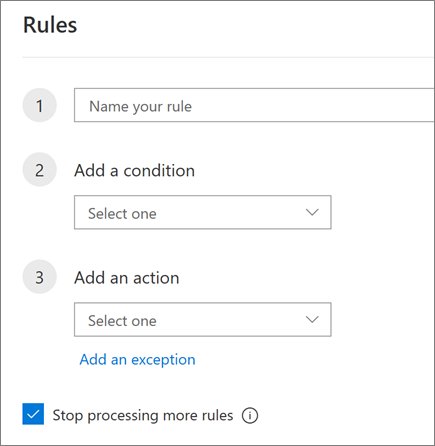
- In Outlook.com, Outlook on the web and new Outlook, select Settings > Mail > Rules.
- In classic Outlook, select File > Manage Rules & Alerts and stay on the E-mail Rules tab.
- Read each rule's conditions and actions, and look for any that move to a folder, delete, or forward the message.
- Turn a suspect rule off with its toggle or check box to test it without losing it.
- Edit the rule with the pencil icon or Change Rule, or remove it with the trash icon or Delete.
- Open the folder the rule was moving mail into and move the messages back to the Inbox.
Rules need a computer to view and edit. Rules created in classic Outlook that run on the client do not run in new Outlook or Outlook.com, and new Outlook does not run rules for Gmail, Yahoo or iCloud accounts.
8. Search the entire mailbox
Search the entire mailbox first whenever you know the sender or a subject word. Search finds a message wherever a rule, archive action or drag-and-drop put it.
- Select the Search box at the top of the Outlook window.
- Type the sender's address or a distinctive subject word and press Enter.
- In classic Outlook, use the Scope group on the Search tab to search all mailboxes instead of the current folder, and select Subfolders to include folders inside the Inbox.
- In new Outlook and Outlook on the web, select the filter button on the right side of the search box to open advanced search and set the folder to search.
- Check the folder name shown with each result to learn where the message went.
In classic Outlook, Showing recent results… More at the bottom of the results means older matches are on the server. Select More to fetch them.
9. Check Gmail-connected accounts in Outlook for Mac
Outlook reads Gmail over IMAP and only sees labels that Gmail shares over IMAP. The first download of a large Gmail mailbox can take up to a few days, while new mail arrives without delay.
- In Gmail on the web, open Settings, select the Forwarding and POP/IMAP tab, turn on IMAP under IMAP access and save.
- On the Labels tab, turn on Show in IMAP for Inbox, Sent Mail, Trash and All Mail, plus any label you want in Outlook.
- In Outlook for Mac, select Sync on the ribbon.
- Wait up to 15 minutes for the sync to refresh. A new or renamed label can take up to 4 hours to appear as a folder.
If Gmail mail still does not appear, remove the account in Settings > Accounts, then add it again with + Add Account and approve access in Google's permission window.
10. Confirm the account and synchronization status
Confirm that Outlook is connected and synchronizing when new mail appears in Outlook on the web but not in the desktop app. Classic Outlook shows Working Offline, Disconnected or Trying to connect… on the status bar when it cannot reach the server.
- Open a browser and load microsoft.com to confirm the PC is online.
- In classic Outlook, look at the status bar at the bottom of the window.
- If it says Working Offline, select the Send / Receive tab and select Work Offline in the Preferences group to go back online.
- Select Send/Receive to pull new mail immediately.
- In new Outlook, select Sync on the View tab to force a manual sync. Gmail, Yahoo, iCloud and other POP or IMAP accounts do not offer this button.
- If you changed your email password recently, select the account name in new Outlook, select Continue and sign in with the new password.
When Outlook is online and synced, the Inbox matches Outlook on the web.
11. Download all old email in classic Outlook
Classic Outlook in Cached Exchange Mode keeps only part of a Microsoft 365 or Exchange mailbox on the PC. The default is 1, 3 or 12 months depending on disk size, so older emails seem missing and the folder shows There are more items in this folder on the server.
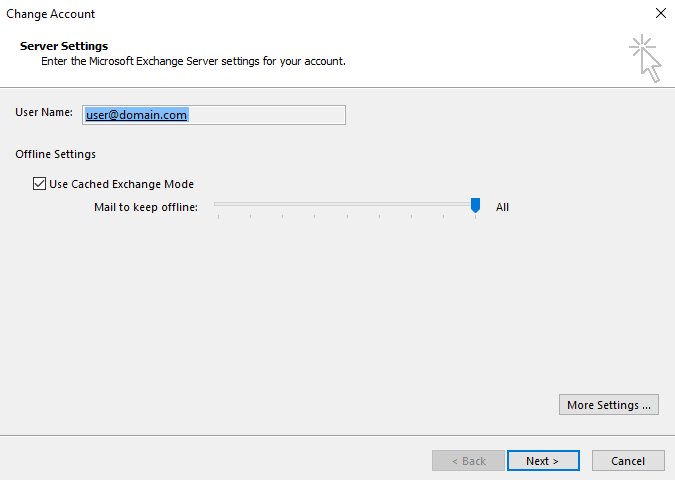
The setting is called Download email for the past in current versions and Mail to keep offline in older ones.
- Select File > Account Settings > Account Settings.
- On the E-mail tab, double-click your Microsoft Exchange or Microsoft 365 account.
- Drag the Download email for the past slider to All, or to a longer period such as 3 or 5 years.
- Select Next, then OK when Outlook asks you to restart.
- Select Finish and restart Outlook.
- Leave Outlook open while it downloads the older mail.
For a one-off look without changing the setting, select Click here to view more on Microsoft Exchange at the bottom of the folder.
New Outlook works differently. Its Settings > General > Offline > Days of email to save setting (7, 30, 90 or 180 days) only limits what is available offline; online, it reads the full mailbox.
12. Check the account and mailbox you are viewing
With several accounts in one Outlook window, each account has its own Inbox. Mail sent to an alias, a shared mailbox or a second address lands in that Inbox, not yours.
- Expand every account in the folder pane and open the Inbox under each address.
- Check the address the sender actually used, such as a work address instead of a personal one.
- Sign in to Outlook on the web with the same account and compare the Inbox there.
- If the message is only on the web, the desktop app is the problem; go back to fix 10 or 15.
- If you have not signed in to an Outlook.com mailbox for a year, Microsoft closes the mailbox and deletes its email, so sign in regularly.
13. Check automatic forwarding and server-side filtering
Forwarding without Keep a copy of forwarded messages sends mail to another address and leaves nothing in your Inbox. In a work or school account, filtering on the mail server can also hold messages before Outlook sees them.
- In new Outlook and Outlook on the web, select Settings > Mail > Forwarding.
- In Outlook.com, select Settings > Mail > Forwarding and IMAP.
- If forwarding is on and you did not set it, select Disable forwarding and select Save.
- If you want forwarding, select Keep a copy of forwarded messages so the Inbox still gets each email, then select Save.
- In classic Outlook, check File > Manage Rules & Alerts for a rule that forwards or redirects mail.
- For a work account, ask the administrator whether a mail-flow rule or filtering policy is holding the sender's mail.
14. Check mailbox storage limits
A full mailbox stops all mail. Outlook.com includes 15 GB of email storage, Microsoft 365 consumer mailboxes go up to 100 GB, and work or school mailboxes up to 100 GB unless an administrator sets less. When Outlook.com storage or your overall Microsoft cloud storage is full, incoming mail returns to the sender and is not delivered later.
- In new Outlook, select Settings > Accounts > Storage.
- In Outlook on the web and Outlook.com, select Settings > Account > Storage.
- Review which folders use the most space.
- Empty Deleted Items and Junk Email, since deleted mail still counts against the quota.
- Ask senders to resend anything that bounced while the mailbox was full.
15. Repair a damaged Outlook data file or profile
In classic Outlook, a damaged offline data file (.ost) or Outlook data file (.pst) can leave folders short of items that exist on the server. Start with the smallest fix: resync one folder, then repair the profile, then rebuild.
- Right-click the Inbox, select Properties, select Clear Offline Items and select OK. Then select Send / Receive > Update Folder.
- To repair the profile, select File > Account Settings > Account Settings, choose the account on the Email tab and select Repair. Follow the wizard and restart Outlook.
- For an Exchange or Microsoft 365 account, close Outlook, open
C:\Users\<username>\AppData\Local\Microsoft\Outlook, and rename the .ost file to end in .old. - Start Outlook and wait while it downloads the mailbox again.
- For a .pst file, close Outlook and run
SCANPST.EXEfromC:\Program Files\Microsoft Office\root\Office16(orC:\Program Files (x86)\Microsoft Office\root\Office16). - Select Browse, pick the .pst file, select Start, then Repair if errors are found. Run it again until it reports no errors.
Do not delete an .ost file that holds mail you never synced to the server. Export that mail to a .pst file first.
After a .pst repair, look in Recovered Personal Folders and Lost and Found in the folder pane for items the tool could not put back in place.
16. Test with a controlled message
A test email shows exactly where mail lands now, so you know whether the fix worked.
- From another account, send an email to your address with a unique subject such as "Inbox test 1".
- Wait two minutes, then look in the Inbox with the filter set to All.
- If it is not there, search for the subject across all folders and note which folder it lands in.
- Sign in to Outlook on the web and check the same Inbox.
- Read the result: in the Inbox on both means fixed; on the web only means a desktop sync problem; in another folder means a rule, Focused Inbox or junk filtering; nowhere means delivery or storage.
When to contact the sender or administrator
Some missing emails never reach your mailbox, and no Outlook setting brings them back.
| Situation | Who to contact | What to ask for |
|---|---|---|
| The sender got a bounce or error message | The sender | The full error text and the address they used |
| Your test message arrives but theirs does not | The sender | Whether they send from a list or service that may be blocked |
| A work or school account misses mail from one domain | Your administrator | A message trace and a check of filtering policies |
| Rules, forwarding or retention look locked or unfamiliar | Your administrator | Which policies apply to your mailbox |
| An Outlook.com account shows unfamiliar rules or forwarding | Microsoft account recent activity page | Review sign-ins from the last 30 days and secure the account |
When Outlook still does not show the email
Microsoft Outlook Inbox is not showing the latest emails
The desktop app is offline, disconnected, or has not synchronized with the server.
- Check the classic Outlook status bar for Working Offline or Disconnected.
- Select Send / Receive > Work Offline to reconnect if it is highlighted.
- Select Send/Receive, or Sync on the View tab in new Outlook.
- If the web shows the mail and the app does not, clear offline items for the Inbox as in fix 15.
Outlook is not showing all my old emails
Classic Outlook downloads only part of the mailbox in Cached Exchange Mode.
- Open File > Account Settings > Account Settings and double-click the account.
- Set Download email for the past to All.
- Restart Outlook and let it download.
- Check the Archive folder for older mail that was archived instead of deleted.
Outlook is not showing all my sent emails
Sent mail is in Sent Items or grouped into conversations, or Gmail's Sent Mail label is hidden from IMAP.
- Open the Sent Items folder instead of the Inbox.
- Turn off conversation grouping as in fix 6.
- For Gmail, turn on Show in IMAP for Sent Mail in Gmail settings.
- In classic Outlook, raise the Download email for the past setting for old sent mail.
New Outlook doesn't show all emails
A filter, Focused Inbox or offline mode limits the list.
- Select Filter and choose All.
- Select the Other tab, which new Outlook cannot show while offline.
- Reconnect to the internet so new Outlook reads the full mailbox.
- Re-create any classic Outlook rule that new Outlook does not run.
Outlook app on a phone is not showing all emails
The mobile app has a filter applied or mail sits in Other, Junk or Archive.
- Tap the filter above the message list to clear it.
- Open the Other tab.
- Open Junk Email, select the message and choose Move to Inbox.
- Use a computer to recover mail removed from Deleted Items.
Outlook missing emails FAQ
Why is Outlook not showing all my emails?
Outlook usually hides emails because a filter is on, Focused Inbox put them on the Other tab, or a rule moved them to another folder. Junk filtering, archiving and classic Outlook's partial download of old mail cause the rest. Searching every folder shows where the message went.
Why is my Outlook inbox not showing all emails on one tab?
Focused Inbox splits the Inbox into Focused and Other tabs, and bulk or automated mail goes to Other. The emails are still in the Inbox. Select the Other tab, or turn off Sort messages into Focused and Other to see one combined list.
Why is Outlook not showing all my old emails?
Classic Outlook in Cached Exchange Mode downloads only 1, 3 or 12 months of mail by default. Older messages stay on the server. Set Download email for the past to All in the account settings, restart Outlook, and the older mail downloads.
Why is Outlook not showing all my sent emails?
Sent emails are stored in Sent Items, not the Inbox, and conversation view folds your replies into threads. For Gmail accounts, the Sent Mail label must have Show in IMAP turned on in Gmail settings, or Outlook cannot see it.
Why does new Outlook not show all emails?
New Outlook hides emails when a filter is set or Focused Inbox is on. Offline, it shows only the saved days of email and cannot open the Other tab. It also skips client-only rules from classic Outlook, so mail may sit in another folder.
Why is Outlook online not showing all emails?
Outlook on the web and Outlook.com hide mail through the Filter menu, the Other tab, Inbox rules and Sweep rules. Sweep rules run once per day and can delete or move a sender's mail. Check Settings > Mail > Rules for both types.
Can I recover an email deleted from Outlook?
Yes, for a limited time. Restore it from Deleted Items, or use Recover items deleted from this folder for mail already removed. Outlook.com keeps removed mail recoverable for 30 days; work accounts follow the administrator's retention settings. Junk Email deletes after 30 days with no recovery.
Why does Outlook show one email when a conversation contains several?
Conversation view groups every message in a thread into one line in the message list. Turn it off with View > Show as Conversations in classic Outlook, or choose Do not group messages under Message organization in new Outlook and Outlook on the web.
Does Focused Inbox move emails out of the Inbox?
No. Focused Inbox keeps every message in the Inbox and only sorts it onto the Focused or Other tab. Moving a message to Focused, or choosing Always move to Focused inbox, keeps that sender on the main tab.
The bottom line: fixing Outlook when not all emails show in the inbox
Clear the filter, check the Other tab, and search every folder before changing anything else; then set classic Outlook to download all mail if old messages are the gap. Most missing emails are hidden in the Inbox or moved by a rule rather than lost, and those checks take minutes. Repairing data files or contacting an administrator only makes sense once Outlook on the web confirms the mail is not in the mailbox.