To enable or disable Leave touchpad on when a mouse is connected in Windows 11, open Settings > Bluetooth & devices > Touchpad, expand the Touchpad switch and select or clear that check box.
Selected, the touchpad keeps working beside a mouse; cleared, Windows ignores the touchpad whenever it detects an external mouse. This guide also covers the LeaveOnWithMouse registry value, a reg command, and fixes for a touchpad that stays off.
How do you enable or disable the feature in Windows 11 Settings?
The check box sits in a drop-down under the main Touchpad switch, so it stays hidden until you expand that switch.
- Press Windows + I to open Settings.
- Select Bluetooth & devices in the left pane, then select Touchpad.
- Make sure the Touchpad switch is On.
- Select the down arrow next to the Touchpad switch to expand its options.
- Select Leave touchpad on when a mouse is connected to keep the touchpad working with a mouse attached.
- Clear Leave touchpad on when a mouse is connected to have Windows switch the touchpad off whenever a mouse is connected.
- Restart the laptop if the touchpad does not follow the new setting straight away.
You can also press Windows + S, type Touchpad settings and press Enter to land on the same page.
Which setting should you choose?
The right choice depends on how often your palm brushes the touchpad while you use a mouse, and on whether a wireless receiver stays plugged in.
| Your situation | Set the check box to | Why |
|---|---|---|
| You type a lot with a mouse attached and the cursor jumps when your palm hits the touchpad | Cleared | Windows ignores touchpad input while the mouse is detected, so stray palm contact does nothing |
| You switch between mouse and touchpad during the same session | Selected | Both pointing devices stay active, so you never have to unplug the mouse to use gestures |
| A wireless mouse receiver stays in a USB port even when the mouse is off or in a bag | Selected | The receiver alone can count as a connected mouse and keep the touchpad switched off |
| You never want the touchpad, mouse or not | Selected, then turn the main Touchpad switch Off | The main switch disables the touchpad completely instead of only while a mouse is attached |
| You share the laptop and other people rely on the touchpad | Selected | The setting is per user, but a cleared box on a shared account surprises the next person who unplugs the mouse |
Do you need administrator permission to change the registry value?
No for the Settings check box and, in most cases, no for the registry value either. Microsoft stores this setting under HKEY_CURRENT_USER, the hive that holds the signed-in user's own preferences.
| Task | Administrator rights needed? | Detail |
|---|---|---|
| Select or clear the check box in Settings | No | Any standard account can change its own touchpad preferences |
Run reg add against HKCU in Command Prompt |
No | The command writes to the current user's hive, so a normal (not elevated) Command Prompt works |
| Open Registry Editor | Sometimes | Windows can show a User Account Control prompt when Registry Editor starts; approve it or enter an administrator password |
| Change the default for new user profiles | Yes | Microsoft says defaults for new profiles come from the hive at %SystemDrive%\Users\Default\NTUSER.DAT, which needs administrator access to load and edit |
| Exempt a device from counting as a mouse (IgnoredExternalMice) | Yes | That key lives under HKEY_LOCAL_MACHINE and is aimed at PC makers |
Because the value is per user, changing it for one account does not change it for anyone else on the same laptop.
How do you change the setting through the Windows Registry?
Microsoft documents the value behind this check box as LeaveOnWithMouse, a DWORD registry value under the current user's PrecisionTouchPad key. A value of 1 (the default) leaves the touchpad on; 0 turns it off while a mouse is connected.
Export the key before you change it, so you can put it back with File > Import if anything goes wrong.
- Select Start, type
regeditand press Enter. Approve the User Account Control prompt if one appears. - Paste
HKEY_CURRENT_USER\Software\Microsoft\Windows\CurrentVersion\PrecisionTouchPadinto the address bar and press Enter. - Select File > Export, choose a location, name the backup and select Save.
- Double-click LeaveOnWithMouse in the right pane. If it is missing, right-click PrecisionTouchPad, select New > DWORD (32-bit) Value and name it
LeaveOnWithMouse. - Type
1in Value data to leave the touchpad on with a mouse, or0to disable it while a mouse is connected. - Select OK and close Registry Editor.
- Sign out and back in, or restart, so Windows reads the new value.
Set LeaveOnWithMouse with reg add in Command Prompt
The same change takes one line once you open Command Prompt or Windows Terminal. Use /d 0 to disable the touchpad while a mouse is connected and /d 1 to leave it on.
reg add HKCU\Software\Microsoft\Windows\CurrentVersion\PrecisionTouchPad /v LeaveOnWithMouse /t REG_DWORD /d 0 /f/v names the value, /t REG_DWORD sets its type, /d supplies the data (0 = off with a mouse, 1 = leave on) and /f overwrites any existing value without asking for confirmation.
You should see: The command returns without an error (reg returns 0 on success). Sign out and back in, then confirm the check box in Settings matches.
Where the mouse-connected touchpad option lives in Windows 11 and Windows 10
The option has existed since Windows 10, version 1511, so it appears on both versions. Only the route to the page differs.
| Where | Path | Notes |
|---|---|---|
| Windows 11 Settings | Settings > Bluetooth & devices > Touchpad, then the arrow next to Touchpad | The check box sits in the drop-down under the main switch |
| Windows 10 Settings | Settings > Devices > Touchpad | The check box is listed on the Touchpad page |
| Registry (both versions) | HKEY_CURRENT_USER\Software\Microsoft\Windows\CurrentVersion\PrecisionTouchPad |
DWORD LeaveOnWithMouse, range 0-1, default 1 |
| Default for new user profiles | %SystemDrive%\Users\Default\NTUSER.DAT |
Microsoft's route for PC makers who want a different default |
How do you verify the current registry setting?
Run this in Command Prompt to read the stored value without opening Registry Editor:
- Press Windows + R, type
cmdand press Enter. - Run
reg query HKCU\Software\Microsoft\Windows\CurrentVersion\PrecisionTouchPad /v LeaveOnWithMouse. - Read the data column:
0x1means the touchpad stays on with a mouse,0x0means Windows turns it off while a mouse is connected. - Open Settings > Bluetooth & devices > Touchpad and expand the switch. The check box should be selected for 1 and cleared for 0.
- Connect the mouse and move a finger on the touchpad. The pointer should move if the box is selected and stay still if it is cleared.
- Unplug the mouse, including any wireless receiver, and confirm the touchpad responds again.
If reg query reports that the value cannot be found, set the check box once in Settings, or create the value with the reg add command above.
What does the “Leave touchpad on when a mouse is connected” setting do?
Microsoft describes it as the setting that decides whether the touchpad may stay active when an external mouse is present. When the touchpad is inactive, Windows ignores any input it produces.
| Check box state | Mouse connected | No mouse connected |
|---|---|---|
| Selected (default, value 1) | Touchpad and mouse both move the pointer | Touchpad works normally |
| Cleared (value 0) | Windows ignores touchpad input | Touchpad works normally again |
| Main Touchpad switch Off | Touchpad ignored | Touchpad ignored |
Clearing the box never disables the touchpad for good. It is an automatic switch tied to mouse detection, and the touchpad returns as soon as Windows stops seeing a mouse.
What is the difference between the main Touchpad switch and the mouse-connected option?
Windows tracks two separate states: whether the touchpad is enabled, and whether it is active. Microsoft's own definition says the touchpad is active only when it is enabled and either no external mouse is detected or it is allowed to stay on with one.
| Main Touchpad switch | Leave touchpad on when a mouse is connected | |
|---|---|---|
| What it controls | Whether the touchpad is enabled at all | Whether an enabled touchpad stays active while a mouse is detected |
| Reacts to a mouse | No | Yes, every time a mouse is connected or removed |
| Works with no mouse connected | Only when On | Has no effect |
| Registry value | Not part of LeaveOnWithMouse | LeaveOnWithMouse (0 or 1) |
| Best for | Laptops that only ever use a mouse | Laptops that move between desk and lap |
To switch the touchpad off completely, with or without a mouse, turn off the touchpad in Windows 11 with the main switch or a laptop hotkey instead.
Does the setting work with USB and Bluetooth mice?
Yes. Windows reacts to any external mouse it detects, not to a particular connection type.
| Mouse type | Counts as a connected mouse? | Watch out for |
|---|---|---|
| Wired USB mouse | Yes, while plugged in | Nothing unusual; unplugging it brings the touchpad back |
| Wireless mouse with a USB receiver | Yes, while the receiver is plugged in | Dell notes the receiver can disable the touchpad even when the mouse itself is turned off |
| Bluetooth mouse | Yes, while Windows sees it as connected | A paired mouse that reconnects in a bag can switch the touchpad off; turn it off or disconnect it in Bluetooth & devices |
| Keyboard or receiver with a built-in mouse function | It can be | Microsoft provides an IgnoredExternalMice exemption for PC makers because some keyboards report a mouse collection |
Which laptops support this Windows 11 option?
The setting belongs to Windows' built-in touchpad settings, which Microsoft applies to Precision Touchpads. Older touchpads that identify themselves to Windows as a mouse are called legacy touchpads, and their makers usually supply their own controls.
| Touchpad type | Shows the check box? | Where to manage the mouse behaviour |
|---|---|---|
| Precision Touchpad (most current Windows 11 laptops) | Yes | Settings > Bluetooth & devices > Touchpad |
| Legacy touchpad that reports as a mouse | Often no | The laptop maker's touchpad utility, such as MyASUS on ASUS laptops |
| Desktop PC with no touchpad | No Touchpad page | Nothing to change |
| External touchpad or trackpad | Depends on the device | The device maker's software |
Windows 10, version 1511 and later, and every Windows 11 release, include the LeaveOnWithMouse setting.
What should the ready-to-use Registry files contain?
A pair of .reg files lets you flip the setting with a double-click. Each file needs only one key and one value.
The safest way to get correctly formatted files is to let Registry Editor write them for you with Export, rather than typing the syntax by hand.
- Set LeaveOnWithMouse to
1with the registry steps above. - In Registry Editor, select the PrecisionTouchPad key and choose File > Export.
- Name the file
Touchpad-on-with-mouse.regand select Save. - Change LeaveOnWithMouse to
0, export the key again and name itTouchpad-off-with-mouse.reg. - Open each file in Notepad and confirm it contains the PrecisionTouchPad key and the LeaveOnWithMouse line with
dword:00000001ordword:00000000. - To apply one later, open Registry Editor, select File > Import, pick the file and select Open, then sign out and back in.
An exported branch also carries your other touchpad values, such as tap and scroll settings. Importing it restores those too, which is what you want for a personal backup but not for another user's account.
Turn the touchpad back on without a mouse in Windows 11
If the touchpad is off and no mouse works, the keyboard alone can reach the Touchpad page.
- Press Windows + Q, type
touchpad settingsand press Enter. - Press Tab until the Touchpad switch has a box around it.
- Press Spacebar to switch it On.
- Move a finger on the touchpad to confirm the pointer responds.
- Expand the Touchpad switch with the touchpad and select Leave touchpad on when a mouse is connected so a reconnected mouse does not switch it off again.
Many laptops also have a touchpad hotkey; ASUS lists F6 or F9 on most models, but the key varies, so check the manual.
Why does the touchpad remain disabled after the mouse is disconnected?
Windows switches the touchpad back on only when it no longer detects any external mouse. Something is usually still reporting as one.
Touchpad stays off after the mouse is turned off
A wireless receiver is still plugged in, so Windows still sees a mouse.
- Remove the USB receiver from the laptop.
- Move a finger on the touchpad to confirm it responds.
- If you keep the receiver plugged in, select Leave touchpad on when a mouse is connected.
Touchpad keeps getting disabled with no mouse in sight
A Bluetooth mouse, a keyboard with a mouse function, or a docking station is still connected.
- Open Settings > Bluetooth & devices and check which mice and keyboards are listed.
- Turn off or disconnect any mouse listed there.
- Unplug the dock or external keyboard and test the touchpad again.
- If one of them is the trigger, select Leave touchpad on when a mouse is connected.
Touchpad is disabled even with nothing connected
The main Touchpad switch or a laptop hotkey has turned it off, or the driver needs attention.
- Open Settings > Bluetooth & devices > Touchpad and set Touchpad to On.
- Press the laptop's touchpad hotkey once in case it was toggled off.
- Run Windows Update, which Microsoft recommends for updating touchpad drivers.
- If it still does not respond, work through the steps to fix a touchpad that is not working.
What should you do if the option is missing or appears reversed?
No “Leave touchpad on when a mouse is connected” check box
The drop-down is collapsed, the touchpad is a legacy model, or its driver is missing.
- Select the arrow beside the Touchpad switch; the check box only shows when the switch is expanded.
- If the Touchpad page shows no such options, open the laptop maker's touchpad utility instead.
- Run Windows Update to install the touchpad driver.
- In Device Manager, check Human Interface Devices and Mice and other pointing devices for the touchpad and reinstall it if it shows an error.
The setting seems to do the opposite of what you expect
The label describes keeping the touchpad on, so the check box works the reverse way from a “disable touchpad” option.
- Select the box to keep the touchpad on with a mouse.
- Clear the box to turn the touchpad off when a mouse is connected.
- Check the registry value with the reg query step: 1 matches a selected box and 0 a cleared box.
- If a maker's utility has its own mouse option, set it to match, so two tools do not fight over the touchpad.
Is this the same as disabling the Windows virtual touchpad?
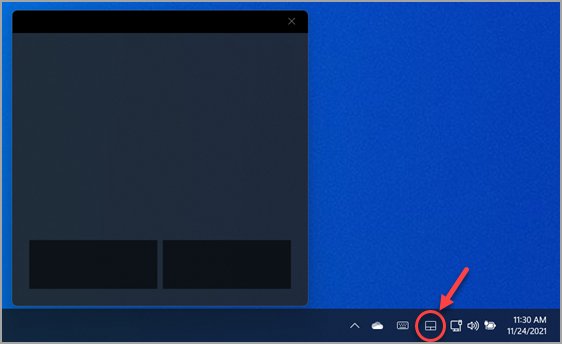
No. The virtual touchpad is an on-screen touchpad that controls the mouse pointer, opened from an icon in the taskbar's system tray. Switching its icon off does not change the physical touchpad or how Windows reacts to a mouse.
| Leave touchpad on when a mouse is connected | Virtual touchpad | |
|---|---|---|
| What it is | A rule for the physical touchpad | An on-screen touchpad window |
| Where to change it | Settings > Bluetooth & devices > Touchpad | Settings > Personalization > Taskbar > System tray icons > Virtual Touchpad |
| Effect of turning it off | Physical touchpad ignored only while a mouse is connected | The taskbar icon disappears; the physical touchpad is unaffected |
Leave touchpad on with a mouse: questions and answers
How do I disable the touchpad when a mouse is connected in Windows 11?
Open Settings > Bluetooth & devices > Touchpad, expand the Touchpad switch and clear Leave touchpad on when a mouse is connected. Windows then ignores the touchpad while it detects a mouse and turns it back on when the mouse is removed.
Does clearing the box permanently disable the touchpad?
No. Clearing it only disables the touchpad while an external mouse is detected. Remove the mouse, including any wireless receiver, and the touchpad works again. To disable the touchpad permanently, turn the main Touchpad switch off instead.
Why does my touchpad keep getting disabled?
The most common reason is that Leave touchpad on when a mouse is connected is cleared and Windows still detects a mouse, such as a plugged-in wireless receiver or a Bluetooth mouse. Select the check box, or disconnect the device that reports as a mouse.
What function key disables the touchpad?
It depends on the laptop. ASUS lists F6 or F9 on most models, and other makers use their own key, often marked with a touchpad icon. The laptop manual names the exact key for your model.
How do I enable a disabled touchpad?
Press Windows + Q, type touchpad settings, press Enter, then Tab to the Touchpad switch and press Spacebar to turn it on. Select Leave touchpad on when a mouse is connected if a mouse is attached.
Can I temporarily disable the touchpad on a laptop?
Yes. Turn the Touchpad switch off in Settings and back on later, or press the laptop's touchpad hotkey. Clearing Leave touchpad on when a mouse is connected also works as an automatic temporary off whenever a mouse is plugged in.
Does the setting apply to every user on the PC?
No. LeaveOnWithMouse is stored under HKEY_CURRENT_USER, so each account keeps its own choice. Microsoft's route for changing the default for new profiles is the Default user hive, which needs administrator access.
Why is the touchpad disabled but still working?
If the box is selected, the touchpad stays active beside a mouse, so it keeps moving the pointer. Clear Leave touchpad on when a mouse is connected or turn the main Touchpad switch off, then restart if the change does not apply.
The bottom line on leaving the touchpad on with a mouse
Keep Leave touchpad on when a mouse is connected selected unless palm contact keeps moving the pointer while you type with a mouse; then clear it. The default avoids a touchpad that switches itself off because of a forgotten wireless receiver, while the cleared setting removes accidental input only when a mouse is actually connected.


![Outlook: not all emails are showing in inbox [resolved]](https://techdows.com/wp-content/uploads/2026/10/Outlook-on-the-web-inbox-with-Focused-and-Other-tabs-and-the-Filter-menu.jpg)