Fix Code 43 by uninstalling the failed device in Device Manager and running Scan for hardware changes, which reinstalls its driver.
If that does not clear it, the sections below cover the driver fixes, the graphics and USB checks, stale device entries, PnPUtil, and how to tell when the hardware itself has failed.
How to fix Code 43
Code 43 means a driver told Windows that its device failed. Microsoft's first recommended fix is to uninstall the device and let Windows set it up again.
- Right-click the Start button and select Device Manager.
- Expand the category that holds the device and find the entry with the yellow exclamation point.
- Right-click the device and select Uninstall device, then confirm with Uninstall.
- Select Action on the menu bar, then Scan for hardware changes.
- Right-click the device again, select Properties, and read the Device status box on the General tab.
If the status now reads "This device is working properly", the fix worked. If Code 43 is still shown, work through the numbered fixes below in order.
Which Code 43 fix should you try first?
| Your situation | Try this fix | Why |
|---|---|---|
| Error appeared out of nowhere | Fix 1, then Fix 2 | A fresh start and a clean reinstall clear most one-off driver failures |
| Error started after a driver or Windows update | Fix 4: Roll back the driver | The previous driver worked, and rolling back stops Windows reinstalling the bad one |
| Device shows a generic name or no driver from its maker | Fix 3: Install the correct driver | A generic or wrong driver can report the device as failed |
| Graphics card or display adapter shows Code 43 | Fix 5 | Microsoft publishes a separate fix sequence for graphics devices |
| USB drive, hub, dock or other external device | Fix 6 | Ports, cables and power cause failures that no driver change can fix |
| Code 43 stays after every driver fix | Fixes 8 and 9 | A corrupt driver package or failing hardware is now the likely cause |
What causes Code 43 in Windows?
The full message is "Windows has stopped this device because it has reported problems. (Code 43)". Microsoft's driver documentation names the problem code CM_PROB_FAILED_POST_START.
| Cause | What it means | Where to start |
|---|---|---|
| Driver reported a failure | One of the drivers controlling the device told Windows the device failed in some manner | Fix 2: reinstall the device |
| Faulty or wrong driver | The driver or driver software is failing, or a recent update broke it | Fixes 3 and 4 |
| Hardware problem | The device itself may have a fault, which the driver detects and reports | Fix 9 |
| Connection or power problem | A USB device on a weak port, hub or cable may not get the power it needs | Fix 6 |
| Left-over device entries and packages | Old driver packages or entries for removed devices can stay in Windows | Fixes 7 and 8 |
How to check for Code 43 in Device Manager
Windows does not always show a pop-up for Code 43. The device simply stops working, so open Device Manager as an administrator and confirm the code before changing anything.
- Right-click the Start button and select Device Manager.
- Look for a device with a yellow exclamation point and double-click its category to expand it.
- Right-click the device and select Properties.
- Read the Device status box on the General tab.
- Confirm the text ends in (Code 43). A different code needs a different fix.
To list every device with this code at once, open Command Prompt as administrator and run pnputil /enum-devices /problem 43. The /problem filter needs Windows 10, version 1903 or later.
1. Disconnect the device and restart Windows
A device that failed once can start normally after Windows sets it up again from scratch. This costs two minutes and changes nothing permanent.
- Save your work and close open apps.
- If the device is external, use Safely Remove Hardware and Eject Media in the system tray where it is listed, then unplug it.
- Right-click Start, select Shut down or sign out, then Restart.
- Sign in and plug the external device back in.
- Check Device status in the device's Properties dialog again.
2. Reinstall the device through Device Manager
This is the fix Microsoft lists for Code 43. A restart after the uninstall lets Windows reinstall the driver on its own.
- Save your work and close all apps.
- Right-click Start and select Device Manager.
- Expand the device category, for example Display adapters or Universal Serial Bus controllers.
- Right-click the failing device and select Uninstall device, then select Uninstall.
- Right-click Start, select Shut down or sign out, then Restart.
- If the device does not come back, open Device Manager and select Action > Scan for hardware changes.
Windows may ask for the driver's location. If you do not have it, get the latest driver from the hardware maker's website and use Fix 3.
3. Install the correct driver
Get drivers from Windows Update or the device maker's own site. Microsoft advises against downloading drivers from any other website.
Optional driver updates are not installed automatically, so check them on Windows 11 first.
- Open Settings > Windows Update > Advanced options.
- Turn on Receive updates for other Microsoft products.
- Under Additional options, select Optional updates and install any driver listed for the device with Download and install.
- If nothing is offered, right-click the device in Device Manager and select Update driver > Search automatically for updated driver software.
- For a driver downloaded from the maker's site, select Update driver > Browse my computer for drivers > Browse, pick the driver folder, and select Next.
- Restart the PC, even if no update asked for it.
Match the download to your Windows version and to 64-bit or Arm. The message "The best drivers for your device are already installed" means the selected driver is not newer than the current one.
4. Roll back a driver that caused the error
Use this when Code 43 started right after a driver or Windows update. Rolling back also stops Windows from reinstalling the problem driver automatically at the next update.
- Right-click Start and select Device Manager.
- Right-click the device and select Properties.
- Open the Driver tab and select Roll Back Driver.
- Choose a reason when prompted and select Yes.
- Restart the PC if Windows asks you to.
Rolling back needs administrator rights. If the error stays after the rollback, install the maker's current driver with Fix 3.
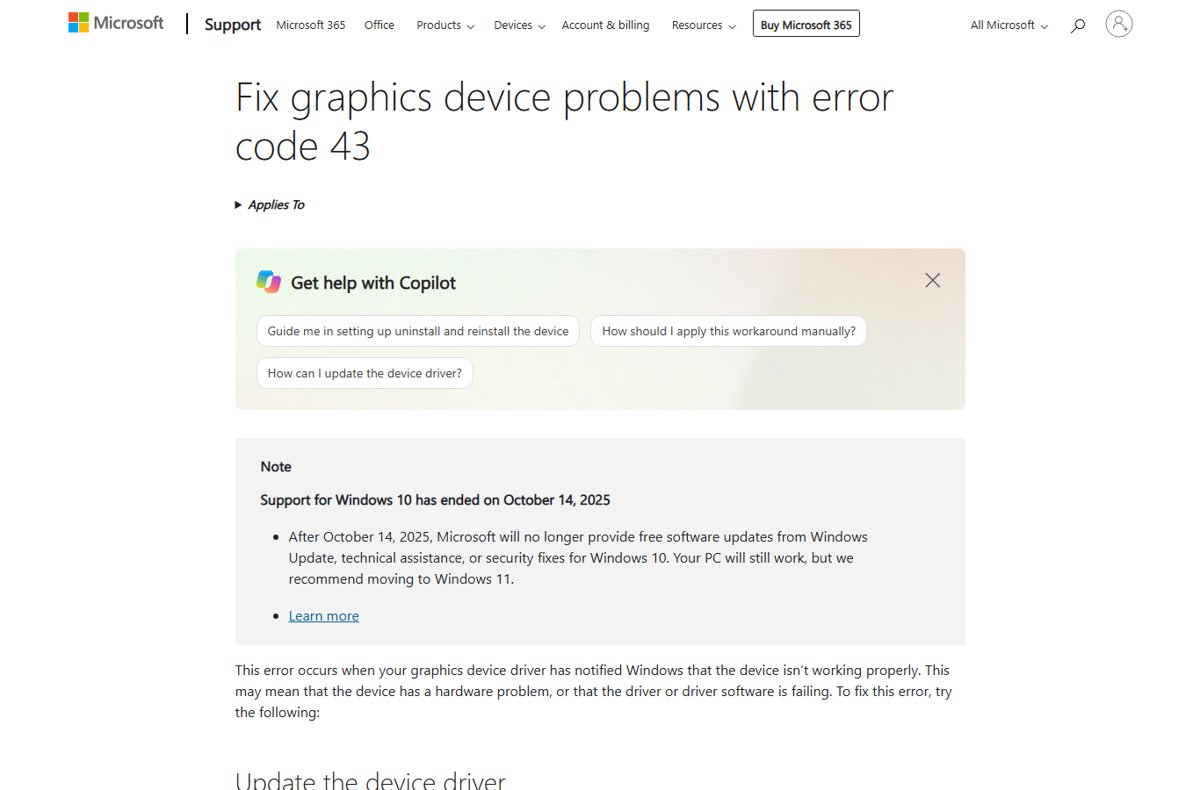
5. Check graphics devices specifically
On a graphics card, Code 43 means the display driver told Windows the device is not working properly. That can be a failing driver or a hardware fault on the card, so first check which graphics card you have.
Microsoft's fix order for graphics devices is to update the graphics driver, then roll back, then uninstall and reinstall.
- In Device Manager, expand Display adapters and open Properties for the card with the warning.
- Select Driver > Update Driver > Search automatically for updated driver software.
- If no update is found, install the current driver from the graphics card or PC maker's website.
- If the error began after a driver update, select Roll Back Driver on the same tab instead.
- If both fail, right-click the card, select Uninstall > OK, then right-click your PC's name at the top of the list and select Scan for hardware changes.
Check the result on the General tab: Device status should read "This device is working properly." If it does not, see the card's documentation or contact its maker.
6. Test USB and external hardware
For a USB device, Windows reports Code 43 when the device reports a problem or its driver fails. Ports, hubs and power cause many of these.
- Plug the device into a different USB port on the PC.
- Connect it directly to the PC instead of through a hub, dock or extension cable.
- Try the cable that came with the device, or another known-good cable.
- If the device has its own power supply, connect it.
- Run a laptop on mains power instead of battery and unplug unused USB devices.
- Clean the port with a can of compressed air if it looks dusty.
For an Unknown USB Device with a descriptor failure, the USB-specific power and port fixes are the same, but the error code differs.
7. Show and remove stale device entries
Windows keeps entries for devices that are no longer connected. Removing the old copies of the failing device gives the next reinstall a clean start.
- Open Device Manager and select View > Show hidden devices.
- Expand the category of the failing device. Devices that are not connected now appear in the list.
- Right-click an old copy of the device you no longer use and select Uninstall device > Uninstall.
- Repeat for each stale copy of that device.
- Restart the PC and check Device status on the connected device.
8. Remove a driver package with PnPUtil only when necessary
PnPUtil deletes a third-party driver package from the driver store, so Windows cannot reuse a corrupt copy. Use it only after Fixes 2 to 4 fail, and only on the package that belongs to the failing device.
Open Command Prompt with Run as administrator. First run pnputil /enum-drivers and note the oem#.inf name of the package that matches the device's maker and class.
pnputil /delete-driver oem#.inf /uninstallReplace oem#.inf with the package name from /enum-drivers. /delete-driver removes the package from the driver store, and /uninstall first removes it from any device using it. Add /reboot to restart automatically if Windows needs one. The command needs Windows 10, version 1607 or later.
You should see: PnPUtil reports that the driver package was deleted. Install the current driver from the maker (Fix 3) and restart.
Avoid the /force switch. It deletes the package even while devices still use it, which can leave a device with no driver at all.
9. Decide whether the hardware is failing
If Code 43 survives a clean driver reinstall and a rollback, Microsoft's guidance is to check the hardware documentation or contact the manufacturer. These checks tell you which side the fault is on.
| Test | Result | What it points to |
|---|---|---|
| Plug the external device into another PC | Same error or no response there too | The device is faulty; contact the maker about repair or warranty |
| Plug the external device into another PC | Works normally there | A driver, port or power problem on the first PC |
| Plug a different device into the same port | The second device also fails | The port, hub or controller on the PC |
| Reinstall the latest driver from the maker | Code 43 returns immediately | Likely hardware fault; contact the maker with the error code |
| Internal device such as a graphics card | Error stays after Fixes 2 to 5 | Contact the PC or card maker's support with the error code |
Check the device is back to work after the fix
- Open Device Manager and confirm the yellow exclamation point is gone from the device.
- Right-click the device, select Properties, and confirm Device status reads "This device is working properly."
- Use the device for a real task: copy a file to the drive, play a video on the graphics card, or print a page.
- Restart the PC once more and repeat the first check, so you know the fix holds after a restart.
10. Windows 10 support note
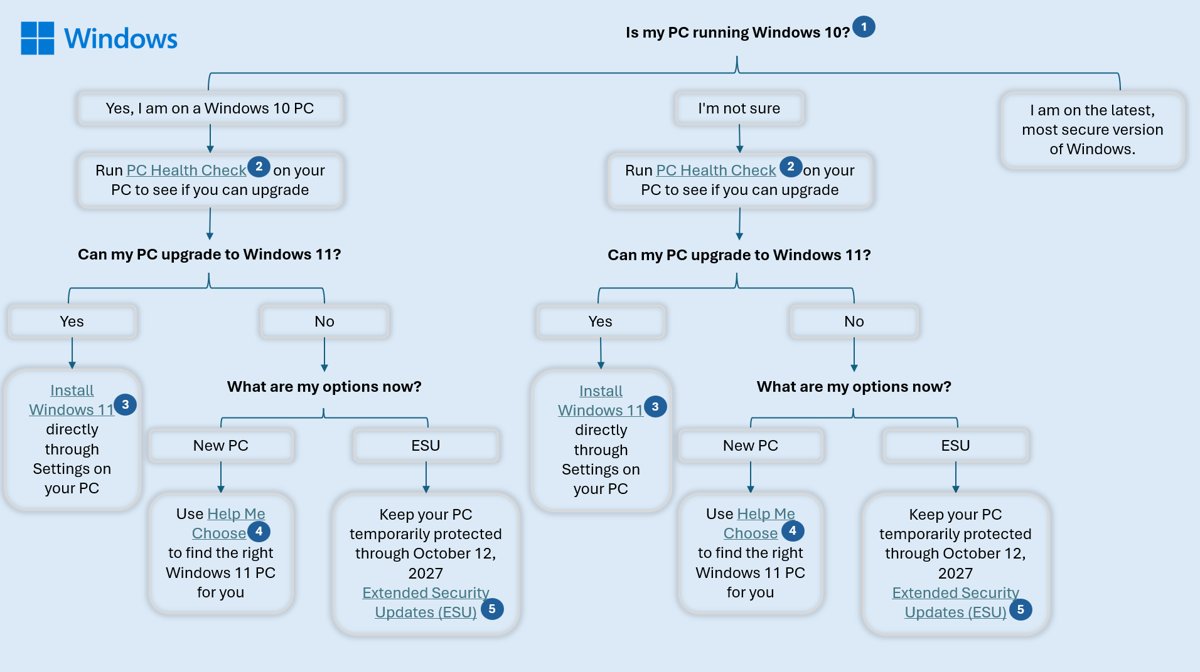
Windows 10 support ended on October 14, 2025. A Windows 10 PC still works, and the Device Manager fixes above work the same way on it.
| What changed for Windows 10 | Effect on a Code 43 fix |
|---|---|
| No more software updates from Windows Update | Do not expect new device drivers for Windows 10 through Windows Update; check the device maker's site instead |
| No security updates or fixes | The PC is at greater risk from malware, separate from any driver problem |
| No Microsoft technical support for Windows 10 | For a persistent Code 43, the device maker's support is the remaining route |
| Free upgrade path to Windows 11 | Available on Windows 10, version 22H2 PCs that meet the hardware requirements |
Code 43 driver fixes to avoid: what not to do
| Avoid | Why |
|---|---|
| Downloading drivers from driver sites or third-party driver updaters | Microsoft advises using only Windows Update or the maker's official site |
| Using pnputil /delete-driver with /force | It removes a package that devices still depend on |
| Deleting driver packages you cannot match to the failing device | Another device loses its driver and stops working |
| Installing a driver built for another Windows version or architecture | A mismatched driver can fail and report the device as broken again |
| Assuming the device is dead after one failure | Fixes 1 and 2 clear many cases at no cost |
Code 43 "Windows has stopped this device" FAQ
How do you fix "Windows has stopped this device" Code 43?
Uninstall the device in Device Manager, then select Action > Scan for hardware changes so Windows reinstalls it. If the error returns, update or roll back the driver, test the device on another port or PC, and contact the maker if it still fails.
What does Code 43 mean in Device Manager?
Code 43 means one of the drivers controlling the device told Windows that the device failed in some manner. Windows then stops the device. The cause can be a faulty driver or a hardware problem with the device itself.
Is Code 43 a hardware or a driver problem?
It can be either. A clean reinstall, a driver update and a rollback rule out most driver causes. If the device also fails on another PC, or Code 43 returns straight after a fresh driver install, the hardware is the likely cause.
Can a USB port or cable cause Code 43?
Yes. A USB device that cannot get enough power, or that sits behind a hub or dock, can report a problem. Plug it straight into another port, try another cable, connect external power if it has one, and unplug unused USB devices.
Why does my graphics card show Code 43?
The graphics driver has told Windows the card is not working properly. This can be a failing driver or a hardware fault. Update the driver, roll it back if the error followed an update, then uninstall and reinstall the card in Device Manager.
Will restarting Windows fix Code 43?
Sometimes. A restart makes Windows set the device up again, which clears one-off failures. If Code 43 is back after the restart, uninstall the device in Device Manager and rescan, then move on to the driver fixes.
How do you stop Windows from updating a driver that causes Code 43?
Roll the driver back from the Driver tab of the device's Properties dialog. Microsoft states that rolling back to the previous version prevents the problem driver from reinstalling automatically the next time Windows updates.
Why is Microsoft stopping Windows 10 support?
Windows 10 reached its planned end of support on October 14, 2025. Microsoft no longer provides software updates, security fixes or technical support for it, and recommends moving to Windows 11. Windows 10 PCs still work after that date.
The bottom line on fixing Code 43
Start with an uninstall and Scan for hardware changes, then update or roll back the driver depending on when the error began. Code 43 is a driver reporting a failed device, so a clean driver state settles most cases. If the error survives that and follows the device to another PC, the hardware has failed and the maker is the next stop.