To copy and paste on a Chromebook, select the text or image, press Ctrl + C to copy it, click where it should go, and press Ctrl + V to paste.
This guide covers text and images with the keyboard, touchpad and touchscreen, screenshots, the Search + V clipboard menu, and fixes when paste stops working.
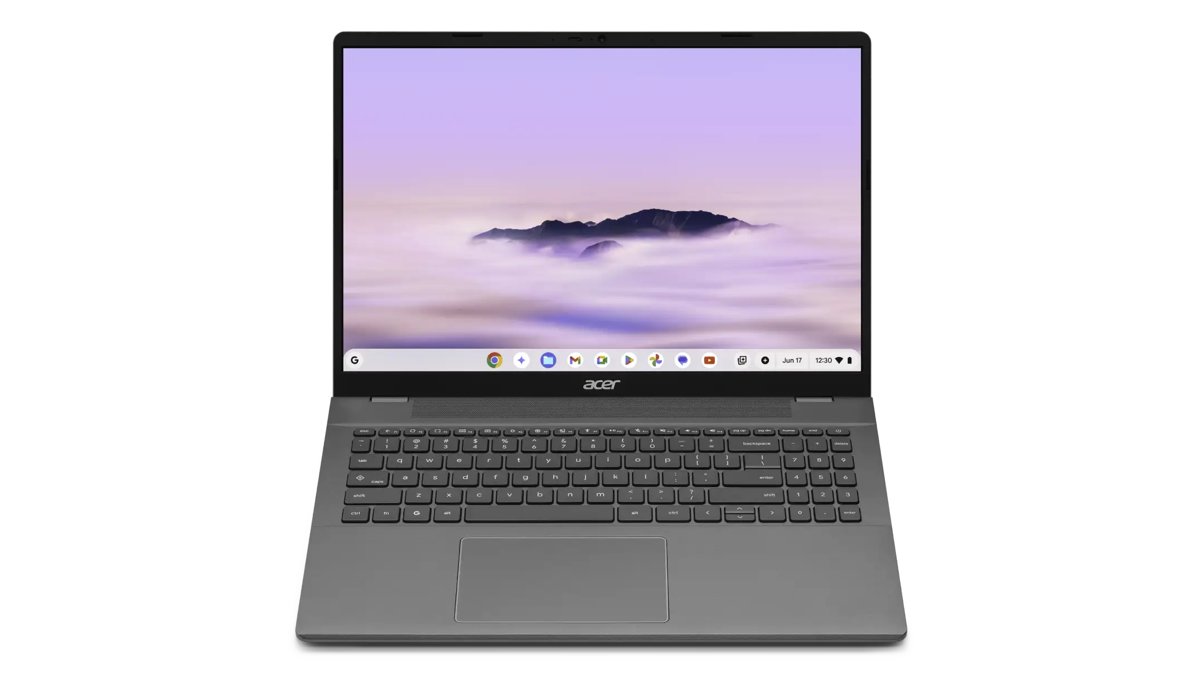
Chromebook copy and paste shortcut: Ctrl + C and Ctrl + V
These two shortcuts work in Chrome, Gmail, Google Docs and most text boxes on ChromeOS.
- Select the text you want by dragging across it with the touchpad, or press Ctrl + A to select everything.
- Press Ctrl + C to copy the selection to the clipboard.
- Click inside the text box, document or chat where the text should go.
- Press Ctrl + V to paste it.
- Press Ctrl + Shift + V instead if you want the text pasted without its original formatting.
What copy/paste means on ChromeOS
ChromeOS keeps whatever you copy or cut on a system clipboard until you copy something else. Paste drops the clipboard contents at the cursor, and the original stays where it was unless you cut it.
| Action | What happens on a Chromebook | Keyboard |
|---|---|---|
| Copy | The selection goes to the clipboard and stays in place | Ctrl + C |
| Cut | The selection goes to the clipboard and is removed from the source | Ctrl + X |
| Paste | The clipboard contents appear at the cursor | Ctrl + V |
| Paste as plain text | Text arrives without fonts, colours or links | Ctrl + Shift + V |
| Clipboard menu | Shows recent items you copied so you can pick an older one | Search + V or Launcher + V |
| Screenshot | The capture is saved and copied to the clipboard automatically | Ctrl + Show windows |
Keyboard shortcuts for copy, paste, and cut on a Chromebook
Google lists these shortcuts under Text editing in the Chromebook keyboard shortcuts article. On a Windows or Mac keyboard plugged into a Chromebook, the Windows key or Command key works as the Search key.
| Task | Shortcut |
|---|---|
| Copy selected content | Ctrl + C |
| Cut selected content | Ctrl + X |
| Paste from the clipboard | Ctrl + V |
| Paste as plain text | Ctrl + Shift + V |
| Open the clipboard menu | Search + V (or Launcher + V) |
| Paste the highlighted item in the clipboard menu | Enter |
| Select everything on the page | Ctrl + A |
| Select the next or previous word | Ctrl + Shift + Right arrow / Left arrow |
| Select to the end or start of the line | Search + Shift + Right arrow / Left arrow |
| Undo the last action | Ctrl + Z |
| Redo the last action | Ctrl + Shift + Z |
| Show every Chromebook shortcut | Ctrl + Search + S |
Windows uses the same pair of keys, so the habits from copying and pasting on a Windows PC carry straight over.
How to copy and paste text on a Chromebook (step-by-step)
Use the keyboard route when your hands are already on the keys. It is the fastest for words, sentences and whole pages.
- Click just before the first word you want to copy.
- Hold Shift and press the arrow keys, or press Ctrl + Shift + Right arrow to select a word at a time.
- Press Ctrl + C to copy, or Ctrl + X to cut the text out of an editable document.
- Move to the destination and click where the text should start.
- Press Ctrl + V to paste.
- Press Ctrl + Z if the paste landed in the wrong place.
Copy and paste on a Chromebook with the touchpad (right-click)
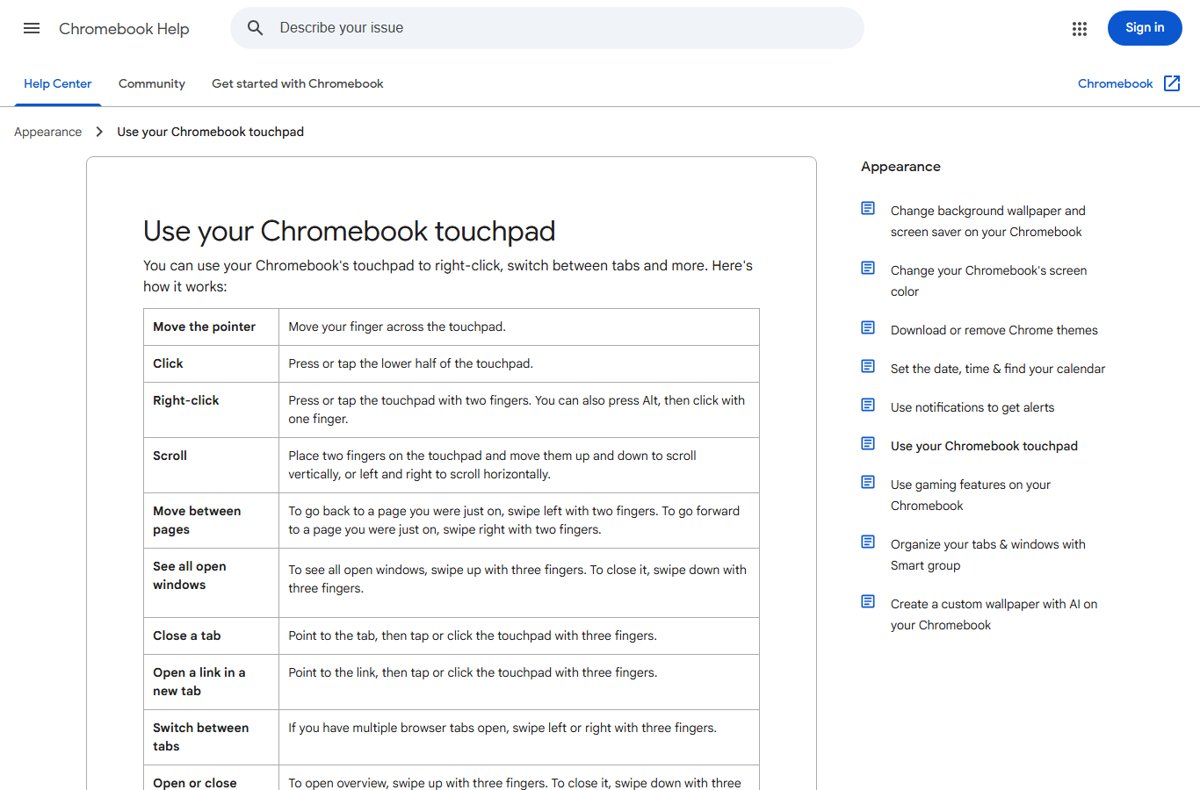
A Chromebook touchpad has no separate right button. A two-finger tap or click opens the right-click menu, and so does holding Alt while you click with one finger.
- Press down on the touchpad with one finger at the start of the text and drag to the end to highlight it.
- Tap or press the touchpad with two fingers on the highlighted text, or hold Alt and click.
- Select Copy in the menu that opens.
- Move the pointer to the place where the text should go and tap with two fingers again.
- Select Paste.
If a two-finger tap does nothing, open Settings, go to Device > Touchpad, and check that Tap to click is turned on.
Copy and paste on a Chromebook touchscreen or in tablet mode
On a touchscreen Chromebook, double tap a word to select it, then press and hold to open the action menu. That menu offers Select, Select all and Paste. These tap gestures do not work inside Google Docs.
- Double tap the first word you want, then drag the cursor across the rest of the text.
- Press Ctrl + C if a keyboard is attached to copy the selection.
- Tap the box where you want to paste.
- Press and hold, or double tap, to open the action menu, and tap Paste.
- Without a keyboard, open the on-screen keyboard, select the Clipboard icon, and tap the item you want to paste.
To turn on the on-screen keyboard outside tablet mode, open Settings > Accessibility, and under Keyboard and text input turn on On-screen keyboard.
How to copy and paste images on a Chromebook
Images from web pages copy through the right-click menu, then paste into Gmail, Google Docs or Slides with Ctrl + V or the Paste command.
- Open the page that shows the image in Chrome.
- Tap the image with two fingers, or hold Alt and click it, to open the right-click menu.
- Choose Copy for the image in that menu.
- Open the email, document or presentation where the image should go.
- Click where the image should appear and press Ctrl + V, or right-click and select Paste.
- Wait a moment for the image to load in the document before you move or resize it.
Drag and drop is the other route: click and hold the image with one finger, drag it into the open document, and release. Google Sheets does not accept dragged images, so use Insert > Image there instead.
If you only need the words inside a picture, Chrome can also translate text inside images without copying the image at all.
Best shortcuts for images and screenshots on a Chromebook (fast workflow)
Every screenshot on a Chromebook is copied to the clipboard as soon as you take it. That means you can capture and press Ctrl + V straight into Gmail, Docs or Chat with no file to find.
| What you want | Shortcut | What to do next |
|---|---|---|
| Capture the whole screen and paste it | Ctrl + Show windows (or the Screenshot key) | Click in the message or document and press Ctrl + V |
| Capture only part of the screen | Shift + Ctrl + Show windows, then select and drag | Paste with Ctrl + V where you need it |
| Capture a single window | Shift + Ctrl + Show windows, then pick the window option | Click the window, then paste |
| External keyboard with no Show windows key | Ctrl + Shift + F5 | Use the capture bar as normal |
| Tablet with no keyboard | Power button + Volume down | Paste from the on-screen keyboard Clipboard icon |
| Paste an older copy or screenshot | Search + V | Pick the item and press Enter |
| Copy an image from a website | Two-finger tap the image, then Copy | Paste with Ctrl + V |
Screenshots also save to the Downloads folder. To change it, press Shift + Ctrl + Show windows, select Settings in the capture bar, then Select folder.
Paste from Chromebook clipboard history with Search + V
The clipboard menu lets you paste something you copied earlier, not only the last item. It opens next to the cursor in any text field.
- Copy two or three pieces of text with Ctrl + C as you work.
- Click where you want to paste.
- Press Search + V (or Launcher + V) to open the clipboard menu.
- Use the arrow keys to highlight the item you want, or click it.
- Press Enter to paste the highlighted item.
Where copy/paste works on a Chromebook (and where it doesn’t)
| Place | Text | Images | Notes |
|---|---|---|---|
| Chrome web pages and text boxes | Yes, with Ctrl + C and Ctrl + V | Yes, through the right-click menu | A page that is not editable can be copied from but not pasted into |
| Google Docs and Slides | Yes | Yes, by paste or drag and drop | Touchscreen tap editing does not work in Docs; use the keyboard or touchpad |
| Google Sheets | Yes | Paste works; dragging an image does not | Use Insert > Image for a picture in a cell |
| Gmail and Google Chat | Yes | Yes, including screenshots straight from the clipboard | Ctrl + Shift + V strips formatting from pasted text |
| Tablet mode with no keyboard | Yes, through the action menu and on-screen keyboard | Yes, from the on-screen keyboard Clipboard icon | Turn on the on-screen keyboard in Accessibility settings |
How to check copy and paste worked on a Chromebook
- Copy a short piece of text with Ctrl + C.
- Click in the Chrome address bar and press Ctrl + V; the copied text should appear there.
- Press Search + V and confirm the same text sits at the top of the clipboard menu.
- Take a screenshot with Ctrl + Show windows, open a new Gmail draft, and press Ctrl + V; the image should appear in the message.
- Discard the test draft once the image shows up.
Troubleshooting: Chromebook copy/paste not working
Ctrl + C or Ctrl + V is ignored
A key has been remapped, the keyboard has a fault, or the cursor is not in an editable field.
- Click directly inside the text box before you press Ctrl + V.
- Open Settings, go to Device > Keyboard and inputs, and check that Ctrl has not been reassigned to another key.
- Open Settings > About ChromeOS > Diagnostics and run the keyboard test to see whether Ctrl, C and V register.
- Use the touchpad route instead: two-finger tap the selection, then select Copy or Paste.
You can copy but can't paste
The destination does not accept that kind of content, or the item you need is no longer the last thing on the clipboard.
- Press Search + V to confirm the item is on the clipboard.
- Select the item in the clipboard menu and press Enter to paste it.
- Try Ctrl + Shift + V if the box only accepts plain text.
- For an image, paste into a Gmail draft or Google Doc first to confirm the image copied.
Copy and paste not working on any app on the laptop
A stuck session or account problem affects keyboard input across ChromeOS.
- Turn the Chromebook off and back on.
- Sign in as a guest and test Ctrl + C and Ctrl + V there.
- If the shortcuts work as a guest, remove your account from the Chromebook and add it again.
- If the problem continues, perform a hard reset of the Chromebook hardware.
The touchpad won't open the right-click menu
Tap to click is off, or the touchpad has stopped responding.
- Hold Alt and click with one finger to open the right-click menu.
- Open Settings > Device > Touchpad and turn on Tap to click.
- Wipe dust off the touchpad, press Esc several times, and drumroll your fingers on it for ten seconds.
- Restart the Chromebook if the touchpad still does not respond.
Paste inserts the wrong content or formatting
An older item is still on the clipboard, or the source formatting came along with the text.
- Press Ctrl + Z to undo the paste.
- Press Search + V and pick the correct item from the clipboard menu.
- Press Ctrl + Shift + V to paste text without its source fonts and links.
Common Chromebook copy and paste mistakes to avoid
| Mistake | What goes wrong | Do this instead |
|---|---|---|
| Pressing Ctrl + X on a web page | Cut only works in editable text, so nothing is copied | Use Ctrl + C on read-only pages |
| Pasting before clicking the destination | The text goes to whatever field had focus last | Click inside the target box first |
| Copying something else before pasting | The newest copy replaces the item you wanted at Ctrl + V | Press Search + V and pick the older item |
| Pasting formatted text into a plain form | Fonts, colours and links come along | Use Ctrl + Shift + V |
| Looking for a screenshot file to attach | Extra steps through the Files app | Paste the screenshot straight from the clipboard with Ctrl + V |
| Trying tap gestures in Google Docs | Touchscreen tap editing does not work in Docs | Use the touchpad or keyboard shortcuts |
Chromebook copy and paste FAQs
How do you copy and paste on a Chromebook keyboard?
Select the text, press Ctrl + C to copy it, click where it should go, and press Ctrl + V to paste. Ctrl + X cuts instead of copying, and Ctrl + Shift + V pastes text without its original formatting.
How do you copy and paste on a Chromebook laptop without a mouse?
Use the touchpad. Drag across the text to select it, tap with two fingers to open the right-click menu, and select Copy. Two-finger tap at the destination and select Paste. Holding Alt while clicking with one finger also opens that menu.
Is copy and paste on a Chromebook the same as on a Windows PC?
The shortcuts are the same: Ctrl + C copies, Ctrl + X cuts and Ctrl + V pastes. The differences are the clipboard menu, which opens with Search + V on a Chromebook, and the right-click, which is a two-finger tap or Alt + click.
How is Chromebook copy and paste different from a MacBook?
A Chromebook uses Ctrl + C and Ctrl + V, while a Mac uses Command + C and Command + V. On a Mac keyboard connected to a Chromebook, the Command key acts as the Search key, so Ctrl stays the copy key. The MacBook copy and paste shortcuts follow Apple's own layout.
How do you copy and paste on an HP or Dell Chromebook?
HP, Dell and other Chromebooks all run ChromeOS, so the shortcuts are identical: Ctrl + C to copy, Ctrl + V to paste and Search + V for the clipboard menu. Google's shortcut list is written for US English QWERTY keyboards, so key positions differ on international layouts.
Why can't I copy and paste on my Chromebook?
The usual causes are a cursor that is not in an editable field, a remapped Ctrl key, or a stuck session. Click inside the text box, check Settings > Device > Keyboard and inputs, run the keyboard test under About ChromeOS > Diagnostics, and restart the Chromebook.
Why can I copy text but not images on a Chromebook?
Images copy through the right-click menu, not by selecting them with text. Two-finger tap the image, choose Copy, then paste into an app that accepts pictures, such as Gmail or Google Docs. A plain text box will not accept an image.
How do I paste an image into Google Docs on a Chromebook?
Copy the image from the web page with a two-finger tap and Copy, open the document, click where it should go, and press Ctrl + V. You can also drag the image into the document or use Insert > Image.
How do you copy a screenshot on a Chromebook?
You do not need to copy it. ChromeOS copies every screenshot to the clipboard automatically, so press Ctrl + Show windows, click in the email or document, and press Ctrl + V. The file is also saved in the Downloads folder.
How do I see my clipboard history on a Chromebook?
Press Search + V, or Launcher + V, to open the clipboard menu next to the cursor. Highlight the item you want with the arrow keys and press Enter to paste it. On a touchscreen, use the Clipboard icon on the on-screen keyboard.
What if paste inserts the wrong content?
Press Ctrl + Z to undo it, then press Search + V and pick the correct item from the clipboard menu. If the text arrived with unwanted fonts or links, paste it again with Ctrl + Shift + V for plain text.
Bottom line: the best way to copy and paste on a Chromebook
Use Ctrl + C and Ctrl + V for text, a two-finger tap and Copy for web images, and paste screenshots straight from the clipboard. These routes need no extra apps, work in Chrome, Gmail and Google Docs, and Search + V recovers anything you copied a moment earlier.

![AWS Secrets Manager: everything you need to know [2026]](https://techdows.com/wp-content/uploads/2026/10/AWS-Secrets-Manager-product-page-with-the-Get-started-button-600x338.jpg)