To force a Windows 11 update, select Start > Settings > Windows Update > Check for updates, then select Download & install and restart when asked.
If that offers nothing, this guide covers nine more ways to push an update through, why Windows may hold one back, the common error codes, and how to roll back.
Method 1: Force Windows 11 to check for updates in Settings
A manual check asks Microsoft's servers for anything your PC has not received yet, including updates still rolling out.
- Select Start > Settings > Windows Update.
- Select Check for updates.
- If updates appear, select Download & install.
- Save your work when the download finishes.
- Select Restart now, or Start > Power > Update and restart.
Since July 28, 2026, Windows holds driver, .NET and firmware updates that need a restart and installs them with the monthly security update, so you restart once a month. Pending items show under Available updates.
Before you force an update: know what you’re trying to install
Different updates arrive through different routes. Forcing the wrong one wastes time.
| Update type | What it contains | Best way to force it |
|---|---|---|
| Monthly security update | Security fixes, usually released on the second Tuesday | Check for updates (Method 1) or the Update Catalog (Method 9) |
| Optional non-security preview | Fixes and features ahead of the next security update | Get the latest updates as soon as they're available (Method 2) |
| Feature update (version change, such as 26H2) | A new Windows 11 version, typically once a year | Installation Assistant (Method 7) or ISO (Method 8) |
| Optional driver update | Drivers Windows does not install automatically | Optional updates (Method 3) |
| Microsoft Store app update | Apps such as Photos, Notepad, Calculator | Microsoft Store (Method 10) |
Back up your personal files first, and keep at least 20 GB free on a 64-bit PC; Microsoft lists that as the minimum for an upgrade.
Method 2: Turn on “Get the latest updates as soon as they’re available”
Microsoft rolls out many non-security features gradually. This toggle puts your PC at the front of the queue.
- Select Start > Settings > Windows Update.
- Turn on Get the latest updates as soon as they're available.
- Select Check for updates.
- Install anything offered and restart if asked.
Security updates arrive as usual whether the toggle is on or off. Expect more restarts per month with it on. On work PCs, an admin can control this toggle through policy.
Method 3: Install optional updates manually
- Select Start > Settings > Windows Update > Advanced options.
- Turn on Receive updates for other Microsoft products.
- Under Additional options, select Optional updates.
- Check the driver updates you want and select Download and install.
- Restart the PC when the installs finish, even if none asked for it.
Optional drivers never install automatically. For hardware Windows Update does not cover, see how to update drivers on Windows 11 from the manufacturer.
Method 4: Restart Windows Update services
A stuck service stops Windows from scanning or downloading. Restarting it clears that state.
- Press Windows + R, type
services.mscand press Enter. - Find Windows Update, right-click it and select Stop.
- Right-click Windows Update again and select Start.
- Or open Command Prompt as administrator and run
net stop wuauserv, thennet start wuauserv; do the same withbits. - Return to Settings > Windows Update and select Check for updates.
Method 5: Clear the Windows Update download cache
Corrupt files in the update cache cause errors such as 0x8007000d. Renaming the cache folders makes Windows download fresh copies.
net stop bits
net stop wuauserv
ren %systemroot%\softwaredistribution softwaredistribution.bak
ren %systemroot%\system32\catroot2 catroot2.bak
net start bits
net start wuauserv
Run each line in an administrator Command Prompt, one at a time. The first two lines stop the Background Intelligent Transfer Service and Windows Update; the ren lines rename the download cache and the catalog folder so Windows rebuilds them; the last two start the services again.
You should see: Each net command reports the service stopped or started successfully, and the ren lines return no error. Restart the PC, then check for updates.
The simpler route Microsoft also gives: stop Windows Update in services.msc, delete everything inside C:\Windows\SoftwareDistribution, then start the service again.
Method 6: Use the Windows Update troubleshooter
- Select Start > Settings > System.
- Select Troubleshoot > Other troubleshooters.
- Find Windows Update and select Run.
- Follow the prompts in the Get Help app.
- Check for updates again when it finishes.
Method 7: Force a major Windows 11 feature update with Installation Assistant
Installation Assistant installs the newest Windows 11 version, currently the Windows 11 2026 Update (version 26H2), on the PC you are using. It needs a Windows licence, Windows 10 version 2004 or later, 9 GB of free space, and an x64 processor; it does not run on Arm PCs.
- Go to
microsoft.com/software-download/windows11. - Under Windows 11 Installation Assistant, select Download Now.
- Run the tool; you need administrator rights.
- Accept the licence terms once the compatibility check passes.
- Let it download and prepare the update, then select Restart Now.
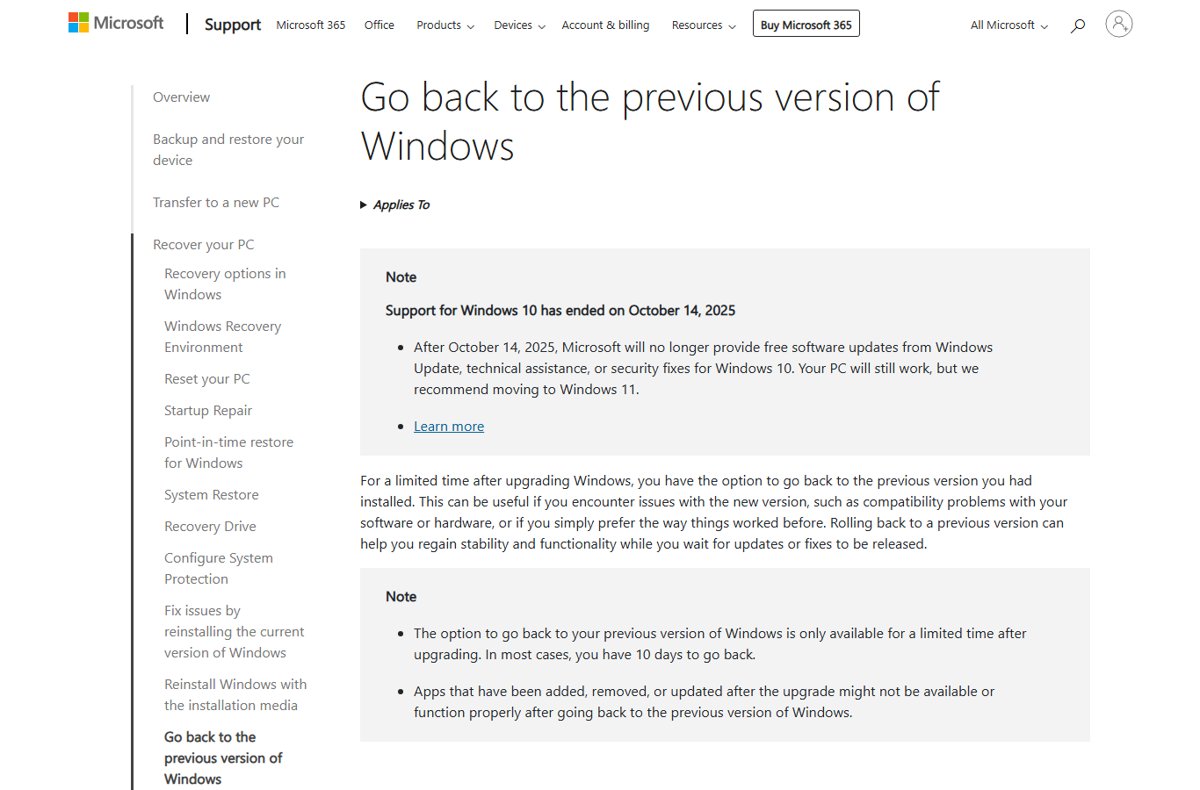
If Windows Update shows a message that the update is on its way but not ready for your device, a safeguard hold is protecting it. Microsoft recommends waiting for the hold to lift rather than forcing the upgrade.
Method 8: Force an update using a Windows 11 ISO
The ISO route upgrades Windows in place and keeps your files and apps when you run setup from inside Windows. Use it when Installation Assistant fails.
- On the Windows 11 software download page, choose the multi-edition ISO for x64 devices and your language, then download it.
- Check the file against the SHA256 hash listed on the page.
- Right-click the ISO in File Explorer and select Mount.
- Open the new drive and double-click
setup.exe. - Follow Windows 11 Setup and keep personal files and apps when asked.
- Let the PC restart several times until the sign-in screen returns.
Method 9: Manually install a cumulative update from Microsoft Update Catalog
The Microsoft Update Catalog hosts every cumulative update as a standalone .msu file. Get the KB number from Windows 11's update history page on support.microsoft.com or from your Update history.
- Open
catalog.update.microsoft.comand search for the KB number. - Pick the entry that matches your Windows 11 version and architecture, such as x64 or Arm64.
- Select Download; the pop-up lists any earlier checkpoint cumulative updates the target needs.
- Download every
.msufile shown. - Install them in order, oldest checkpoint first, by double-clicking each file.
- Restart when the last one finishes.
From Windows 11 version 24H2, some monthly updates depend on an earlier checkpoint cumulative update. Windows Update handles this for you; Catalog installs need each checkpoint in sequence.
Method 10: Update Microsoft Store apps separately
Built-in apps update through the Microsoft Store, not Windows Update, so a fully patched PC can still run old app versions.
- Open Microsoft Store from the Start menu.
- Go to your apps list in the Store and select Check for updates.
- Let the listed apps update; keep automatic app updates on so this happens by itself.
Why Windows 11 may not offer an update yet
| Reason | How to tell | What to do |
|---|---|---|
| Compatibility safeguard hold | Windows Update says an update is on its way but not ready for your device | Wait; Microsoft releases the hold once a fix is verified |
| Gradual rollout | Friends' PCs have a feature yours does not | Turn on Get the latest updates as soon as they're available |
| Your PC is managed by work or school | The PC is signed in with a work or school account managed by IT | Ask IT; they control update timing through policy |
| Updates are paused | The Windows Update page shows updates are paused | Resume updates on that page, then check again |
| Metered connection | Some updates are not installed automatically on metered networks | Connect to an unmetered network and check again |
| Hardware does not meet Windows 11 requirements | Installation Assistant's compatibility check fails | Stay on your current version; Microsoft does not recommend installing on non-compliant hardware |
| Not enough storage | Windows warns that you need more space | Free at least 20 GB on 64-bit Windows |
How to fix common Windows 11 update errors
0x8007000d or 0x80070002
Corrupt files in the update cache, or the update failed to install.
- Run the Windows Update troubleshooter (Method 6).
- Clear the download cache (Method 5).
- Restart and check for updates.
0x800f0922
Not enough disk space, a VPN interfering, or a .NET Framework problem.
- Free up space until at least 20 GB is available.
- Disconnect any VPN.
- Check for updates again.
0xC1900101
An incompatible driver, usually network or graphics, blocks the update.
- Open Device Manager and expand Network adapters or Display adapters.
- Right-click the adapter, select Update driver > Search automatically for drivers.
- If the error repeats, select Uninstall device, restart, and retry the update.
- Disconnect external drives, docks and other hardware you do not need.
0x80070057, 0x80080005 or other corruption errors
Damaged system files or configuration.
- Open Command Prompt as administrator.
- Run
DISM.exe /Online /Cleanup-image /Restorehealthand wait for "The restore operation completed successfully". - Run
sfc /scannowand wait for 100%. - Check for updates again.
0x80248014 or 0x80240034, or the update is stuck at 0% or 100%
The update service is not running or the download is incomplete.
- Confirm the Windows Update service is running in
services.msc(Method 4). - Check your internet connection under Settings > Network & Internet.
- Restart the PC and check for updates again.
0x80070005 access denied
Your account lacks administrator rights.
- Sign in with an administrator account, or ask the PC's administrator to install the update.
- Check for updates again.
Should you join the Windows Insider Program to force updates?
| Your situation | Join Insider? | Why |
|---|---|---|
| Main PC you rely on for work or school | No | Preview builds are unfinished and can have bugs |
| You want a feature already released but still rolling out | No | Use Get the latest updates as soon as they're available instead |
| Spare PC or test machine | Yes, if you want to try future features | Preview builds arrive early; going back to an earlier build does not remove you from the program |
| Work-managed PC | No | Your organisation controls update channels |
How to confirm the update installed
- Select Start > Settings > Windows Update and confirm the page says you're up to date.
- Select Update history and look for the KB number under Quality updates or the new version under Feature updates, each marked as installed.
- Press Windows + R, type
winverand press Enter to see the version and OS build. - Compare the build number with the one listed in the KB article on support.microsoft.com.
After a feature update, you can also check whether Windows 11 26H2 is installed by build number.
How to roll back if a forced update causes problems
Pick the route that matches what you installed: a monthly update is removed from Update history, while a new Windows version is reversed from Recovery.
- To remove a monthly or cumulative update, select Settings > Windows Update > Update history > Uninstall updates.
- Select the update and then Uninstall; not every update can be removed.
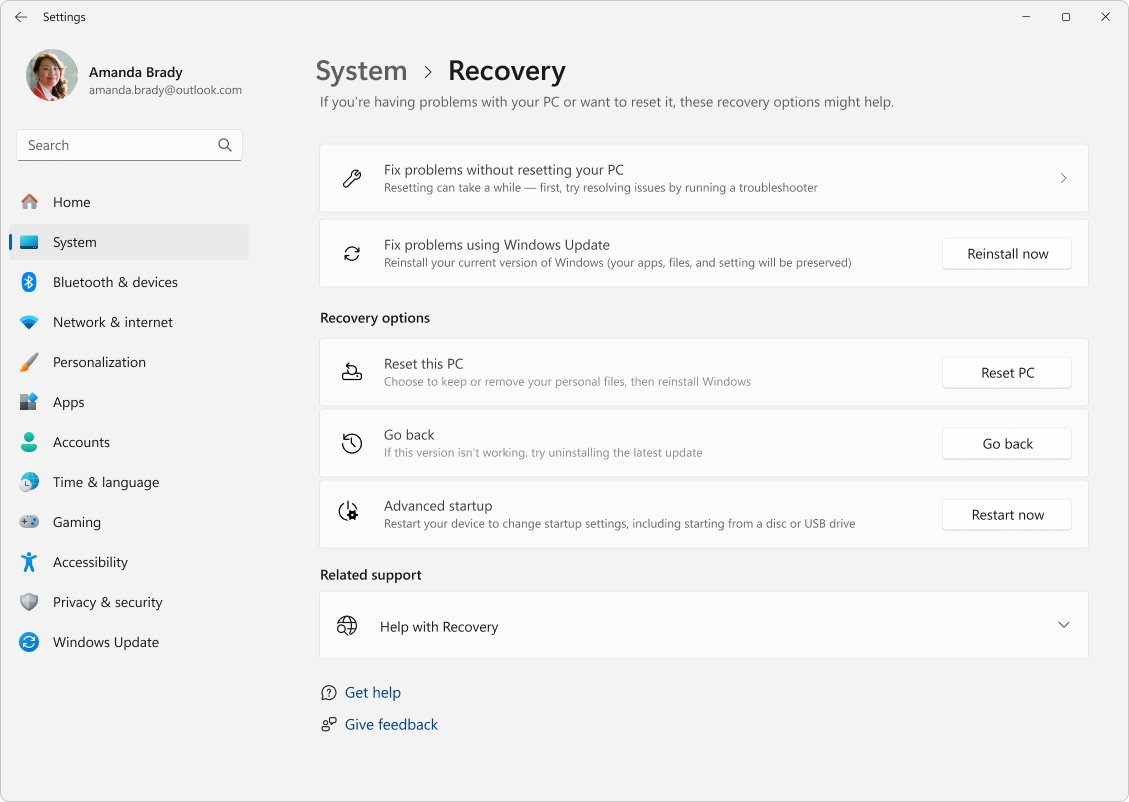
- To reverse a feature update, select Settings > System > Recovery.
- Select Go back, usually available for 10 days after the upgrade, and follow the prompts.
- For a bad optional driver, open Device Manager, right-click the device, select Uninstall device, restart, and install the manufacturer's driver.
Going back keeps personal files but removes apps and drivers installed after the upgrade and any settings changes. Keep the windows.old and $windows.~bt folders and remove accounts added after the upgrade, or Go back will not be offered.
Best practices for forcing Windows 11 updates safely
| Do this | Why |
|---|---|
| Back up personal files before a feature update | Microsoft advises a backup before any update troubleshooting |
| Keep a laptop plugged in | An update interrupted by a flat battery can fail or roll back |
| Respect safeguard holds | They block known issues such as data loss or lost connectivity |
| Check the Windows release health dashboard first | Known issues for the new version are listed there |
| Avoid installing on unsupported hardware | Microsoft does not recommend it and warns of compatibility problems |
| Get drivers from the PC maker, not a driver updater | Third-party tools can install the wrong driver |
Frequently asked questions
Can I force a Windows 11 update?
Yes. Select Start > Settings > Windows Update > Check for updates, then Download & install. For a new Windows 11 version that has not been offered yet, use Installation Assistant or the official ISO.
How do I force a Windows 11 upgrade from Windows 10?
Run Windows 11 Installation Assistant from Microsoft's software download page. It needs Windows 10 version 2004 or later, a valid licence, 9 GB free and hardware that passes the Windows 11 compatibility check.
How do I force install Windows 11 on an unsupported PC?
Microsoft does not recommend it. Installing on hardware that fails the requirements can cause compatibility problems, and the PC is not entitled to updates. Keep the current version or replace the hardware.
Why does Windows 11 force updates?
Updates carry security fixes, so Windows installs them automatically. You can pause updates for a while and schedule the restart, but after the pause ends you must install the latest updates before pausing again.
How do I force a Windows 11 update on Windows 11 Home?
Home has the same tools: Check for updates, the Get the latest updates as soon as they're available toggle, Installation Assistant and the ISO. Home has no Group Policy editor, but none of these methods need it.
How long does a forced Windows 11 update take?
It depends on your connection speed, network settings and the update's size. Monthly updates are small; feature updates are larger and need several restarts. Keep the PC plugged in.
Can I stop a Windows 11 update once it starts?
You cannot stop updates entirely. Before it installs, select a length next to Pause updates in Settings > Windows Update, for up to 35 days. Once installation begins after a restart, let it finish.
Does forcing an update delete my files?
No. Windows Update, Installation Assistant and an in-place ISO upgrade keep personal files. Back up anyway, because a failed update can still cause problems.
Quick recommendation: which method should you use?
Start with Check for updates plus the Get the latest updates as soon as they're available toggle; if a download fails, run the troubleshooter and clear the cache; use Installation Assistant only for a new Windows 11 version that has not been offered. The Settings route installs exactly what Microsoft has cleared for your hardware, while the Assistant, ISO and Catalog skip that check. When Windows says an update is not ready for your device, waiting is safer than forcing it. Review your Windows Update settings afterwards so future updates arrive on your schedule.