To display the ribbon in Word 365, press Ctrl + F1, or select any tab and choose Always show Ribbon from the Ribbon Display Options menu.
This guide covers each ribbon state, how to bring back a ribbon with no tabs showing, how to reset or customize it, and fixes when it still will not appear.
How to Display the Ribbon in Microsoft Word 365: A Step-by-Step Guide
Use this when you can see the tab names (Home, Insert, Layout) but the commands under them are gone.
- Select any tab, such as Home, so the ribbon drops down temporarily.
- In the lower-right corner of the ribbon, select the Ribbon Display Options icon.
- Choose Always show Ribbon.
- Click back in your document; the tabs and commands should stay in place.
Pressing Ctrl + F1 toggles the commands on and off in one step, which is the fastest fix if a stray key press hid them.
Step by Step Tutorial: Displaying the Ribbon on Microsoft Word 365
If no tabs are showing at all, Word is in Full-screen mode. The ribbon is still there, just hidden until you call it back.
- Select the ellipsis (…) at the top right of the Word window, or press Alt.
- With the ribbon restored temporarily, select the Ribbon Display Options icon at the lower-right corner of the ribbon.
- Choose Always show Ribbon so it stays visible after you return to the document.
- If the tabs show but collapse every time you click the page, right-click any ribbon tab and clear the check next to Collapse the ribbon.
- If the document opened in Read Mode, press Esc to return to the editing view with the ribbon.
Understanding the Ribbon in Microsoft Word 365
The ribbon is the set of toolbars across the top of Word that holds every command, organized into tabs and groups. For a tour of what each tab holds, see these Word ribbon basics.
| Ribbon state | What you see | Best for |
|---|---|---|
| Always show Ribbon | All tabs and all commands, all the time (the default) | Everyday editing |
| Show tabs only | Tab names only; commands appear when you select a tab | More room for the document while keeping tabs one click away |
| Full-screen mode | No ribbon; select the ellipsis (…) or press Alt to show it | Reading or focused writing |
| Collapsed (right-click a tab, Collapse the ribbon) | Same as tabs only | Quick toggle from the tab bar |
Common Reasons Why the Ribbon Might Not Be Visible
| What you see | Likely cause | Fix |
|---|---|---|
| Tab names, but no commands | Ribbon set to Show tabs only or collapsed, often by Ctrl + F1 | Press Ctrl + F1 or choose Always show Ribbon |
| No tabs at all, an ellipsis at the top right | Full-screen mode is on | Select …, then Always show Ribbon |
| Dark page, no ribbon, text in columns | The document opened in Read Mode | Press Esc |
| Some tabs are missing | A tab was hidden in Customize Ribbon | Recheck the tab or reset the ribbon |
| Ribbon flickers, freezes or loads blank | An add-in is failing at startup | Start Word in Office Safe Mode and disable the add-in |
| Word in a browser hides the ribbon | Show tabs only or Adjust automatically in Word for the web | Pick Always show ribbon in Ribbon Display Options |
Additional Customizations and Tips
Customizations apply only to the app you make them in, so changes in Word do not carry over to Excel. You can't change the ribbon's size, text size or color.
- Select File, then Options, then Customize Ribbon.
- To bring back a hidden tab, check the box next to it in the right-hand list.
- To add your own tab, select New Tab, then right-click it, select Rename and type a name.
- Select New Group on a tab, choose a command in the left list, and select Add >>.
- Use the Move Up and Move Down arrows to reorder tabs and groups.
- Select OK to save and see the result.
To copy your layout to another PC, select Import/Export, then Export all customizations in the same window. The File tab can't be hidden, and default tabs can't be removed, only hidden.
Tips for Displaying the Ribbon on Microsoft Word 365
| Shortcut or action | What it does |
|---|---|
| Ctrl + F1 | Shows or hides the ribbon commands |
| Alt | Shows KeyTips and moves focus to the ribbon tabs, even in Full-screen mode |
| Alt + H / Alt + N / Alt + W | Opens the Home, Insert or View tab |
| Alt + R | Opens the Review tab |
| Alt + Q | Opens the Search box to find any command by name |
| Select any tab | Expands a collapsed ribbon temporarily |
| Esc | Leaves Read Mode and brings the ribbon back |
| Ctrl + F6 or Win + Alt (Word for the web) | Moves keyboard focus to the ribbon in a browser |
When KeyTips are showing, press Esc to step back one level or Alt again to hide them.
How to check the ribbon will stay visible
- Click inside the body of your document.
- Confirm the commands under the Home tab are still showing.
- Close Word and open it again; the ribbon state you chose is remembered.
- Open the Ribbon Display Options menu and confirm Always show Ribbon is the selected option.
Troubleshooting Common Issues
The ribbon still doesn't appear
An add-in or a damaged customization file is breaking the ribbon at startup.
- Press Windows + R, type
winword /safeand select OK. - If the ribbon shows in Safe Mode, close Word and open it normally.
- Select File, Options, Add-Ins, choose COM Add-ins in the Manage list and select Go.
- Clear the add-ins, restart Word, then turn them back on one at a time to find the culprit.
- Check Disabled Items in the same Manage list for anything Word turned off itself.
The ribbon contains only certain tabs
Tabs were hidden or changed in Customize Ribbon.
- Select File, Options, Customize Ribbon.
- Select Reset, then Reset all customizations.
- Select OK. This also resets the Quick Access Toolbar to its defaults.
Ribbon layout looks different from older guides
Word 365 updates change the ribbon design over time.
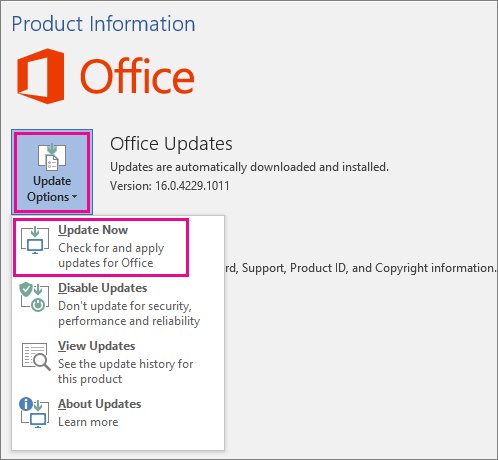
- Open Word and select File, then Account.
- Under Product Information, choose Update Options, then Update Now.
- Restart Word and your computer after the update finishes.
The ribbon is hidden in Word for the web
The browser version has its own ribbon setting.
- Select the Ribbon Display Options icon at the right corner of the ribbon.
- Choose Classic Ribbon for the full layout or Single Line Ribbon for a compact one.
- Choose Always show ribbon instead of Show tabs only or Adjust automatically.
If Word will not start even in Safe Mode, repair Office, and as a last resort reinstall Microsoft 365 from your account.
Frequently Asked Questions
How do I get the ribbon to show in Word?
Press Ctrl + F1, or select any tab, open Ribbon Display Options in the lower-right corner of the ribbon and choose Always show Ribbon. If no tabs show at all, select the ellipsis at the top right first.
Where are the Ribbon Display Options?
The Ribbon Display Options icon sits in the lower-right corner of the ribbon in Word, Excel and PowerPoint for Windows. In the web versions it is at the right corner of the ribbon. Select a tab first if only the tab names are showing.
How do I keep the ribbon visible all the time?
Choose Always show Ribbon in the Ribbon Display Options menu. If the ribbon collapses whenever you click the document, right-click a tab and clear Collapse the ribbon.
How do I hide and display the ribbon quickly?
Press Ctrl + F1 to hide or show the commands. Right-clicking a tab and selecting Collapse the ribbon does the same with the mouse.
How do I display the ribbon in Excel?
Excel uses the same controls as Word: press Ctrl + F1, or select a tab, open Ribbon Display Options and choose Always show Ribbon. Select any tab, such as Home, to show it temporarily.
How do I display the ribbon in PowerPoint?
PowerPoint shares the Office ribbon controls. Press Ctrl + F1 or choose Always show Ribbon from Ribbon Display Options. In Full-screen mode, select the ellipsis at the top right or press Alt to bring the ribbon back.
How do I show the top ribbon when there are no tabs?
Word is in Full-screen mode. Select the ellipsis (…) at the top right or press Alt, then choose Always show Ribbon so it stays.
What is the purpose of the ribbon?
The ribbon is the set of toolbars at the top of Office apps that groups commands into tabs, such as Home and Insert, so you can find the tool for a task quickly. Every command can also be reached from the keyboard with Alt and KeyTips.