To view startup programs in Windows 11 or Windows 10, right-click Start, select Task Manager and open the Startup apps tab; the same list appears in Settings > Apps > Startup.
That list misses some entries, so this guide also covers the Startup folder, the registry Run keys, services, PowerShell and Sysinternals Autoruns, which together show everything that launches with Windows.
Method 1: Task Manager (Startup apps) — the fastest overview
Task Manager shows the same apps as Settings, plus how much each one slows sign-in.
- Right-click Start and select Task Manager.
- Select the Startup apps tab.
- Read each app's status (Enabled or Disabled) and its startup impact rating.
- To stop an app launching, select it and select Disable.
High impact means more than 1 second of CPU time or more than 3 MB of disk activity at startup. Low means under 300 milliseconds of CPU and under 292 KB of disk.
Which method shows what?
| You want to see | Use | Why |
|---|---|---|
| Apps that open when you sign in, with their impact | Task Manager or Settings > Apps > Startup | Covers apps registered with a startup task |
| Shortcuts you or an installer dropped in | shell:startup and shell:common startup | These folders are not always listed in Task Manager |
| Hidden launch entries | Registry Run and RunOnce keys | Where many desktop programs register |
| Background software with no window | Services console | Services start before anyone signs in |
| A list you can save or compare | PowerShell | Text output you can export |
| Absolutely everything | Sysinternals Autoruns | Checks every known auto-start location |
Why startup programs matter (and where Windows hides them)
Each startup program uses CPU, disk and memory while Windows is still settling. Too many slow sign-in and keep running in the background all day.
| Location | Scope | Shown in Task Manager? |
|---|---|---|
| Apps with a registered startup task | Current user | Yes |
| %userprofile%\AppData\Roaming\Microsoft\Windows\Start Menu\Programs\Startup | Current user | Not always |
| %ProgramData%\Microsoft\Windows\Start Menu\Programs\Startup | All users | Not always |
| HKCU\Software\Microsoft\Windows\CurrentVersion\Run | Current user | Yes, for most entries |
| HKLM\Software\Microsoft\Windows\CurrentVersion\Run and its Wow6432Node twin | All users | Yes, for most entries |
| RunOnce keys | Runs once, then the value is deleted | No |
| Services and scheduled tasks | System or per user | No |
What you should know before you start
| Point | Details |
|---|---|
| Viewing is safe | Every method here only reads entries until you disable or delete something |
| Admin rights | Needed to change all-users entries, HKLM keys and services |
| Back up first | Back up the registry before deleting Run values; wrong edits have unintended effects |
| Disable before delete | Disabling in Task Manager or Autoruns is reversible; deleting is not |
| Windows version | Steps match Windows 11 and Windows 10; Settings > Apps > Startup exists on both |
Method 2: Startup folder (shell:startup) — what runs after sign-in
Any shortcut in these folders opens when a user signs in. Apps without a registered startup task are configured here.
- Right-click Start and select Run.
- Type
shell:startupand press Enter to open your own Startup folder. - Open Run again, type
shell:common startupand press Enter for the all-users folder. - Review the shortcuts in each window.
- Delete a shortcut to stop that program starting; the program itself stays installed.
Method 3: System Configuration (msconfig) — a simple checklist
In current Windows versions the msconfig Startup tab redirects to Task Manager. Its Services tab is still useful for seeing services that start with Windows.
- Press Windows + R, type
msconfigand press Enter. - Select the Services tab to see services and their status.
- Select the Startup tab and follow its link to open Task Manager for apps.
- Select Cancel if you only wanted to look, so nothing changes.
Clearing boxes on the Services tab changes how Windows boots. Use it for troubleshooting, and create a backup before changing anything.
Method 4: Registry Run/RunOnce keys — the classic automatic launch
Run entries start every time a user signs in. RunOnce entries run one time and are then deleted, usually to finish an installation.
- Press Windows + R, type
regeditand press Enter, then select Yes. - Paste
HKEY_CURRENT_USER\Software\Microsoft\Windows\CurrentVersion\Runinto the address bar and press Enter. - Read each value: the name is a label and the data is the command that runs.
- Check
HKEY_LOCAL_MACHINE\Software\Microsoft\Windows\CurrentVersion\Runfor all-users entries. - Check
HKEY_LOCAL_MACHINE\Software\Wow6432Node\Microsoft\Windows\CurrentVersion\Runfor 32-bit programs. - Repeat for the RunOnce key next to each Run key.
Method 5: Services — background “startup” that isn’t an app shortcut
Services such as updaters and drivers' helpers start with Windows and never show a window.
- Press Windows + R, type
services.mscand press Enter. - Select the Startup Type column header to sort the list.
- Look at services set to Automatic or Automatic (Delayed Start); these start with Windows.
- Double-click a service to read its description and path before changing anything.
Leave Microsoft services alone unless you are troubleshooting. Disabling the wrong one can stop Windows features from working.
Method 6: PowerShell — enumerate startup entries programmatically
The Win32_StartupCommand class reads the Run keys and Startup folders in one pass. Run PowerShell as administrator so it can read every location.
Get-CimInstance -ClassName Win32_StartupCommand | Select-Object Name, Command, Location, UserLists every startup command from the Run keys and Startup folders, with the command line, the location it came from and the user it applies to.
You should see: A table of entries such as OneDrive with a Location like HKU\…\Run or Startup. Add | Export-Csv startup.csv to save it.
For scheduled tasks, which this class does not cover, run Get-ScheduledTask and look for tasks with logon or startup triggers.
Method 7: Sysinternals Autoruns — the complete, audit-grade view
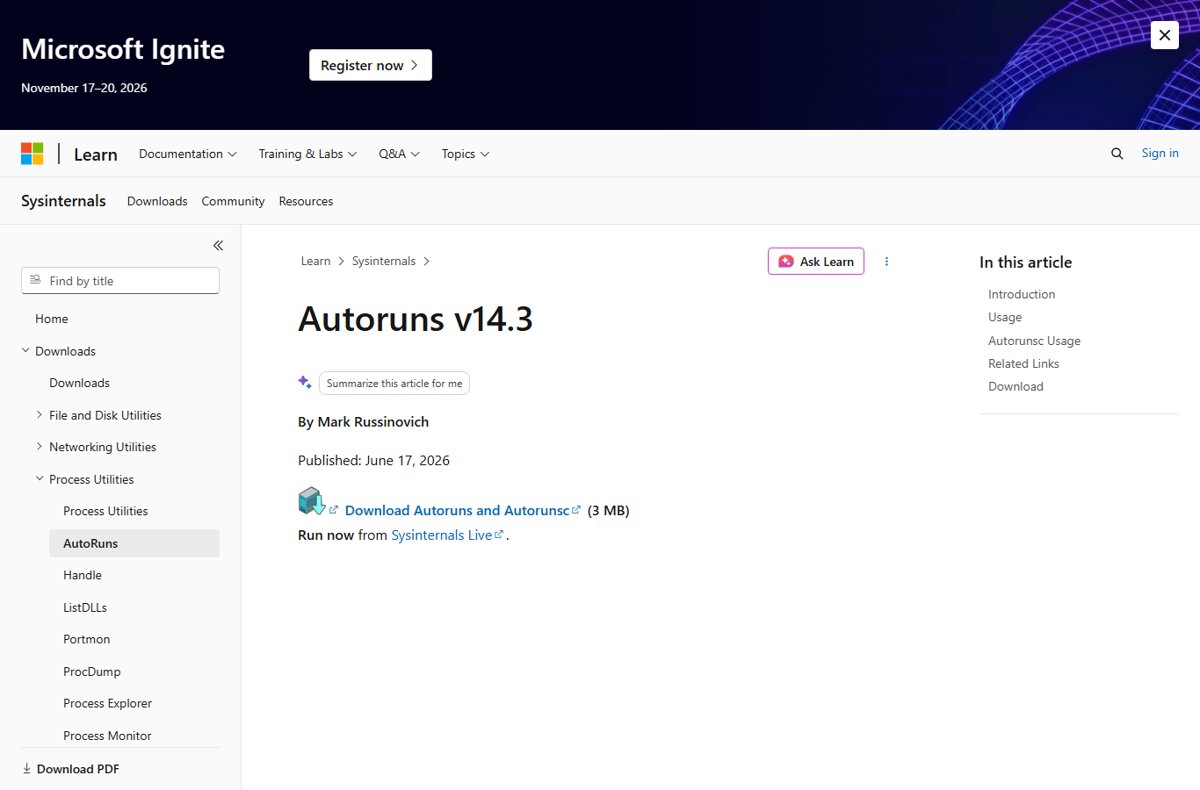
Autoruns is Microsoft's free Sysinternals tool. It checks the Startup folders, Run and RunOnce keys, services, scheduled tasks, Explorer add-ons, drivers and many more locations.
- Get Autoruns from its Sysinternals page on learn.microsoft.com, then run it as administrator.
- Use the Hide Signed Microsoft Entries filter in the Options menu to focus on third-party items.
- Switch tabs to view logon entries, services, scheduled tasks and other categories.
- Select an entry and use Jump to Entry to open its registry key or folder.
- Clear an entry's check box to disable it; use Delete only when you are sure.
The Options menu also opens scan options, where you can turn on signature verification to spot unsigned files. Autorunsc, the command-line version in the same package, exports results as CSV.
How to check your startup list is complete
- Compare Task Manager's Startup apps list with the PowerShell output; extra PowerShell rows are Startup folder or Run entries.
- Restart the PC and sign in.
- Open Task Manager's Processes tab and confirm disabled apps are no longer running.
- Check the system tray for icons from apps you thought you had stopped.
Common gotchas (and why you might not see something)
| What you see | Why |
|---|---|
| An app runs at startup but is not in Task Manager | It starts from a service, a scheduled task or a Startup folder shortcut |
| A RunOnce entry vanished | Windows deletes the value before running it |
| Startup programs do not run in Safe Mode | Run and RunOnce keys are ignored in Safe Mode by default |
| Apps start a little after sign-in | Windows may delay Run key and Startup folder programs to keep the desktop responsive |
| Entry named We couldn't find this app | Its path points to a removed app, a removable drive or a network drive |
| HKLM RunOnce entry did not run | It runs only when an administrator signs in |
Troubleshooting when startup entries won’t show or won’t disable
Settings shows We couldn't find this app
The startup entry points to a path that no longer exists.
- Open Settings > Apps > Startup.
- Select the icon next to the entry's toggle to see the registry key or file path.
- Reinstall the app, or remove the broken value in Registry Editor after backing up the registry.
The app you want is not in the startup list
It has no registered startup task, so Settings and Task Manager do not show it.
- Open
shell:startupandshell:common startupand look for its shortcut. - Check the Run keys in Registry Editor.
- Run Autoruns and search for the program name.
PowerShell returns fewer entries than expected
The account lacks the privilege to read every user's registry entries.
- Close PowerShell.
- Search the Start menu for PowerShell, right-click it and select Run as administrator.
- Run the command again.
The app still starts after you disable it
A second entry, such as a service or scheduled task, also launches it.
- Search for the program in Autoruns across every tab.
- Disable the remaining entries, or uninstall the program if you do not need it.
What to disable vs what to keep (safe triage workflow)
| Entry type | Usual decision | Reason |
|---|---|---|
| Antivirus and security tools | Keep | They need to start before you browse |
| Audio, touchpad and graphics control panels from the PC maker | Keep unless you know you do not use them | Hardware buttons and settings can stop working |
| Cloud sync such as OneDrive | Keep if you rely on sync | Files stop syncing until you open it |
| Chat, game launchers and updaters | Disable | They can be opened when needed |
| High impact entries you do not recognise | Research, then disable | Disabling is reversible; deleting is not |
| Microsoft services | Keep | Windows features depend on them |
Disable one or two entries at a time, restart, and check that everything you use still works.
FAQs
How do I see all startup programs in Windows 11?
Right-click Start, select Task Manager and open the Startup apps tab, or go to Settings > Apps > Startup. For entries those lists miss, check shell:startup, the registry Run keys and Sysinternals Autoruns.
Where do I find my startup programs folder?
Press Windows + R, type shell:startup and press Enter for your own folder. Type shell:common startup for the folder that applies to every user on the PC.
How do I check Windows startup programs without Task Manager?
Open Settings > Apps > Startup, which shows the same list with on and off toggles. You can also run Get-CimInstance -ClassName Win32_StartupCommand in PowerShell.
How do I view startup programs in Windows 10?
The steps match Windows 11. Open Task Manager and select the startup apps tab, or go to Settings > Apps > Startup. The Startup folder and Run registry keys are in the same places.
Why is a program missing from the Task Manager startup list?
Task Manager only shows apps registered with a startup task. Programs launched by services, scheduled tasks or some Startup folder shortcuts appear only in their own tools or in Autoruns.
Is it safe to disable all startup programs?
No. Keep security software and the hardware utilities you use. Disable chat apps, launchers and updaters first, one or two at a time, and restart to check nothing breaks.
Can msconfig still disable startup programs?
Not in current Windows versions. The msconfig Startup tab redirects to Task Manager, where you disable startup apps. Msconfig's Services tab still controls services.
What is the most complete way to see everything that starts with Windows?
Use Microsoft's Sysinternals Autoruns. It checks logon entries, services, scheduled tasks, Explorer add-ons, drivers and more, and lets you disable entries without deleting them.
Bottom Line
Start with Task Manager's Startup apps tab for the everyday list, and run Autoruns when something starts that Task Manager does not show. Task Manager covers most apps and shows their impact, while Autoruns checks every auto-start location Windows uses, including services and scheduled tasks.