You kick a player from a Roblox private server with a kick or admin command that the experience itself provides, because Roblox's kick is a scripting method, Player:Kick, that each experience's developer chooses to expose.
This guide shows how to find and use those commands as a private server owner, how a developer adds an owner-only kick command in Roblox Studio, and when muting, banning or reporting works better.
How to kick someone in a Roblox private server
Private servers decide who can play with you, but removing someone already inside depends on the experience you are playing.
- Read the experience's description and in-game menus for owner, VIP server or admin commands.
- Open chat and type
/helpto list the chat commands the experience has enabled. - If a kick command is listed, type it followed by the player's username, for example the experience's own form of
/kick Username. - If there is no kick command, type
/m Usernameto mute the player's chat for you, where the default chat commands are enabled. - Report serious rule-breaking with Roblox's Report Abuse tool.
Understanding Roblox’s Moderation Tools and Server Management Options
| Tool | Who can use it | What it does |
|---|---|---|
| Built-in kick and ban features: Player:Kick | The experience's scripts | Disconnects a player from the server, with an optional message |
| Built-in kick and ban features: Players:BanAsync | The experience's server scripts, with banning enabled in Studio | Removes the player and blocks rejoining for a set time or permanently |
| Server management options: private servers | The player who owns the private server | Controls who can join the server |
| Owner or admin chat commands | Whoever the developer allows | Kick, ban or other actions, only if the experience provides them |
| /mute and /unmute | Any player, when default chat commands are on | Hides a user's chat messages for you |
| Report Abuse | Any player | Sends a rule violation to Roblox |
Limitations and practical tips: a private server owner cannot add scripts to someone else's experience, so check the experience's own commands first. Players under 13 may be unable to join private servers because of their privacy and parental control settings.
Dealing with Disruptive Behavior
| Situation | Best action | Why |
|---|---|---|
| Chat spam or insults | Mute with /m Username | Instant, needs no owner rights |
| Griefing in a game with owner commands | Use the experience's kick command | Removes them from your server now |
| Handling hacking and exploits | Report Abuse, then a developer ban if you own the experience | Exploits break Roblox's rules; a kick alone lets them rejoin |
| Enforcing rule violations of your own server | Warn, then kick with the experience's command | Clear, fair escalation |
| Harassment or unsafe content | Report Abuse | Roblox moderation handles Community Standards violations |
Step-by-step Guide to Kicking a Player via Roblox Studio and In-Game Commands
This part is for the developer of the experience. Using Roblox Studio, you add a chat command that only the private server's owner can trigger.
- Open the experience in Roblox Studio.
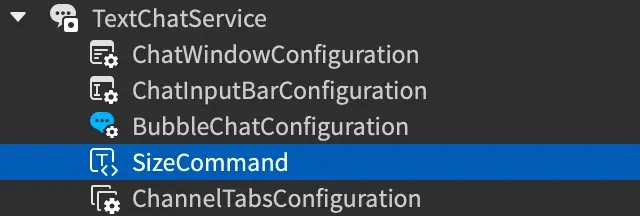
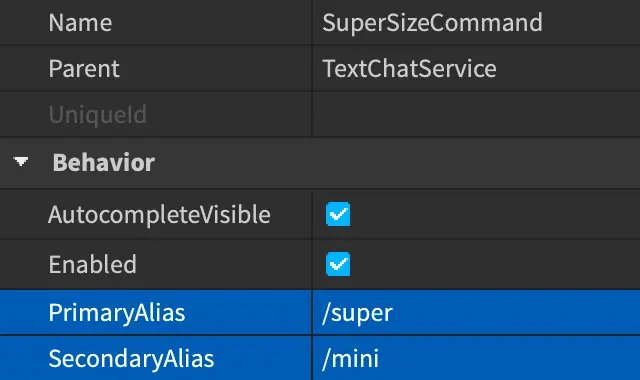
- In the Explorer, add a TextChatCommand inside TextChatService and rename it KickCommand.
- In the Properties window, set its PrimaryAlias to
/kick. - Insert a Script inside ServerScriptService and paste the code from the next section.
- Publish the experience so private servers load the new version.
In-Game Commands (For Administrators)
The script reads the private server owner's user ID and ignores anyone else who types the command.
local TextChatService = game:GetService("TextChatService")
local Players = game:GetService("Players")
local kickCommand = TextChatService:WaitForChild("KickCommand")

kickCommand.Triggered:Connect(function(textSource, message)
	local ownerId = game.PrivateServerOwnerId
	if ownerId == 0 or textSource.UserId ~= ownerId then
		return
	end
	local targetName = string.split(message, " ")[2]
	local target = targetName and Players:FindFirstChild(targetName)
	if target and target:IsA("Player") and target.UserId ~= ownerId then
		target:Kick("The private server owner removed you.")
	end
end)
PrivateServerOwnerId is 0 outside owned private servers, so the command does nothing there. The second word of the message is matched against player names, which are usernames, and Player:Kick disconnects that player with the message shown.
You should see: The owner types /kick Username, the message is not shown to others, and the named player is disconnected with the notice.
The Player:Kick documentation warns to let only trusted users trigger it, which is why the script checks the owner's ID on the server.
Using Admin Scripts and Plugins to Streamline Kicking Players in Roblox Private Servers
Admin scripts bundle kick, ban and other commands. Only the experience's developer can add them, and third-party scripts run with the same server power as your own code, so read them before use.
| Approach | Pros | Cons |
|---|---|---|
| Manual player kicking: owner types a command | The owner judges each case; no false positives | Needs the owner online and watching |
| Automated kicking: script kicks on a rule, such as a blocked word or AFK time | Works with nobody watching | Can remove innocent players if the rule is too broad |
| Third-party admin script | Many commands at once | Code you did not write, with server-level access |
Potential Risks and Pitfalls When Kicking Players in a Private Roblox Server
| Pitfall | What happens | Avoid it by |
|---|---|---|
| Kick is not a ban | The player can rejoin if they still have access | Removing their access or using a ban |
| Client-side kick code | From a LocalScript, Kick only affects the local player | Running kick logic in a server Script |
| Unchecked admin command | Any player could kick others | Checking PrivateServerOwnerId or a trusted list |
| Wrong name typed | The wrong player is removed | Matching exact usernames |
| Kicking in anger | Friends leave the server | Muting or warning first |
Best Practices for Maintaining a Fair and Enjoyable Gaming Environment in Roblox
| Practice | Why |
|---|---|
| Post your server rules where players see them | Players know what leads to a kick |
| Warn once before kicking | Mistakes get a second chance |
| Give a kick reason in the message | The removed player knows why |
| Mute for chat problems, kick for gameplay problems | The lightest tool that solves it |
| Report rule-breaking to Roblox | Bad actors are handled across all servers |
Legal and Community Considerations When Kicking Players in Your Roblox Private Server
| Consideration | What it means for you |
|---|---|
| Roblox Community Standards | Kick messages and your own conduct must follow them |
| Kick and ban messages | Ban display reasons are limited to 400 characters and pass through Roblox's text filter |
| Paid private servers | Changing the private server price cancels all active subscriptions |
| Younger players | Under-13 accounts may be blocked from private servers by their settings |
| Report Abuse | Roblox, not the server owner, decides account-level punishment |
Alternatives to Kicking: Muting, Banning, or Reporting Players
| Option | How | Use when |
|---|---|---|
| Muting players | Type /m Username or /mute Username; /um Username undoes it | Only their chat bothers you |
| Banning players | Developer calls Players:BanAsync with a duration, or -1 for permanent | They keep rejoining your experience |
| Reporting players | Roblox's Report Abuse tool | They break Roblox's rules |
Mute and unmute apply across all chat channels. Bans also extend to suspected alternate accounts unless the developer turns that off.
How to check the player is gone
- Watch for the player's avatar to disappear from the server.
- Check that their name no longer appears in the player list.
- Ask them, or a friend, whether they saw the kick message.
- If they come back, use a ban or the experience's access controls instead of another kick.
Frequently asked questions
How do I kick someone in a Roblox private server?
Use the kick or admin command the experience provides, typically typed in chat with the player's username. Roblox's kick is a scripting method, so if the experience has no command, mute them with /m Username or report them instead.
How do I kick people from my private server if the game has no commands?
You cannot remove them directly. Mute their chat with /m Username, report rule-breaking with Report Abuse, or ask the experience's developer to add owner commands. The developer can build one with Player:Kick and PrivateServerOwnerId.
Does kicking a player stop them rejoining?
No. Player:Kick only disconnects the player from the current server. To stop a return, the experience must ban them with Players:BanAsync or the server's access must exclude them.
Can a private server owner ban players?
Only if the experience gives owners a ban command. Roblox's ban API, Players:BanAsync, runs in the experience's server scripts and must be enabled in Studio, so only the developer decides who can trigger it.
How do I mute someone in Roblox?
Type /m Username or /mute Username in chat when the experience has default chat commands enabled. Type /um Username to unmute. Muting hides their messages for you in every chat channel.
How do I make a Roblox game allow private servers?
The game must be public. On the game's Creator Dashboard page, open Audience > Access Settings, toggle on Allow private servers, choose whether they require Robux, and select Save Changes.
How do I kick someone from a server I do not own?
You cannot. Kick commands, where they exist, are limited by each experience to owners or admins. Mute the player with /m Username, leave the server, or report rule-breaking with Roblox's Report Abuse tool.
Conclusion: Balancing Control and Player Experience in Private Servers
As an owner, look for the experience's own kick command first and fall back on mute and Report Abuse; as a developer, give private server owners a server-checked /kick command. Roblox exposes kicking only through scripts, so the experience decides who can kick, and an owner-only server check keeps the power with the person paying for the server.