To block the Windows 11 26H2 update on Windows 11 Pro, Enterprise or Education, enable the Select the target Feature Update version policy and set the product to Windows 11 and the target version to 25H2; on Windows 11 Home there is no supported permanent block, so turn off early updates and pause Windows Update for up to 35 days.
This guide covers Local Group Policy Editor, the registry key the policy writes, a REG file for several PCs, Intune, WSUS, how to check the block holds, and how to undo it.
The fastest way to block the 26H2 update
Windows 11 26H2 reached general availability on September 29, 2026 as a small enablement package for PCs on 24H2 and 25H2. Microsoft's release health page says that on PCs with Get the latest updates as soon as they're available turned on, it downloads and installs automatically once it is ready for the device. Pick the row that matches your PC.
| Your situation | Do this | How long it holds |
|---|---|---|
| Windows 11 Pro, Enterprise or Education, one PC | Local Group Policy: Select the target Feature Update version set to Windows 11 and 25H2 | Until you change the policy, or 60 days past the end of service of the version you target |
| Several Pro PCs, no domain | Configure one PC with Group Policy, export the policy key to a REG file, import it on the others | Same as the policy |
| Domain-joined PCs | The same policy in a GPO through the Group Policy Management Console | Same as the policy |
| Devices managed by Intune | A feature update policy locked to Windows 11, version 25H2 | Until you modify or remove the policy |
| Devices updated by WSUS | Do not approve the update named Windows 11, version 26H2 | Until you approve it |
| Windows 11 Home | Turn off Get the latest updates as soon as they're available, then pause updates | Up to 35 days per pause |
If you are unsure whether blocking is worth it, the case for and against updating to 26H2 weighs the new features against the launch issues.
Specify Target Feature Update Version in Local Group Policy Editor
Microsoft's Update Policy CSP lists this policy for Pro, Enterprise, Education and IoT Enterprise editions; Home is not listed. The policy keeps a PC on the version you name instead of moving it to the newest release.
- Sign in with an administrator account and open the Local Group Policy Editor (
gpedit.msc). - Go to Computer Configuration > Administrative Templates > Windows Components > Windows Update > Manage updates offered from Windows Update.
- Double-click Select the target Feature Update version.
- Select Enabled.
- In Which Windows product version would you like to receive feature updates for?, type
Windows 11. - In Target Version for Feature Updates, type
25H2. - Select OK, then close the editor.
A PC still on 24H2 with this policy set to 25H2 moves to 25H2 and stops there. That matters because Windows 11 24H2 Home and Pro reach end of updates on October 13, 2026.
Specify Target Feature Update Version in Registry Editor
The Group Policy setting is stored under HKEY_LOCAL_MACHINE\SOFTWARE\Policies\Microsoft\Windows\WindowsUpdate, the registry key Microsoft names for this policy. The safest way to write it is the Group Policy step above; Registry Editor is then the place to confirm what was written.
- Select Start, type
regedit.exeand press Enter; approve the administrator prompt. - Go to
HKEY_LOCAL_MACHINE\SOFTWARE\Policies\Microsoft\Windows\WindowsUpdate. - Confirm the key now holds the product and target version entries, with the data
Windows 11and25H2you typed in Group Policy. - Close Registry Editor without changing anything else.
Writing these values by hand on Windows 11 Home is not a supported way to block 26H2, because Microsoft does not list Home as an edition this policy applies to.
Specify Target Feature Update Version using REG file
A REG file copies the exact values from one configured PC to others, so nobody has to type version strings by hand. Use it only on Pro, Enterprise or Education PCs.
- On a PC already configured with Group Policy, open Registry Editor and select the
WindowsUpdatekey underHKEY_LOCAL_MACHINE\SOFTWARE\Policies\Microsoft\Windows. - Select File > Export.
- In Export Registry File, pick a location, type a file name and select Save.
- Open the saved file in Notepad and check it contains only the target-version entries you want to copy; remove any other Windows Update policies that should not spread.
- On each other PC, open Registry Editor, select File > Import, choose the file and select Open.
- Restart the PC or run a Windows Update scan so the policy is read.
Back up the registry key on each target PC first, using the same File > Export step, so you can restore it later.
Delay 26H2 on Windows 11 Home with Pause updates
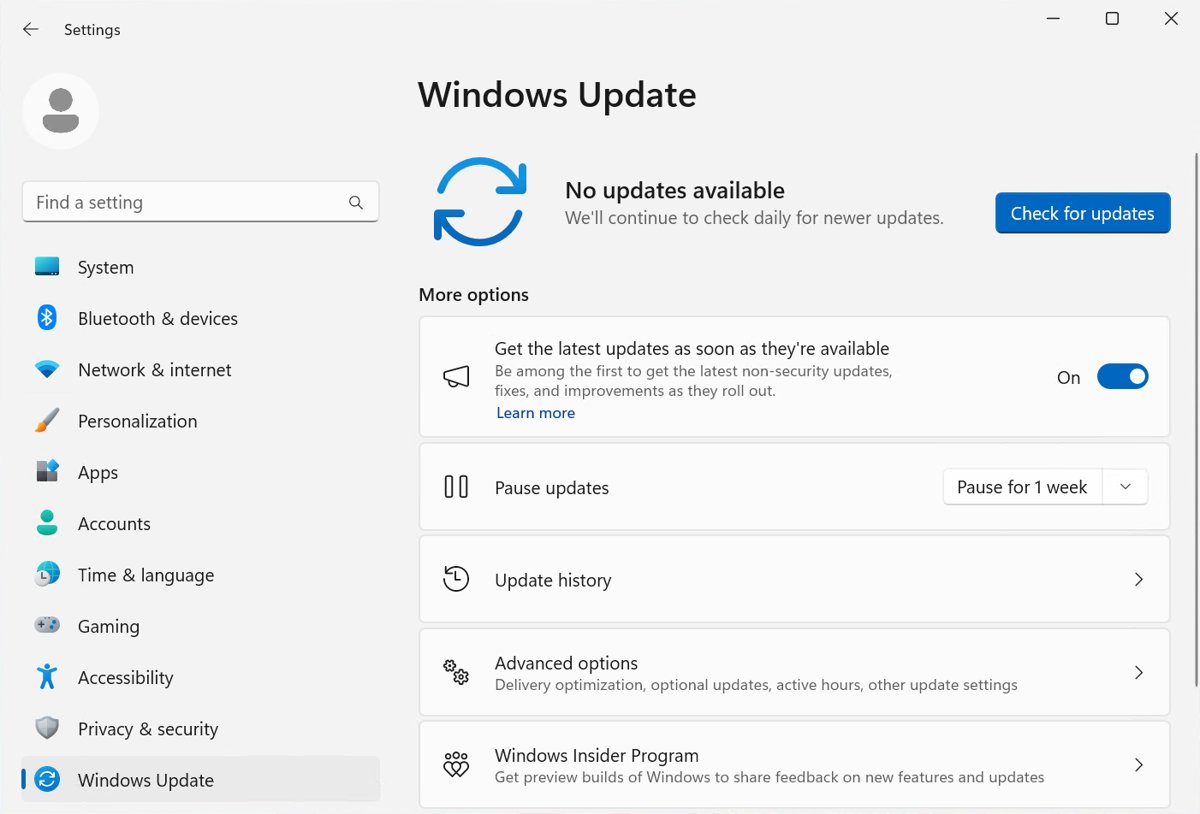
Microsoft's Windows Update FAQ states that you can't stop updates entirely on Windows 11 Home. You can stay out of the first wave and pause for up to 35 days at a time.
- Select Start > Settings > Windows Update.
- Turn off Get the latest updates as soon as they're available.
- On the Pause updates control, select Pick a date.
- Choose an end date up to 35 days away.
- To extend the pause, return to the same page before it ends and select a new end date on the Pause updates calendar.
Pausing also holds back monthly security updates, and once the pause limit is reached Windows makes you install the latest updates before pausing again. Once 26H2 is installed, the same controls let you pause or stop updates in 26H2, alongside the other Windows Update settings on that page.
Set up Windows Update client policies
In a domain, apply the same target-version setting to a group of PCs through a Group Policy Object. Microsoft's walkthrough uses one GPO per deployment ring; run these steps on a domain controller or a PC with the Remote Server Administration Tools.
- Start the Group Policy Management Console (
gpmc.msc). - Expand Forest > Domains > your domain.
- Right-click your domain and select Create a GPO in this domain and link it here, then name it, for example Windows Update client policies – Hold 25H2.
- Right-click the new GPO and select Edit.
- Go to Computer Configuration > Policies > Administrative Templates > Windows Components > Windows Update > Manage updates offered from Windows Update.
- Enable Select the target Feature Update version with
Windows 11and25H2, then select OK.
Settings that manage how users experience updates, such as active hours and restart deadlines, sit in the same Windows Update folder and keep working alongside the version hold. If you also worry about other policies after the upgrade, check whether 26H2 changes Group Policy behaviour before you release the hold.
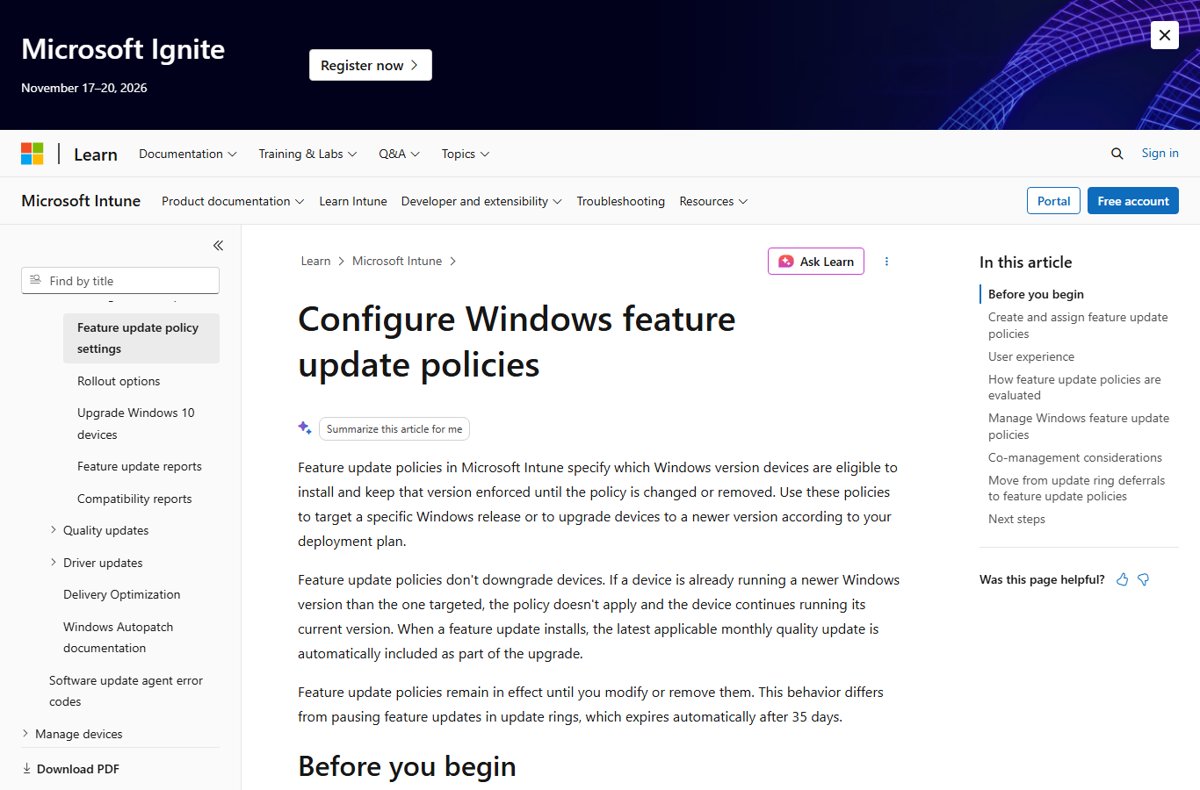
Block 26H2 with an Intune feature update policy
Intune feature update policies lock devices to a specific Windows release and keep it enforced until the policy is changed or removed. They need Intune Plan 1, a Windows license with the Windows Autopatch entitlement, and Pro, Pro Education, Enterprise or Education devices that are Entra joined or hybrid joined.
- In the Microsoft Intune admin center, select Devices > Windows.
- Select Windows updates > Feature updates, then Create profile.
- Under Deployment settings, enter a Name, and from Feature update to deploy select Windows 11, version 25H2.
- Choose Make available to users as a required update or Make available to users as an optional update.
- Set Rollout options, select Next, and under Assignments add the device groups to hold.
- Under Review + create, select Create.
Microsoft recommends setting Feature update deferral period (days) to 0 in update rings used alongside this policy and not pausing feature updates there. A feature update policy does not downgrade devices already on a newer version. When the hold ends, the same profile becomes the tool for a planned 26H2 enterprise rollout.
Manage Windows Update offerings
On WSUS, 26H2 arrives only if you sync the Windows 11 product with the Upgrades classification and then approve it. Holding it is a matter of not approving it.
- Open the WSUS Administration Console.
- Find the feature update named Windows 11, version 26H2 among the synced updates.
- Leave it unapproved for your production computer groups, or approve it only for a pilot group.
- For clients that also scan Windows Update directly, set Select the target Feature Update version to 25H2 as well.
Deferring instead of blocking is another option: Windows Update client policies let you defer feature updates for up to 365 days or pause them for up to 35 days. Microsoft notes that deferrals stop applying once a target version policy is set.
How to Block the Windows 11 24H2 Update
The methods used last year to block Windows 11 24H2 installation, and to prevent the Windows 11 2024 Update with Registry Editor, are the same policy. Only the version you type changes.
| Blocking 24H2 (2024 Update) | Blocking 26H2 (2026 Update) | |
|---|---|---|
| Group Policy setting | Select the target Feature Update version | Same setting |
| Product version | Windows 11 | Windows 11 |
| Target version | 23H2 | 25H2 (or 24H2, but 24H2 Home and Pro end updates on October 13, 2026) |
| Registry location | HKEY_LOCAL_MACHINE\SOFTWARE\Policies\Microsoft\Windows\WindowsUpdate |
Same key |
| What arrives if not blocked | A full feature update | A small enablement package, KB5121794 |
Because 26H2 is an enablement package, a blocked 25H2 PC keeps receiving monthly cumulative updates that already carry the 26H2 code in a dormant state; only the switch that turns it on is held back.
What to know before you block 26H2
| Behaviour | What Microsoft documents |
|---|---|
| A typo or an older version in the policy | The device receives no feature updates at all until the policy is corrected |
| Deferral settings | Feature update deferrals are not in effect while a target version policy is set |
| End of service | If the policy is not updated, the device is updated automatically 60 days past end of service for its edition |
| 25H2 support | Home and Pro end of updates 2027-10-12; Enterprise and Education 2028-10-10 |
| 24H2 support | Home and Pro end of updates 2026-10-13, so holding on 24H2 leaves Home and Pro PCs without security fixes |
| Pause on Home | Pauses last up to 35 days and hold back security updates too |
Plan the hold around the 26H2 servicing timeline rather than indefinitely; staying behind for too long has the costs set out in what happens if you skip 26H2.
How to check the block is working
- Open Settings > System > About and confirm Version still reads 25H2 and OS build starts with 26200.
- Open Settings > Windows Update and select Check for updates; Windows 11, version 26H2 is available should not appear.
- Confirm monthly cumulative updates still install, which proves the block is not stopping everything.
- On Intune-managed devices, open Reports > Windows Updates > Reports > Feature Updates report and confirm devices show OfferReady for 25H2.
If the PC already shows 26H2 and build 26300, the block came too late.
How to remove the block and get 26H2
- In Local Group Policy Editor or your GPO, set Select the target Feature Update version to Not Configured, or change the target version to
26H2. - In Intune, open the feature update profile, select Properties > Edit, and choose Windows 11, version 26H2, or delete the profile.
- On WSUS, approve Windows 11, version 26H2 for the right computer groups.
- On Home, open Settings > Windows Update and resume updates.
- Select Check for updates and, when offered, Download & install.
The staged rollout still applies after you lift the block, so the offer may take days to appear; the other official ways to install 26H2 skip that wait.
Fix problems when blocking the 26H2 update
The PC stopped getting any feature update
The target version is older than the installed version or is not a valid value.
- Open Select the target Feature Update version again.
- Check the product reads
Windows 11and the version is25H2or later. - Select OK and check for updates.
26H2 installed on a Home PC despite registry changes
Microsoft does not list Home among the editions this policy applies to.
- Confirm the edition in Settings > System > About.
- Use Pause updates and the early-updates toggle instead.
- If 26H2 is already installed and causing problems, check the 26H2 known issues before rolling back.
Windows will not let you pause updates again
The pause limit was reached; Windows requires the latest updates before a new pause.
- Open Settings > Windows Update and install the pending monthly updates.
- Turn off Get the latest updates as soon as they're available if it was turned back on.
- Pause again with Pick a date.
A PC that got 26H2 before the block took effect needs a rollback instead; here is how to safely uninstall 26H2.
Frequently Asked Questions
How do I block the Windows 11 26H2 update?
On Windows 11 Pro, Enterprise or Education, enable Select the target Feature Update version in Group Policy under Windows Update > Manage updates offered from Windows Update, with Windows 11 and 25H2. On Home, turn off early updates and pause Windows Update for up to 35 days.
Can I block Windows 11 26H2 with Group Policy?
Yes. The Select the target Feature Update version policy keeps a Pro, Enterprise or Education PC on the version you name, such as 25H2, until you change the policy or the device passes 60 days beyond end of service for its edition.
Can Windows 11 Home block the 26H2 update permanently?
No. Microsoft's Windows Update FAQ says updates can't be stopped entirely, and the target version policy is not listed for Home. Turn off Get the latest updates as soon as they're available and pause updates for up to 35 days at a time.
Will 26H2 install automatically?
On eligible 24H2 and 25H2 PCs with Get the latest updates as soon as they're available turned on, Microsoft says 26H2 downloads and installs automatically once it is ready for the device. Other PCs see a Download & install option as the rollout reaches them.
What version should I type in the target version box?
Type 25H2 to hold a PC on Windows 11 version 25H2. An older value than the installed version, or an invalid value, stops all feature updates until you fix it, so check the version in Settings > System > About first.
Does blocking 26H2 stop security updates?
No, not with the target version policy, Intune or WSUS. Those hold only the feature update, and monthly cumulative updates keep installing. Pausing updates on Home is different: a pause holds back security updates as well until it ends.
How do I block 26H2 with Intune?
Create a feature update policy under Devices > Windows > Windows updates > Feature updates, select Windows 11, version 25H2 in Feature update to deploy, and assign it to your device groups. It stays in effect until you change or remove it.
Additional resources
- Update Policy CSP — ProductVersion and TargetReleaseVersion policies, supported editions and registry key
- Configure Windows Update client policies via Group Policy — Microsoft's walkthrough, including the stay-on-a-specific-version guidance
- Configure Windows feature update policies in Intune — Create, assign and manage feature update profiles
- Pause updates in Windows — The 35-day pause for Home and Pro users
- Windows 11, version 26H2 known issues and notifications — Rollout status and safeguard holds
Bottom line
Hold business PCs on 25H2 with the target version policy or an Intune feature update policy while you test, and hold Home PCs only with short pauses. The policy blocks the 26H2 switch without stopping security updates, and 25H2 is supported until October 2027 for Home and Pro, which leaves ample time to test 26H2 and lift the block on your own schedule.
Use the hold period to read up on what 26H2 changes and to test your key apps on a pilot PC.