Windows 11 26H2 usually fails to install because the PC is missing the September 22, 2026 prerequisite update, lacks free disk space, has a driver or app that blocks Setup, or has a damaged Windows Update cache.
This guide matches each failure to its cause, gives the fix for each, and decodes the error codes Microsoft documents for Windows 11 upgrades.
The fastest fix when 26H2 keeps failing
Work through these steps in order on a PC running Windows 11 24H2 or 25H2. Most failed attempts clear by step 5.
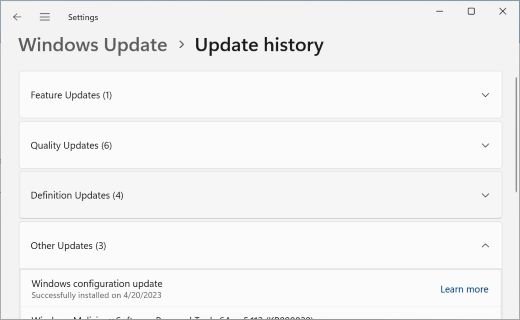
- Open Settings > Windows Update > Update history and note the error code next to the failed 26H2 attempt.
- Open Settings > System > Troubleshoot > Other troubleshooters, find Windows Update and select Run.
- Open Settings > Windows Update > Advanced options > Optional updates and install KB5124010, or any later cumulative update, then restart.
- Unplug docks, external drives and other hardware the PC does not need to start.
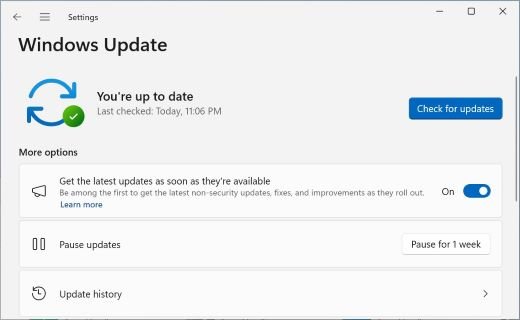
- Return to Settings > Windows Update, select Check for updates, and select Download & install when Windows 11, version 26H2 is available appears.
If the same error comes back, look it up in the error code table below, or jump to the section for your symptom. The 26H2 known issues list shows whether Microsoft has flagged a bug that matches your hardware.
Match the failure to its cause
Different symptoms point to different fixes. Find your row, then go to the fix it names.
| What you see | Likely cause | Fix to try first |
|---|---|---|
| "The update isn't applicable to your computer" | Required updates are missing, usually KB5124010 | Install the prerequisite update |
| Error 0x80070070 or a notice that more space is needed | Not enough free disk space | Free up space for the update |
| Error starting 0xC1900101 | A driver blocks Setup | Fix driver errors |
| Error 0x8007000d, 0x80073712 or 0x80070002 | Damaged update files or system files | Clear the cache, then run DISM and SFC |
| "We couldn't complete the updates. Undoing changes" | Generic failure; the real code is in Update history | Read the code in Update history, then use the table below |
| Message that the update is on its way but not ready | A safeguard hold for a known issue | Wait; Microsoft releases the hold once fixed |
| Nothing offered at all | The phased rollout has not reached the PC | See the not-offered section below |
What 26H2 needs before it will install
Microsoft lists these conditions for the 26H2 enablement package, KB5121794, and for Windows 11 upgrades in general. Missing any one of them causes a failed or skipped install.
| Requirement | Detail | How to check |
|---|---|---|
| Current version | Windows 11, version 24H2 or 25H2 for the enablement package | Settings > System > About |
| Prerequisite update | September 22, 2026 preview KB5124010 or a later cumulative update | Settings > Windows Update > Update history |
| Free space | Feature updates typically need 6 GB to 11 GB; a full 64-bit upgrade needs at least 20 GB | Settings > System > Storage |
| Account | Some updates require administrator access | Sign in with an administrator account |
| Power and network | Plugged in and online for the whole install | Settings > Network & internet |
| Date and time | Correct time and time zone; a wrong clock causes 0x80072f8f | Settings > Time & language > Date & time |
PCs on Windows 11 23H2 or Windows 10 cannot use the enablement package at all. They need a full upgrade.
Install the missing prerequisite update
The enablement package only switches on 26H2 code that monthly updates already delivered. Without KB5124010 or a later cumulative update, that code is not on the PC and the package has nothing to activate.
- Open Settings and select Windows Update.
- Select Advanced options, then Optional updates.
- Under Optional updates available, select KB5124010 or any newer cumulative update and install it.
- Restart the PC.
- Return to Windows Update, select Check for updates, then install 26H2.
KB5121794 is the 26H2 enablement package.
Free up space for the update
Windows checks for space before an update starts and keeps extra space for about 10 days afterwards so the update can be removed.
- Select Start > Settings > System > Storage.
- Turn on Storage Sense.
- Select Cleanup recommendations, review the file categories, and select Clean up.
- If space is still short, open Settings > Windows Update and select Fix issues when it appears.
- Connect an external drive with at least 10 GB free, select it from the drop-down menu, then select Next and follow the prompts.
Microsoft does not publish a download size for 26H2; what is known is collected in how big the 26H2 update is.
Clear the Windows Update cache
Corrupt files in the update cache cause repeated failures, including error 0x8007000d. Deleting the cache forces Windows to download the update again.
- Press Win + R, type
services.mscand press Enter. - Right-click Windows Update and select Stop.
- Open File Explorer and go to
C:\Windows\SoftwareDistribution. - Delete all files and folders inside that folder.
- Back in Services, right-click Windows Update and select Start.
- Open Settings > Windows Update and select Check for updates.
Advanced users can do the same from an administrator Command Prompt: net stop bits, net stop wuauserv, ren %systemroot%\softwaredistribution softwaredistribution.bak, ren %systemroot%\system32\catroot2 catroot2.bak, net start bits and net start wuauserv, one at a time, then restart.
Repair system files with DISM and SFC
Errors 0x80073712, 0x8007000d, 0x80070057 and 0x80080005 point to damaged or missing system files. DISM repairs the Windows image, then SFC repairs individual files. Run both from Command Prompt opened with Run as administrator.
DISM.exe /Online /Cleanup-image /Restorehealth
sfc /scannow
The first command repairs the Windows component store using Windows Update as the source. After it succeeds, sfc /scannow checks protected system files and replaces damaged copies.
You should see: DISM ends with "The restore operation completed successfully" or "The operation completed successfully". SFC reaches 100% verification. Then retry the 26H2 update.
If disk errors are suspected, run chkdsk /f C: from the same window and restart when asked. Repairs start on the next boot.
Fix 0xC1900101 driver errors
An error that begins with 0xC1900101 is usually a driver problem. Microsoft lists suffixes such as 0x2000c, 0x20017, 0x30018, 0x3000D, 0x4000D and 0x40017.
- Unplug all hardware except the mouse, keyboard and display, and undock a laptop.
- Type device manager in the taskbar search box and open Device Manager.
- Look for any device with a yellow exclamation mark, right-click it and select Update driver, then Search automatically for drivers.
- Expand Display adapters and Network adapters and update those drivers the same way.
- Install any newer drivers from the maker of hardware you added yourself.
- Perform a clean boot, which starts Windows with a minimal set of drivers and startup programs, then retry the update.
Check with the maker of any third-party security software that its version supports the latest Windows 11 release, and update it if not. Network adapter trouble after the update is a separate problem with its own Ethernet driver fixes.
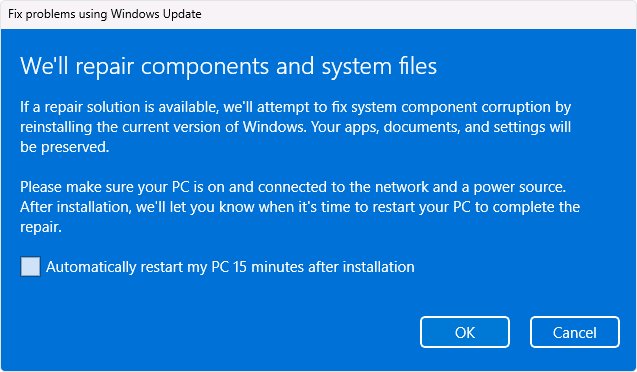
Reinstall the current version with Fix problems using Windows Update
When system files or components block an update, Windows Update may show "Reinstall your current version of Windows to repair system files and components." This repair keeps apps, files and settings.
- Select Start > Settings > System > Recovery.
- Under Fix problems using Windows Update, select Reinstall now.
- Choose whether the PC may restart automatically 15 minutes after the install finishes.
- Select OK and keep the PC on power and online while the repair downloads and installs.
- Restart if needed, then check for the 26H2 update again.
Quick machine recovery is one of several options for repairing Windows 11 26H2 without losing files.
Use the Installation Assistant or ISO when Windows Update keeps failing
Microsoft's download page now installs version 26H2. This route runs a full Windows Setup, so it takes longer than the enablement package. Do not use it to get around a safeguard hold: Microsoft recommends waiting until the hold is released.
- Back up personal files to OneDrive or an external drive.
- Confirm at least 9 GB is free for the download.
- On Microsoft's Download Windows 11 page, under Windows 11 Installation Assistant, select Download Now.
- Run the file, select Accept and install, then select Restart now when asked.
- Leave the PC on while it restarts several times.
The Installation Assistant runs only on x64 PCs, and the official 26H2 ISO downloads suit Arm64 PCs and offline installs.
Windows 11 upgrade error codes and what they mean
Microsoft has not published any error code specific to 26H2. These are the codes it documents for Windows 11 updates and upgrades, which apply to 26H2 as well.
| Error code | What it means | What to do |
|---|---|---|
| 0xC1900101 (any suffix) | A driver caused the failure | Update drivers, unplug hardware, clean boot |
| 0x80070070 – 0x50011, 0x50012 or 0x60000 | Not enough space | Free up space or use external storage |
| 0x800F0922 | Could not reach update servers, or System Reserved partition is full | Disconnect a VPN and retry |
| 0x8007000d | Invalid data in update files | Clear the cache; run DISM and SFC |
| 0x80073712 | A file Windows Update needs is damaged or missing | Run DISM RestoreHealth |
| 0xC1900208 – 0x4000C | An incompatible app blocks the upgrade | Uninstall the incompatible app, then retry |
| 0xC1900107 | Cleanup from an earlier attempt is pending | Restart, then run Disk Cleanup on system files |
| 0xC1900200 or 0xC1900202 – 0x20008 | The PC does not meet Windows 11 minimum requirements | Check requirements with PC Health Check |
| 0x80200056 | Setup was interrupted by a restart or sign-out | Retry and keep the PC on |
| 0x8007042B – 0x4000D | A background process stopped Setup | Clean boot, then retry |
| 0x80072f8f | Date and time are wrong | Turn on automatic time and time zone |
| 0x800f081f | Source files could not be found | Upgrade in place from the ISO |
| 0xc1900223 | Download and install problem | Nothing; Windows Update retries later |
| 0x80070005 | Access denied | Install from an administrator account |
Administrators who add dynamic updates to their own installation media must include the boot.stl file; Microsoft warns that leaving it out can stop devices starting from the media with error 0xc0430001.
How to check 26H2 installed
- Open Settings > System > About.
- Under Windows specifications, confirm Version reads 26H2.
- Confirm OS build starts with 26300; 26200 means the PC is still on 25H2 and 26100 means 24H2.
- Open Settings > Windows Update > Update history and check that the 26H2 feature update shows as installed.
Other ways to confirm the installed version work too if Settings will not open.
Fix 26H2 install problems by symptom
26H2 is not offered at all
Microsoft is rolling 26H2 out in phases over the next few months, or a safeguard hold applies to the PC.
- Confirm the PC runs 24H2 or 25H2 in Settings > System > About.
- Turn on Get the latest updates as soon as they're available in Settings > Windows Update.
- Select Check for updates and install every cumulative update offered.
- If Settings says the update is on its way but not ready, wait; Microsoft releases the hold once the issue is fixed.
Download stuck at 0% or 100%
An app is blocking the update, the connection dropped, or space ran out.
- Restart the PC.
- Check Settings > Network & internet and reconnect if needed.
- Confirm there is enough free space in Settings > System > Storage.
- Select Check for updates again.
Install stops between 51% and 99%
Large updates can sit on one percentage while Setup works; a stall on the same number for a long time needs a retry.
- Leave the PC on and plugged in for a while longer.
- If the percentage does not move, restart and select Check for updates again.
- Run the Windows Update troubleshooter from Settings > System > Troubleshoot > Other troubleshooters.
"We couldn't complete the updates. Undoing changes" after restart
A generic failure message that hides the real error code.
- Sign in after Windows rolls back.
- Open Settings > Windows Update > Update history.
- Find the failed 26H2 entry and note its error code.
- Apply the fix listed for that code in the error table above.
USB audio device stops working after 26H2 installs
A known issue: some USB Audio Class 1.0 devices show Code 10 or produce no sound; Microsoft lists it as mitigated.
- Open Settings > Windows Update and install every available update.
- Restart and test the device again.
If 26H2 is not offered at all, the problem is 26H2 not showing in Windows Update rather than a failed install.
Frequently asked questions
Why does Windows 11 26H2 keep failing?
The most common causes are a missing prerequisite update (KB5124010 or later), too little free disk space, a driver that blocks Setup (error 0xC1900101) and a damaged Windows Update cache. Note the error code in Update history to find which one applies.
What update do I need before 26H2 will install?
The PC must run Windows 11 24H2 or 25H2 with the September 22, 2026 preview update KB5124010, or any later cumulative update, installed. Install it from Settings > Windows Update > Advanced options > Optional updates, restart, and try 26H2 again.
How much free space does 26H2 need?
Microsoft does not state a 26H2 figure. Feature updates typically need 6 GB to 11 GB of free space, and a full 64-bit upgrade needs at least 20 GB. The Installation Assistant needs 9 GB free for its download.
What does error 0xC1900101 mean on 26H2?
An error starting with 0xC1900101 is usually a driver problem. Update drivers in Device Manager, especially display and network adapters, unplug nonessential hardware, and retry. A clean boot helps when a startup program is involved.
Why does my PC say the update is on its way but not ready?
That message means a safeguard hold protects the PC from a known compatibility issue. Microsoft recommends not forcing the update manually. The hold is released, and 26H2 is offered, once Microsoft verifies a fix.
Does the Windows Update troubleshooter fix 26H2 install failures?
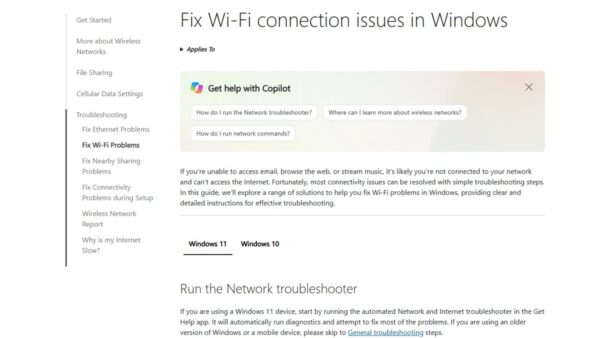
Often. Microsoft describes the Windows Update troubleshooter as running diagnostics automatically and attempting to fix most update problems. Run it from Settings > System > Troubleshoot > Other troubleshooters, then clear the cache or repair system files if the failure returns.
Can I install 26H2 without Windows Update?
Yes. Microsoft's Installation Assistant and ISO install 26H2 as a full upgrade on x64 PCs, and an Arm64 ISO covers Arm-based PCs. It takes longer than the enablement package and should not be used to bypass a safeguard hold.
Is there a known 26H2 bug that stops installation?
Not as of September 30, 2026. Microsoft's 26H2 release health page lists three mitigated issues affecting USB audio, domain trust and virtual desktop sign-in, none of which blocks the install itself.

How long does Windows 11 26H2 take to install? - Techdows
[…] When the install fails outright rather than running slowly, work through why 26H2 keeps failing to install. […]
How to install Windows 11 26H2 without USB using ISO - Techdows
[…] codes and deeper fixes are in why 26H2 keeps failing to install, and current problems are listed under 26H2 known […]
Windows 11 26H2 upgrade paths explained - Techdows
[…] Error codes and rollbacks during Setup are covered in why 26H2 keeps failing to install. […]