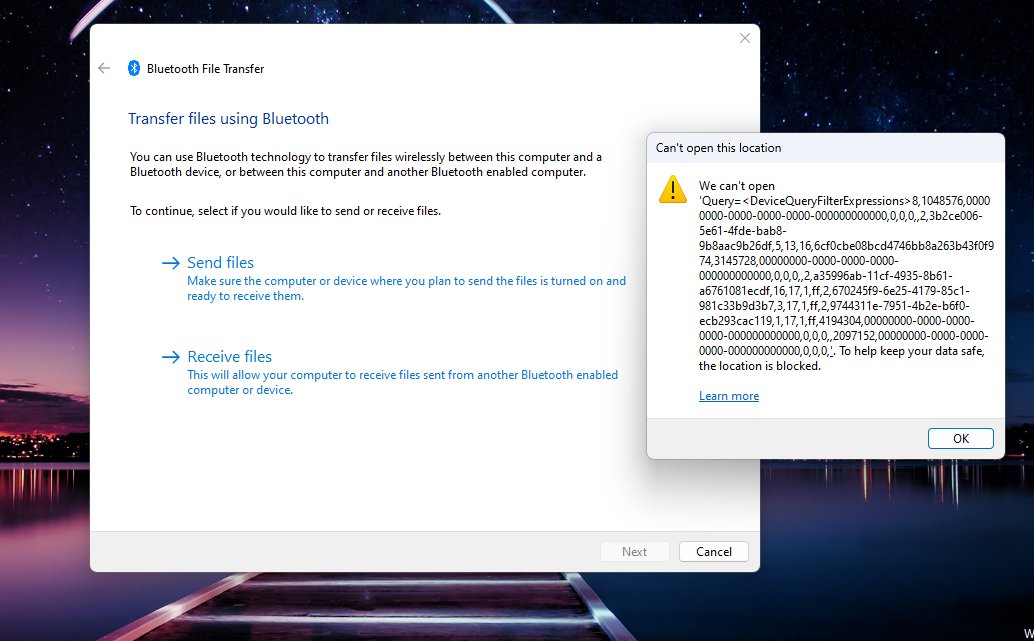
To send or receive files over Bluetooth in Windows 11, open Settings > Bluetooth & devices > Devices, select Send or receive files via Bluetooth, and choose Send files or Receive files in the Bluetooth File Transfer window.
This guide covers pairing, sending, receiving, where received files are saved, sending several files at once, faster alternatives, and fixes for transfers that stall or fail.
Send or Receive Files Using Bluetooth File Transfer in Windows 11
The device receiving the file must be switched on, paired with your PC, and already waiting for a file. The other device does not have to run Windows; Microsoft notes it can be an Android or iOS device, provided that device supports receiving files over Bluetooth.
- Select Start, then open Settings > Bluetooth & devices > Devices.
- Under Related settings, select Send or receive files via Bluetooth.
- In the Bluetooth File Transfer window, select Send files.
- On the Select where to send your files page, pick the receiving device and select Next.
- On the Select the files to send page, select Browse, choose the file, then select Next.
- Watch the progress on The file is being sent page until File successfully transferred appears.
- Select Finish.
If Use authentication is available rather than grayed out, the two devices are probably not paired yet. Leave it selected to attempt pairing as part of the transfer.
What You Need Before Using Bluetooth File Transfer
| Requirement | How to check it |
|---|---|
| A Bluetooth adapter in the PC | Most Windows PCs have one built in. A USB Bluetooth adapter adds it to a PC that does not. |
| A working Bluetooth driver | If Send or receive files via Bluetooth is missing under Related settings, the adapter or its driver is missing. |
| Bluetooth turned on at both ends | The Bluetooth toggle in Settings > Bluetooth & devices must be On, and Airplane mode must be off. |
| The two devices paired | The other device should appear under your devices in Bluetooth & devices. |
| A receiver that is ready | A Windows PC must be on the Waiting for a connection page. Phones and other devices follow their maker's receive steps. |
| Devices within range | Keep them close together, and keep the sending device charged. |
Step 1: Turn On Bluetooth in Windows 11
Windows 11 gives you two switches for Bluetooth. Either one works, and both change the same setting.
- Select Start > Settings > Bluetooth & devices.
- Set the Bluetooth toggle to On. Windows shows Discoverable as followed by your PC's name.
- Or select the Network, Sound or Battery icon next to the clock on the taskbar.
- Select the Bluetooth tile so it is highlighted. It then reads Connected, Not connected or the name of a connected device.
If the tile is missing from quick settings, add it through the quick settings edit option. If a laptop has a physical Bluetooth switch, make sure it is on as well.
Step 2: Pair the Devices
Pairing is a one-time job. Once paired, the devices reconnect whenever Bluetooth is on and they are in range.
- Turn on the other device and make it discoverable. The exact setting depends on that device, so check its manual or the maker's website.
- On the PC, select the Network, Sound or Battery icon on the taskbar.
- Select the Manage Bluetooth devices arrow on the Bluetooth tile.
- Select the device under New devices. Scroll past Your devices if the list is long.
- Confirm any pairing code or prompt on both devices, then select Done.
If the device never appears, open Settings > Bluetooth & devices > Devices and set Bluetooth devices discovery to Advanced. The Default setting shows only common device types.
How to Receive Files on Windows 11 Using Bluetooth
Windows does not accept incoming Bluetooth files in the background. You start receive mode on the PC first, then send from the other device.
- On the PC, open Settings > Bluetooth & devices > Devices.
- Under Related settings, select Send or receive files via Bluetooth.
- Select Receive files. The Waiting for a connection page appears.
- On the other device, share the file over Bluetooth and pick your PC as the target.
- Wait while The file is being received page shows progress.
- On the Save the received file page, keep the default location or select Browse to pick another folder.
- Select Finish to save the file.
Another route to receive mode: right-click the Bluetooth icon in the taskbar notification area and select Receive a file.
How to Send Multiple Files
The simplest way to send a group of files or a whole folder in one transfer is to bundle them into a single zipped folder first. Zipping also makes the transfer smaller for most file types.
- Put the files you want to send in one folder in File Explorer.
- Right-click the folder and select Show more options > Send to > Compressed (zipped) folder.
- Open Send or receive files via Bluetooth and select Send files.
- Pick the receiving device and select Next.
- Select Browse, choose the new .zip file, and select Next.
- On the receiving PC, right-click the saved .zip and select Extract All… to unpack it.
JPEG photos are already compressed, so zipping them barely changes the size. Zip them anyway if you want one transfer instead of many.
Where Bluetooth Files Are Saved in Windows 11
Windows asks where to save every file received through Bluetooth File Transfer, so the location is shown to you before the file is written.
| How the file arrived | Where it is saved | How to change it |
|---|---|---|
| Bluetooth File Transfer (Receive files) | The default folder shown on the Save the received file page | Select Browse on that page before you select Finish |
| Nearby sharing | The folder listed under Save files I receive to | Settings > System > Nearby sharing > Save files I receive to > Change |
Note the path on the Save the received file page before selecting Finish. That is the quickest way to find the file afterwards.
What Types of Files Can You Send?
| What you want to send | Works over Bluetooth File Transfer? | Tip |
|---|---|---|
| Photos and videos | Yes | Large videos take a long time over Bluetooth; see the alternatives below |
| Documents such as Word, PDF or text files | Yes | Pick the file with Browse in the wizard |
| Several files or a folder | Yes, as one .zip file | Zip them first, as shown in the multiple-files section |
| Website links | Not through the wizard | Use Nearby sharing from Microsoft Edge's Share option instead |
The wizard is built on OBEX, the Bluetooth object exchange protocol, so the receiving device must support Bluetooth file transfer. Headphones, mice and keyboards do not accept files.
Better Alternatives for Large or Frequent Transfers
Bluetooth is built for short-range links, not bulk copying, so it is the slowest option here for large files. Microsoft does not publish a fixed transfer speed, because the real rate depends on both devices, distance and interference.
| Your situation | Use this | Why |
|---|---|---|
| A few photos or a small document, no internet | Bluetooth File Transfer | Works with phones and older PCs without a network |
| Sending between two Windows PCs on the same private Wi-Fi | Nearby sharing | Windows 11 can share over Wi-Fi when both PCs are on the same private network, falling back to Bluetooth otherwise |
| Large videos or big folders to someone far away | A cloud link, for example Dropbox Transfer | No range limit, and the recipient downloads at internet speed |
| Very large amounts of data at your desk | A USB cable or USB drive | Wired copies avoid wireless range and interference problems |
Nearby sharing needs Windows 10 version 1803 or later on the PC you share to. Turn it on under Settings > System > Nearby sharing on both PCs.
How to check the transfer worked
- On the sending PC, confirm the File successfully transferred page appeared before you selected Finish.
- On the receiving PC, open File Explorer and go to the folder shown on the Save the received file page.
- Open the file and check it plays or displays in full.
- For a .zip, select Extract All… and confirm every file is inside.
If the sender shows Bluetooth file transfer not completed instead, the receiver was not ready. Start Receive files on it and send again.
How to Rename Your Windows PC for Easier Bluetooth Pairing
Your PC appears to other devices under its computer name. A clear name such as "Anna-Laptop" is easier to pick from a phone's list than a generic factory name made of letters and numbers.
- Open Settings > System > About.
- Select Rename this PC.
- Type the new name and select Next.
- Select Restart now, or Restart later if you are busy.
- After the restart, open Bluetooth & devices and check it reads Discoverable as with the new name.
Microsoft also points out that a generic name can hide details about the device type or its owner, which helps privacy.
How to connect to Bluetooth Personal Area Network (BTPAN) in Windows 11
A Bluetooth Personal Area Network shares a phone's or another PC's internet connection with your PC over Bluetooth instead of Wi-Fi. It is separate from file transfer, but uses the same pairing.
- Turn on Bluetooth on both devices and pair them.
- On the phone or other hotspot device, turn on the hotspot and set it to share over Bluetooth.
- On the PC, open Settings > Bluetooth & devices > Devices.
- Under Other devices, select the hotspot device to expand it.
- Next to Personal Area Network (PAN), select Join.
- In the Bluetooth Personal Area Network window, make sure Access Point is selected, then select Connect.
- Select OK when Connection successful appears.
To disconnect, repeat the steps and select Disconnect PAN instead of Connect.
Troubleshooting Bluetooth File Transfer in Windows 11
Microsoft lists three messages you may see when the connection works but the transfer does not. On Windows 11, running the automated Bluetooth troubleshooter in the Get Help app is a good first step for any of them.
Stuck on "Waiting for a connection"
The other device has not started sending, is not discoverable, or is out of range.
- Start the send from the other device after the PC shows Waiting for a connection.
- Make sure the other device is discoverable and pick your PC's name as the target.
- Move the devices closer together and charge the sending device.
- If it still waits, right-click the Bluetooth icon in the taskbar, select Receive a file, and send again.
"Bluetooth file transfer not completed"
The receiving device was not ready, or it cannot use Windows' default 128-bit file-sharing encryption.
- Put the receiver into receive mode first, then retry the send.
- Open Settings > Network & internet > Advanced network settings > Advanced sharing settings.
- Expand All networks and set File sharing connections to the 40- or 56-bit encryption option.
- Retry the transfer. Switch back to 128-bit encryption later if the device does not need the lower setting.
"File transfer is disabled by policy"
A file-sharing policy on the PC blocks Bluetooth transfers, which is common on work or school devices.
- Check whether the PC is a work or school device managed by an organization.
- If it is, ask your IT administrator whether Bluetooth file transfer is allowed.
- Use an approved alternative, such as your organization's cloud storage, in the meantime.
"Send or receive files via Bluetooth" is missing
Windows cannot find a Bluetooth adapter, or its driver is not installed.
- Right-click Start and open Device Manager.
- Expand Bluetooth and look for the adapter, often named with the word "Radio".
- Right-click it and select Update driver > Search automatically for drivers.
- If the adapter is not listed at all, check Other devices, or add a USB Bluetooth adapter.
The other device does not appear in the send list
It is off, out of range, not paired, or filtered out by the discovery setting.
- Turn the device on, make it discoverable, and move it closer.
- Set Bluetooth devices discovery to Advanced under Settings > Bluetooth & devices > Devices.
- Remove the device with More options (…) > Remove device, then pair it again with Add device.
Bluetooth is greyed out on Windows 11
A missing or grayed-out Bluetooth toggle usually means the Bluetooth hardware has hit an error, typically from the PC maker's driver or firmware.
Toggle grayed out after sleep or an update
The Bluetooth radio is stuck and needs a full power cycle, which Restart does not give it.
- Hold Shift on the keyboard.
- While holding it, select Start > Power > Shut down.
- Wait one minute after the PC turns off.
- Turn the PC back on and check the Bluetooth toggle.
Toggle grayed out and Airplane mode is on
Airplane mode can switch Bluetooth off.
- Press Windows + A to open quick settings.
- Turn Airplane mode off.
- Turn the Bluetooth tile back on.
Toggle still grayed out after a full shutdown
An outdated driver or firmware from the PC maker.
- Right-click Start > Device Manager, expand Bluetooth, right-click the adapter and select Update driver > Search automatically for drivers.
- Open Settings > Windows Update > Advanced options > Optional updates and install any driver or firmware updates listed.
- Select Restart now when prompted, then check Bluetooth again.
- If nothing is offered, check your PC maker's support site for a Bluetooth driver or BIOS/UEFI update for your model.
Fix Bluetooth connection problems in Windows 11
The device is listed but will not connect
The stored pairing is out of date on one side.
- Open Settings > Bluetooth & devices > Devices.
- Select More options (…) next to the device, then Remove device > Yes.
- Put the device back into pairing mode and select Add device to pair it again.
- Turn Bluetooth off and on again in Settings > Bluetooth & devices if pairing still fails.
Connections drop or fail after a Windows update
The Bluetooth driver no longer matches the updated system.
- Run the troubleshooter: Settings > System > Troubleshoot > Other troubleshooters, then select Run next to Bluetooth.
- In Device Manager, right-click the Bluetooth adapter and select Uninstall device > Uninstall.
- Select Start > Power > Shut down, wait a few seconds, and turn the PC back on so Windows reinstalls the driver.
- If the adapter does not return, open Device Manager and select Action > Scan for hardware changes.
Connection is slow or keeps stalling
Distance, low battery, or interference from nearby USB 3.0 devices.
- Move the device closer to the PC and charge it.
- Move the PC's Bluetooth adapter or the device away from unshielded devices plugged into USB 3.0 ports.
- Select Start > Settings > Windows Update > Check for updates and install what is offered.
Security Tips for Bluetooth File Transfers
| Tip | Why it matters |
|---|---|
| Only select Receive files when you expect a file | Windows accepts Bluetooth files only while that page is open, so close it when you are done |
| Pair only with devices you recognise, and confirm the pairing code | Pairing gives the other device an ongoing trusted link to your PC |
| Keep Use authentication selected for unpaired devices | It forces a pairing step instead of sending to an unknown device |
| In Nearby sharing, share with only your own devices unless you need Everyone nearby | Everyone nearby exposes your PC's Bluetooth MAC address and name to devices around you |
| Give your PC a neutral name | A default or personal name can reveal the device type or its owner |
| Remove devices you no longer use | More options (…) > Remove device ends that device's trusted connection |
| Scan received files before opening them | A file from a stranger is as risky over Bluetooth as over email |
Frequently Asked Questions
How do I send files via Bluetooth in Windows 11?
Open Settings > Bluetooth & devices > Devices, select Send or receive files via Bluetooth, and choose Send files. Pick the paired device, select Browse to choose the file, and select Next. The receiving device must already be waiting for a file.
How do I receive files on Windows 11 over Bluetooth?
Open Send or receive files via Bluetooth from Settings > Bluetooth & devices > Devices and select Receive files. When Waiting for a connection appears, send from the other device, then choose a save location and select Finish.
Where is Send or receive files via Bluetooth in Windows 11?
It is under Related settings on the Settings > Bluetooth & devices > Devices page. If the link is missing, Windows cannot find a Bluetooth adapter or its driver is not installed, so check Device Manager.
How do I send files to my computer from a phone?
Pair the phone with the PC, then select Receive files in the Bluetooth File Transfer window on the PC. On the phone, share the file over Bluetooth and pick your PC's name. Each phone maker words its share menu differently, so check the phone's manual.
What is the easiest way to send files between two Windows PCs?
Nearby sharing is usually easiest. Turn it on under Settings > System > Nearby sharing on both PCs, then right-click a file in File Explorer and select Share. It uses Wi-Fi on the same private network, or Bluetooth otherwise.
How do I send files to people who are not nearby?
Bluetooth only reaches devices in close range, so use a cloud link instead. Upload the file to a cloud service and share the link, for example with Dropbox Transfer, which also suits files too large for Bluetooth.
Can I send a folder over Bluetooth?
Send it as a zipped folder. Right-click the folder, select Show more options > Send to > Compressed (zipped) folder, then send the .zip with Send files. The receiver unpacks it with Extract All….
Why does Bluetooth file transfer say not completed?
The message Bluetooth file transfer not completed usually means the receiver was not in receive mode. Start Receive files on it and retry. For older devices, setting file-sharing encryption to 40- or 56-bit in Advanced sharing settings can also help.

![How to Check RAM on Windows 11 [Step by Step Guide]](https://techdows.com/wp-content/uploads/2026/09/Windows-11-Task-Manager-Performance-tab-showing-the-Memory-pane-600x338.jpg)
![How To Set Your Time And Zone Manually Windows 11/10 [Guide]](https://techdows.com/wp-content/uploads/2026/09/Windows-11-Date-and-time-settings-page-in-dark-mode-600x338.jpg)