To uninstall a problematic Windows update, open Start > Settings > Windows Update > Update history > Uninstall updates, select the update and select Uninstall.
This guide covers that route, the wusa command, removal from Windows RE when the PC will not start, pausing updates so the same patch does not return, and what to do when the Uninstall button is missing.
Uninstall Windows Updates Using Settings
This is the route Microsoft documents first for Windows 11 and Windows 10. Use it whenever Windows still starts and you can sign in.
- Select Start > Settings > Windows Update.
- Under More options, select Update history.
- Under Related settings, select Uninstall updates.
- Find the update that arrived just before the problem started, and note its KB number.
- Select Uninstall next to that update and confirm the prompt.
- Restart the PC when Windows asks you to.
Microsoft notes that some updates cannot be uninstalled. If the update you want is not in the list, or has no Uninstall button, jump to the troubleshooting section below.
Which removal method fits your situation
| Your situation | Use this | Why |
|---|---|---|
| Windows starts and you can sign in | Settings > Windows Update > Update history > Uninstall updates | Lists removable updates with an Uninstall button, no command needed |
| You know the KB number and prefer a command | wusa /uninstall /kb:<number> in an elevated Command Prompt |
Removes one standalone update by its KB number |
The monthly cumulative update will not leave through wusa |
DISM /Online /Get-Packages, then DISM /Online /Remove-Package |
Microsoft says wusa cannot remove the combined servicing stack and cumulative package |
| Windows will not boot after the update | Windows RE > Troubleshoot > Advanced options > Uninstall Updates | Works before Windows loads, and your files and apps are not affected |
| WinRE removal fails or the update is a driver | Safe mode, then Settings or Roll Back Driver in Device Manager | Starts Windows with a minimal set of drivers so you can reach the normal tools |
When Should You Uninstall a Windows Update?
Microsoft does not recommend removing installed updates unless it is necessary. Uninstall one only when a problem clearly started right after it installed, and check these points first.
| Check this first | What it tells you |
|---|---|
| The problem began on the same day the update appears in Update history | The update is a likely cause; a problem that predates it is not |
| The update is a security update | Removing it reopens the flaws it fixed, so reinstall it or install its replacement once the issue is resolved |
| You are on Windows 11 | Microsoft suggests trying to reinstall your current version of Windows before removing a security update |
| Windows RE started on its own | WinRE opens automatically after two consecutive failed starts, a sign the last change broke startup |
| Other PCs report the same issue | Microsoft often fixes known update issues automatically with Known Issue Rollback, so a restart may be enough |
If the update installation itself keeps failing rather than causing problems afterwards, run the Windows Update troubleshooter instead of uninstalling anything.
How to Find Recently Installed Windows Updates
Update history lists which updates installed and when. Use the date to match an update to the day your problem started, and note the KB number before you remove anything.
| Windows version | Where update history lives | What you see |
|---|---|---|
| Windows 11 | Start > Settings > Windows Update > Update history | Which updates installed and when, grouped by update type |
| Windows 10 | Start > Settings > Update & Security > Windows Update, then the update history link | The same history list and the route to Uninstall updates |
| Any version, from Command Prompt | DISM /Online /Get-Packages /Format:Table |
Installed packages by name, which you need for a DISM removal |
| Windows will not start | Windows RE > Troubleshoot > Advanced options > Uninstall Updates | Only the latest quality update and latest feature update, not the full history |
Remove Updates Through Control Panel or Command Prompt
On current Windows 11 and Windows 10 builds, Microsoft's instructions send you to Settings for update removal rather than Control Panel. Command Prompt is the practical alternative when you already know the KB number.
Microsoft deprecated the silent /quiet form of this command, and it now fails with event ID 8 in the Setup event log. Run it without /quiet so the confirmation prompt appears.
- Note the KB number of the update from Update history, for example KB5031455.
- Select Start, type
cmd, then select Run as administrator and confirm the prompt. - Type
wusa /uninstall /kb:5031455with your own number after/kb:and press Enter. - Confirm the removal when Windows Update Standalone Installer asks.
- If
wusareports it cannot remove a monthly cumulative update, typeDISM /Online /Get-Packagesand press Enter. - Copy the full name of the cumulative update package you want to remove.
- Type
DISM /Online /Remove-Package /PackageName:<name>with that name and press Enter. - Restart the PC when the command finishes.
The DISM route exists because cumulative updates now ship combined with a servicing stack update. Microsoft states that wusa /uninstall will not work on that combined package, and that the servicing stack part cannot be removed at all. The DISM image repair guide covers every switch.
Uninstall Updates When Windows Won’t Boot
Windows RE (the Windows Recovery Environment) can remove the most recent update before Windows loads. Microsoft states that your files and apps are not affected.
If BitLocker encrypts the drive, have your BitLocker recovery key ready, because most WinRE tools ask for it.
- Turn the PC on. When the Windows or manufacturer logo appears, hold the power button until it shuts down.
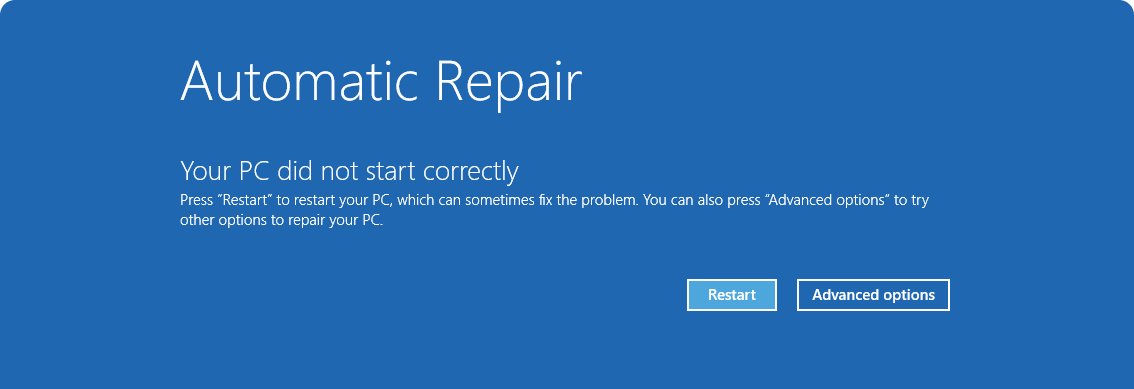
- Repeat that once more, then turn the PC on a third time to reach the Automatic Repair screen.
- Select Advanced options.
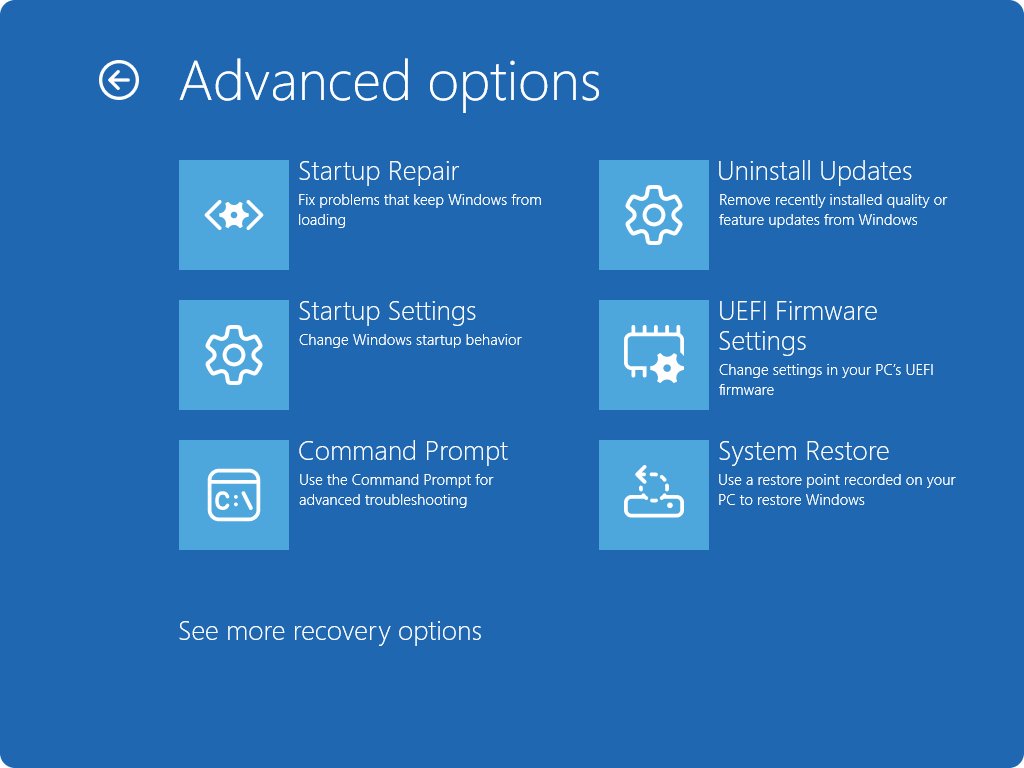
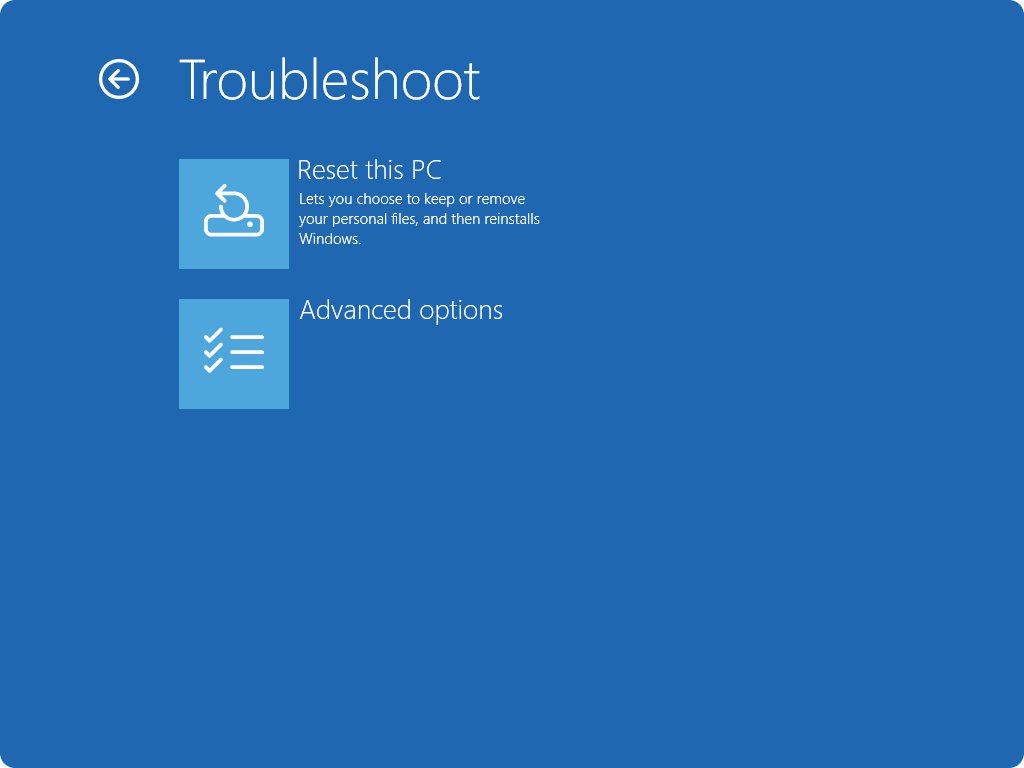
- Select Troubleshoot > Advanced options > Uninstall Updates.
- Select Uninstall latest quality update for a monthly patch, or Uninstall latest feature update for a version upgrade.
- Enter the BitLocker recovery key if asked, then confirm.
- Let the PC restart into Windows.
If Windows still starts, you can reach the same menu faster: open Settings > System > Recovery and select Restart now next to Advanced startup, or hold Shift while you select Power > Restart. On Windows 10 the recovery page is under Update & Security > Recovery.
Use safe mode if the recovery uninstall does not work
Safe mode starts Windows with a minimal set of drivers and services. From there, the Settings route or Device Manager often works when the normal desktop crashes.
- Open Windows RE using either method from the previous section.
- Select Troubleshoot > Advanced options > Startup Settings > Restart.
- When the list of options appears, press 4 or F4 for safe mode.
- Sign in, then follow the Settings steps at the top of this guide to uninstall the update.
- If a driver update caused the problem, open Device Manager, right-click the device and select Properties.
- Select the Driver tab, then select Roll Back Driver.
- Restart the PC normally.
Roll Back Driver is available only if a previous driver version exists on the PC. If it is greyed out, the old driver is gone and rolling back is not possible from Device Manager.
How to Pause or Prevent the Update from Reinstalling
Windows Update reinstalls a removed update at the next scan. Pause updates right after the uninstall so the same patch does not come straight back while you wait for a fixed release.
Microsoft's position is that updates cannot be stopped entirely. After the pause limit is reached, you must install the latest updates before you can pause again.
- Uninstall the problem update using one of the methods above.
- Before restarting into normal use, select Start > Settings > Windows Update.
- Next to Pause updates, select the pause length you prefer.
- Restart the PC.
- Check Update history again before the pause ends to see whether a newer update has replaced the problem one.
- When the pause expires, select Check for updates so the replacement installs.
For a bad driver, Roll Back Driver in Device Manager restores the previous version. On managed work or school PCs, IT can block a specific update through its update management tools, and Microsoft often reverses known problems automatically through Known Issue Rollback.
How to check the update is really gone
- Select Start > Settings > Windows Update > Update history > Uninstall updates.
- Confirm the KB number you removed no longer appears in the list.
- For a DISM removal, run
DISM /Online /Get-Packagesagain and confirm the package no longer shows as Installed. - Go back to the Windows Update page and confirm Pause updates is active if you set it.
- Repeat the action that failed before, such as printing, signing in or opening the app, and confirm it now works.
If the problem remains with the update gone, the update was not the cause. Reinstall it by selecting Check for updates so you do not stay unprotected.
Fix update removal when it does not work
The Uninstall button is missing for an update
Microsoft marks some updates as permanent, including servicing stack updates, so Settings offers no Uninstall option.
- Check whether the entry is a servicing stack update. Microsoft states these cannot be removed after installation.
- For a cumulative update, open an elevated Command Prompt and run
DISM /Online /Get-Packages. - Remove only the cumulative update package with
DISM /Online /Remove-Package /PackageName:<name>. - If no removable package exists, use Point-in-time restore or System Restore from Windows RE instead.
wusa says the update cannot be uninstalled
The monthly update is a combined servicing stack and cumulative package, which wusa /uninstall cannot remove.
- Run
DISM /Online /Get-Packagesfrom an elevated Command Prompt. - Find the cumulative update package in the list.
- Run
DISM /Online /Remove-Package /PackageName:<name>and restart.
Windows 11 or Windows 10 will not boot after an update
The update broke startup, so the Settings route is out of reach.
- Interrupt startup twice with the power button to reach Automatic Repair.
- Select Advanced options > Troubleshoot > Advanced options > Uninstall Updates.
- Remove the latest quality update first, since monthly patches are the most frequent cause.
- If Windows still fails, return and remove the latest feature update, or use Startup Settings to reach safe mode.
The same problematic update keeps reinstalling
Windows Update offers the update again at its next scan.
- Uninstall the update again.
- Select Start > Settings > Windows Update and choose a length next to Pause updates straight away.
- For a driver, use Roll Back Driver in Device Manager rather than waiting for Windows Update.
- Install the newer replacement update once Microsoft releases it.
Bottom Line
Remove a problematic update from Settings > Windows Update > Update history > Uninstall updates, then pause updates so it does not return, and switch to Windows RE only if Windows will not start. The Settings route shows the KB number and install date side by side, which is the evidence you need, and the WinRE route touches only the latest update while leaving your files and apps alone.
Frequently Asked Questions
Bing autocomplete returned no question-form queries for this topic, so these come from the reader questions the ranking pages answer and the autocomplete phrases for cmd and driver updates.
How do I know which Windows update caused the problem?
Open Settings > Windows Update > Update history and compare the install dates with the day the problem started. The update installed just before the first failure is the likely cause. Note its KB number, then check Microsoft's Windows release health pages for known issues with that update.
Is it safe to uninstall a Windows update?
It is safe for your files, but Microsoft does not recommend it unless necessary. Removing a security update reopens the flaws it fixed. Uninstall only the update that caused the problem, pause updates briefly, and install the replacement update as soon as Microsoft releases one.
What should I do if the Uninstall button is missing for an update?
The update is one Windows does not allow you to remove, such as a servicing stack update. For a cumulative update, run DISM /Online /Get-Packages in an elevated Command Prompt and remove its package with DISM /Online /Remove-Package. Otherwise use a restore point.
How can I uninstall a bad update if Windows 11 or Windows 10 will not boot?
Use Windows RE. Interrupt startup twice with the power button, select Advanced options, then Troubleshoot > Advanced options > Uninstall Updates. Choose Uninstall latest quality update or Uninstall latest feature update. Your files and apps are not affected.
How do I stop Windows from reinstalling the same problematic update?
Pause updates right after uninstalling it. Select Start > Settings > Windows Update and pick a length next to Pause updates. Updates cannot be stopped forever, so install the fixed replacement when the pause limit is reached.
How do I uninstall a Windows update using cmd?
Open Command Prompt as administrator and run wusa /uninstall /kb:<number>, replacing the number with the update's KB number. Confirm the prompt and restart. For a monthly cumulative update, use DISM /Online /Remove-Package instead, because wusa cannot remove the combined package.
How do I uninstall a problematic Windows driver update?
Open Device Manager, right-click the device and select Properties. On the Driver tab, select Roll Back Driver and restart. The button works only if a previous driver version is still on the PC; otherwise it stays greyed out.
Will uninstalling a Windows update delete my files?
No. Uninstalling an update removes only that update's changes to Windows. Microsoft states that the Windows RE Uninstall updates option leaves your files and apps in place. Reset this PC is the recovery option that can remove files, so do not confuse the two.



Windows 11 KB5127646 issues: Should you install the update? - Techdows
[…] same Settings page lets you uninstall problematic Windows updates from earlier months […]