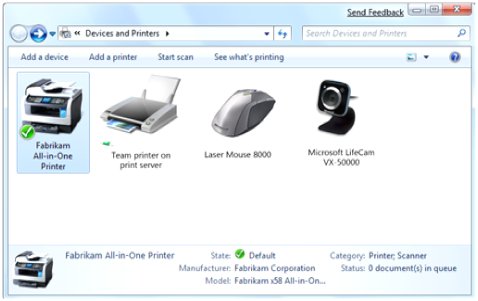
To connect a wireless printer to a Windows 11 PC, join the printer to your Wi-Fi, then open Settings > Bluetooth & devices > Printers & scanners, select Add device, and select Add device next to your printer.
This guide covers the Windows 10 route, adding a printer by IP address, Wi-Fi Direct printers without a router, drivers, and fixes for printers that will not connect or print.
Connect a Wireless Printer in Windows 11
Turn the printer on and make sure it is on the same Wi-Fi network as your PC. Windows 11 then finds most wireless printers by itself and installs a driver automatically.
- Select Start > Settings > Bluetooth & devices > Printers & scanners.
- Check the installed list first. If your printer is already there, it is connected and ready.
- Next to Add a printer & scanner, select Add device.
- Wait while Windows searches your network. The list can take a few minutes to fill.
- Select Add device next to your printer's name. Windows installs it and adds it to the list.
- If the printer never appears, select Add a new device manually next to The printer that I want isn't listed and follow the manual section below.
After the printer installs, open Windows Update and check for updates. Microsoft names it as the place to pick up updated printer drivers.
Which connection method fits your printer?
| Your situation | Use this | Why |
|---|---|---|
| Printer is on your Wi-Fi and the PC runs Windows 11 | Settings > Printers & scanners > Add device | Windows discovers the printer and installs a driver in one pass |
| PC runs Windows 10 | Settings > Devices > Printers & scanners > Add a printer or scanner | Same discovery, older Settings layout |
| Printer is on Wi-Fi but never shows in the list | Add a printer using an IP address or hostname | Connects straight to one address instead of relying on discovery |
| No router, or the printer is used away from home | Wi-Fi Direct pairing from the same Add device list | PC and printer talk directly, device to device |
| Printer has never joined any Wi-Fi network | The printer's own Wi-Fi setup menu or the maker's setup app first | Windows can only add a printer that is already on the network |
| Printer lives on another PC by USB and is shared | Select a shared printer by name | You reach it through the host PC, not over Wi-Fi |
Check Your Printer and Wi-Fi Network Before Setup
Most failed setups are a printer that is asleep, offline, or joined to a different network than the PC. These checks take two minutes and rule all three out.
- Confirm the printer is powered on and ready. Clear any error, paper or ink message on its display first.
- Check that the printer is connected to Wi-Fi. Many printers show a blue wireless icon or light when the wireless option is on.
- If the printer has never joined your Wi-Fi, run the wireless setup from its control panel or the maker's setup app. The printer's manual names the menu.
- Print a network status page or run the printer's wireless connectivity test from its menu. It shows the network name (SSID) and the printer's IP address.
- Make sure your Windows PC is on the same network. With extenders, mesh points or a second router that uses its own SSID, connect the PC to the same SSID the printer uses.
- Write down the printer's IP address. You need it if Windows cannot find the printer on its own.
If the printer does not show an IP address anywhere, the guide to finding the printer on your network lists every place Windows and the printer expose it.
Connect a Wireless Printer in Windows 10
Windows 10 uses the same discovery as Windows 11, but the page sits under Devices and the button labels differ.
- Select Start > Settings > Devices > Printers & scanners.
- Under Add printers & scanners, select Add a printer or scanner.
- Wait for Windows to list the printers it finds on your network.
- Select your printer, then select Add device.
- If your printer is not listed, select The printer that I want isn't listed to open the manual Add Printer window.
- When the printer appears in Printers & scanners, check Windows Update for driver updates.
Add the Printer Manually If Windows Cannot Find It
The manual route skips network discovery and connects to one address you type. It works on Windows 11 and Windows 10 once you have the printer's IP address.
- Open Printers & scanners and select Add device (Windows 11) or Add a printer or scanner (Windows 10).
- Select Add a new device manually on Windows 11, or The printer that I want isn't listed on Windows 10.
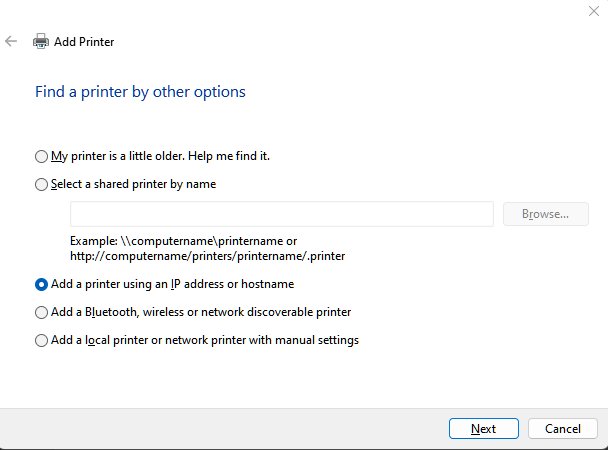
- In the Add Printer window, choose Add a printer using an IP address or hostname, then select Next.
- For Device type, choose IPP Device if the printer is Mopria certified and has IPP turned on. Otherwise pick the type your printer's manual names.
- In Hostname or IP address, type the printer's address, for example
192.168.1.110. - When Windows asks for a driver, pick the maker and model, or select Windows Update to refresh the list.
- Name the printer, choose Do not share this printer or Share this printer, select Print a test page, then select Finish.
If an IPP printer refuses the plain address, Microsoft's IPP guidance says to type the full IPP URL the printer expects, such as ipp://192.168.1.110:631/ipp/print. The printer's documentation gives the exact path.
The same window offers Select a shared printer by name for a printer shared from another PC, using the \\ComputerName\PrinterShareName format.
Connect a Wi-Fi Direct printer without a router
Wi-Fi Direct lets a certified printer and your PC connect directly, with no router or shared network. Your PC's Wi-Fi adapter and driver must support Wi-Fi Direct.
- Turn on Wi-Fi Direct on the printer from its control panel. The printer's manual names the setting.
- Stay within range of the printer and make sure Wi-Fi is on for the PC.
- Open Printers & scanners and select Add device (Windows 11) or Add a printer or scanner (Windows 10).
- Select the Wi-Fi Direct printer when it appears in the list.
- Enter the PIN if Windows asks for one. Some printers show a PIN to type on the PC; others ask you to type the same PIN on both devices.
- Wait for Windows to build the print queue and install the driver, then print a test page.
After pairing, the printer shows as online whenever it is in range, and Windows connects to it only when you print. If Wi-Fi Direct is missing on the PC side, see how to turn on Wi-Fi Direct on Windows 11.
If pairing fails, Windows removes the half-built printer entry, so you can simply try again. A wrong PIN ends the attempt without adding anything.
Install or Update Printer Drivers
Windows installs a driver automatically for most wireless printers. Mopria-certified printers use the built-in Microsoft IPP Class Driver, so no maker download is needed for basic printing.
| Situation | What to do | Where |
|---|---|---|
| Printer installed but a Find drivers prompt or missing features | Install drivers through Windows Update | Settings > Windows Update > Check for updates |
| Windows Update has nothing newer | Download the driver from the printer manufacturer's own website | The support page for your exact model |
| Maker's installer fails on an ARM PC such as a Copilot+ PC | Add the printer through Settings instead | Printers & scanners > Add device |
| Driver is corrupt or the wrong model | Remove the printer, then remove the old driver before reinstalling | Remove in Printers & scanners, then Remove-PrinterDriver in admin PowerShell |
| Maker's driver keeps crashing or failing | Switch to the generic in-box driver | Re-add the printer and pick the IPP route or Microsoft's driver |
To remove an old driver, first remove the printer, then run Get-PrinterDriver in PowerShell opened with Run as administrator to see the driver name. Remove it with Remove-PrinterDriver -Name "Driver name", adding -RemoveFromDriverStore to delete the package too.
Microsoft stopped publishing new third-party printer drivers to Windows Update for Windows 11 on January 15, 2026, and from July 1, 2026 Windows prefers the IPP inbox class driver. Maker installation packages still install normally.
How to check the wireless printer is connected
A printer name in the list proves Windows installed it, not that the connection works. A test page proves both.
- Open Settings > Bluetooth & devices > Printers & scanners (Windows 10: Devices > Printers & scanners) and confirm your printer is listed.
- Select the printer and check its status. A printer reported as Offline is not reachable over the network.
- Select Printer properties, stay on the General tab, and select Print Test Page.
- Collect the test page from the printer. If it prints, the wireless connection and driver both work.
- If you use several printers, confirm the right one is the default under Printer preferences.
Fix Common Wireless Printer Connection Problems
Quick fixes to try first: turn the printer off, unplug it for 30 seconds, plug it back in and turn it on, then restart the PC. Windows 11 also has an automated printer troubleshooter in the Get Help app, and Settings > System > Troubleshoot > Other troubleshooters > Printer > Run.
Why won't my wireless printer connect to Wi-Fi
The printer's wireless option is off, or it lost the network name or password after a router change.
- Check the printer's wireless icon or light, and turn the wireless option on from its menu.
- Run the printer's wireless connectivity test and read the result on the printed page.
- Run the wireless setup on the printer again and choose your network name.
- Restart the router if other devices are also dropping off the network.
Why can't I connect to a wireless printer from my PC
The PC is on a different SSID, a guest network, or an extender with its own network name.
- Compare the network name on the printer's status page with the one your PC is connected to.
- Connect the PC to the same SSID as the printer.
- Run Add device again and wait a few minutes for the list to finish.
- If the printer still hides, add it by IP address with Add a printer using an IP address or hostname.
Why won't my HP or Canon wireless printer connect
The maker's app or installer cannot see the printer, or it does not run on this PC.
- Confirm the printer and PC are on the same Wi-Fi network using the printer's status page.
- Add the printer through Settings > Bluetooth & devices > Printers & scanners > Add device instead of the maker's app.
- On an ARM PC, use the Settings route; Microsoft notes some maker installers do not work there.
- Check the maker's support page for your model for a printer firmware update.
If the printer appears but does not print
A stuck print job, a stopped Print Spooler service, or a stale driver.
- Select the printer, open its print queue, and cancel any job stuck at the top.
- Press Win + R, type
services.msc, right-click Print Spooler, and select Restart. The Print Spooler guide covers stubborn cases. - Select the printer, select Remove, then add it again with Add device.
- Check Windows Update for a newer printer driver, or switch to the generic in-box driver.
Printer shows offline after it was working
The printer's IP address changed, or the printer went to sleep and dropped off Wi-Fi.
- Wake the printer and print a network status page to read its current IP address.
- Remove the printer from Printers & scanners.
- Add it again by its new IP address, choosing IPP Device if it supports IPP.
- Print a test page to confirm the new address works.
Frequently Asked Questions
How do I connect a wireless printer to my laptop?
Connect the laptop to the same Wi-Fi network as the printer. Then open Settings > Bluetooth & devices > Printers & scanners, select Add device, and select Add device next to the printer. On Windows 10 the page is Settings > Devices > Printers & scanners.
How do I connect a wireless printer to Wi-Fi?
Use the printer's own control panel or the maker's setup app to choose your network name and enter the password. The printer's manual names the menu. A network status page printed afterwards confirms the network name and IP address it joined.
How do I connect a wireless printer to my PC in Windows 11?
Open Start > Settings > Bluetooth & devices > Printers & scanners, select Add device, wait for the search, and select Add device next to your printer. If it is not listed, choose Add a new device manually and add it by IP address.
Why can't Windows 11 or Windows 10 find my wireless printer?
The usual cause is a printer and PC on different networks or SSIDs, or a printer that is asleep or offline. Put both on the same network, restart the printer, and run Add device again. If it still hides, add it by IP address.
Do I need to install printer drivers manually?
Usually not. Windows installs a driver when it adds the printer, and Mopria-certified printers use the built-in Microsoft IPP Class Driver. Check Windows Update afterwards for updates, and download from the maker's website only if features are missing.
How do I add a wireless printer if it does not appear in the list?
Select Add a new device manually (Windows 11) or The printer that I want isn't listed (Windows 10). Choose Add a printer using an IP address or hostname, type the printer's IP address, and finish the prompts. The IP address is on the printer's network status page.
Is my wireless printer connected?
Open Printers & scanners, select the printer, open Printer properties, and select Print Test Page on the General tab. If the page prints, the printer is connected. A status of Offline means Windows cannot reach it on the network.
What should I do if the printer connects to Wi-Fi but still will not print?
Clear stuck jobs from the print queue, restart the Print Spooler service in services.msc, and remove and re-add the printer. If it still fails, update the driver through Windows Update or switch to the generic in-box driver.
Can I connect a wireless printer without a router?
Yes, if the printer supports Wi-Fi Direct. Turn Wi-Fi Direct on at the printer, then select the printer in Add device on the PC and enter the PIN if asked. The PC connects directly to the printer whenever you print.
How do I connect a wireless printer to a Mac?
Yes, but a Mac uses its own printer settings, not the Windows steps on this page. The guide to printing on a Mac covers adding a wireless printer and printing documents, PDFs and photos.
Bottom Line
Get the printer onto the same Wi-Fi network as the PC, then use Add device in Printers & scanners; switch to the IP address route the moment discovery fails. Discovery handles most printers with no downloads, while the IP address route with IPP Device bypasses the network discovery problems behind nearly every printer that Windows cannot find.