Open Settings > System > Power & battery in Windows 11, or Settings > System > Power & sleep in Windows 10, to manage screen-off and sleep timeouts and the power mode.
Classic power plans and their advanced settings still live in Control Panel on both versions. This guide covers both locations, Energy saver, hibernate, powercfg commands, and fixes for a PC that will not sleep or wakes by itself.
Change when the screen turns off and the PC sleeps in Windows 11
Screen and sleep timers are the settings most people come for. In Windows 11 they sit on the Power & battery page of the Settings app.
- Select Start > Settings.
- Select System > Power & battery.
- Expand Screen, sleep, & hibernate timeouts. Earlier Windows 11 releases label this section Screen and sleep.
- Open Turn my screen off after and pick a time for battery power and for plugged in.
- Open Make my device sleep after and pick a time for battery power and for plugged in.
Shorter timers are one of the settings Microsoft lists for cutting power use. The Energy recommendations page, covered below, suggests 3 or 10 minutes, depending on the device.
Change screen and sleep settings in Windows 10
Windows 10 keeps the same timers on a page called Power & sleep instead of Power & battery.
- Select Start > Settings > System.
- Select Power & sleep in the left pane.
- Under Screen, set On battery power, turn off after and the matching plugged-in list.
- Under Sleep, set On battery power, PC goes to sleep after and the matching plugged-in list.
- On a laptop, check When my PC is asleep and on battery power, disconnect from the network if the option appears.
- Select Additional power settings under Related settings when you need power plans or advanced options.
Where each power management setting lives in Windows 11 and Windows 10
Microsoft split power settings between the Settings app and Control Panel. Find what you want to change, then follow the route for your version.
Not sure which version you run? Right-click Start, select Settings > System > About, and read Windows specifications.
| What you want to change | Windows 11 route | Windows 10 route |
|---|---|---|
| Screen-off and sleep timers | Settings > System > Power & battery > Screen, sleep, & hibernate timeouts | Settings > System > Power & sleep |
| Power mode (efficiency versus performance) | Settings > System > Power & battery > Power mode | Battery icon on the taskbar, then drag the slider (version 1703 or later, not on every PC) |
| Energy saver or Battery saver | Settings > System > Power & battery > Energy saver (24H2 and later) or Battery saver (earlier) | Settings > System > Battery |
| Energy recommendations | Settings > System > Power & battery > Energy recommendations | Not available |
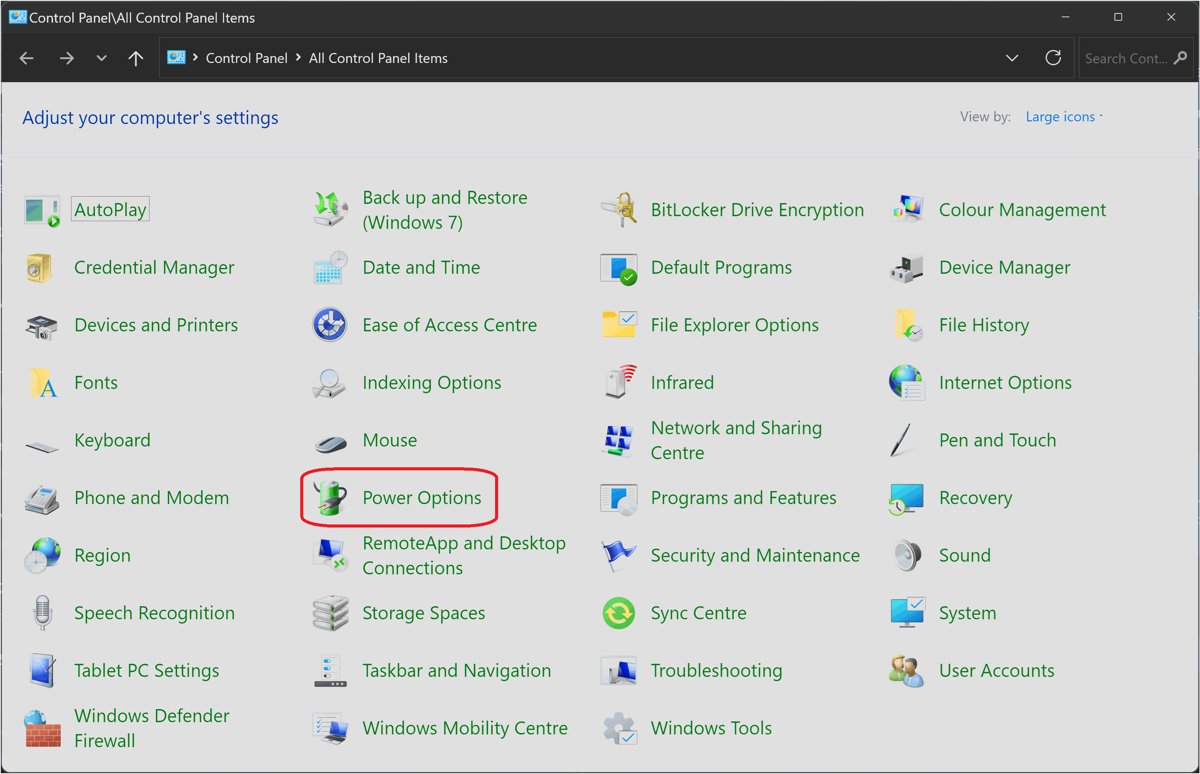
| Switch or create a power plan | Control Panel > System and Security > Power Options | Settings > System > Power & sleep > Additional power settings |
| Advanced plan settings (USB, PCI Express, wake timers) | Search edit power plan > Change advanced power settings |
Same search, or Power Options > Change plan settings > Change advanced power settings |
| Power button, sleep button and lid actions | Power Options > Choose what the power buttons do | Power Options > Choose what the power buttons do or Choose what closing the lid does |
| Add Hibernate to the power menu | Choose what the power buttons do > Change settings that are currently unavailable > Shutdown settings | Same route |
| Battery usage per app | Settings > System > Power & battery > Battery usage | Settings > System > Battery > See which apps are affecting your battery life |
| Power saving for one device | Device Manager > device Properties > Power Management tab | Same route |
What each power management feature actually does
Power management in Windows is a set of timers, modes and plans that trade battery life against speed.
| Feature | What it does | What to know |
|---|---|---|
| Screen timeout | Turns the display off after a period with no input | The PC keeps running, so downloads and music continue |
| Sleep | Puts the PC in a low-power state that resumes quickly | Most Windows 11 devices use Modern Standby (S0 low-power idle), which can stay connected; older PCs use S3 sleep |
| Hibernate | Saves memory contents to a hibernation file on disk, then powers down almost completely | Uses almost no power; Microsoft notes PCs with InstantGo do not offer the option |
| Fast startup | A shutdown that logs you off, then writes the kernel session to a hibernation file to speed up the next boot | It is the default shutdown in Windows; choosing Restart performs a full shutdown instead |
| Hybrid sleep | Sleep plus a hibernation file, so a power cut does not lose your work | Used on desktops that support S1-S3; turning hibernation off disables it |
| Power mode | Tunes processor behaviour toward efficiency or performance | Appears only while the Balanced plan, or a plan based on it, is active |
| Power plan | A saved collection of settings such as display timeout, sleep state and hibernation support | Managed in Control Panel Power Options or with powercfg |
| Energy saver | Blocks background apps when battery is low, lowers brightness by 30% and disables transparency | Replaced Battery saver in Windows 11 24H2; while it is on you cannot change the power mode |
Default timers differ by sleep model. Modern Standby devices turn the screen off and sleep after 3 minutes on battery and 5 plugged in; S3 devices sleep after 10 and 15.
Which power settings to choose for your situation
Match the row closest to how you use the PC.
| Your situation | Set this | Why |
|---|---|---|
| Laptop used mostly on battery | Power mode Best power efficiency, Energy saver at its default threshold, short screen and sleep timers | Microsoft lists all three among its battery-saving settings |
| Laptop that is usually docked, or a desktop | Balanced plan and power mode, longer plugged-in timers | Power mode only works on Balanced or a plan based on it |
| Gaming or video rendering | Power mode Best performance while working | Microsoft warns it raises power use and drains a laptop battery faster |
| Overnight download or backup | Keep sleep timers, and hold the PC awake only for the task | The PC returns to normal sleep once the task ends |
| You want Windows to choose | Open Energy recommendations and select Apply all | Windows lists the settings with the most impact on power use |
| Laptop left in a bag for days | Turn on hibernate and add it to the power menu | Hibernate uses almost no power, unlike sleep |
Choose a power mode for better battery life or performance
Windows 11 offers three modes: Best power efficiency, Balanced and Best performance. Windows 10 uses a slider whose stops range from Battery saver through Better battery (sometimes labelled Recommended) to Better performance and Best performance.
- In Windows 11, select Start > Settings > System > Power & battery.
- Open the Power mode list and select Best power efficiency, Balanced or Best performance.
- In Windows 10, select the Battery icon on the right side of the taskbar.
- Drag the slider left for battery life or right for performance.
- If you cannot change the mode, open Control Panel > System and Security > Power Options and select Balanced.
- Return to the power mode control and pick your mode again.
The Windows 10 slider depends on your hardware and manufacturer, so some PCs never show it. Its out-of-box position is Better performance.
Turn on Energy saver or Battery saver and apply energy recommendations
Energy saver replaced Battery saver in Windows 11 version 24H2. Windows 10 and earlier Windows 11 releases still use Battery saver, which turns on below 20% battery by default.
- In Windows 11 24H2 or later, open Settings > System > Power & battery > Energy saver.
- Set Turn energy saver on when battery level is at to the percentage you want, or turn on Always use energy saver.
- Leave Lower screen brightness when using energy saver on for the largest saving.
- In Windows 10, open Settings > System > Battery and set Turn battery saver on automatically if my battery falls below:.
- To turn it on now, select the battery icon in the notification area and select the Energy saver or Battery saver quick setting.
- In Windows 11, open Settings > System > Power & battery > Energy recommendations.
- Select Apply all, or apply single items such as Turn off my screen after 3 minutes or Stop USB devices when my screen is off to help save battery.
Switch, create and customize a power plan in Control Panel
Power plans are the classic Control Panel layer under the Settings app. Each plan keeps its own display, sleep and advanced values.
- Open Control Panel > System and Security > Power Options. In Windows 10 you can also use Settings > System > Power & sleep > Additional power settings.
- Under Select a power plan, pick the plan you want. Select Show additional plans to reveal extra plans such as High performance where the PC offers them.
- To make your own plan, select Create a power plan and follow the prompts, or copy a plan with
powercfg /duplicatescheme. - To edit a plan, select Change plan settings next to it.
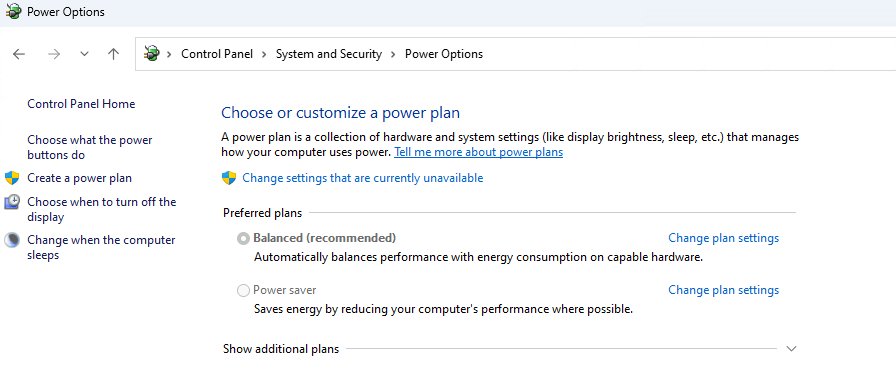
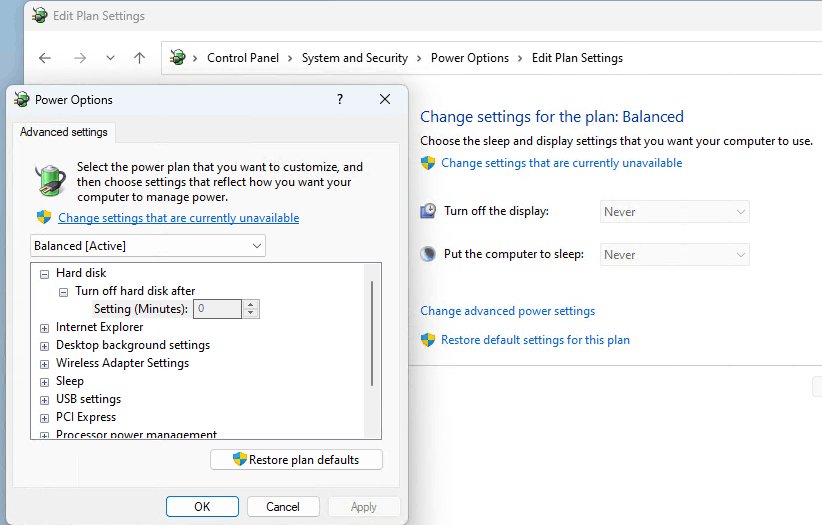
- Select Change advanced power settings to open the full list of settings.
- Expand a category, set the On battery and Plugged in values, then select Apply and OK.
Advanced power plan settings worth knowing before you edit them
The Change advanced power settings dialog holds dozens of entries. These are the ones that most often explain a real problem, and Microsoft documents each of them.
| Setting (where to expand it) | What it controls | When to change it |
|---|---|---|
| USB settings > USB selective suspend setting | Lets Windows power down idle USB devices | Set Plugged in to Disabled if USB devices stop responding after sleep |
| PCI Express > Link State Power Management | How far idle PCI Express links drop power: off, moderate or maximum savings | Microsoft warns administrators not to change plan personality settings, so leave it unless a vendor tells you to |
| Sleep > Allow wake timers | Whether scheduled tasks, such as Windows Update maintenance, can wake the PC | Disable it when the PC wakes at the same time each night |
| Sleep > hibernate timeout | How long the PC sleeps before switching to hibernate | Shorten it on a laptop that drains while asleep in a bag |
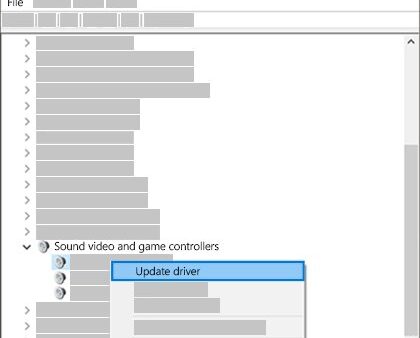
| Device Manager > Power Management tab | Allow the computer to turn off this device to save power for one device, such as a USB root hub | Clear it for a single device that drops out, instead of changing the whole plan |
Enable or disable hibernate and add it to the power menu
Hibernation needs the hidden Hiberfil.sys file, and turning it off also disables hybrid sleep. Microsoft notes PCs with InstantGo do not have the hibernate option.
- Select Search, type
cmd, right-click Command Prompt and select Run as administrator. - Type
powercfg.exe /hibernate onand press Enter. Usepowercfg.exe /hibernate offto disable it. - Open Control Panel > System and Security > Power Options > Choose what the power buttons do.
- Select Change settings that are currently unavailable.
- Under Shutdown settings, select the Hibernate checkbox.
- Select Save changes, then check Start > Power for Hibernate.
Stop Windows from sleeping during a download, backup or presentation
A raised sleep timer stays raised after the task. These Microsoft tools hold the PC awake only while you need it.
- Install Microsoft PowerToys, open PowerToys Settings, and turn on Enable Awake.
- Pick Keep awake for a time interval for a task with a known length, or Keep awake indefinitely until you stop it.
- Turn on Keep screen on if the display must stay visible, for example during a presentation.
- Set Awake back to Keep using the selected power plan when the task finishes.
- For one app that should always keep the PC awake, open an administrator Command Prompt and run
powercfg /requestsoverride process app.exe system, replacingapp.exewith the process name. - Run
powercfg /requestsoverridewith no arguments to list the overrides you have set.
Awake does not change your power plan and stops working on the lock screen.
Manage power plans and timeouts from the command line with powercfg
Every timeout value in /change is in minutes. The GUID below is Windows' Balanced plan.
powercfg /list
powercfg /getactivescheme
powercfg /setactive 381b4222-f694-41f0-9685-ff5bb260df2e
powercfg /change monitor-timeout-ac 10
powercfg /change monitor-timeout-dc 5
powercfg /change standby-timeout-ac 30
powercfg /change standby-timeout-dc 15
powercfg /duplicatescheme 381b4222-f694-41f0-9685-ff5bb260df2e
/list shows every plan with its GUID. /getactivescheme prints only the active plan. /setactive switches plans by GUID. /change edits the active plan: monitor-timeout is the screen timer, standby-timeout is sleep, and hibernate-timeout and disk-timeout also exist; -ac means plugged in and -dc means battery. /duplicatescheme copies a plan and prints the new GUID; /changename renames it and /delete removes it.
You should see: /setactive and /change return to the prompt silently. The new timers show in Power & battery or Power & sleep.
Check battery usage, battery health and energy problems with powercfg
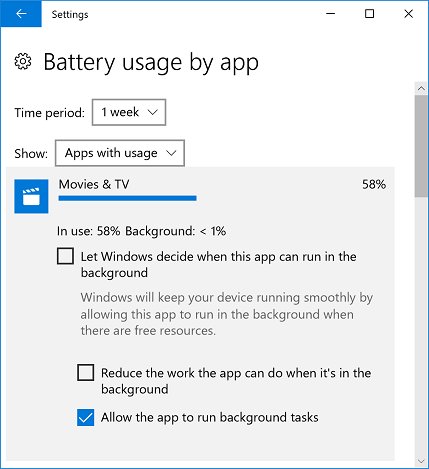
Settings shows battery use by app under Power & battery > Battery usage in Windows 11, with Battery levels set to Last 24 hours. In Windows 10, open Settings > System > Battery > See which apps are affecting your battery life.
For battery health over the life of the PC, generate a report instead.
powercfg /batteryreport /output "battery-report.html"
powercfg /energy /output "energy-report.html" /duration 60
powercfg /sleepstudy /duration 7
/batteryreport builds an HTML report of battery usage characteristics over the lifetime of the system; add /duration followed by a number of days to limit it. /energy watches the PC for 60 seconds by default and reports common energy-efficiency and battery-life problems, so run it with apps and documents closed. /sleepstudy reports Modern Standby quality, three days by default. Without /output, each report is saved in the folder the prompt is open in.
You should see: The prompt prints the path of the saved HTML file. Open it in any browser to read the results.
How to check your power settings took effect
Another plan, Energy saver or an app can override a saved setting. These checks show what Windows actually uses.
- Run
powercfg /getactiveschemeand confirm the plan you edited is the active one. - Run
powercfg /queryto list every value in the active plan, including the display and sleep timeouts. - Run
powercfg /availablesleepstatesto see which sleep states the PC supports and why others are unavailable. - Reopen Settings > System > Power & battery or Power & sleep and read back the timer values.
- Leave the PC idle past the screen timeout and check the display turns off.
- After the PC sleeps and wakes, run
powercfg /lastwaketo see what woke it.
Restore default power settings
Windows has no single reset switch that Microsoft documents for every setting. Returning to the Balanced plan and removing custom plans undoes most changes.
- Run
powercfg /listand note the GUIDs of any plans you created. - Run
powercfg /setactive 381b4222-f694-41f0-9685-ff5bb260df2eto switch back to Balanced. - Run
powercfg /deletefollowed by the GUID of each custom plan you no longer want. - Set Power mode back to Balanced in Windows 11, or drag the Windows 10 slider to its default Better performance stop.
- Turn off Always use energy saver if you switched it on.
- Reset the screen and sleep timers in Settings, or select Apply all in Energy recommendations.
Microsoft's Learn documentation notes that once you move to Balanced, the Control Panel UI may not offer High performance again. powercfg /setactive can still switch to it if the plan appears in /list.
Fix missing or ignored power and sleep settings
Find the symptom that matches what you see, then work through its steps in order.
The PC will not go to sleep, or the screen never turns off
An app, service or driver holds a power request that blocks the display timer or sleep.
- Open Command Prompt as administrator and run
powercfg /requests. - Note each app, process or driver the output lists as holding a power request.
- Close the app, stop the media playback, or finish the download it lists.
- If the request must be ignored, run
powercfg /requestsoverride process name.exe display systemwith the listed process name. - Check PowerToys Awake is set to Keep using the selected power plan.
The PC keeps waking unexpectedly
A wake timer, such as scheduled maintenance, or a device armed for wake brings the PC out of sleep. Blocking both prevents most unwanted wakes.
- Run
powercfg /lastwaketo see what woke the PC last time. - Open an administrator Command Prompt and run
powercfg /waketimersto list active timers and the task that set each one. - Search
edit power plan, select Change advanced power settings, expand Sleep > Allow wake timers, and disable it for On battery and Plugged in. - Run
powercfg /devicequery wake_armedto list devices allowed to wake the PC. - Run
powercfg /devicedisablewake "Device name"with the exact name from that list, such as a mouse that wakes the PC when bumped.
Power plans are missing, or only Balanced appears
Power Options can hide extra plans, and after a switch to Balanced the window does not offer High performance again.
- Open Power Options and select Show additional plans if the link is there.
- Run
powercfg /listto see every plan the PC actually has, including ones the window does not show. - Run
powercfg /setactivewith a listed GUID to switch to a plan the UI hides. - If
/listshows only Balanced, use Power mode in Settings for the efficiency or performance choice.
The power mode setting is greyed out or not showing up
Energy saver is on, or a plan not based on Balanced is active.
- Turn off Energy saver from the battery quick setting.
- Open Power Options, select Balanced, then change Power mode again.
Sleep or Hibernate is missing from the Start power menu
Hibernate is not added to the menu, hibernation is off, or the PC's firmware or drivers do not support the sleep state.
- Run
powercfg /availablesleepstatesand read the reasons listed for any unavailable state. - For Hibernate, run
powercfg.exe /hibernate onin an administrator Command Prompt. - Open Power Options > Choose what the power buttons do > Change settings that are currently unavailable.
- Under Shutdown settings, select the Hibernate checkbox and select Save changes.
- If
/availablesleepstatesnames a driver or firmware as the reason, install updates for that component from Windows Update or the PC manufacturer.
Frequently asked questions
Where do I find power management settings in Windows?
Open Settings > System > Power & battery in Windows 11, or Settings > System > Power & sleep in Windows 10. Power plans and advanced settings are in Control Panel > System and Security > Power Options on both versions.
How do I check my current power management settings?
Run powercfg /getactivescheme to see the active plan, and powercfg /query to list every value in it. The Settings app shows the screen and sleep timers and the current power mode on the Power & battery or Power & sleep page.
How do I change power management settings?
Change timers and power mode in the Settings app, and change plan-level settings such as USB selective suspend in Power Options > Change plan settings > Change advanced power settings. The powercfg /change command edits screen, sleep, disk and hibernate timeouts from a prompt.
Where are power management settings in Device Manager?
Open Device Manager, right-click a device such as a USB Root Hub, select Properties, and open the Power Management tab. It holds Allow the computer to turn off this device to save power, which controls power saving for that one device.
Why is a power management setting not showing up?
Many settings depend on hardware and the active plan. The power mode appears only with Balanced or a plan based on it, Energy saver locks the mode, and hibernate is absent on PCs with InstantGo. Run powercfg /availablesleepstates to see which sleep states the PC supports.
What is the difference between sleep and hibernate?
Sleep keeps your session in memory for a fast resume, while hibernate writes memory to the hibernation file and powers down almost completely. Hibernate uses almost no power, which suits a laptop left unused for days. A power cut during hibernate does not lose your session.
Should I turn off fast startup?
Fast startup is the default shutdown in Windows and speeds up the next boot by saving the kernel session to a hibernation file. When you need a full shutdown, for example after a driver change, choose Restart, which performs a complete shutdown and boot.

![2 Ways to Completely Delete Bing Search History [Browser & Microsoft Account]](https://techdows.com/wp-content/uploads/2026/09/iPhone-Safari-settings-with-Clear-History-and-Website-Data-link-600x338.jpg)
Video Playback Settings in Windows 11/10 - Techdows
[…] Other power choices, such as power mode and energy saver, are covered in how to manage power management settings in Windows 11/10. […]