You do not need to download a traditional Google Meet app to use it on a Windows PC or Mac. Google Meet works directly at meet.google.com, while Google also offers an official Progressive Web App, or PWA, that opens in its own window and can be pinned to your taskbar, Start menu, desktop, Dock, or app launcher. There is no official Google Meet EXE, MSI, or DMG installer for computers.
The official Google Meet PWA is the closest thing to a desktop app. Google says the PWA has the same features as the website and updates automatically with Google Chrome. On Windows 11 and Windows 10, you can install it from Chrome in a few clicks. The same PWA is also available on macOS, ChromeOS, and Linux.
Windows 7, Windows 8, and Windows 8.1 are a different story. Google Meet may still open in an old or extended-support browser, but those Windows versions are no longer part of a properly supported modern Chrome or Edge setup. I would not download an unofficial “Google Meet for Windows 7” package to work around that limitation. A supported computer or the dial-in number supplied with the meeting is the safer option.
Can you really download Google Meet on a PC?
| Device | Best way to use Google Meet | Official standalone installer? |
|---|---|---|
| Windows 11 | Install the official Chrome PWA or use Meet in Chrome, Edge, or Firefox | No EXE or MSI |
| Windows 10 | Install the official Chrome PWA or use a supported browser | No EXE or MSI |
| Windows 8/8.1 | Not recommended; modern Chrome and Edge no longer support the OS | No |
| Windows 7 | Not recommended; use a supported device or meeting dial-in option | No |
| Mac | Install the official Chrome PWA or use Meet in Chrome, Safari, Edge, or Firefox | No DMG |
Is there an official Google Meet desktop app for PC or Mac?
Google does not offer a conventional Google Meet desktop application for Windows or macOS. In other words, you will not find an official installer named GoogleMeet.exe, GoogleMeet.msi, or GoogleMeet.dmg on Google’s website.
Instead, Google officially supports two desktop experiences:
- The web version: Open Google Meet (meet.google.com) in a supported browser and join or create a meeting without installing anything.
- The Progressive Web App: Install Meet through Google Chrome so it launches in a separate window and appears alongside your other apps.
The distinction matters because download sites often advertise a “Google Meet app for PC” without explaining what is being installed. Some merely create a shortcut. Others wrap the Meet website inside a third-party application, and a few may bundle unrelated software. None of those packages is necessary.
The official PWA is still web-based, but that is not a major limitation for Meet. Video calls already require an internet connection, and the PWA can access the same meeting controls, camera, microphone, chat, captions, screen sharing, backgrounds, picture-in-picture options, and account features supported by the underlying browser and your Google account.
Google’s own documentation says the PWA and the normal Meet website have the same features. The practical advantage is organization: Meet gets a separate window, icon, and taskbar entry instead of living among dozens of browser tabs.
Which Google Meet download is safe?
The safest choices are the official Meet website and the install button built into Google Chrome. You do not need a third-party download manager, PC repair utility, browser extension, Android emulator, or modified installer.
| Download or method | Should you use it? | What it actually does |
|---|---|---|
| Google Meet website | Yes | Runs Meet directly in your browser with no installation |
| Google Meet PWA installed from Chrome | Yes | Creates the official app-like Meet experience |
| Edge “Install this site as an app” option | Generally safe | Creates an Edge-powered site app, not Google’s Chrome PWA |
| Microsoft Store app from an unknown publisher | No | Usually a third-party wrapper and not an official Google release |
| Google Meet EXE, MSI, or DMG from a download site | No | Not an official Google desktop installer |
| Android emulator plus the mobile Meet app | Unnecessary | Runs the Android version inside a virtual device and uses more resources |
Before installing anything that claims to be Google Meet, check the publisher and the download source. If the page asks you to install a “driver updater,” “PC optimizer,” browser extension, or repair tool before Meet will work, close it. Google Meet does not require any of those products.
How to install the Google Meet app on Windows 11 or Windows 10
The official method uses Google Chrome. Chrome does not need to be your default browser, but it must be installed because the Meet PWA runs through Chrome.
- Open Google Chrome on your Windows PC.
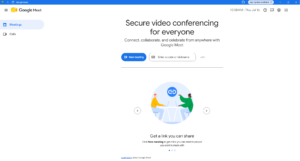
- Go to meet.google.com.
- Sign in with the Google account you use for meetings.
- Look at the right side of the address bar for the Install icon.
- Click Install and confirm the prompt.
- Google Meet will open in a separate app window.
After installation, search for Google Meet from the Windows Start menu. You can right-click the result and select Pin to Start or Pin to taskbar. Windows may also let you create a desktop shortcut from the app’s shortcut or browser app settings.
The installed PWA does not contain a separate copy of the entire Meet service. It uses Chrome’s web-app engine, which is why it remains small and updates when Chrome updates. You do not have to manually download Meet patches.
What to do if the Install icon is missing in Chrome
First, confirm that you are on meet.google.com, not a meeting page opened inside another app or an embedded browser. Then update Chrome, restart it, and open the Meet homepage again.
You can also open Chrome’s three-dot menu and look for an option such as Install Google Meet. Google occasionally moves browser menu entries, so the exact menu section can change between Chrome versions.
The install option may be unavailable on a managed work or school computer. Administrators can block web-app installation, browser sign-in, or specific Google services. In that case, the normal browser version of Meet should still work unless your organization has disabled it.
How to open meeting links in the installed Meet app
When you click a Google Meet link, Chrome may show an Open app button in the address bar or ask whether you want to open Google Meet. Choose the installed app and allow Chrome to remember the choice when that option is available.
If every link continues to open in a normal tab, open the Meet PWA first and paste the meeting code or link there. This does not affect the call itself; it only changes which window hosts the meeting.
How to install Google Meet as an app using Microsoft Edge
Google’s official PWA instructions specifically point to Chrome, but Microsoft Edge can turn almost any website into an app-style window. This is useful if Edge is your main browser and you do not want Chrome installed solely for Meet.
- Open Microsoft Edge.
- Visit meet.google.com.
- Click the three-dot menu in the upper-right corner.
- Open Apps.
- Select Install this site as an app.
- Name it Google Meet and click Install.
- Choose whether to pin it to the taskbar, Start menu, or desktop.
This creates an Edge-powered site app. It looks and behaves much like the Chrome PWA, but it is technically a browser feature supplied by Microsoft rather than the Google-distributed Meet PWA. Camera, microphone, notification, and screen-sharing permissions are managed through Edge.
If calling features behave differently in the Edge-installed version, test the same meeting in a regular Edge tab or Chrome. Web-app wrappers can occasionally handle links, pop-ups, account switching, or permission prompts differently from a standard browser window.
How to use Google Meet on a PC without installing anything
For occasional meetings, the browser is the simplest option and gives you the full core experience.
- Open Chrome, Edge, Firefox, or Safari on a supported computer.
- Go to meet.google.com.
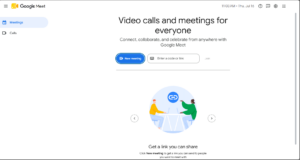
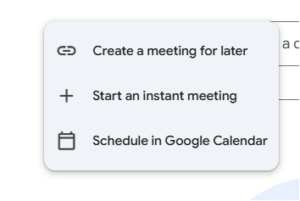
- Select a scheduled meeting, enter a meeting code, or click New meeting.
- Allow Meet to use your camera and microphone.
- Check the selected camera, microphone, and speaker on the preview screen.
- Click Join now or Ask to join.
You can also click a Meet link from Gmail, Google Calendar, Outlook, WhatsApp, Slack, or another messaging service. The link should open in your default browser. If it opens in an old browser or an in-app browser that cannot access your devices, copy the link and paste it into a current version of Chrome or Edge.
You need a Google account to create and host a meeting. Some guests can join without signing in when the organizer’s account and meeting-access settings permit it, although they may need to enter a name and wait to be admitted.
How to install and use Google Meet on a Mac
There is no official native Google Meet DMG for a MacBook, iMac, Mac mini, or Mac Studio. The recommended choices are the Meet website or the Chrome PWA.
Install the official Google Meet PWA on macOS
- Open Google Chrome on your Mac.
- Visit meet.google.com.
- Click the Install icon in the address bar.
- Confirm the installation.
- Open Google Meet from your app launcher and keep it in the Dock if you use it frequently.
The Mac PWA uses Chrome for permissions and updates. If macOS blocks the camera, microphone, or screen capture, open System Settings > Privacy & Security and allow access for Google Chrome. Restart Chrome after changing a permission if Meet does not immediately detect it.
Use Google Meet in Safari
Safari is one of Google’s supported Meet browsers on a current macOS release. Open the meeting link in Safari, allow camera and microphone access, and select the correct devices from Meet’s settings.
Chrome is still the more straightforward choice when you specifically want Google’s official installable PWA. Safari can create web-app or Dock-style experiences on newer macOS versions, but those are Apple browser features rather than Google’s documented Meet PWA installation path.
Can you download Google Meet on Windows 7, Windows 8, or Windows 8.1?
There is no special legacy Google Meet app for Windows 7, Windows 8, or Windows 8.1. More importantly, downloading an unofficial installer does not solve the real problem: Google Meet depends on a current browser, modern media components, secure web standards, and a supported operating system.
Chrome 109 was the final Chrome release for Windows 7 and Windows 8/8.1. Microsoft Edge support for those systems also ended with version 109. Mozilla has kept Firefox 115 ESR alive longer for these older Windows releases, but that does not make Windows itself supported or guarantee every current Meet feature.
A meeting may still load in an older browser, but you can run into missing effects, broken screen sharing, camera problems, sign-in errors, or a browser-not-supported message. An outdated browser also carries security risks, which matters more during a call where the browser is handling your camera, microphone, account, and shared screen.
For Windows 7 or Windows 8 hardware, the practical options are:
- Join from a supported Windows 10 or Windows 11 PC.
- Use a current Mac, Chromebook, Linux computer, Android device, iPhone, or iPad.
- Use the meeting’s phone number and PIN when the organizer provides dial-in access.
- Upgrade the operating system if the hardware supports it.
I would not recommend searching for an old Chrome installer and treating it as a permanent fix. Even when Meet opens, you are building the call around a browser and operating system that no longer receive the normal compatibility work expected by current web apps.
Google Meet system requirements for PC and Mac
Google Meet does not need a gaming PC, but video calls become demanding when you add HD video, background effects, screen sharing, large meetings, several browser tabs, and other apps running at the same time.
Google currently lists a dual-core processor and 2GB of memory as the minimum for basic participation and presenting non-video content. That should be treated as a technical floor, not a comfortable target for a modern Windows or Mac computer.
| Usage | Practical hardware level | What to expect |
|---|---|---|
| Basic meeting | Dual-core CPU, 2GB RAM minimum | Join calls and present simple, non-video content |
| Regular work or classes | Modern CPU and at least 8GB RAM | Smoother video, screen sharing, captions, and multitasking |
| HD video and visual effects | Recent Intel, AMD, or Apple Silicon processor with a compatible GPU | Better background effects, video processing, and full-HD performance |
| Heavy multitasking | Modern multi-core CPU, 16GB RAM, stable broadband | More headroom for Meet, documents, presentations, and many tabs |
Google’s current guidance calls out 10th-generation Intel Core processors or AMD Ryzen 3000-series chips and newer for higher-quality audio, video, effects, and multitasking. For its optimal tier, Google lists 11th-generation Intel Core, AMD Ryzen 5000-series, or Apple M1-class hardware and newer, along with WebGL 2.0 graphics support and a 1080p camera.
Your connection matters just as much as the processor. A stable wired connection or strong Wi-Fi is more useful than a high peak speed that constantly drops. Meet automatically changes quality based on available bandwidth and device performance.
How to fix Google Meet camera or microphone problems
Google’s camera troubleshooting guidance reflects an important detail: Meet needs permission at three levels, including the website, the browser, and the operating system. It is possible to allow the camera in Chrome but still have Windows or macOS block Chrome itself.
Check permissions inside the browser
- Open meet.google.com.
- Click the site-information, lock, camera, or microphone icon beside the address bar.
- Set Camera and Microphone to Allow.
- Reload the Meet page or leave and rejoin the call.
In Chrome, you can also review the camera at chrome://settings/content/camera and the microphone at chrome://settings/content/microphone. Make sure the correct device is selected and that Meet is not listed under blocked sites.
Check camera and microphone access in Windows 11
- Open Settings.
- Go to Privacy & security.
- Open Camera and turn on camera access.
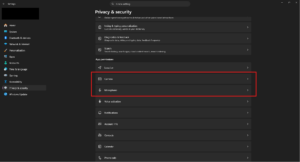
- Open Microphone and turn on microphone access.
- Make sure desktop apps are allowed to use both devices.
Also check for a physical camera shutter, privacy slider, keyboard camera key, or manufacturer privacy mode. A browser cannot override a hardware shutter.
Check permissions on macOS
- Open System Settings.
- Go to Privacy & Security.
- Open Camera and enable your browser.
- Open Microphone and enable your browser.
- Review Screen & System Audio Recording if screen sharing is blocked.
Quit and reopen the browser after making changes. macOS may not apply newly granted media or screen-recording access to an already running browser session.
Close apps already using the camera
Zoom, Teams, OBS Studio, the Windows Camera app, FaceTime, webcam utilities, and virtual-camera software can hold the camera or alter the device Meet sees. Close those apps, restart the browser, and choose the physical webcam again from Meet > Settings > Video.
For audio, verify that Meet is not sending sound to a monitor, disconnected Bluetooth headset, docking station, or virtual audio device. Select the microphone and speaker manually from the preview screen before joining.
How to fix Google Meet lag, freezing, high CPU use, or poor video
The PWA is not automatically faster than the website because both use the browser engine. Its main advantage is a cleaner, separate window. Performance depends on the same CPU, GPU, browser, extensions, network, camera, and meeting settings.
Try these steps in order:
- Close duplicate Meet tabs and leave only one meeting window open.
- Close unused browser tabs and heavy apps, especially games, editors, virtual machines, and cloud-sync jobs.
- Disable Meet-related or privacy extensions temporarily and test again.
- Update the browser, then fully restart it.
- Use a wired connection or move closer to the Wi-Fi router.
- Disconnect a VPN temporarily if company policy allows it.
- Lower the send and receive resolution in Meet’s video settings.
- Turn off background blur, animated backgrounds, studio lighting, or other visual effects.
- Place the laptop on a hard, flat surface so it can cool properly.
- Test another browser to separate a browser issue from an account, device, or network problem.
If Meet is smooth in a private or Incognito window, an extension, cached permission, or browser profile setting is likely involved. If every browser has the same problem, test the built-in Camera app and another call service. That helps determine whether the issue is Meet-specific or related to the webcam, driver, microphone, network, or operating system.
Browser or PWA: Which Google Meet experience is better?
| Feature | Browser tab | Google Meet PWA |
|---|---|---|
| Installation | None | Installed from Chrome |
| Meeting features | Full supported feature set | Same supported feature set |
| Separate taskbar icon | Usually grouped with browser windows | Yes |
| Pin to Start, taskbar, or Dock | Possible through shortcuts | Designed for this |
| Updates | With the browser | With Chrome |
| Performance | Depends on browser and hardware | Uses the same browser engine |
| Best for | Occasional meetings | Frequent Meet use |
Reddit discussions around Google Meet on Windows and Surface devices generally make the same practical point: Meet already works well as a browser service, while the desire for a “real app” is mostly about separate windows, taskbar behavior, and easier switching. That is anecdotal rather than a guarantee for every PC, but it matches how Google designed the desktop experience.
Use the normal browser version when you join a call occasionally or frequently switch between Google accounts. Install the PWA when you use Meet every day and want it to feel separate from the rest of Chrome.
How to uninstall the Google Meet PWA
Removing the PWA does not delete your Google account, meeting history, Calendar events, or Meet data. It only removes the app shortcut and local web-app installation.
- Open the installed Google Meet PWA.
- Open its app menu.
- Select Uninstall Google Meet or Remove.
- Confirm the prompt.
You can also manage Chrome apps from the browser’s app-management page or remove the shortcut through Windows or macOS when it appears in the normal app list. If you created an Edge site app, open Edge > Apps > Manage apps and remove Google Meet there.
Frequently asked questions
Can I download Google Meet for free on a PC?
Yes, Google Meet can be used for free through its website, and installing the official PWA does not cost anything. Free personal accounts have limits on meeting length and participant count, while paid Google Workspace plans add higher limits and business features.
Is Google Meet available in the Microsoft Store?
Google does not provide a traditional official Google Meet desktop app through the Microsoft Store. A listing from another publisher is likely a third-party web wrapper. You do not need it because the official PWA can be installed directly from Chrome.
What is the official Google Meet download link?
The official starting point is meet.google.com. Open that page in Chrome and use the install icon to add the official PWA. Avoid websites claiming to host a separate Google Meet EXE or MSI.
Is the Google Meet PWA a real app?
It is an installed Progressive Web App rather than a native Win32 or macOS application. It gets its own window, icon, launcher entry, and taskbar or Dock presence, but it is powered by Chrome and uses the same Meet service as the website.
Does the Google Meet PWA have fewer features than the website?
Google says the PWA and Meet website have the same features. Individual features can still depend on your account type, Workspace administrator, browser version, operating system, processor, graphics support, and meeting policy.
Can I use Google Meet without Chrome?
Yes. Meet supports current versions of Chrome, Firefox, Microsoft Edge, and Safari on supported operating systems. Chrome is required only for Google’s documented PWA installation method, not for joining a meeting in a browser.
Can I install Google Meet through Edge?
Edge can install the Meet website as an app-style window through Apps > Install this site as an app. It is a useful and generally safe option, but it is an Edge site app rather than Google’s official Chrome-based Meet PWA.
Can I use Google Meet without a Google account?
You need a Google account to create a meeting. Depending on the organizer’s account and access settings, a guest may be able to open the link, enter a name, and request admission without signing in. Some organizations block anonymous or external participants.
Can I use Google Meet on Windows 7?
It may still open in a legacy or extended-support browser, but Windows 7 is not a supported modern environment for current Chrome or Edge. There is no official legacy Meet app that fixes this. Use a supported device or dial in by phone when the meeting includes that option.
Can I use Google Meet on Windows 8 or Windows 8.1?
The situation is similar to Windows 7. Chrome and Edge ended support with version 109, so you cannot maintain the current browser setup Google Meet expects. An old browser may load the service, but reliability, features, and security are not guaranteed.
Why does Google Meet say my browser is unsupported?
Your browser may be outdated, your operating system may no longer support current browser releases, or an in-app browser may have opened the link. Update the browser or copy the meeting link into a current version of Chrome, Edge, Firefox, or Safari on a supported OS.
Why is the Google Meet install button not showing?
Open the Meet homepage in an updated version of Chrome, not an embedded browser. Restart Chrome and check its menu for Install Google Meet. On work or school PCs, an administrator may have disabled web-app installation.
Does Google Meet work offline after installing the app?
No. The PWA can be installed like an app, but meetings, calls, chat, captions, and account data require an internet connection. Installing it does not create an offline video-meeting service.
Does the Google Meet app update automatically?
Yes. Google says the PWA updates when Chrome updates. Keep Chrome current and restart it after an update so the latest browser and Meet components are loaded.
Can I pin Google Meet to the Windows taskbar?
Yes. Install the PWA, open the Start menu, search for Google Meet, right-click it, and choose Pin to taskbar. Edge also offers pinning options after you install Meet as a site app.
Can I create a Google Meet desktop shortcut without installing the PWA?
Yes. Chrome and Edge can create a website shortcut, and you can also drag a site icon or manually create a shortcut that points to https://meet.google.com/. A shortcut opens the site, while a PWA provides a more app-like window and launcher entry.
Can Google Meet share computer audio?
On a computer, sharing a browser tab is usually the most reliable way to include that tab’s audio. Sharing an entire screen or window may not offer the same audio options on every browser and operating system. Check the share dialog before presenting.
Does Google Meet work on Windows on Arm PCs?
Yes, Meet runs through supported Arm-native browsers such as current versions of Chrome or Edge on compatible Windows on Arm PCs. Performance still depends on the processor, camera, browser, effects, and network, just as it does on Intel and AMD computers.
Is an Android emulator a good way to run Google Meet on Windows?
No, not for normal use. The browser and PWA are designed for computers and integrate directly with Windows camera, microphone, notification, and screen-sharing controls. An emulator adds overhead and can make device selection more complicated.