Microsoft has already bloated Windows 11 with a Newsfeed through Widgets and Edge bar in Microsoft Edge. If you’re missing, News and Interest feature of Windows 10 that shows Weather on the taskbar, the company has added a Weather widget icon to the taskbar in Windows 11 as an entry point for Widgets.
Widgets in Windows 11 show up-to-date information on news, weather, stocks, entertainment, and sports when you click on its icon on the taskbar. If you don’t like Widgets, you can disable and remove them.
If you like the feature, you can continue to use it.
There have been requests from users to make it easier to open Widgets by providing a shortcut than to open by clicking it.
Apart from the Weather icon that shows Widgets on hover over (Yep, you don’t need to click on the new Weather icon to open Widgets), you can use the Win+W shortcut or Esc and again press the Win+W shortcut to close that.
Besides requests to make it easier to open and close Widgets, there is a popular demand to bring the weather icon to the taskbar in Windows 11.
Microsoft has fulfilled both by adding Widgets Entry point to the taskbar in build 22518. The build also includes the Spotlight collection backgrounds feature.
However, the new feature is available to only a few insiders, if you want, you can get the Weather Widget icon on Windows 11 taskbar too, here is how.
Note: the following instructions involve running a third-party tool that is not recommended by Microsoft, run the tool and follow the instructions at your own risk, we’re not responsible for damage your device may incur with this article.

Enable Weather Widget on the taskbar in Windows 11
- Download Vivetool latest verison.
- Extract the zip file contents to WindowsSystem 32 folder
- Click Start, type cmd, and select “Run as administrator”
Run the following commands one by one.
vivetool addconfig 34301415 2
 vivetool addconfig 36553793 2
 vivetool addconfig 36226054 2
 vivetool addconfig 36226456 2
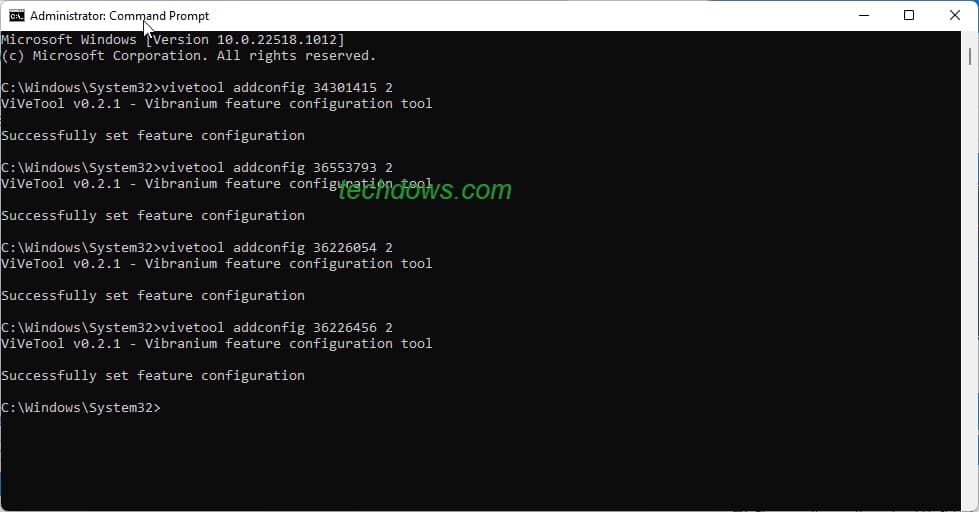
- After running each command, you’ll notice the command prompt displaying a message that the Vibranium tool has successfully set feature configuration.
- Restart Windows 11.
If your taskbar is centered, you’ll see the Widgets icon on left, when you click it, it changes to the Weather icon.

If you’ve left-aligned the taskbar by configuring taskbar behavior settings, the Widgets icon will be replaced by the Weather icon.
From now on, the new taskbar icon not only shows the live Weather (requires device to be online) but also displays Widgets when you hover over it without needing to click on it. Win+W shortcut will continue to work. So you can also use it whenever needed.
After living with Weather on the taskbar for a short time, we noticed, accidental hover overs open the Widgets panel.
This may annoy and cause interruption to your workflow, here is how you can disable the Weather Widgets icon on the taskbar in Windows 11.
Disable and remove Weather Widget icon from Taskbar in Windows 11
- Right-click on the taskbar and select “Taskbar Settings“
- Under Personalization > Taskbar > Taskbar items, toggle Widgets to off.
To re-enable the taskbar Weather, reverse the above step.
If you want to keep an eye on things about the weather in your area, you may find the new feature useful. That could be a distraction to your workflow also as it dynamically changes the icon and displays Widgets across your screen when you hover your mouse over it.
What’s your take on the Weather taskbar icon in Windows 11? Will it be useful or distracting? Let us know in the comments below.
More about Windows 11:
Notepad for Windows 11 gets Dark Theme, how to enable
Windows 11 bringing new Start Menu layouts & Clock on the taskbar to Multiple Monitors
Windows 11’s New Media Player w/ Fluent Design now available
Hands-on WhatsApp UWP for Windows 11 and Windows 10



i did what u said but it didnt work for me.
You using latest dev insider build?
weather is on my taskbar i use it all the time
didnt work for me with ViVeTool-v0.2.1