To change the start page in Chrome, open More > Settings > On startup, choose Open a specific page or set of pages, and add the address you want.
This guide covers the startup page settings in Chrome, Edge, Firefox and Safari, what mobile browsers allow, and what to do when the page keeps changing back.
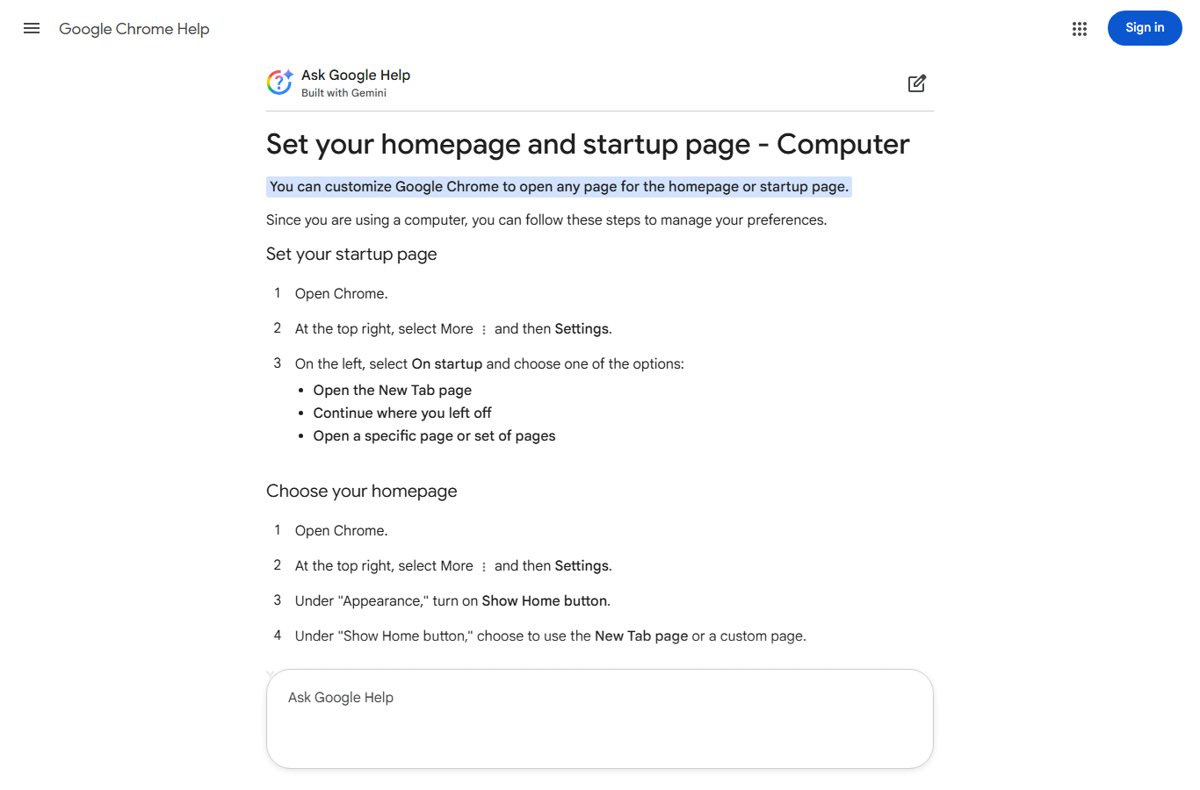
Quick steps: set the Chrome startup page
These steps work in Chrome on Windows, macOS, Linux and personal Chromebooks. Chrome opens the page you add every time you launch it.
- Open Chrome on your computer.
- Select More (three dots) at the top right, then Settings.
- Select On startup on the left.
- Choose Open a specific page or set of pages.
- Select Add a new page, type the web address, then select Add.
- Close every Chrome window and open Chrome again to load the new start page.
Startup page vs homepage vs new tab page in Chrome and other browsers
Browsers use three separate settings, and changing one does not change the others. Google's help states plainly that the homepage and startup page are not the same unless you set them to be.
| Setting | When it appears | Where to change it in Chrome |
|---|---|---|
| Startup page | When you first launch the browser | Settings > On startup |
| Homepage | When you select the Home button | Settings > Appearance > Show Home button |
| New tab page | When you open a new tab | Startup option Open the New Tab page, or the new tab page itself |
If you only want a site such as Google behind the Home button, set the homepage instead. To make Google your homepage in every browser, set both settings.
Chrome startup page options compared
Chrome offers three startup choices on desktop, plus a fourth setting that shows the profile picker first.
| What you want at launch | Chrome option | Notes |
|---|---|---|
| A clean page with the search box | Open the New Tab page | Chrome's default for new installs |
| The tabs you had open last time | Continue where you left off | Sites may keep you signed in when pages reopen |
| One or more fixed sites, such as email and a dashboard | Open a specific page or set of pages | Add pages one by one or use Use current pages |
| Choose between several Chrome profiles first | Show on startup in the profile manager | Shows the profile picker before any page loads |
How to change the start page in Google Chrome
Use this section to switch between the startup options or to edit the pages already listed.
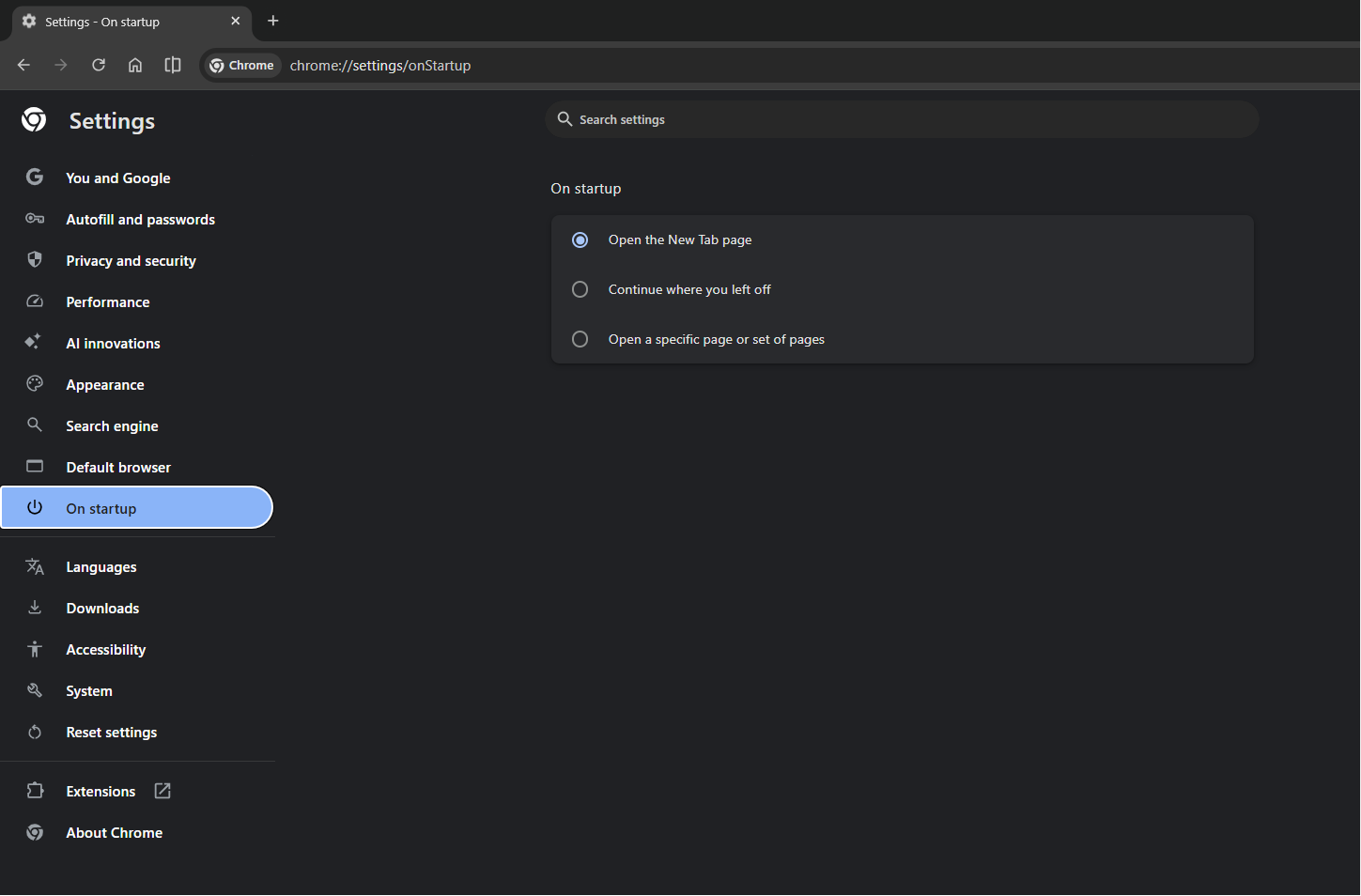
- Open Chrome and select More > Settings.
- Select On startup on the left.
- Select Open the New Tab page, Continue where you left off, or Open a specific page or set of pages.
- For specific pages, select Add a new page, enter the address and select Add, or select Use current pages to add every tab you have open now.
- To change a listed page, select More next to it, then Edit or Delete.
- To show the profile picker at launch, select Profile, then Manage Chrome profile under Other Chrome profiles, and check Show on startup.
To set the Home button page as well, go to Settings > Appearance, turn on Show Home button, and choose the New Tab page or a custom address.
How to change the start page in Microsoft Edge
Edge keeps its startup, home and new tab settings on one unified settings page called Start, home, and new tab page.
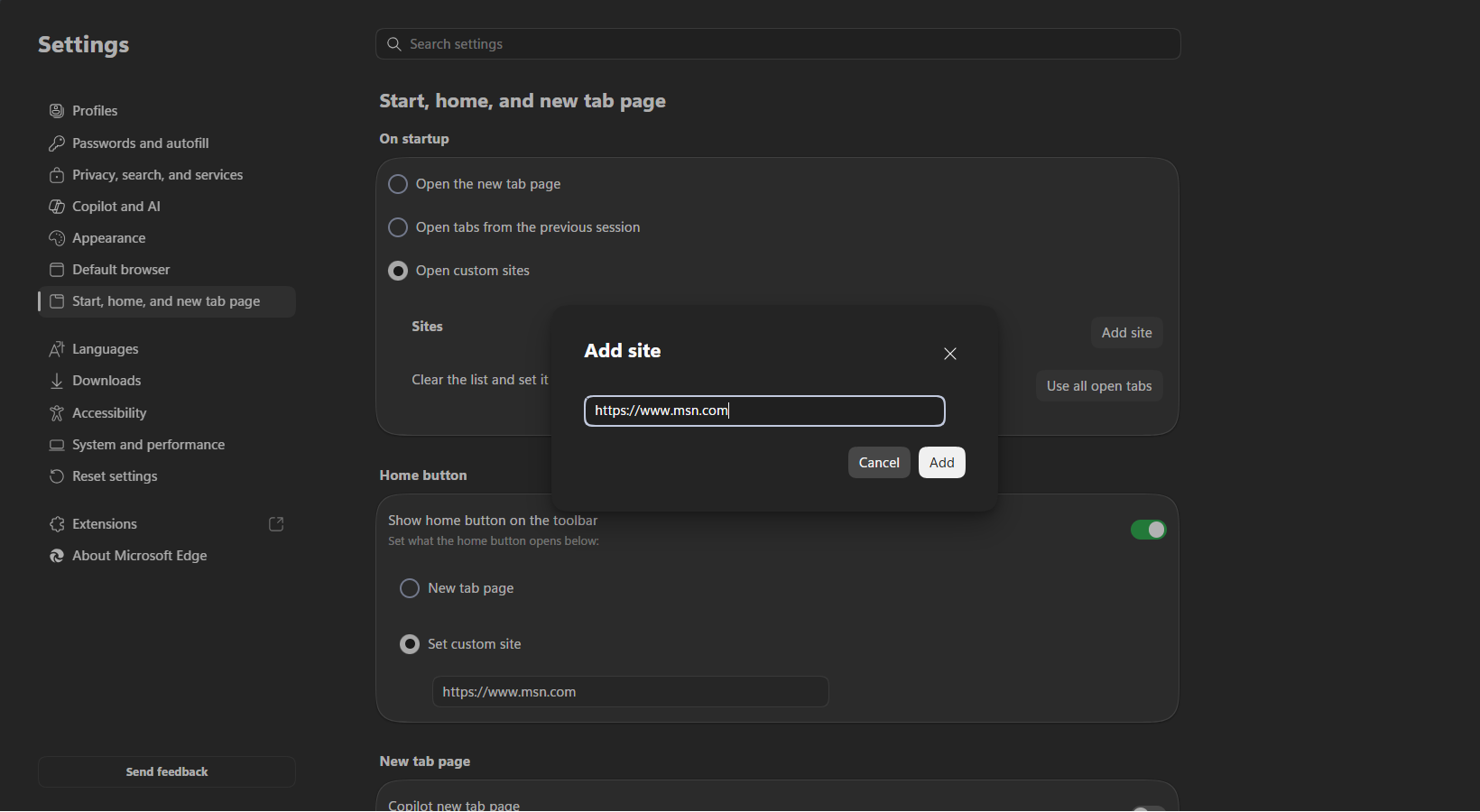
- Open Microsoft Edge and select Settings and more (…) > Settings.
- Select Start, home, and new tab page on the left.
- Under When Edge starts, choose Open the new tab page, Continue where you left off, or Open these pages.
- For Open these pages, select Add a new page and enter the address of each site you want.
- Select Use all open tabs instead if the pages you want are already open.
- To set the Home button too, turn on Show home button on the toolbar and choose New tab page or Enter URL.
Microsoft's policy documentation notes that restoring the last session disables features that act on exit, such as clearing browsing data on exit. Pick Open these pages if you rely on that clean-up.
How to change the start page in Mozilla Firefox
Firefox sets the page for new windows and its homepage with one drop-down. Newer versions label the menu item Settings; older ones say Options.
- Open Firefox and select the menu button (three horizontal lines) at the top right.
- Select Settings (or Options), then select Home on the left.
- Under New Windows and Tabs, open the drop-down next to Homepage and new windows.
- Choose Firefox Home (Default), Custom URLs, or Blank Page.
- For Custom URLs, type the address of the page you want Firefox to open.
How to change the start page in Apple Safari
Safari on Mac uses the homepage as its start page, then lets you decide whether new windows and new tabs open with it. Older macOS versions show Preferences instead of Settings.
- Open Safari on your Mac.
- Choose Safari > Settings from the menu bar, then click General.
- Type a web address in the Homepage field, or click Set to Current Page to use the page on screen.
- Click the New windows open with pop-up menu and choose Homepage.
- Click the New tabs open with pop-up menu and choose Homepage if you want it in every new tab too.
Choose History > Home to jump back to the homepage at any time.
Change your home page in Google Chrome, Edge, Firefox and Safari
The homepage is the page behind the Home button, and the benefit of setting it is one click back to the site you use most without changing what opens at launch.
Use the same address as your start page if you want one page for both.
| Browser | Where to choose your homepage | Options |
|---|---|---|
| Google Chrome | More > Settings > Appearance > Show Home button | New Tab page or a custom web address |
| Microsoft Edge | Settings and more > Settings > Start, home, and new tab page > Show home button on the toolbar | New tab page or Enter URL |
| Mozilla Firefox | Menu button > Settings > Home > Homepage and new windows | Firefox Home (Default), Custom URLs or Blank Page |
| Apple Safari on Mac | Safari > Settings > General > Homepage | Type an address or click Set to Current Page |
| Chrome for Android | More > Settings > Homepage | Chrome's homepage or a custom page |
In Firefox, the homepage and the page for new windows are one setting, so changing your homepage in Firefox changes the start page too.
Can you change the startup page in mobile browsers?
Partly. Chrome for Android has a Homepage setting, but Google states that Chrome on iPhone and iPad has no homepage option at all.
| Mobile browser | Can you set a start or home page? | Where |
|---|---|---|
| Chrome for Android | Yes, a homepage | More > Settings > Homepage (under Advanced), then Chrome's homepage or a custom page |
| Chrome for iPhone and iPad | No | Google documents the homepage setting for computers and Android only |
| Safari for iPhone and iPad | No homepage field documented | Apple documents the homepage setting for Safari on Mac |
On an iPhone, add the site you want to your bookmarks or Favorites so it is one tap away instead.
How to check the new start page works
- Close every window of the browser, not just the current tab.
- Open the browser from the taskbar, Dock or Start menu.
- Confirm the page you chose loads first, with no extra tabs you did not add.
- Select the Home button, if you turned it on, and confirm it opens the homepage you set.
- Open a new tab and check it shows the new tab page you expect.
If the browser opens from a link in another app, it loads that link instead, so always test from a fresh launch.
Fix a Chrome startup page that keeps changing
The startup page changes back to a page you did not set
Google lists a homepage or search engine that keeps changing without permission as a sign of unwanted software.
- In Chrome, select More > Extensions > Manage extensions and remove anything you do not recognise.
- On Windows, open Settings > Apps > Installed apps and uninstall programs you did not install.
- In Chrome, select More > Settings > Reset settings > Restore settings to their original defaults > Reset settings.
- Set your startup page again under On startup.
MSN or another page opens when Windows starts
A startup entry or shortcut launches the browser with that page, separate from the browser's own setting.
- Check the browser's startup setting first and remove the unwanted page from the list.
- If MSN still appears, stop the MSN page opening at startup in Chrome on Windows.
- Restart the PC and confirm the page no longer appears.
The start page options are greyed out or cannot be changed
Work or school management controls the setting. Google notes that managed Chromebook users cannot change the startup page or homepage, and Edge has a startup policy for managed PCs.
- Check whether the device or browser profile belongs to an employer or school.
- Ask the IT administrator to change the startup pages for you.
- Use a personal browser profile or device if you need your own start page.
The start page works but the Home button opens a different site
The homepage is a separate setting from the startup page.
- In Chrome, go to Settings > Appearance and set the address under Show Home button.
- In Edge, go to Start, home, and new tab page and choose Enter URL under the home button setting.
- Use the same address in both places if you want one page for both.
Chrome and browser startup page FAQ
How do I set the Chrome startup page?
Open Chrome, select More > Settings > On startup, and choose Open a specific page or set of pages. Select Add a new page, type the address, and select Add. Chrome opens that page every time you launch it.
How do I change the Google Chrome startup page to a different site?
Go to Settings > On startup in Chrome. Next to the page already listed, select More > Edit and type the new address, or select Delete and add a new page. The change applies the next time Chrome starts.
How do I make Chrome start up with a specific page?
Choose Open a specific page or set of pages under On startup and add the page. If the site is already open in a tab, select Use current pages to add it without typing the address.
Can Chrome open several pages at startup?
Yes. Add as many pages as you want with Add a new page, or open them all in tabs first and select Use current pages. Chrome opens each listed page in its own tab at launch.
What are the Chrome startup page options?
Chrome on a computer offers Open the New Tab page, Continue where you left off, and Open a specific page or set of pages. A separate Show on startup setting in the profile manager shows the profile picker before any page loads.
Is the startup page the same as the homepage in Chrome?
No. The startup page appears when Chrome launches, while the homepage opens when you select the Home button. Set the homepage under Settings > Appearance > Show Home button.
Why does my Chrome startup page keep changing?
Google lists a homepage or search engine that changes without permission as a sign of unwanted software. Remove unknown extensions and programs, reset Chrome settings to default, then set the startup page again.
Can I change the Chrome startup page on iPhone?
No. Google states that the homepage can only be set in Chrome on a computer or an Android device. On iPhone, bookmark the site you want so it is quick to open.
Best startup page setting for your browsing session
Use Open a specific page or set of pages in Chrome, or Open these pages in Edge, when you want the same sites at every launch, and Continue where you left off when you want your last tabs back. Fixed pages give a predictable start to every browsing session and keep exit clean-up features working, while restoring the session suits people who leave work open in tabs. Pair the start page with your default web browser choice so links from other apps open in the browser you set up.