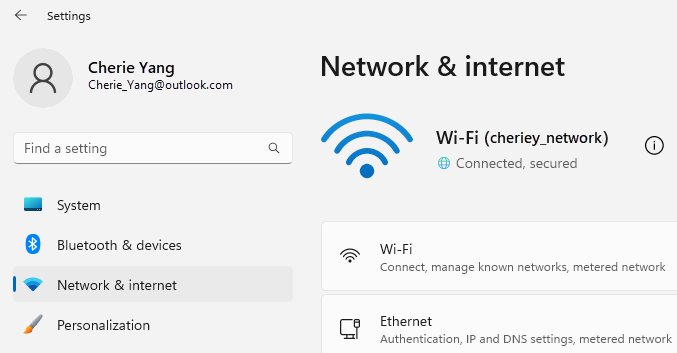
Open Settings > Network & internet to see whether your Wi-Fi or Ethernet connection says Connected, then select Properties next to the network to view its IP address, DNS and profile details.
This guide also covers the classic Status window, the commands that show link speed and hardware address, and what to do when Ethernet shows as disconnected or slow.
The fastest way to check WiFi or Ethernet status on Windows 11
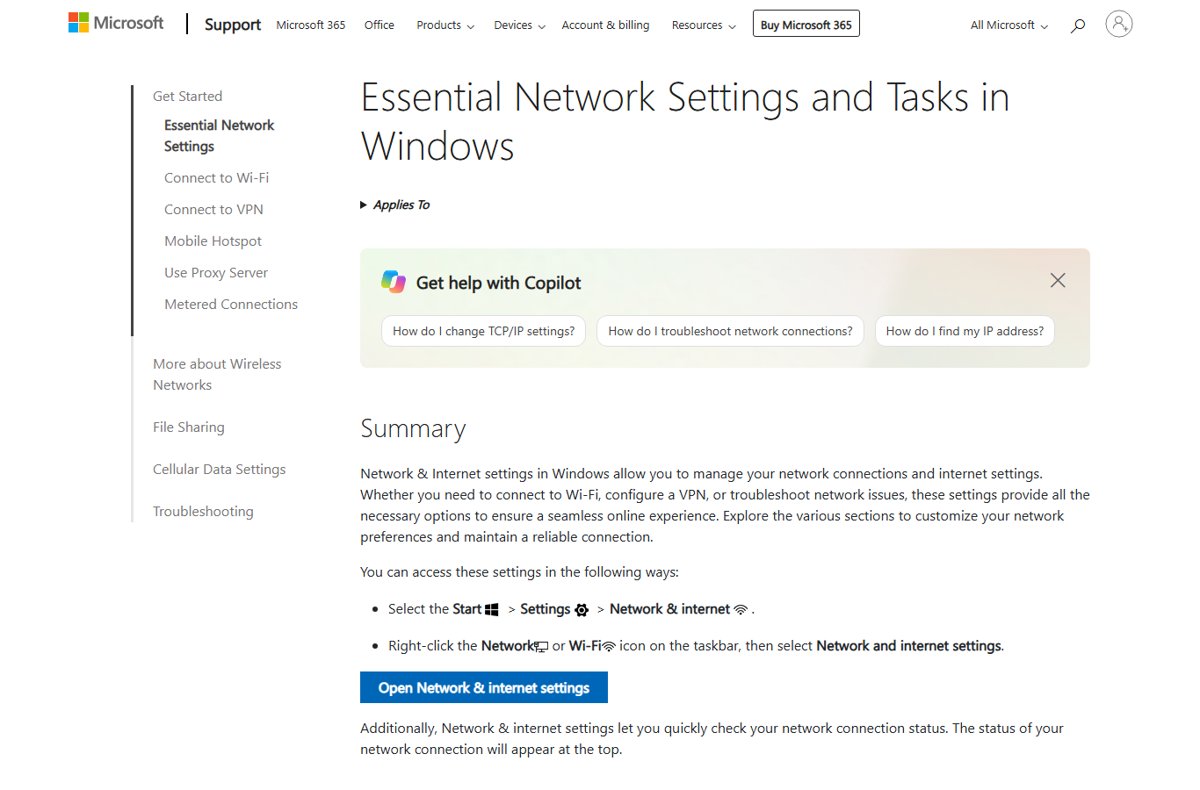
- Right-click the network icon on the taskbar and select Network and internet settings.
- Read the status at the top of the page; it should say Connected under the Wi-Fi or Ethernet connection name.
- Select Properties next to the connected network.
- Read the IPv4 address, Network profile type and IP assignment entries on that page.
A message such as Action needed instead of Connected means Windows found a problem; select Ethernet or Wi-Fi to open that connection's settings.
Where to find each network status detail in Windows 11
Windows 11 spreads connection details across several tools. Match the detail you need to the place that shows it.
| What you want to see | Use this | Why |
|---|---|---|
| Connected or not, at a glance | Settings > Network & internet | Status sits at the top of the page |
| IP address, DNS, network profile | Settings, the connection's Properties | No admin rights needed, includes DNS over HTTPS |
| Connection status for one adapter | ncpa.cpl > right-click > Status |
Classic window per adapter, works on Windows 10 too |
| Every adapter's IP setup in one list | ipconfig /all |
Full TCP/IP configuration for all adapters |
| Link speed, duplex, MAC and driver | Get-NetAdapter in PowerShell |
Reads the adapter's hardware properties directly |
| Wi-Fi interface and driver details | netsh wlan show interfaces and netsh wlan show drivers |
Wireless-only details the Ethernet tools skip |
View network adapter status and properties on Windows 11
The Settings app shows the connection-level properties for whichever adapter is in use. Wi-Fi and Ethernet follow the same pattern.
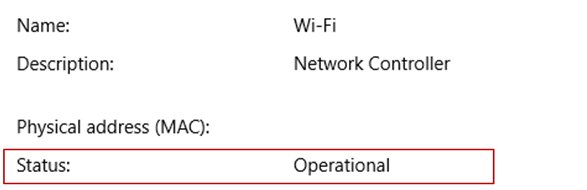
- Select Start and open Settings.
- Select Network & internet in the left pane.
- Check the status line under your connection name at the top of the page.
- For Ethernet, select Ethernet; for wireless, select Wi-Fi and then the Properties of the connected network.
- Review Network profile type, IP assignment, IPv4 address and the DNS server entries.
- Select Edit next to IP assignment only if you need to change between Automatic (DHCP) and Manual.
To change IP or DNS rather than just read them, open network adapter settings and edit them there.
Check Ethernet status in the Network Connections window
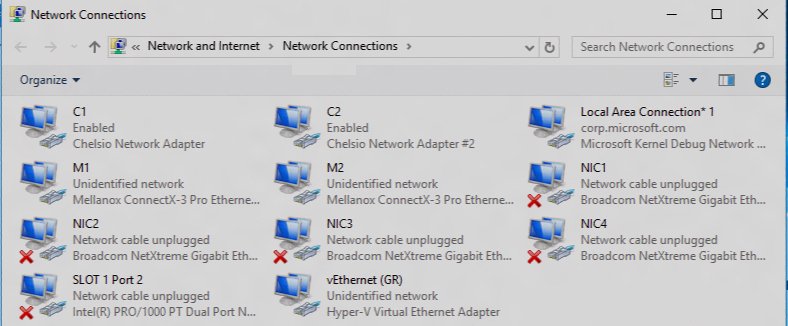
The classic Network Connections folder still ships with Windows 11 and opens a separate Status window for each adapter.
- Press Win + R, type
ncpa.cpland select OK. - Find the Ethernet or Wi-Fi adapter in the list of connections.
- Right-click the adapter and select Status.
- Read the connection details on the General tab.
- Right-click the adapter and select Properties to see the protocols it uses, such as Internet Protocol Version 4 (TCP/IPv4).
- Select Configure, then the Advanced tab, to see the driver's hardware settings.
Check Ethernet connection status with ipconfig
Command Prompt gives every adapter's IP configuration in one scrollable list, which helps when you have several adapters.
ipconfig /allDisplays the full TCP/IP configuration for every adapter: IPv4 and IPv6 addresses, subnet mask, default gateway, and DHCP and DNS details.
You should see: Your Ethernet or Wi-Fi adapter has an IPv4 address from your router's range and a default gateway. An address starting 169.254 means the adapter never got one from DHCP.
Plain ipconfig gives the short version with just addresses and gateway, while the full ipconfig /all output adds the DHCP and DNS details.
PowerShell Ethernet status: speed, duplex and MAC address
PowerShell reads the adapter's own properties, including link speed, which neither Settings page lists.
- Right-click Start and select Terminal.
- Run
Get-NetAdapter -Physicalto list the physical Wi-Fi and Ethernet adapters. - Run
Get-NetAdapter -Name "Ethernet" | Format-List -Property *to see every property of one adapter; replace Ethernet with your adapter's name. - Read MediaConnectState (Connected or Disconnected) and Speed, which is shown in bits per second.
- Read FullDuplex to confirm duplex mode and PermanentAddress for the hardware MAC address.
- Run
Get-NetAdapter -Name * | Format-Table -View Driverto compare driver versions and dates.
A Speed of 1000000000 means a 1 Gbps link; 100000000 means 100 Mbps.
View WiFi status and properties from the command line
Wireless adapters have their own command set, netsh wlan, which reports details the generic tools leave out.
| Command | What it shows |
|---|---|
netsh wlan show interfaces |
Each wireless interface and the state of its current connection |
netsh wlan show drivers |
Properties of the installed wireless driver, including supported radio types |
netsh wlan show networks |
Every Wi-Fi network currently in range |
netsh wlan show wlanreport |
An HTML report of recent wireless sessions; run it in an administrator window |
Band, driver and power settings live on the wireless card itself, where you can manage the Wi-Fi adapter settings.
What Ethernet status values mean in Windows 11
| Status you see | What it means | First thing to check |
|---|---|---|
| Connected | The adapter has a link and an IP configuration | Nothing; test a website |
| Disconnected or media disconnected | No link at the port | Cable seated at both the PC and router ends |
| Not present | Windows cannot see the adapter hardware | Device Manager > Network adapters for the device |
| Down or Not operational | The adapter exists but is not passing traffic | Disabled adapter or a driver problem |
| Action needed | Windows detected a problem with the connection | Select Ethernet in Settings for details |
| 169.254.x.x address | No address from DHCP | Router, cable, then ipconfig /renew |
How to confirm your Ethernet connection is working
- Open Settings > Network & internet and confirm Connected under the connection name.
- Run
ipconfigand confirm the adapter has an IPv4 address and a Default Gateway. - Run
Get-NetAdapter -Physicaland confirm the adapter is listed as up. - Open a website in your browser to confirm traffic flows past the router.
Run the Network troubleshooter for Ethernet on Windows 11
When the status page shows a problem, the automated Network and Internet troubleshooter in the Get Help app runs diagnostics and attempts to fix most common faults on its own.
- Select Start, type Get Help and open the Get Help app.
- Search for the Network and Internet troubleshooter and start it.
- Let the diagnostics finish and apply any fix it offers.
- Open Settings > Network & internet again and check whether the Ethernet status now says Connected.
The troubleshooter is a Windows 11 tool; on older Windows versions, go straight to the manual fixes below.
Fix Ethernet status not operational, not present or slow
Ethernet disconnected: check your home router first
A loose cable, the wrong router port, or a modem and router that need a fresh connection to the internet provider.
- Check that the cable is firmly plugged into the Ethernet port on both the router and the PC.
- Make sure the cable is in one of the router's Ethernet ports, not the Internet port that links the router to the modem.
- Try a different Ethernet cable if you have one; if that works, the first cable is faulty.
- Unplug the power cable from the router, then from the modem, and wait at least 30 seconds.
- Plug the modem back in and wait for its lights to stop blinking, then plug the router back in and wait a few minutes.
- Reconnect on your PC and check the Ethernet status in Settings again.
Ethernet works on another PC but not yours
The fault is on your PC, not the router or the internet provider.
- Connect another Windows PC in your home to the same router with an Ethernet cable or a USB to Ethernet adapter.
- If the other PC connects, focus on your PC's adapter, driver and settings with the fixes below.
- If neither PC connects, the problem is likely the router, the internet provider or the USB to Ethernet adapter.
- Before uninstalling a driver on your PC, download the latest network adapter driver from the PC maker's site on the other PC and copy it to a USB flash drive.
Ethernet status shows not present or not operational
The adapter is disabled, its driver failed to load, or Windows does not detect the hardware.
- Select Start, type device manager and open Device Manager.
- Expand Network adapters and find your Ethernet adapter.
- Right-click it and select Enable device if that option appears.
- If it shows a warning icon, right-click it, select Uninstall device, and restart so Windows reinstalls the driver.
- If the adapter still fails after a 26H2 update, work through the Ethernet driver fixes for 26H2.
Ethernet showing no internet or Action needed
The link is up but the adapter has no valid IP configuration.
- Confirm the cable is firmly plugged into both the PC and the router.
- Open Command Prompt as administrator.
- Run
ipconfig /release, thenipconfig /renew. - Run the Network and Internet troubleshooter in the Get Help app if the address does not return.
Ethernet status speed 100 Mbps only or 10 Mbps
A damaged cable, a slow switch port, or a forced speed setting on the adapter.
- Swap the cable for a known-good one and try a different router or switch port.
- Run
Get-NetAdapter -Name "Ethernet" | Format-List -Property *and recheck Speed. - Press Win + R, type
ncpa.cpl, right-click the adapter and select Properties > Configure > Advanced. - Find the speed and duplex property (its exact name depends on the adapter maker) and set it to the auto-negotiation value.
Every adapter shows problems after many changes
Accumulated adapter or protocol settings are broken.
- Open Settings > Network & internet > Advanced network settings.
- Select Network reset and then Reset now.
- Let the PC restart; adapters reinstall with default settings, so reset network settings only after the steps above fail.
Windows 11 Ethernet status FAQ
How do I check Ethernet status in Windows 11?
Open Settings > Network & internet and look under the Ethernet connection name for Connected. For more detail, press Win + R, type ncpa.cpl, right-click the Ethernet adapter and select Status.
How do I get to Ethernet status?
Press Win + R, type ncpa.cpl and select OK to open Network Connections. Right-click Ethernet and select Status to open the classic Status window with its General tab.
How do I check Ethernet connection status from the command line?
Run ipconfig in Command Prompt to see the adapter's IPv4 address and gateway, or Get-NetAdapter -Physical in PowerShell to see whether each physical adapter is up or disconnected.
How do I see Ethernet status in PowerShell?
Run Get-NetAdapter -Physical for a quick list, or Get-NetAdapter -Name "Ethernet" | Format-List -Property * for every property, including MediaConnectState, Speed, FullDuplex and PermanentAddress.
How do I change Ethernet status speed?
Open ncpa.cpl, right-click the adapter, select Properties > Configure and open the Advanced tab. The speed and duplex property there sets the link speed; auto-negotiation is the right value for almost every home network.
Do I have Ethernet on my PC?
Open Device Manager and expand Network adapters; a wired adapter usually has Ethernet, GbE or a similar term in its name. Running Get-NetAdapter -Physical in PowerShell lists physical wired and wireless adapters too.
How do I view WiFi properties in Windows 11?
Open Settings > Network & internet > Wi-Fi and select the Properties of the network you are connected to. The page shows the IPv4 address, DNS servers, network profile type and IP assignment.
What does Ethernet status not operational mean?
It means Windows sees the adapter but it is not passing traffic, usually because the adapter is disabled, the cable is unplugged, or the driver failed. Check Device Manager > Network adapters and the cable first.

![EA Javelin anti-cheat setup: fix kernel errors [2026]](https://techdows.com/wp-content/uploads/2026/10/EA-Javelin-anti-cheat-setup-fix-kernel-errors-2026-1-570x338.jpg)