To set up OneDrive Personal Vault in Windows 11 or 10, open your OneDrive folder, select Personal Vault, choose Get started and verify your identity with a code sent by text or email.
This guide covers setup on a PC and on OneDrive.com, adding and removing files, locking, the auto-lock timer, file limits and fixes for the problems readers hit most.
Set up OneDrive Personal Vault on Windows 11 and 10
The OneDrive app must already be signed in with a personal Microsoft account. If it is not, set up OneDrive sync first, then come back.
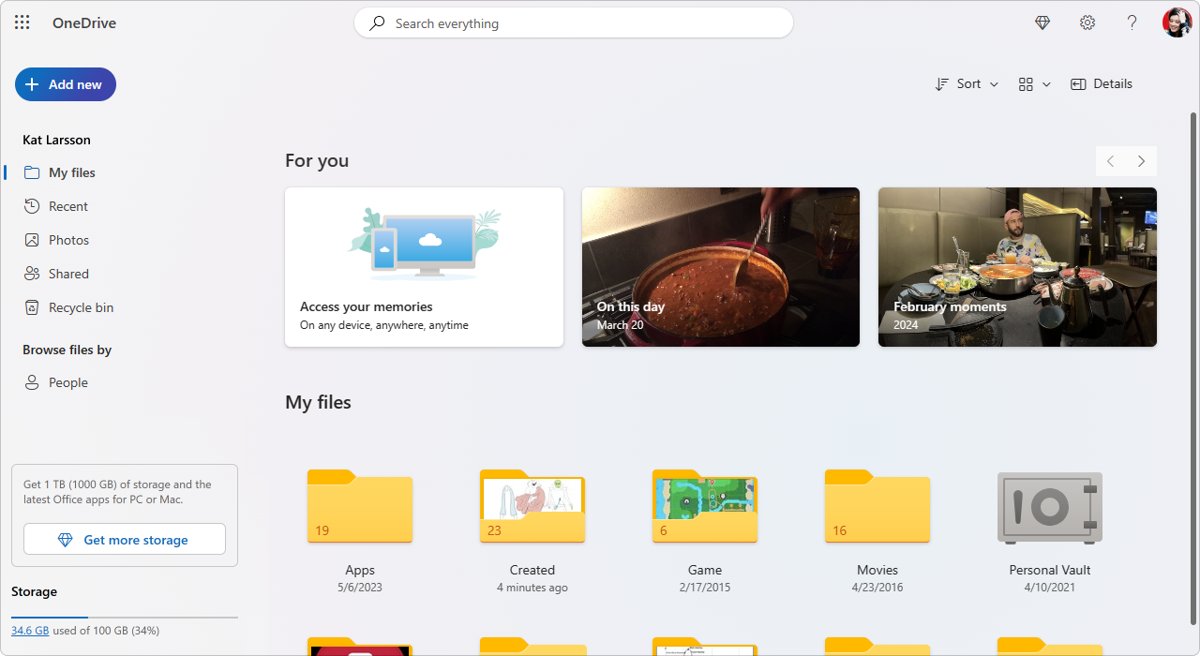
- Open File Explorer and select your OneDrive folder, or select the OneDrive cloud icon on the taskbar.
- Select the Personal Vault shortcut in the file list.
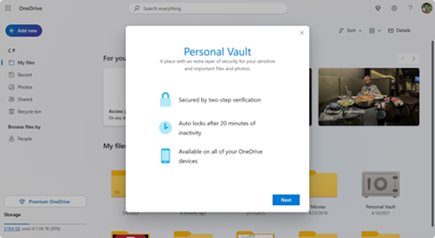
- Select Get started, read the screen, then select Next.
- In the Verify your identity dialog, check your account details and select Verify.
- Choose a verification method, such as a text message or email, and enter the code you receive.
- Wait for the vault to open; it now appears unlocked in your OneDrive folder.
Setup is per device. Repeat these steps on every PC, phone and browser where you want to open the vault.
What is OneDrive Personal Vault?
Personal Vault is a protected area inside your OneDrive for sensitive files such as passport scans, tax records and insurance papers, so it helps safeguard important information that would hurt most if exposed. It opens only after a second identity check and locks itself after a period of inactivity.
| Protection | What it means for your files |
|---|---|
| Identity check on every unlock | A code from text, email or the Microsoft Authenticator app, or Windows Hello on supported devices |
| Automatic lock | Locks after 20 minutes idle on the web and 3 minutes on mobile; PC timing is adjustable |
| BitLocker on the PC | Vault files synced to a Windows 10 PC are stored in a BitLocker-encrypted area of the local drive |
| No unprotected caching | Files are not cached on the device or in the browser once the vault locks |
| Sharing blocked | Items inside the vault cannot be shared until you move them out |
| Hidden from search | Vault items do not show in OneDrive or Windows search results |
OneDrive Personal Vault requirements and file limits
| Requirement | Details |
|---|---|
| Windows version | Windows 11, or Windows 10 version 1903 or newer |
| Account type | A personal Microsoft account on OneDrive Basic, Personal or Family; work and school OneDrive accounts do not have Personal Vault |
| Free OneDrive (no Microsoft 365) | Up to three files in the vault |
| Microsoft 365 Personal or Family | As many files as your storage allows |
| Phones | Android 6 or newer, iOS 11.3 or newer |
| Browsers | Latest Microsoft Edge, Chrome or Firefox at onedrive.com |
| Verification | A phone number or email on your Microsoft account, or the Microsoft Authenticator app |
Steps to set up OneDrive Personal Vault on OneDrive.com
Use the web route when you are on a borrowed PC, or to set up the vault before the desktop app finishes syncing.
- Go to onedrive.com in Edge, Chrome or Firefox and sign in with your Microsoft account.
- Select the Personal Vault folder in your OneDrive files.
- Select Get started if the introduction appears, then Next or Continue.
- Select Verify in the Verify your identity dialog.
- Choose text, email or the Authenticator app and enter the code.
- Lock the vault with Lock before you leave a shared computer.
If the setup message does not appear, or you closed it earlier, select the Personal Vault folder again to bring it back.
How to add files to OneDrive Personal Vault
- Open the Personal Vault folder and verify your identity so it is unlocked.
- In another OneDrive folder, select the files or photos you want to protect.
- Select Move to, then choose Personal Vault as the destination.
- Or drag the files from File Explorer straight into the open Personal Vault window.
- To upload a whole folder from OneDrive.com in Chrome or Edge, open the unlocked vault and choose Upload > Folder, or drag the folder onto the page.
- Check that the moved files now sit inside the vault and no longer in their old folder.
On a phone, the OneDrive app can scan documents, take photos or shoot video straight into Personal Vault, so the images never land in your camera roll. That makes the phone a versatile mobile lockbox for paper records.
How to lock and unlock OneDrive Personal Vault
- To unlock, select the Personal Vault folder in OneDrive.
- Choose a verification method and enter the code you receive.
- Use the Microsoft Authenticator app if you have no signal; it generates codes without an internet connection.
- To lock manually, open the Personal Vault folder and select Lock.
- Lock it every time you finish; treat automatic locking after inactivity as a fallback, not a habit to trust.
Change the OneDrive Personal Vault auto-lock time
On a PC you can lengthen or shorten the idle time before the vault locks. On OneDrive.com the timer is fixed at 20 minutes.
- Select the OneDrive cloud icon on the taskbar; select Show hidden icons first if you cannot see it.
- Select the Help and Settings gear, then Settings.
- Open the Account section.
- Under Personal Vault, pick a new lock wait time from the list.
- On Android or iPhone, open the OneDrive app and go to Me > Settings > Personal Vault, then change Auto-lock or Inactivity lock.
Add two-factor authentication to OneDrive Personal Vault
You can require a second method, such as a backup email or the Authenticator app, on top of your PIN for the vault.
- Sign in at onedrive.com and select Settings.
- Choose Personal Vault.
- Select Enable next to Two-Factor Authentication (2FA).
- Choose a secondary email address or the Microsoft Authenticator app.
- Enter your PIN to confirm the change.
Move files out of Personal Vault to share or edit them
Files must leave the vault before you can share them, and on a phone before you can edit Office documents.
- Unlock Personal Vault and select the file.
- Select Move to and choose an ordinary OneDrive folder.
- Share or edit the file from its new location.
- Move it back into Personal Vault when you are done.
Word, Excel and PowerPoint files can be edited inside the vault on a PC or on OneDrive.com. The mobile app opens them read-only.
Enable or disable Personal Vault for your OneDrive
Personal Vault is switched on from OneDrive.com, and the same page is where its options live. Turning it on requires two-factor authentication.
| Goal | What to do |
|---|---|
| Enable Personal Vault | Sign in at onedrive.com, open Settings > Personal Vault, select Enable, choose a secondary email or the Microsoft Authenticator app, then enter the PIN you receive |
| Stop using Personal Vault | Unlock the vault, select every item and use Move to to place it in an ordinary OneDrive folder, then select Lock |
| No disable option in Settings | Leave the vault empty and locked; an empty vault exposes nothing and asks for nothing until you open it again |
Move files out before any change to the vault, and keep a copy of anything you cannot replace.
How to check OneDrive Personal Vault is protecting your files
- Select Lock in the vault, then open the Personal Vault shortcut again; Windows should ask you to verify your identity.
- Search OneDrive for the name of a vault file; it should not appear in the results.
- Try to share a file from inside the vault; the sharing option should be unavailable.
- Leave the PC idle past your chosen lock wait time and confirm the vault has locked itself.
OneDrive Personal Vault vs two-step verification on your Microsoft account
| Question | Personal Vault | Two-step verification on the whole account |
|---|---|---|
| What it protects | Only the files you put in the vault | Every app and service that uses your Microsoft account sign-in |
| When you see the extra check | Each time you unlock the vault | When you sign in on a new device or app |
| Encryption on a Windows 10 PC | BitLocker area for vault files | No change to local files |
| Automatic lock and blocked sharing | Yes | No |
Using both is sensible: two-step verification guards the account, and the vault adds a short-lived lock around the files that would hurt most if exposed.
OneDrive Personal Vault limitations on Windows
| Limitation | What to expect |
|---|---|
| File names on Windows 10 | Names and hashes are not protected while the vault is locked |
| Recent files lists | Files you open can appear in the Windows Recent list |
| Old Word files | Legacy .doc files cannot be opened from the vault |
| Thumbnails | Image previews are hidden on the PC, but show in a browser and the mobile apps |
| Deleting on a PC | Files deleted from the vault on a Windows 10 PC are permanently deleted locally; earlier uploaded copies stay in the OneDrive.com recycle bin |
| Recycle bin on web and mobile | Deleted vault files appear only while the vault is unlocked |
| OneDrive for work or school | Personal Vault isn't in OneDrive for work or school accounts; it is offered only on personal OneDrive Basic, Personal and Family plans |
Fix OneDrive Personal Vault problems in Windows 11 and 10
Personal Vault is missing from the OneDrive folder
The vault is a shortcut in the file list, not a folder in the navigation pane, and it exists only for personal accounts.
- Open your OneDrive folder in File Explorer and look in the right-hand file list, not the left pane.
- Select the OneDrive taskbar icon and look for the Personal Vault entry there.
- Check that you are signed in with a personal Microsoft account, not a work or school account.
- Confirm the PC runs Windows 11 or Windows 10 version 1903 or newer.
You cannot add more files to Personal Vault
Without Microsoft 365 Personal or Family, the vault holds three files.
- Count the files already in the vault; three is the free limit.
- Move a less sensitive file out, or combine documents into a single file.
- Upgrade to Microsoft 365 Personal or Family to store as many files as your storage allows.
Personal Vault keeps locking
The vault locks after its idle timer runs out.
- Open OneDrive Settings > Account on the PC.
- Choose a longer lock wait time under Personal Vault.
- On the web the 20-minute timer cannot be changed, so keep the tab active or unlock again.
Personal Vault shows the wrong language
Your OneDrive language does not match the Windows display language.
- Change your Microsoft account profile language to match the PC display language.
- Or sign in at onedrive.com, unlock Personal Vault and select Rename from the top bar to resync the language settings.
Files deleted from Personal Vault are not in the recycle bin
Vault items in the recycle bin are visible only while the vault is unlocked.
- Unlock Personal Vault at onedrive.com.
- Open the Recycle bin and look for the file.
- Restore it before the recycle bin empties.
OneDrive Personal Vault FAQ
Should I set up OneDrive Personal Vault?
Yes, if you keep scans of IDs, tax records or financial papers in OneDrive. The vault adds an identity check, automatic locking and blocked sharing to those files. It costs nothing on the free plan, though free accounts are limited to three files.
Is OneDrive Personal Vault free?
Yes. Personal Vault is part of OneDrive Basic, Personal and Family. Free OneDrive accounts can store up to three files in it, while Microsoft 365 Personal and Family subscribers can add as many files as their storage allows.
Where is Personal Vault in Windows 11?
Personal Vault appears as a shortcut in the file list of your OneDrive folder in File Explorer, and in the menu that opens from the OneDrive taskbar icon. It does not appear in the left navigation pane because it is a secured area.
Does Personal Vault work with a work or school account?
No. Personal Vault is available only for personal Microsoft accounts on OneDrive Basic, Personal or Family. Work and school OneDrive accounts use their organization's own protection settings instead.
How long does Personal Vault stay unlocked?
It locks after 20 minutes of inactivity on OneDrive.com and after 3 minutes in the mobile apps. On a Windows PC you can choose the lock wait time in OneDrive Settings, under Account and Personal Vault.
Can I share files from Personal Vault?
No. Sharing is blocked for everything inside the vault. Move the file to an ordinary OneDrive folder with Move to, share it from there, and move it back into Personal Vault afterwards.
Can I unlock Personal Vault without internet?
Yes, if you use the Microsoft Authenticator app. It generates verification codes offline, so you can unlock the vault on a device with OneDrive even when your phone has no signal.
Why can't I see image thumbnails in Personal Vault on my PC?
Thumbnails are hidden on the computer to keep vault images private. Open the vault in a web browser or the OneDrive mobile app if you need to see previews.
Wrapping up: is OneDrive Personal Vault worth using?
Turn Personal Vault on for the handful of documents that would cause real harm if someone opened them, and leave everyday files in normal folders. The vault's automatic lock, BitLocker storage and blocked sharing make it a safe place for identity and financial papers, while the three-file free limit and extra unlock step make it a poor fit for bulk storage. Keep a separate OneDrive backup of anything irreplaceable.