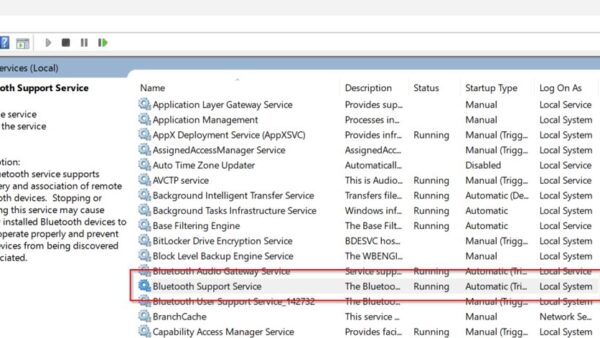
To rebuild the SoftwareDistribution cache, stop the Windows Update, BITS and Cryptographic services, rename the folders under C:\Windows\SoftwareDistribution, start the services again and run Check for updates, which makes Windows download a clean copy of the update data.
This guide gives the exact commands for Windows 11 and Windows 10, the Services app alternative, how to rebuild catroot2, how to confirm the fix worked, and what to do when renaming fails or updates still break.
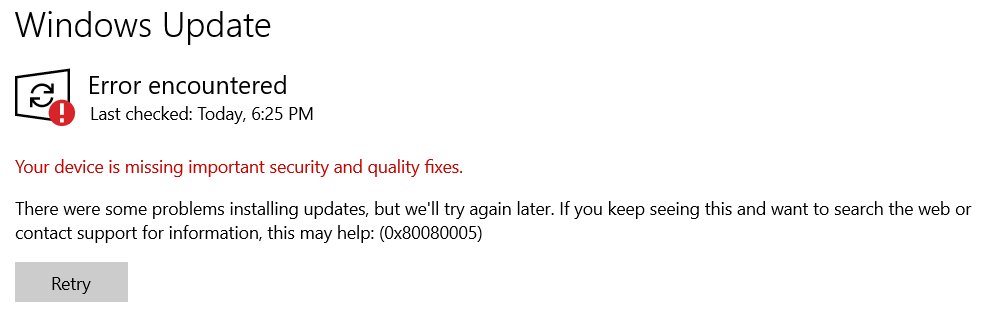
Fix Windows 10/11 update errors by rebuilding the SoftwareDistribution cache: the commands
Open Command Prompt as administrator and run these commands one at a time, pressing Enter after each. They are the commands Microsoft lists for resetting Windows Update components manually.
net stop bitsnet stop wuauservnet stop cryptsvcren %systemroot%\SoftwareDistribution\DataStore DataStore.bakren %systemroot%\SoftwareDistribution\Download Download.bakren %systemroot%\System32\catroot2 catroot2.baknet start bits, thennet start wuauserv, thennet start cryptsvc- Open Settings > Windows Update and select Check for updates.
Prerequisites for rebuilding the SoftwareDistribution cache
| Requirement | Why |
|---|---|
| An administrator account | Stopping services and renaming folders under C:\Windows needs administrator rights |
| A working internet connection | Windows downloads fresh update data after the cache is cleared |
| Run the Windows Update troubleshooter first | Microsoft lists it as the first step; it resets components that need it automatically |
| A backup of your personal files | Microsoft advises a backup before any Windows Update troubleshooting |
| Free disk space | Microsoft lists at least 16 GB free for a 32-bit upgrade and 20 GB for a 64-bit one |
If you have not tried it yet, run the Windows Update troubleshooter before you rebuild the cache. Microsoft treats renaming the DataStore, Download and catroot2 folders as a step for when the simpler fixes have not worked.
Step-by-step: rebuild the SoftwareDistribution cache with Command Prompt or Services
| Your situation | Use this | Why |
|---|---|---|
| You want the full reset Microsoft documents | Command Prompt, steps 1 to 7 below | Stops all three services and rebuilds both SoftwareDistribution and catroot2 |
| You prefer menus over commands | The Services app method below | Microsoft Support's cache-clearing steps use only the Services app and File Explorer |
| You have not run any automatic fix yet | Settings > System > Troubleshoot > Other troubleshooters | The Windows Update troubleshooter may fix the error without touching folders |
Step 1: Open an elevated terminal (Admin)
- Select Start and type cmd.
- Right-click Command Prompt in the results and select Run as administrator.
- Select Yes in the User Account Control prompt.
- Confirm the window title starts with Administrator:. Without it, the next commands fail with an access error.
PowerShell works too. Type sc.exe rather than sc there, because in Windows PowerShell sc is an alias for a different command.
Step 2: Stop the Windows Update-related services
net stop bits
net stop wuauserv
net stop cryptsvc
These stop the Background Intelligent Transfer Service (BITS), the Windows Update service (wuauserv) and the Cryptographic service (cryptsvc). While they run, files inside SoftwareDistribution and catroot2 stay locked.
You should see: Each command reports that the service was stopped successfully, or that it is not started. Run sc.exe query wuauserv to confirm the STATE line shows STOPPED.
Step 3: Rename the SoftwareDistribution folders (recommended approach)
Renaming keeps the old data as a fallback instead of deleting it. If anything goes wrong you can rename the folders back. Microsoft's simpler reset deletes the whole folder with rd /s /q %systemroot%\SoftwareDistribution, but a rename is easier to undo.
ren %systemroot%\SoftwareDistribution\DataStore DataStore.bak
ren %systemroot%\SoftwareDistribution\Download Download.bak
%systemroot% is the Windows folder, usually C:\Windows. DataStore holds the local database of update information, and Download holds the update files Windows has fetched.
You should see: The commands return to the prompt with no message. In File Explorer, C:\Windows\SoftwareDistribution now shows DataStore.bak and Download.bak.
Step 4: Also rebuild the Catroot2 folder
ren %systemroot%\System32\catroot2 catroot2.bakcatroot2 sits in C:\Windows\System32 and is used by the Cryptographic service, which is why cryptsvc must be stopped in step 2. Microsoft includes this rename in its manual reset of Windows Update components.
You should see: No message appears, and C:\Windows\System32 shows a catroot2.bak folder. A fresh catroot2 folder is created when the Cryptographic service starts again.
Step 5: Start the Windows Update services again
net start bits
net start wuauserv
net start cryptsvc
This restarts BITS, Windows Update and the Cryptographic service, which recreate the folders they need.
You should see: Each command reports that the service was started successfully. sc.exe query wuauserv now shows RUNNING.
Step 6: Trigger a new Windows Update check
- On Windows 11, select Start > Settings > Windows Update.
- On Windows 10, select Start > Settings > Update & Security > Windows Update.
- Select Check for updates.
- Let the scan finish. With an empty datastore, Windows runs a full scan, so the first check can take longer than usual.
- Install any updates the page lists, using the button shown next to each one.
Step 7 (optional): Reboot and re-check updates
- Save your work and close open apps.
- Select Start > Power and choose Update and restart if it appears, or Restart.
- After you sign in, open Windows Update again and select Check for updates.
- Repeat until the page reports that you are up to date.
Clear the SoftwareDistribution folder from the Services app
This is the shorter route on Microsoft Support. It clears the SoftwareDistribution folder but leaves catroot2 alone.
- Press Win + R, type services.msc and press Enter.
- Right-click Windows Update and select Stop.
- Open File Explorer and go to C:\Windows\SoftwareDistribution.
- Delete all files and folders inside it, and approve the administrator prompt if it appears.
- Return to Services, right-click Windows Update and select Start.
- Run Check for updates in Settings.
How to check Windows Update works after the rebuild
- Run
sc.exe query wuauservandsc.exe query bitsin an elevated window. Both should show RUNNING after an update check. - Open Windows Update and confirm the earlier error code no longer appears after Check for updates.
- Open Update history (Windows 11: Settings > Windows Update > Update history; Windows 10: View update history) and confirm the update that failed now shows as installed.
- Check that C:\Windows\SoftwareDistribution contains new DataStore and Download folders next to the .bak copies.
What changes after you rebuild SoftwareDistribution?
| Item | Before | After |
|---|---|---|
| Update database (DataStore) | Cached results from earlier scans | Empty, so the next scan is a full scan against the update server |
| Downloaded update files (Download) | Possibly corrupt or partial packages | Empty; Windows downloads the updates it needs again |
| catroot2 | Existing catalog data | Recreated when the Cryptographic service starts |
| Installed updates | Installed | Unchanged; renaming the cache does not uninstall anything |
| Disk space | Old cache in use | The .bak folders still take space until you delete them |
Tip: Use Disk Cleanup afterward to remove the old cache (optional)
Once updates install normally, the .bak folders have no further use. Delete them by hand, then run the built-in cleanup tools for leftover update files.
- Stop the update services again with
net stop wuauservandnet stop bits. - Run
rd /s /q %systemroot%\SoftwareDistribution\DataStore.bakandrd /s /q %systemroot%\SoftwareDistribution\Download.bak. - Start the services with
net start bitsandnet start wuauserv. - Run
cleanmgr /d Cto open Disk Cleanup for drive C and remove temporary files. - On Windows 11, open Settings > System > Storage > Cleanup recommendations, select the items and select Clean up.
Clear Delivery Optimization files separately
Delivery Optimization keeps its own cache of downloaded update files, apart from SoftwareDistribution. Windows clears it automatically after a short time or when it takes up too much disk space, so clear it by hand only when you need the space back.
- Type Disk Cleanup in the search box on the taskbar and select it from the results.
- On the Disk Cleanup tab, select the Delivery Optimization Files check box.
- Select OK, then select Delete Files in the dialog that appears.
The rename commands above touch only DataStore, Download and catroot2, so this cache stays as it was after a rebuild. Clearing it frees space but does not reset Windows Update.
Fix the process cannot access the file error when renaming SoftwareDistribution
If you get "The process cannot access the file" errors
A Windows Update service is still running or restarted on its own, so files in the folder are locked.
- Close the Windows Update page in Settings so it does not start a new scan.
- Run
net stop wuauserv,net stop bitsandnet stop cryptsvcagain. - Run
sc.exe query wuauservand confirm STOPPED before you type therencommand. - Run the
rencommand immediately after the services stop. - If it still fails, restart the PC and repeat steps 1 to 3 of the rebuild before opening any other app.
"Access is denied" when you run net stop or ren
The window is not elevated.
- Close the window.
- Reopen Command Prompt with Run as administrator and run the commands again.
If Windows Update still fails after rebuilding the cache
The same error code returns after the rebuild
Damaged system or component store files, not the update cache, are blocking the install.
- Open Command Prompt as administrator.
- Run
DISM.exe /Online /Cleanup-image /Restorehealthand wait for it to finish. - Run
sfc /scannow. - Restart and select Check for updates again.
- If DISM reports errors, review
%windir%\Logs\CBS\CBS.logfor the failing files.
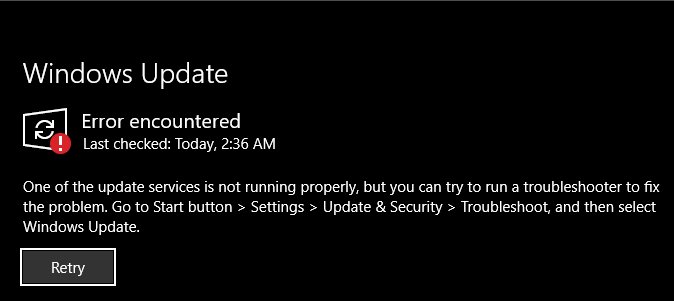
Error 0x80248014 or the update service is not running
Microsoft links this code to a Windows Update database problem or a stopped service.
- Press Win + R, type services.msc and press Enter.
- Right-click Windows Update and select Start.
- Run the Windows Update troubleshooter from Settings > System > Troubleshoot > Other troubleshooters.
Updates download but fail with a low disk space error
There is not enough free space for the update to install.
- Free up space with Settings > System > Storage > Cleanup recommendations.
- Aim for at least 20 GB free on a 64-bit system before a feature update.
- Disconnect external drives and docks that are not needed, then retry.
One specific update keeps failing
The update itself may conflict with a driver or app on this PC.
- Note the KB number from Update history.
- Run
Get-WindowsUpdateLogin PowerShell to create a readable WindowsUpdate.log on the desktop and look for the KB number. - Check the hardware maker's site for newer drivers, then retry the update.
If a newly installed update is the cause of a problem rather than the failed one, you can uninstall a problematic Windows update from Update history.
SoftwareDistribution rebuild tips, notes and cautions
| Note | Detail |
|---|---|
| Rename before you delete | A .bak copy lets you roll back by renaming it again if something unexpected happens |
| Stop all three services first | BITS, wuauserv and cryptsvc lock files in the two folders while they run |
| Skip the security descriptor reset | Microsoft warns its sc.exe sdset step overwrites service permissions; use it only when every other step fails |
| Expect a slow first check | An empty datastore forces a full scan and fresh downloads |
| Use sc.exe in PowerShell | Plain sc runs a different command in Windows PowerShell |
Special considerations for work and school PCs
On a PC your organization manages, the update source and schedule come from your admin, so a cache rebuild may not change what Windows Update offers.
| Situation | What it means on a managed PC |
|---|---|
| An older update is offered than on home PCs | The device may get updates from a WSUS server, which offers only the updates available on that server |
| Updates arrive later than on other devices | The admin may be slowing the rollout on purpose through a deployment group |
| The scan reports no updates to install | WSUS has not approved the update for this client yet |
| Update behavior looks inconsistent | Misconfigured or conflicting Windows Update policies can cause unexpected behavior; policy changes belong with the admin |
| You need to know the update source | In PowerShell as administrator, run $MUSM = New-Object -ComObject "Microsoft.Update.ServiceManager" and then $MUSM.Services; a Name of Windows Server Update Service with OffersWindowsUpdates True means WSUS |
Check with the IT team before running the reset on a managed PC. The rebuild clears local cache files only and leaves these policies unchanged.
A practical Windows Update cleanup order
Work from the least disruptive fix to the most disruptive one, and select Check for updates after each step.
- Run the Windows Update troubleshooter from Settings > System > Troubleshoot > Other troubleshooters.
- Free disk space with Settings > System > Storage > Cleanup recommendations, aiming for 20 GB free on a 64-bit system before a feature update.
- Stop BITS, wuauserv and cryptsvc, rename the DataStore, Download and catroot2 folders, then start the services again.
- If the same error returns, run
DISM.exe /Online /Cleanup-image /Restorehealthfollowed bysfc /scannow. - Once updates install, delete the .bak folders and clear Delivery Optimization Files in Disk Cleanup.
- Use the
sc.exe sdsetsecurity descriptor reset only when every other step has failed.
SoftwareDistribution folder FAQ
What is the SoftwareDistribution folder?
SoftwareDistribution is the folder where Windows Update keeps its working data. The DataStore subfolder holds the local database of update information, and the Download subfolder holds update files Windows has fetched but may not have installed yet.
Where is the SoftwareDistribution folder?
It is in the Windows folder at C:\Windows\SoftwareDistribution. In commands it is written as %systemroot%\SoftwareDistribution, which points to the same place even when Windows is installed on another drive letter.
Where is the SoftwareDistribution folder located on Windows 10?
On Windows 10 it is in the same place as on Windows 11: C:\Windows\SoftwareDistribution. Open File Explorer, go to C:\Windows, and the folder is listed there.
Are SoftwareDistribution files needed?
Windows Update needs the folder to work, but the files inside are a cache. If they are cleared with the update service stopped, Windows downloads fresh update data on the next check, at the cost of a slower first scan.
Is SoftwareDistribution safe to delete?
Its contents are safe to delete once the Windows Update service is stopped; Microsoft Support gives exactly that step to clear the update cache. Do not delete it while the service runs, and do not delete other Windows folders.
How do I clean up the SoftwareDistribution folder?
Stop the Windows Update service in services.msc, delete everything inside C:\Windows\SoftwareDistribution, then start the service again. To keep a fallback, rename the DataStore and Download subfolders with ren instead of deleting them.
Can I delete the SoftwareDistribution Download folder only?
Yes. Stop the Windows Update service first, then delete or rename the Download subfolder. Windows downloads the update files it still needs on the next check, while DataStore keeps its scan history.
Bottom line: when to rebuild the SoftwareDistribution cache
Run the Windows Update troubleshooter first, and rebuild SoftwareDistribution and catroot2 with the rename commands when the same update keeps failing. Renaming the cache gives Windows a clean download without uninstalling anything, and the .bak copies keep the change reversible until updates install normally.