To organize files efficiently on a Windows PC, build a small set of top-level folders, pin the busy ones to Quick access, and point apps and browsers at the folders where files belong.
The eight tips below work in File Explorer on Windows 11 and Windows 10, and each one comes with the exact steps, shortcuts and settings.
Create a structured folder system
A shallow structure beats a deep one. Three or four levels are enough for most people, and every file should have exactly one obvious home.
Two examples of an organized layout: Documents\Work\Clients\Acme\2026 keeps every file for one client and year three levels below Documents, and Documents\Finance\Tax\2026 does the same for tax papers.
- Press Windows logo key + E to open File Explorer, then open Documents.
- Press Ctrl + Shift + N to create a new folder for each area of your life, such as
Work,Finance,PersonalandArchive. - Open each one and add subfolders by project, client or year, again with Ctrl + Shift + N.
- Select a folder and press F2 to rename it if the name is vague.
- Start names that need date order with the year first, such as
2026-10 Tax return, so they sort correctly by name. - Drag loose files from the desktop and Downloads into their new folders.
Folder names cannot contain < > : " / \ | ? *, and Windows does not handle names that end with a space or a period. Names such as CON, PRN, AUX and NUL are reserved and cannot be used.
Documents, Pictures, Music and Videos are known folders that feed the Windows libraries, so files stored under them stay easy to search and back up.
Which file organization tip fixes which problem
Each row pairs a common digital file mess with the tip that fixes it. The full steps for every tip follow, and the sections after the tips add more ideas for search, cleanup, storage and backup.
| Your problem | Tip to use | Result |
|---|---|---|
| Files are scattered with no logic | Create a structured folder system | One home per file |
| You click through many levels every day | Pin important folders to Quick access | One-click access from the left pane |
| New files land on a full C: drive | Change the default save location | Documents, pictures and videos go to another drive |
| Downloads is a dumping ground | Change the default download location | Browser downloads go where you choose |
| Folders all look the same | Emoji and symbols in folder names | Faster visual scanning |
| You open files only to check them | Preview pane | Contents shown without opening the app |
| You repeat the same search | Saved searches in Quick access | Live results in one click |
| Photos and documents share one view | Folder views by content | Thumbnails for images, details for documents |
Files vs. folders: what file organization actually means
File organization means every file has one predictable home and a name you can find later. Start with File Explorer: press Windows logo key + E, because every tip in this guide happens there.
A file organization system works in layers: files sit in folders, folders sit inside the known Windows folders, and Windows Search indexes all of it so you can find a file even when you forget where it went.
| Item | What it is | Role in your system |
|---|---|---|
| File | A single document, photo, video or other item with a name and an extension such as .docx |
The thing you want to find again |
| Folder | A container that holds files and other folders (subfolders) | Gives each group of files one home |
| Known folders | Desktop, Documents, Downloads, Pictures, Music and Videos | Pinned to Quick access by default from Windows 11, version 22H2 |
| Libraries | Virtual views built on the known folders | Combine folders and help search and backup |
| Search index | A catalog of file names, properties and text contents | Lets File Explorer return results in a fraction of a second |
Choosing a folder structure: example file storage setup
Start by looking at what you already have. Open Downloads and the desktop, switch to View > Details and sort by Type, so you can see which kinds of files pile up most.
Keep your folder structure simple: create folders within folders only where a group has more than a handful of files, and stop at three or four levels.
| Folder | What goes in it | Naming pattern |
|---|---|---|
Documents\To File |
A temporary inbox for files you have not sorted yet; empty it weekly | Leave names as they arrive |
Documents\Work\<Client>\<Year> |
Everything for one client or project | 2026-10 Acme proposal.docx |
Documents\Finance\Tax\<Year> |
Important documents such as tax returns, bills and statements | 2026-04 Tax return.pdf |
Documents\Personal |
Health, home, car and other personal records | Subject first, then date |
Documents\Archive\<Year> |
Finished projects you rarely open | Keep the original folder name |
Pictures\<Year> |
Photos and screenshots grouped by event | 2026-08 Holiday |
Give files names you'll understand later: year and month first, then the subject, so they sort by date and still read clearly a year from now. Move files into their new folders with Shift + mouse drag, which moves rather than copies when you drop the file.
Create a system that works for you: if a folder stays empty for months, merge it into its parent; if one folder grows past a few dozen files, split it by year.
Pin important folders to Quick access
Quick access sits at the top of the File Explorer navigation pane. On Windows 11, pinned folders also appear on the Home page.
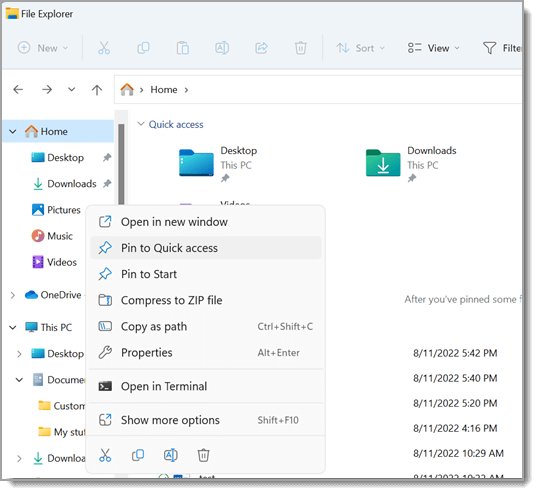
- Open File Explorer with Windows logo key + E.
- Browse to the folder you use most.
- Right-click it, or press and hold on a touchscreen.
- Select Pin to Quick access.
- To remove one, right-click it and select Unpin from Quick access.
If the navigation pane is missing on Windows 11, select View > Show > Navigation pane. You can also make File Explorer open to This PC by selecting See more > Options and changing Open File Explorer to, or turn Quick access off completely.
Change the default save location of files
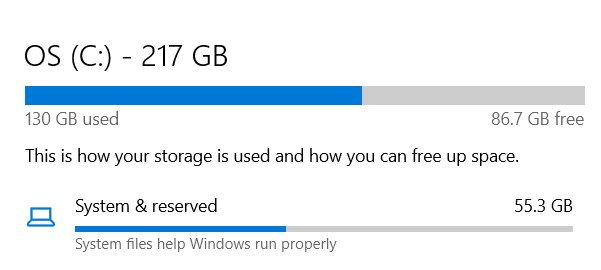
Windows lets you send new documents, music, pictures, videos and apps to a different drive. This is useful when C: is a small SSD and a second drive has room.
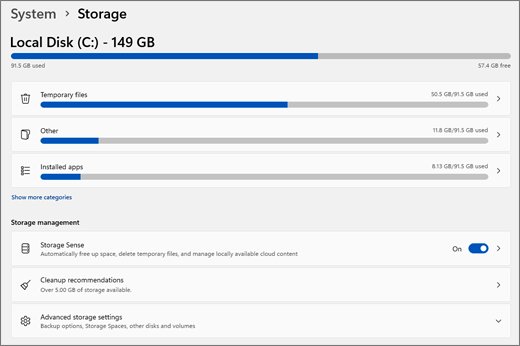
- Open Settings and select System > Storage.
- Select Advanced storage settings, then Where new content is saved.
- Pick a drive from the list for each content type: apps, documents, music, pictures and videos.
- In an Office app, select File > Options > Save.
- Check Save to Computer by default if Office keeps offering OneDrive first.
- Enter your main work folder in Default local file location and select OK.
The Office setting applies only to the app where you change it, so repeat it in Word, Excel and PowerPoint. The Windows setting chooses a drive, not a specific folder.
Change the default download location
Browsers save to the Downloads folder by default. Point them at a staging folder you empty weekly, or ask every time so each file goes straight to its project folder.
| Browser | Where to change it | Ask every time |
|---|---|---|
| Microsoft Edge | Settings and more > Settings > Downloads > Location > Change | Turn on the option to ask where to save each file |
| Google Chrome | More > Settings > Downloads > Change | Turn on Ask where to save each file before downloading |
Asking every time adds one click per download but stops Downloads from filling up with files that belong elsewhere.
Don't use Downloads as permanent storage: treat it as a staging area and move each file to its project folder the same day.
Use icons, emoji, and symbols with folder names
Windows file names accept Unicode characters, so an emoji at the start of a folder name works as a colour tag you can spot at a glance.
- Select the folder in File Explorer and press F2.
- Press Home to move the cursor to the start of the name.
- Press Windows logo key + period (.) to open the emoji panel.
- Pick an emoji or a symbol, such as a star for active work or a lock for finance.
- Press Enter to save the new name.
Keep one meaning per emoji across all folders, or the tag stops helping. Emoji names still sort, so a shared prefix also groups related folders together.
Keep the text after the emoji to a word or two rather than full sentences, so the name stays readable in the navigation pane.
Make use of the preview pane
The preview pane shows a file's contents on the right side of File Explorer without opening its app. The details pane shows size, dates and tags instead.
- Open the folder you want to sort through.
- Press Alt + P to show or hide the preview pane.
- Select a file to preview it, then use the arrow keys to move through the rest.
- Press Alt + Shift + P to switch to the details pane when you need dates or size.
- Move or delete each file as soon as you know where it belongs.
Since the October 2025 security update, files downloaded from the internet do not preview and show "The file you are attempting to preview could harm your computer." If you trust the file, right-click it, select Properties, check Unblock and select OK.
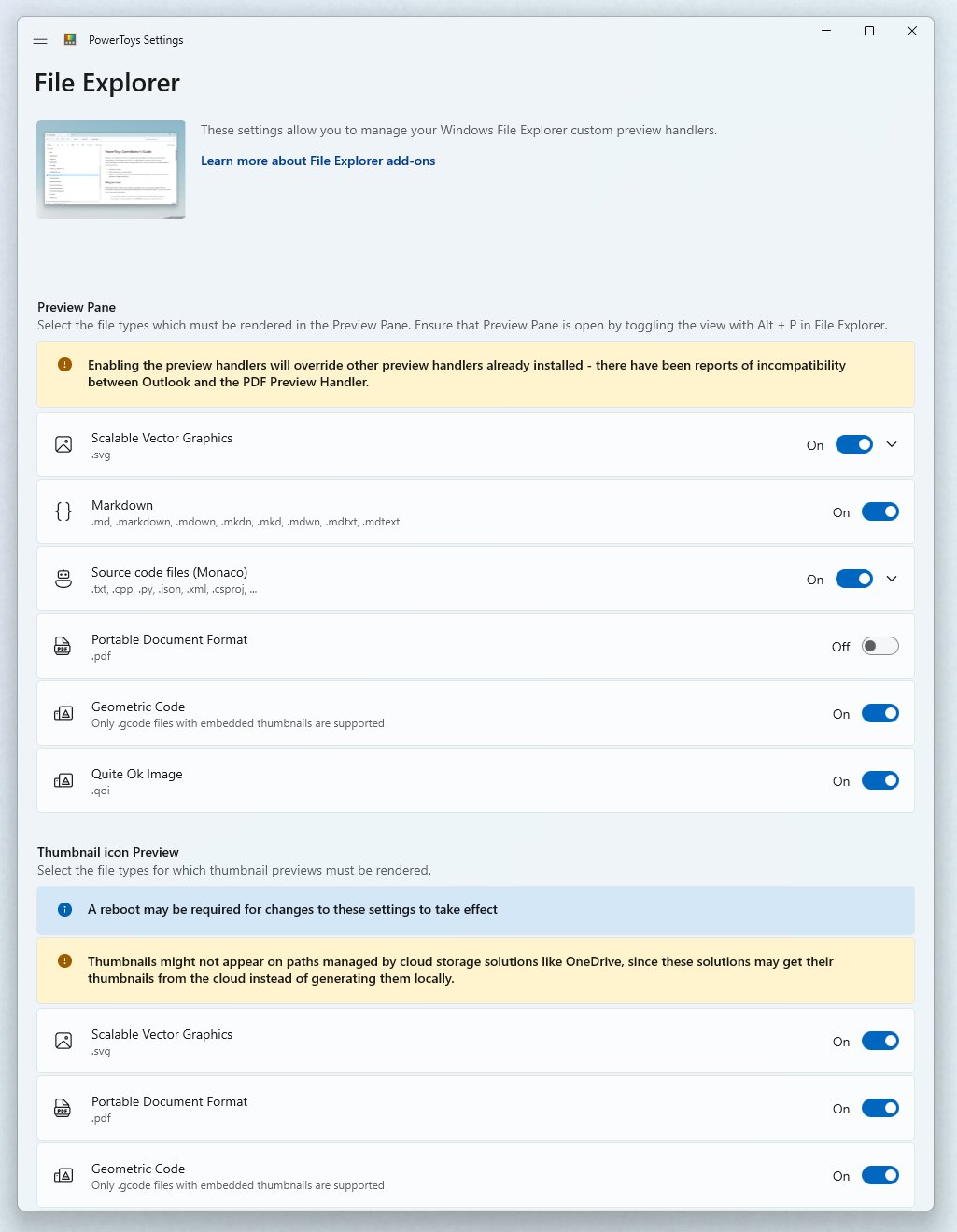
For extra formats such as SVG, PDF, Markdown and source code, the preview handlers in Microsoft PowerToys add support.
Save your searches to Quick access
A saved search is a virtual folder that reruns its query every time you open it, so results stay current. Windows stores each one as a .search-ms file in %userprofile%\Searches.
- Open the folder or drive you want to search, then press Ctrl + E to jump to the search box.
- Type the query, for example
invoiceor*.pdf, and press Enter. - Save the search from File Explorer's search options.
- Press Windows logo key + R, type
%userprofile%\Searchesand press Enter. - Right-click the saved search and select Pin to Quick access.
Saved searches work fastest on indexed locations such as the libraries. On Windows 11, searching from Home also covers cloud files from your Microsoft account.
Customize folder views based on content
File Explorer remembers the view per folder, so set large thumbnails for photo folders and the details list for documents and downloads.
| Folder holds | Best view | How to set it on Windows 11 |
|---|---|---|
| Photos and screenshots | Large icons | View > Large icons |
| Documents and spreadsheets | Details | View > Details, then select a column header to sort |
| Downloads | Details, sorted by date | View > Details, then select the Date modified header |
| Hundreds of small files | List or compact view | View > List, or View > Compact view |
Select the Name column header in Details view to sort a folder alphabetically, and select it again to reverse the order. On Windows 10, the same layouts sit on the View tab of the ribbon.
To group related files, select the Type or Date modified column header so files of the same kind or week sit together. You can also tag your files: in Word, Excel or PowerPoint, select File > Info > Properties > Advanced Properties and add Keywords (also called Tags) on the Summary tab, then search for them with keywords: in File Explorer.
Use advanced search filters and boolean operators in File Explorer
Search can help you find files too, even in a well-organized system. Press Ctrl + E in File Explorer and type a filter from the table; Windows Search understands Advanced Query Syntax (AQS) typed into the search box.
AND, OR and NOT must be typed in uppercase. Without an operator, a word matches any word that starts with those letters, so invo finds invoice.
| Filter | Example | What it finds |
|---|---|---|
| Exact phrase | "project plan" |
Files containing that exact phrase |
| OR | invoice OR receipt |
Files containing either word |
| NOT | budget NOT draft |
Files with budget but without draft |
| File kind | kind:pics or kind:docs |
Only pictures, or only documents |
| File extension | ext:.pdf |
Only PDF files |
| Date modified | modified:last week |
Files changed last week |
| Folder | folder:downloads |
Results limited to that folder |
| Wildcards for partial matches | System.FileName:~"report*2026" |
Names starting with report and ending with 2026; ? stands for one character, * for any number |
Combine filters in one query, such as kind:docs modified:last week, then save the search and pin it to Quick access as described above.
Enable faster file searches with indexing
Search indexing catalogs file names, properties and contents so results appear almost instantly. Classic mode indexes Documents, Pictures, Music and the desktop; Enhanced mode indexes the whole PC but uses more resources.
- Select Start, open Settings, then select Privacy & security > Search.
- Under Find my files, choose Classic or Enhanced.
- With Classic, select Customize search locations, then Modify.
- Check each folder you want indexed, such as a work folder on a second drive, and select OK.
- Leave the PC running; the first index can take up to a couple of hours, then it updates in the background.
The index is usually under 10 percent of the size of the files it covers, but folders full of very small files or source code make it grow much faster.
Master File Explorer navigation and keyboard shortcuts
Speed up file transfers with keyboard and mouse shortcuts: a modifier key held while you drag decides whether File Explorer moves, copies or links the file.
| Press | What it does |
|---|---|
| Shift + mouse drag | Moves the file to the drop location |
| Ctrl + mouse drag | Creates a copy in the drop location |
| Alt + mouse drag | Creates a shortcut to the original file |
| Alt + Up arrow | Moves up one level in the folder path |
| Alt + Left arrow / Alt + Right arrow | Goes to the previous or next folder |
| Ctrl + L or Alt + D | Selects the address bar so you can type a path |
| Ctrl + T / Ctrl + W | Opens a new tab / closes the current tab |
| Ctrl + Shift + 6 | Switches the folder to Details view (Ctrl + Shift + 2 for Large icons) |
| Ctrl + Shift + E | Expands all folders in the navigation pane tree |
| Alt + Enter | Shows properties for the selected item |
Tabs make sorting much faster: open the source folder in one tab and the destination in another, then drag files onto the destination tab.
Where should you store your files? PC, second drive or OneDrive
Use cloud storage for safer and easier data access when you work on more than one device, and a second drive when C: is short on space.
| Your situation | Where to store files | How to set it up |
|---|---|---|
| One PC with enough space on C: | The known folders on C: | Keep using Documents, Pictures and the other known folders |
| Small C: drive and a second internal drive | The second drive | Settings > System > Storage > Advanced storage settings > Where new content is saved |
| Several devices, or you want an off-PC copy | OneDrive folder backup | OneDrive icon > Help & Settings > Settings > Sync and backup > Manage backup, then turn on each folder |
| Files that pile up on the desktop | Documents, with the desktop kept for active items | Back up the Desktop folder to OneDrive so its items roam to your other PCs |
What about the desktop? Treat it as a short-term workspace. Anything you will still need next week belongs in a folder under Documents.
Delete old and unused files and empty the Recycle Bin
Old files make every folder harder to scan. Delete what you no longer need, and let Storage Sense automate file cleanup instead of installing third-party apps.
| Task | How to do it |
|---|---|
| Delete a file to the Recycle Bin | Select it and press Delete or Ctrl + D |
| Delete permanently | Press Shift + Delete; the file skips the Recycle Bin |
| Turn on Storage Sense | Settings > System > Storage, set Storage Sense to On |
| Empty the Recycle Bin automatically | Storage Sense > Delete files in my recycle bin if they have been there for over |
| Clear old downloads automatically | Storage Sense > Delete files in my Downloads folder if they haven't been opened for more than |
| Free space on other drives | Settings > System > Storage > Advanced storage settings > Storage used on other drives |
Storage Sense works on the system drive only and leaves Downloads alone unless you set that option, so move anything you want to keep out of Downloads first.
Use file compression to save space and reduce clutter
A zipped folder bundles many files into one smaller item, which suits finished projects you want to keep but rarely open.
| Task | How to do it in File Explorer |
|---|---|
| Zip a file or folder | Right-click it, select Show more options > Send to > Compressed (zipped) folder |
| Add files to an existing zip | Drag them onto the zipped folder |
| Extract one item | Open the zipped folder and drag the item to a new location |
| Extract everything | Right-click the zipped folder and select Extract All… |
| Open other archive formats | Windows 11, version 24H2 opens ZIP, RAR, 7z and TAR archives |
JPEG photos are already compressed, so zipping them saves almost no space. Avoid zipping encrypted files, because they are unencrypted when you unzip them.
Protect sensitive files and organize important documents carefully
Organizing important documents carefully means keeping them in one known folder, backed up and encrypted, rather than scattered across Downloads and the desktop.
| Risk | What to do |
|---|---|
| A lost or stolen laptop exposes your files | Turn on Device encryption in Settings > Privacy & security; it is available on many Windows Home PCs too |
| A failed drive takes your only copy | Back up Documents, Pictures and Desktop with OneDrive folder backup |
| Accidental permanent deletion | Use Delete instead of Shift + Delete for anything you might need, so it stays in the Recycle Bin |
| Sensitive files leak when shared as a zip | Do not zip encrypted files; they come out unencrypted |
| Other apps read the search index | Only install apps you trust, because installed apps may be able to read indexed data |
Organize files on Windows PC FAQ
How do you organize files on a computer?
Create a few top-level folders in your Documents folder, add subfolders by project or year, and move every loose file into one of them. Then pin the busiest folders to Quick access and change save and download locations so new files land in the right place.
How do you organize files in Windows 11?
Use File Explorer: press Windows logo key + E, create folders with Ctrl + Shift + N, and pin key folders to Quick access so they appear on Home. The View menu sets icons or details per folder, and Alt + P opens the preview pane.
How do you organize files on the desktop?
Treat the desktop as a short-term inbox. Move each file into a structured folder in Documents and keep only active items on the desktop. Point browsers away from the desktop so new downloads do not pile up there.
How do you organize files alphabetically?
Open the folder, choose Details from the View menu, and select the Name column header. Selecting the header again reverses the order. Year-first names such as 2026-10 Budget sort by date when sorted alphabetically.
How do you organize files and folders properly?
Keep the structure shallow, give each file one home, use consistent names with dates written year first, and avoid duplicates. Review Downloads and the desktop weekly, and archive finished projects into an Archive folder.
Why is it important to organize files?
Organized files are faster to find, easier to back up and less likely to be lost or duplicated. A clear structure also makes search more accurate and keeps your main drive from filling with forgotten downloads.
What organizes files on a computer?
The file system stores files in folders, and File Explorer is the Windows app you use to create, move, rename and search them. Libraries add virtual views that combine several folders into one place.
How can you find organized files faster?
Press Ctrl + E in File Explorer to jump to the search box, or save a frequent search and pin it to Quick access. Searches are fastest in indexed locations such as Documents, Pictures and the other libraries.
Key takeaways for organizing files on your Windows PC
Build a shallow folder system under Documents, pin the folders you use daily to Quick access, and point downloads and new content at the right place. Try it today: organize 10 files from Downloads into their new folders. A small first step shows whether your folder names make sense before you move everything, and the save locations, saved searches and Storage Sense keep the system tidy without weekly effort.