Press Windows key + I to open Settings on Windows 11 instantly, or right-click the Start button and select Settings.
This guide covers every way to open the Settings app, including Run, Command Prompt and direct ms-settings: links to single pages, plus how to pin it, find a setting inside it, and fix Settings when it will not open.
How to open Settings in Windows 11
The keyboard shortcut is the fastest route and works the same way on Windows 10. It opens Settings on the Home page, which shows recommended settings and cards for things like Bluetooth and storage.
- Press and hold the Windows key on your keyboard.
- Press I while still holding the Windows key.
- Release both keys. The Settings window opens on Home.
- Select a category in the left navigation panel, such as System or Windows Update, to go further.
If you only want a toggle such as Wi-Fi, Bluetooth or volume, Quick Settings may be faster. Microsoft lists Windows key + A as the shortcut that opens the action center, which is a flyout and not the full Settings app.
Windows 11 Settings shortcuts and other ways to open it
Every route below opens the same Settings app. Pick the one that matches what you have working: keyboard, mouse, or a command line.
| Your situation | Use this | What opens |
|---|---|---|
| Keyboard works normally | Windows key + I | Settings Home |
| Mouse only | Right-click Start and select Settings | Settings Home |
| You prefer the Quick Link menu | Windows key + X, then Settings | Settings Home (same menu as right-clicking Start) |
| You like typing app names | Press Windows key + S, type settings, press Enter |
Settings Home |
| Start menu or taskbar is unresponsive | Windows key + R, type ms-settings:, press Enter |
Settings Home |
| You are already in Command Prompt | start ms-settings: |
Settings Home |
| You need accessibility options | Windows key + U | Settings > Accessibility |
| You want your PC specs or Windows edition | Windows key + Pause | Settings > System > About |
| You know which page you need | Run or Command Prompt with a page URI, for example ms-settings:windowsupdate |
That page directly |
Open Settings from the Start button: right-click or search
Microsoft documents right-clicking Start as one of the two standard ways in. The search route needs only the app name.
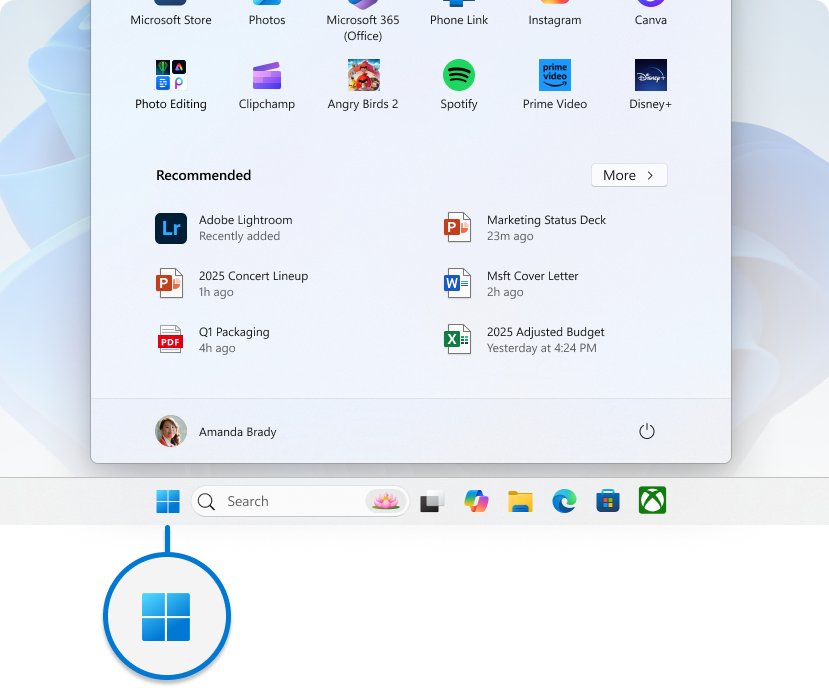
- Right-click the Start button on the taskbar.
- Select Settings in the menu that appears.
- Or select Start (or press Windows key + S) and type
settingsin the search box. - Select Settings in the results, or press Enter when it is highlighted.
Open Settings from Quick Settings
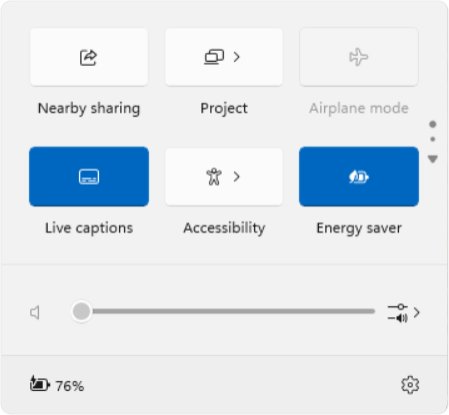
Quick Settings is the flyout behind the network, volume and battery icons on the taskbar. It holds toggles for Wi-Fi, volume and brightness, and it can hand you over to the full Settings app.
- Select the network, volume or battery icons on the taskbar, or press Windows key + A.
- Select the Settings gear icon at the bottom right of the Quick Settings flyout. Settings opens on Home.
- For a related page instead, right-click one of the Quick Settings icons on the taskbar and pick the settings option it offers, such as the network or sound settings.
On Windows 10, Windows key + A opens Action Center instead, the older panel that combined notifications and quick toggles. Its buttons change single settings, so Windows key + I remains the direct way to the full app there.
How to open Settings with Run
Settings registers the ms-settings: URI scheme, so the Run dialog box can open it even when the Start menu does not respond. Type the colon at the end of the URI.
- Press Windows key + R to open the Run dialog box.
- Type
ms-settings:in the Open box. - Press Enter or select OK. Settings opens on Home.
- To open a single page instead, type its URI, for example
ms-settings:displayfor display settings.
Open Settings in Windows 11 using CMD
The start command opens anything with a registered association, including URI schemes such as ms-settings:. This is useful in scripts, remote sessions, or when you are already working at a prompt.
start ms-settings:start hands the ms-settings: URI to Windows, which launches the Settings app. Add a page name after the colon to open that page, for example start ms-settings:windowsupdate.
You should see: The Settings window opens on Home, or on the page you named, and Command Prompt stays available for the next command.
Open Settings from PowerShell
In PowerShell, start is a built-in alias for the Start-Process cmdlet, which opens anything Windows has an associated program for. The same command therefore works in Windows PowerShell, in PowerShell 7, and in a PowerShell or Command Prompt tab of Windows Terminal.
Start-Process ms-settings:Start-Process passes the ms-settings: URI to Windows, which opens the Settings app. The short form start ms-settings: does the same thing. Add a page name after the colon, for example Start-Process ms-settings:bluetooth, to open that page.
You should see: Settings opens on Home or on the named page, and control returns to the PowerShell prompt straight away.
How to open Settings from Task Manager
Task Manager has its own run box, which helps when the taskbar or Start menu has stopped responding but the keyboard still works.
- Press Ctrl + Shift + Esc to open Task Manager, or right-click Start and select Task Manager.
- Select File > Run new task.
- Type
ms-settings:in the box and press Enter. Settings opens on Home. - To open one page, type its URI instead, for example
ms-settings:windowsupdate.
Open Settings from Game Bar
Windows key + G opens Game Bar, the overlay for captures and gaming widgets. Game Bar's own options live in the Windows Settings app under Gaming, together with Game Mode and game streaming.
- Press Windows key + G to open the Game Bar overlay, or press Windows key + I to open Settings directly.
- To reach the Game Bar page in Windows Settings, press Windows key + R, type
ms-settings:gaming-gamebarand press Enter. - Or open Settings, select Gaming in the left panel, then select Game Bar. The same Gaming page also holds Game Mode and game streaming.
Open a specific Settings page directly with ms-settings: links
Every Settings page has its own URI. Use any of these in the Run box or after start in Command Prompt to skip the menus. Microsoft notes that some pages vary by Windows version and hardware, so a touchpad or battery page only exists on devices that have one.
| Settings page | URI to type |
|---|---|
| Settings Home | ms-settings: |
| System > About | ms-settings:about |
| Display | ms-settings:display |
| Sound | ms-settings:sound |
| Bluetooth | ms-settings:bluetooth |
| Network & internet | ms-settings:network-status |
| Personalization | ms-settings:personalization |
| Apps & features (installed apps) | ms-settings:appsfeatures |
| Default apps | ms-settings:defaultapps |
| Startup apps | ms-settings:startupapps |
| Accounts > Other users | ms-settings:otherusers |
| Sign-in options | ms-settings:signinoptions |
| Date & time | ms-settings:dateandtime |
| Storage | ms-settings:storagesense |
| Windows Update | ms-settings:windowsupdate |
| Windows Security | ms-settings:windowsdefender |
| Recovery | ms-settings:recovery |
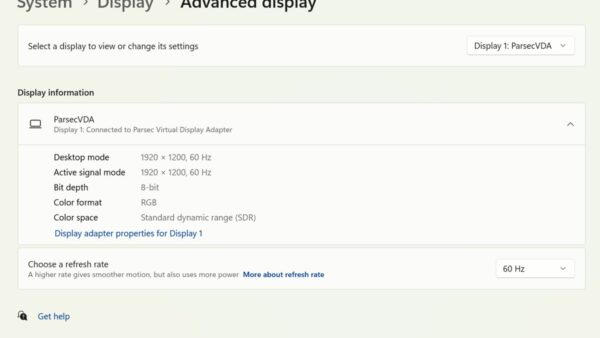
Typing ms-settings:display is one of several ways to open Display settings, and ms-settings:windowsupdate lands directly on the Windows Update options.
How to pin Settings to the taskbar or Start
Pinning gives you a one-click Settings icon. Both pins are made from the same search result.
- Type
settingsin the Search box on the taskbar or on the Start menu. - Right-click Settings in the results.
- Select Pin to taskbar for a taskbar icon, or Pin to Start for a tile on the Start menu.
- If Settings is already open, right-click its icon on the taskbar and select Pin to taskbar instead.
- To remove either pin later, right-click it and select Unpin from taskbar or Unpin from Start.
Drag the pinned icon to a new position on Start if you want it near the top. On the taskbar, Windows key + a number opens the pinned app in that position, so Settings in third place opens with Windows key + 3.
How to open Settings from the desktop with a shortcut
A desktop shortcut opens Settings with a double-click. Point it at ms-settings: for Home, or at a page URI to make a shortcut that lands on one page, such as Windows Update.
- Right-click an empty area of the desktop and select New > Shortcut.
- When the wizard asks for the location of the item, type
ms-settings:, or a page URI such asms-settings:windowsupdate. - Follow the remaining prompt to name the shortcut, for example
SettingsorWindows Update, and finish the wizard. - Double-click the new shortcut on the desktop to open Settings.
- Alternatively, select Start > All, find Settings in the list, and drag it onto the desktop to create a shortcut to the app.
Make one shortcut per page you use often. Each opens its page directly, because the URI after the colon decides where Settings lands.
How to find a specific setting once Settings is open
Settings gives you two ways in: search, or browsing the categories in the left panel. On Copilot+ PCs, search also understands plain descriptions such as "my mouse pointer is too small" and can suggest the fix.
- Press Windows key + I to open Settings.
- Press Ctrl + E to move the cursor to the Find a setting search box, or select the box with the mouse.
- Type a keyword such as
display,notificationsorstorage. - Use the arrow keys to move through the results and press Enter to open one.
- To browse instead, select a category in the left panel, then a card or subpage on the right.
- Press Backspace to go back one page, and Tab or Shift + Tab to move between regions of the window.
Getting around in Settings follows one pattern: each category in the navigation panel opens a page of grouped settings or cards, and some cards link to subpages with more detailed options.
Main Windows 11 Settings categories
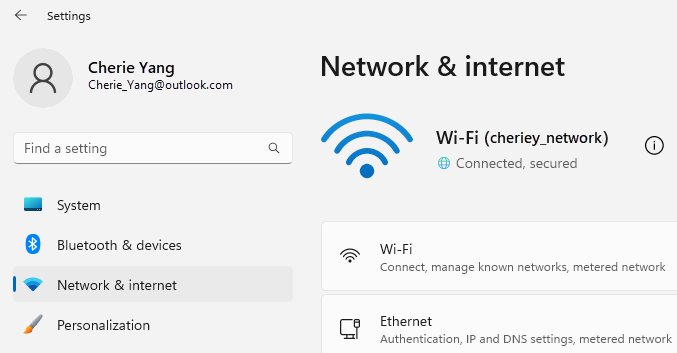
The left navigation panel lists these categories in this order. Each has its own ms-settings: link if you want to jump straight to it.
| Category | What you manage there |
|---|---|
| Home | Account actions and cards for recommended settings, personalization, Bluetooth and storage |
| System | Display, sound, notifications, power and sleep, storage, optional features, About |
| Bluetooth & devices | Bluetooth devices, printers and scanners, mouse, keyboard, pen and touchpad |
| Network & internet | Wi-Fi, Ethernet, VPN, mobile hotspot and data usage |
| Personalization | Themes, background, colors, lock screen, Start menu and taskbar |
| Apps | Installed apps, uninstalling, default apps and startup apps |
| Accounts | Microsoft account, work or school accounts, family, other users and sign-in options |
| Time & language | Date and time, time zone, language, region, typing and speech |
| Gaming | Game Bar, Game Mode and game streaming |
| Accessibility | Vision, hearing and interaction options |
| Privacy & security | Location, camera and microphone permissions, diagnostic data, encryption, Find my device |
| Windows Update | Updates, active hours, update history and the Windows Insider Program |
Sound options that used to live in the old Control Panel dialog are still reachable; the old Sound settings in Windows 11 sit one link away from the Sound page.
Settings vs. Control Panel
Both still exist in Windows 11, but Microsoft is moving Control Panel options into Settings and recommends using Settings wherever possible. Control Panel remains for compatibility and for options that have not moved yet.
| Settings app | Control Panel | |
|---|---|---|
| Role | Main tool for customizing and managing Windows | Older collection of applets kept for compatibility |
| How to open | Windows key + I, or right-click Start > Settings | Search for it in Start, or Windows key + R, type control, press Enter |
| Program file | SystemSettings.exe | Control.exe |
| Where new settings appear | Continually updated to support the latest Windows 10 and Windows 11 features | Many of its settings are being migrated to Settings |
| Search and AI help | Built-in search; natural-language search and an agent on Copilot+ PCs | No AI-assisted search |
| Blocked by policy | Prohibit access to Control Panel and PC settings blocks both | Same policy blocks both |
Settings is the main configuration tool, but Windows has other configuration options for jobs it does not cover. Task Manager (Ctrl + Shift + Esc) handles running apps and startup apps, Computer Management (compmgmt.msc) covers disks, services and users, and Event Viewer (eventvwr.msc) shows system logs. Right-click Start to open most of them.
Why does an ms-settings link open Settings Home instead of the page?
When a shortcut works, Settings opens with the page you asked for already selected in the left panel. If it lands on Home instead, one of these is the reason.
- Check the spelling of the URI. Each page name follows the colon with no spaces, for example
ms-settings:windowsupdate. - Check that the page exists on your device. Touchpad, battery and pen pages only appear when that hardware is present, and some pages were removed in Windows 11.
- On a work or school PC, ask IT whether the Settings Page Visibility policy hides that page. Microsoft states that direct navigation to a blocked page via URI shows the front page of Settings instead.
- Open the category manually from the left panel. If the page is missing there too, it is hidden or not supported on your edition.
What to do if Settings will not open
Start with the fix that matches what you see. If Windows key + I does nothing, try start ms-settings: in Command Prompt first, because that tells you whether the app itself or just the shortcut is failing.
Settings won't open, closes straight away, or shows an error on Windows 11
Damaged or missing system files, often after an interrupted update.
- Install any pending updates and restart the PC.
- Type
command promptin the taskbar search box, right-click Command Prompt and select Run as administrator, then select Yes. - Type
DISM.exe /Online /Cleanup-image /Restorehealthand press Enter. Wait for "The operation completed successfully." - Type
sfc /scannowand press Enter. Wait for "Verification 100% complete." - Type
exit, restart, and press Windows key + I again.
Nothing happens at all on a work or school PC
The Prohibit access to Control Panel and PC settings policy stops SystemSettings.exe and Control.exe from starting.
- Press Windows key + R, type
controland press Enter. - If Control Panel is also blocked, the policy is in force for your account.
- Contact your IT administrator. The policy sits under User Configuration > Control Panel in Group Policy, and only an administrator should change it.
Settings opens but whole categories or pages are missing
The Settings Page Visibility policy hides pages, and hides a category when all of its pages are blocked.
- Sign in with another account on the same PC and open Settings there.
- If the pages appear for that account, the restriction is set per user; if not, it is set for the device.
- Ask the PC's administrator to review Settings Page Visibility under Control Panel in Group Policy.
Settings still won't open in your account after SFC and DISM
A corrupted user profile can break built-in apps for one account only.
- Have an administrator add a new user account and set it as an administrator.
- Sign in with the new account and press Windows key + I.
- If Settings opens, copy your files from
C:\Users\<Old_Username>toC:\Users\<New_Username>in File Explorer. - Restart, sign in as the new user, and switch it to your Microsoft account if you used one before.
On Windows 10 the same checks apply, and a few older Windows 10 Settings app fixes still help on that version.
Windows 11 Settings app FAQ
What is the shortcut to open Settings in Windows 11?
The shortcut is Windows key + I. It opens the Settings app on its Home page from anywhere in Windows 11, and the same keys work on Windows 10. Windows key + U opens Settings straight to Accessibility, and Windows key + Pause opens System > About.
How do I open Settings in Windows 11 using keys only?
Press Windows key + I. To reach a page without the mouse, press Ctrl + E to jump to the search box, type a keyword, use the arrow keys to pick a result and press Enter. Tab, Shift + Tab and Backspace move around the window.
How do I open Settings in Windows 11 using CMD?
Type start ms-settings: in Command Prompt and press Enter. Settings opens on Home. Add a page name after the colon to open that page directly, for example start ms-settings:windowsupdate for Windows Update or start ms-settings:about for System > About.
How do I open Settings in Windows 11 using Run?
Press Windows key + R, type ms-settings: with the colon at the end, and press Enter. The Run box opens Settings even when the Start menu is not responding, and it accepts page URIs such as ms-settings:display.
How do I open Settings in Windows 11 as admin?
Settings always opens under the account you are signed in with, so admin-level changes need an administrator account. An administrator can upgrade a standard account in Settings > Accounts > Other users by opening the account, selecting Change account type, and choosing Administrator.
How do I open Settings in Windows 10?
Press Windows key + I, the same shortcut as Windows 11. You can also right-click Start and choose Settings, search for Settings from Start, or type ms-settings: in the Run box.
How do I open Settings in Windows 10 without Start?
Press Windows key + I, which does not need the Start menu. If the keyboard shortcut fails too, press Windows key + R and type ms-settings:, or open Command Prompt and run start ms-settings:.
Why can't I open Settings on Windows 11?
The usual causes are damaged system files, a policy that blocks Settings on managed PCs, or a corrupted user profile. Run DISM and then sfc /scannow from an elevated Command Prompt first, then test Settings in a new account if it still fails.
Is Quick Settings the same as the Settings app?
No. Quick Settings is a small flyout from the taskbar with toggles such as Wi-Fi, Bluetooth and volume. The Settings app is the full window with every category, opened with Windows key + I.
Can I open a specific Settings page directly?
Yes. Every page has an ms-settings: URI, such as ms-settings:bluetooth or ms-settings:windowsupdate. Type it in the Run box or after start in Command Prompt, and Settings opens on that page instead of Home.