To open the Downloads folder on Windows, press Windows logo key + E to open File Explorer and select Downloads in the left pane; in Chrome or Edge, press Ctrl + J instead.
The Downloads folder is the default place where Windows, macOS and most browsers save the files you download, and on Windows it sits at C:\Users\<your name>\Downloads.
Below are the steps for Windows, Mac, iPhone, iPad and Android, plus Chrome, Edge and Safari, how to change the save location, and fixes when the folder is empty or missing.
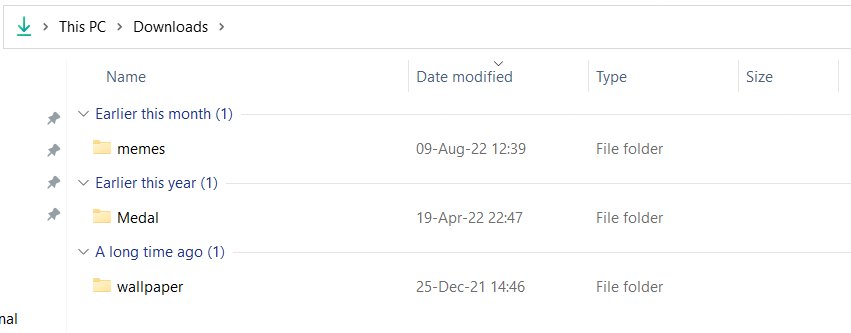
Opening the Downloads folder: quick steps
These steps work on Windows 11 and Windows 10, and they open the same folder every browser uses unless you changed its save location.
- Press Windows logo key + E to open File Explorer.
- Select Downloads in the left navigation pane.
- Select View and pick Details if you want to sort files by Date modified and see the newest download first.
Downloads folder shortcut for each device and browser
Each browser has its own downloads list, and every list can take you to the file on disk. Use the row that matches what you have open now.
| Where you are | Fastest way to open downloads | What opens |
|---|---|---|
| Windows 11 or Windows 10 | Windows logo key + E, then Downloads | The Downloads folder in File Explorer |
| Mac (Finder) | Option-Command-L, or Go > Downloads | The Downloads folder in Finder |
| Google Chrome on Windows or Linux | Ctrl + J | Chrome's Downloads page in a new tab |
| Google Chrome on Mac | Command + Shift + J | Chrome's Downloads page in a new tab |
| Microsoft Edge on Windows | Ctrl + J | Edge's downloads list |
| Microsoft Edge on Mac | Command + Option + L | Edge's downloads list |
| Safari on Mac | The downloads button near the top-right corner | Safari's downloads list |
| iPhone or iPad | Files > Browse > Downloads | The Downloads folder, usually in iCloud Drive |
| Android | Chrome More > Downloads, or the Files app | Chrome's downloads list or your device's files |
Open Downloads on Windows 11 and Windows 10
Starting with Windows 11, version 22H2, Downloads is pinned to Quick access in File Explorer Home and in the navigation pane, and it no longer appears under This PC. On Windows 10, it is listed under This PC as well.
- Select File Explorer on the taskbar, or right-click Start and choose File Explorer.
- On Windows 11, select Downloads in the left pane or in the Quick access area of Home.
- On Windows 10, select Downloads under Quick access or under This PC.
- To find one file, type its name in the search box at the top right while the Downloads folder is open.
- To keep the folder one click away, right-click it and select Pin to Quick access if it is not pinned already.
You can also select Search on the taskbar and type the file name; results come from across the PC and OneDrive. To change how files are listed, open Folder Options from File Explorer.
View recently downloaded files in Windows 11 and Windows 10
File Explorer can put your newest downloads at the top of the list, or filter the folder down to files from today or this week.
- Press Windows logo key + E and select Downloads in the left pane.
- Select View and choose Details so each file shows its date and size.
- Right-click an empty area of the folder, select Sort by and pick Date modified to list the newest files first.
- To narrow the list, type
date:today,date:yesterdayordate:this weekin the search box at the top right of the Downloads folder. - On a Mac, press Shift-Command-F in Finder to open Recents, which shows the files you viewed or changed recently.
Open Downloads on Mac
- Click the Finder icon in the Dock to open a Finder window.
- Press Option-Command-L to jump straight to the Downloads folder.
- Or click Go in the Finder menu bar and choose Downloads.
- Or click Downloads in the Finder sidebar if it is shown there.
Open and manage downloads in Google Chrome
Chrome lists every file it downloaded on its Downloads page, and from there you can open the file or reveal it in its folder.
- Open Chrome on your computer.
- Press Ctrl + J on Windows or Linux, or Command + Shift + J on Mac.
- Or click More (the three dots) at the top right and select Downloads.
- Right after a download, you can also click the Download tray icon next to the address bar.
- Click a file name to open it, or use the option to show it in its folder.
Open downloads in Microsoft Edge
- Open Microsoft Edge.
- Press Ctrl + J on Windows, or Command + Option + L on a Mac.
- To see the folder Edge saves to, select Settings and more > Settings > Downloads.
- Read the folder path shown under Location, for example
C:\Users\[your name]\Downloads.
See downloads in Safari on Mac
Safari removes items from its downloads list after one day by default. The files stay on your Mac; only the list entry goes.
- Open Safari on your Mac.
- Click the downloads button near the top-right corner of the window. It is hidden when the list is empty.
- Click the magnifying glass next to a file name to show the file in Finder.
- To keep items in the list longer, choose Safari > Settings > General and change Remove download list items.
Open Downloads on iPhone and iPad
Files you download in Safari or Mail land in the Downloads folder of the Files app, which is usually stored in iCloud Drive.
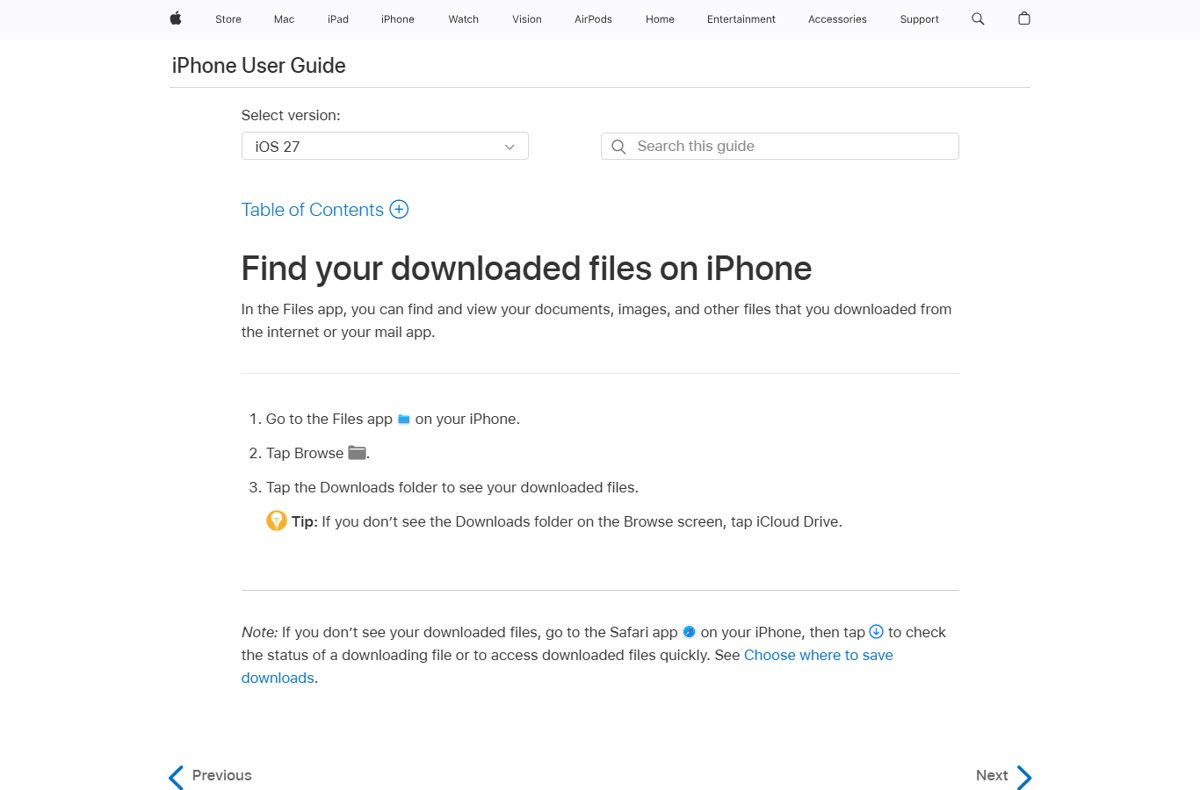
- Open the Files app. If it is not on the Home Screen, swipe down and search for Files.
- Tap Browse.
- Tap the Downloads folder to see your downloaded files.
- If you do not see Downloads on the Browse screen, tap iCloud Drive and open Downloads there.
- In Chrome on iPhone or iPad, tap More > Downloads, then touch and hold a file name to copy, share or delete it.
Find downloads on Android
- Open Chrome on your phone or tablet.
- Tap More at the top right and select Downloads. If the address bar is at the bottom, swipe up on it and select Downloads.
- To see every downloaded file, not just Chrome's, open your device's Files app.
- In Files by Google, check Recents for recently downloaded files, or tap a category under Categories.
Downloads folder location on C drive, Mac and Linux
These are the default folders browsers save to when you have not changed the download location.
| System | Default Downloads folder path |
|---|---|
| Windows 11 and Windows 10 | C:\Users\<your name>\Downloads |
| macOS | /Users/<your name>/Downloads |
| Linux | /home/<your name>/Downloads |
| iPhone and iPad | Files app > iCloud Drive > Downloads |
Change where downloads are saved in Chrome, Edge and Safari
If files keep landing somewhere you do not expect, the browser's own setting decides it. Change it there.
| Browser | Setting path | Option to pick a folder each time |
|---|---|---|
| Google Chrome | More > Settings > Downloads > Change | Turn on Ask where to save each file before downloading |
| Microsoft Edge | Settings and more > Settings > Downloads > Location > Change | Turn on the option to ask where to save each file |
| Safari on Mac | Safari > Settings > General > File download location | Choose a folder from the pop-up menu |
How to clean up and organize the Downloads folder in Windows
Downloads is one of the folders that usually holds the largest files on a PC, so it fills up fast. Work through these steps in order and stop once the folder is manageable.
- Sort the files by size. Open Downloads, select View > Details, then right-click an empty area and select Sort by > Size. The largest files move to the top; delete the installers and archives you no longer need.
- Sort the files by type. Right-click an empty area again and select Sort by > Type to group installers, archives, images and documents, then purge whole groups you do not need.
- Delete subfolders you don't need. Extracted archives often leave whole folders behind. Right-click a folder you no longer use and select Delete.
- Reorganize with subfolders for each file type. Create folders such as Installers, Documents and Images, then select files and use Cut and Paste to move them in.
- Empty the Recycle Bin. Deleted files still take up space until the Recycle Bin is emptied.
- Turn on your browser's ask-where-to-save option. In Chrome, go to Settings > Downloads and turn on Ask where to save each file before downloading; Edge has the same option under Settings > Downloads.
- Optional: create a secondary downloads folder on another drive. Make a folder on a drive with more free space, then point the browser at it with Settings > Downloads > Change in Chrome or Location > Change in Edge.
- Let Windows keep it tidy. Under Settings > System > Storage > Storage Sense, you can set Windows to delete Downloads files you have not opened for a set period, or use Cleanup recommendations to review Large or unused files.
Leave the Storage Sense Downloads option at Never if you keep installers or documents there on purpose, because it deletes them without asking.
For more advanced download management, combine the secondary folder with the ask-where-to-save option, so large files go straight to the drive with space and everything else stays in Downloads.
Security tips for downloaded files
Windows checks downloads as they arrive, but a quick manual check is worth it for any installer or archive from a site you do not know.
- Keep real-time protection on. In the Windows Security app, select Virus & threat protection > Manage settings and confirm Real-time protection is on. While it is off, files you open or download are not scanned.
- Scan a single file before opening it. In File Explorer, right-click the file in Downloads and select Scan with Microsoft Defender. On Windows 11, select Show more options first if the entry is not listed.
- Run a quick scan if something looks wrong. In Windows Security, select Virus & threat protection > Quick scan.
- Keep SmartScreen on in Edge. Go to Settings and more > Settings > Privacy, search, and services > Security and leave Microsoft Defender SmartScreen turned on. It blocks downloads from reported malicious sites and warns when a file is not a commonly downloaded one.
- Treat a blocked-download warning seriously. Delete the file unless you are sure where it came from, and download the program again from the developer's official site.
Check which folder a download went to
- Open the browser's downloads list with Ctrl + J in Chrome or Edge.
- Find the file in the list and use its show-in-folder option.
- Look at the address bar of the File Explorer or Finder window that opens. That path is where the browser saves files.
- Compare it with the path under Settings > Downloads in Chrome or Edge. If they match, the next download will land there too.
How to find downloads not in the Downloads folder
A file that is not in Downloads was usually saved somewhere else, renamed, or never finished. These are the common reasons you cannot find downloads, and where to look for each one.
| Common reason | Where to look |
|---|---|
| The browser asked for a save location, or saves to a custom folder | Open the downloads list with Ctrl + J in Chrome or Edge and use the show-in-folder option on the file |
| The browser's download location was changed | Read the path under Settings > Downloads in Chrome or Edge, or Safari > Settings > General > File download location on a Mac |
| You don't remember the file name or folder | Select Search on the taskbar, or open This PC in File Explorer and search there to cover every drive |
| The file was downloaded recently but you can't spot it | Search the Downloads folder for date:today or date:this week |
| Safari's list no longer shows the file | Safari removes list items after one day by default; the file itself stays in the save folder in Finder |
| The file was moved or deleted after downloading | Check the Recycle Bin, and check whether Storage Sense is set to delete old Downloads files |
| The download was on a phone | On Android, open the Files app and check Recents; on iPhone or iPad, open Files > Browse > iCloud Drive > Downloads |
Downloads folder missing, empty or not opening: fixes
Downloads disappeared from the File Explorer left pane
The folder was unpinned from Quick access, or the navigation pane is hidden.
- Open File Explorer and select Home.
- Select the Up arrow to the left of the address bar to show the six known folders.
- Right-click Downloads and select Pin to Quick access.
- If the whole left pane is gone, select View > Show > Navigation pane.
Why is my Downloads folder empty?
Storage Sense can be set to delete Downloads files you have not opened for a while, or the browser saves to another folder.
- Go to Start > Settings > System > Storage > Storage Sense.
- Check Delete files in my Downloads folder if they haven't been opened for more than: and set it to Never if you want to keep them.
- Open the browser's downloads list and use show-in-folder to see where recent files actually went.
- Check the Recycle Bin for files deleted by hand.
Downloads folder won't open in the browser
The browser's downloads list is separate from the folder, and it can fail with the browser.
- Open the folder directly with Windows logo key + E and select Downloads.
- If Chrome itself will not start, disable all Chrome extensions and launch it again.
- Search for the file name from Search on the taskbar if the folder still will not open.
Where is the Downloads folder on iPhone or iPad?
Downloads is stored in iCloud Drive, so it may not show on the Browse screen.
- Open Files and tap Browse.
- Tap iCloud Drive, then Downloads.
- If the file is still missing, open Safari and tap the downloads button to check whether it finished downloading.
Downloads folder FAQ
Where is the Downloads folder on this computer?
On a Windows PC, the Downloads folder is in File Explorer's left pane and at C:\Users\<your name>\Downloads. Press Windows logo key + E and select Downloads to open it.
Where is the Downloads folder in Windows 11?
In Windows 11, Downloads is pinned to Quick access in File Explorer Home and the left navigation pane. Since version 22H2 it no longer appears under This PC, so look in the left pane instead.
Where is the Downloads folder in the C drive?
The Downloads folder is at C:\Users\<your name>\Downloads, where the name is your Windows user folder. Every account on the PC has its own Downloads folder under its own user folder.
Where is the Downloads folder on a Mac?
On a Mac, the Downloads folder is at /Users/<your name>/Downloads. In Finder, press Option-Command-L or choose Go > Downloads to open it.
Where is the Downloads folder on iPhone?
On iPhone, open the Files app, tap Browse and tap Downloads. If Downloads is not listed, tap iCloud Drive first, because downloaded files are usually saved there.
Where is the Downloads folder on iPad?
On iPad, downloads go to the Downloads folder in the Files app. Tap Browse, then Downloads, or open iCloud Drive and then Downloads if it is not on the Browse screen.
Why is my Downloads folder empty?
A Downloads folder is usually empty because Storage Sense was set to delete unopened downloads, or because the browser saves to another folder. Check Settings > System > Storage > Storage Sense and the browser's download location.
Why did my Downloads folder disappear from File Explorer?
Downloads usually vanishes from File Explorer because it was unpinned from Quick access. Select Home, select the Up arrow, right-click Downloads and choose Pin to Quick access to bring it back.
Why can't I open my Downloads folder from the browser?
The browser's downloads list is separate from the folder itself. Open the folder directly in File Explorer with Windows logo key + E, or in Finder with Option-Command-L, and the files are still there.
Is the Downloads folder backed up to OneDrive?
No. OneDrive folder backup covers Desktop, Documents, Music, Pictures and Videos. Downloads is not in that list, so copy important downloads to a backed-up folder yourself.
How do I open downloads with a keyboard shortcut?
Press Ctrl + J in Chrome or Edge on Windows to open the downloads list. On a Mac, use Command + Shift + J in Chrome, Command + Option + L in Edge, or Option-Command-L in Finder.
Bottom line: fastest way to open your Downloads folder
Use Windows logo key + E then Downloads on Windows, Option-Command-L on a Mac, and Ctrl + J inside Chrome or Edge. The folder shortcut shows every downloaded file, while the browser list only shows that browser's downloads and can lose entries after you clear it.