Press Windows + A to open quick settings, then select the Airplane mode tile to turn it on or off in Windows 11 and Windows 10.
Below are the taskbar, Settings, keyboard and Run box routes, what the mode switches off, and fixes when Wi-Fi or Bluetooth stays off afterwards.
Turn Airplane mode on or off from the taskbar
The quick settings tile is the fastest switch, and it works the same way in both directions.
- Select the Network, Volume or Battery icon at the right end of the taskbar, or press Windows + A.
- Select the Airplane mode tile. A highlighted tile means Airplane mode is on.
- Select the tile again to turn Airplane mode off.
- Check the taskbar: an airplane icon replaces the network icon while the mode is on.
In Windows 10 the same tile sits in action center, which also opens with Windows + A. The Windows 10 differences are listed further down.
Which Airplane mode switch should you use in Windows 11/10?
| Your situation | Use this | Why |
|---|---|---|
| You just want it on or off now | Quick settings tile (Windows + A) | Two clicks from any screen |
| The tile is missing from quick settings | Settings > Network & internet > Airplane mode | The Settings page is always present |
| Your laptop has an airplane key or wireless switch | The hardware key or slider | Windows reads the switch state directly |
| You want a shortcut or script to open the page | ms-settings:network-airplanemode | Opens the Airplane mode page in one step |
| You need Bluetooth or Wi-Fi while flying | Airplane mode, then turn that one radio back on | Windows lets single radios run inside Airplane mode |
Turn Airplane mode on or off in Settings
Use the Settings page when quick settings will not open or the tile has been removed.
- Press Windows + I to open Settings.
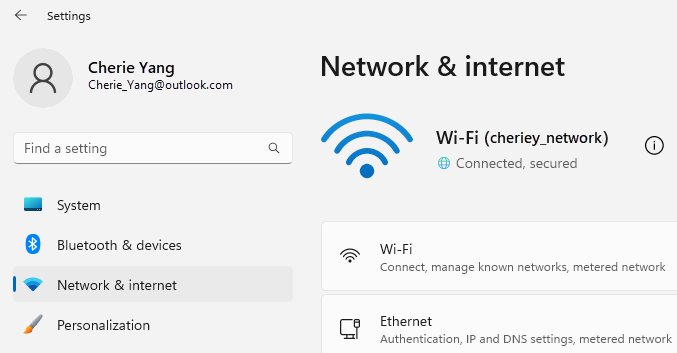
- Select Network & internet in Windows 11, or Network & Internet in Windows 10.
- Select Airplane mode.
- Switch the Airplane mode toggle to On or Off.
- Close Settings. The change applies immediately, with no restart.
Airplane mode key or switch on a laptop keyboard
Many laptops carry a dedicated airplane button, an airplane icon on a function key, or a physical wireless slider. Microsoft gives Fn + F5 as an example combination, but the key differs between manufacturers.
- Look along the top row of keys for an airplane or wireless-tower icon.
- Press that key together with Fn if the icon is printed in the same colour as the Fn label.
- On laptops with a side slider, move the switch to the opposite position.
- Watch for the on-screen Airplane mode indicator or the airplane icon on the taskbar.
- If nothing happens, use quick settings instead and check your PC maker's manual for the correct key.
Windows supports these hardware controls only on battery-powered PCs, so a desktop keyboard key will not toggle Airplane mode.
Can you toggle Airplane mode from Command Prompt or PowerShell?
Microsoft documents no Command Prompt or PowerShell command that flips Airplane mode directly. What Windows does provide is a Settings address that jumps straight to the Airplane mode page, which works from Run, Command Prompt or a desktop shortcut.
start ms-settings:network-airplanemodeRun this in Command Prompt, or type ms-settings:network-airplanemode into the Run box (Windows + R) and press Enter. It opens Settings on the Airplane mode page, where you select the toggle.
You should see: Settings opens on the Airplane mode page with the On/Off toggle visible.
To make a desktop shortcut, right-click the desktop, choose New > Shortcut, and paste ms-settings:network-airplanemode as the location.
Windows 10 note: Airplane mode in action center vs Windows 11 quick settings
| Task | Windows 11 | Windows 10 |
|---|---|---|
| Fast toggle | Quick settings: Network, Volume or Battery icon > Airplane mode | Action center icon at the right end of the taskbar > Airplane mode, or Network icon > Airplane mode |
| Keyboard shortcut | Windows + A opens quick settings | Windows + A opens action center |
| Settings path | Settings > Network & internet > Airplane mode | Settings > Network & Internet > Airplane mode |
| Tile missing | Use the Settings path or the ms-settings link | Select Expand in action center, or add it in Settings > System > Notifications & actions > Edit your quick actions |
| Direct link | ms-settings:network-airplanemode | ms-settings:network-airplanemode |
The Windows 10 quick actions list sits next to the notification settings, so you can restore the tile and tidy alerts on the same page.
How to check Airplane mode is off in Windows 11/10
- Look at the taskbar. The Wi-Fi or Ethernet icon should be back where the airplane icon was.
- Open quick settings with Windows + A and confirm the Airplane mode tile is not highlighted.
- Confirm the Wi-Fi tile is on and your network name shows Connected below it.
- Open a website in your browser to prove the connection carries traffic.
What Airplane mode turns off
Microsoft describes Airplane mode as a quick way to turn off all wireless communications on the PC.
| Connection | During Airplane mode | Notes |
|---|---|---|
| Wi-Fi | Off | Can be switched back on manually while the mode stays on |
| Bluetooth | Off | Wireless mice, keyboards and earbuds disconnect until you re-enable it |
| Cellular (mobile broadband) | Off | Only on PCs with a SIM or eSIM modem |
| NFC | Off | Only on PCs with an NFC radio |
| Wired Ethernet | Not listed | A cable connection is not a wireless radio, so it is not on Microsoft's list |
Microsoft's battery tips also recommend Airplane mode when you do not need the Internet, Bluetooth or other wireless links, because idle radios still draw power.
Why Wi-Fi or Bluetooth may come back on
Airplane mode remembers how you left each radio the last time it was on. If you turned Wi-Fi or Bluetooth back on during a flight, Windows switches it on again the next time you enable Airplane mode.
The memory also works in reverse: a radio you switch off inside Airplane mode stays off after you exit it.
- Turn Airplane mode on from quick settings.
- Turn off the Wi-Fi tile if Wi-Fi came back on.
- Turn off the Bluetooth tile if Bluetooth came back on.
- Turn Airplane mode off, then switch Wi-Fi and Bluetooth back on for normal use.
- Turn Airplane mode on again later and confirm both radios now stay off.
If Wi-Fi does not reconnect after Airplane mode is turned off
Wi-Fi stays off after you leave Airplane mode
Wi-Fi was switched off while Airplane mode was on, and Windows kept that state.
- Press Windows + A to open quick settings.
- Select the Wi-Fi tile to turn it on.
- Select the arrow next to the tile and choose your network.
- Select Connect and enter the password if asked.
Still no Internet after turning off Airplane mode
The saved network profile, the router or the Wi-Fi adapter settings are at fault.
- Open Settings > Network & internet > Wi-Fi > Manage known networks.
- Select your network, choose Forget, then reconnect with the password.
- Unplug the modem and router, wait at least 30 seconds, and plug them back in.
- Run the Network and Internet troubleshooter in the Get Help app.
- As a last resort in Windows 11, open Advanced network settings > Network reset > Reset now > Yes. In Windows 10 the path is Status > Network reset.
What to do if Bluetooth is missing after Airplane mode
Bluetooth tile or toggle is missing
Airplane mode is still on, the adapter driver failed to load, or the PC has no Bluetooth adapter.
- Press Windows + A and confirm Airplane mode is off.
- Hold Shift, select Start > Power > Shut down, wait one minute and turn the PC back on.
- Right-click Start, open Device Manager and expand Bluetooth.
- Right-click the adapter and choose Update driver > Search automatically for drivers.
- Run the Bluetooth troubleshooter in the Get Help app if the adapter still does not appear.
Once the adapter is back, you can turn Bluetooth on or off independently of Airplane mode.
Windows Airplane mode FAQ
How do I quickly turn off Airplane mode in Windows?
Press Windows + A and select the highlighted Airplane mode tile. The tile turns grey, the airplane icon disappears from the taskbar, and Wi-Fi reconnects if it was on before. The same shortcut works in Windows 11 quick settings and Windows 10 action center.
What is Airplane mode on a Windows PC?
Airplane mode is a single switch that turns off every wireless radio on the PC at once. That covers Wi-Fi, Bluetooth, mobile broadband and NFC. It is useful on flights, in places that restrict wireless devices, and when you want to save battery.
Does Airplane mode disable Ethernet?
Airplane mode targets wireless communications, and Microsoft lists Wi-Fi, cellular, Bluetooth and NFC as the radios it turns off. A wired Ethernet connection is not a radio and is not on that list.
Why does Wi-Fi turn back on with Airplane mode?
Airplane mode remembers the last state of each radio. If you switched Wi-Fi on during a previous session, Windows restores it the next time. Turn Wi-Fi off while Airplane mode is on and it will stay off in future sessions.
Why is there still no Internet after I turn off Airplane mode?
Wi-Fi itself may still be off, because Windows kept it off from the last session. Turn on the Wi-Fi tile in quick settings and pick your network. If it connects without Internet, forget and rejoin the network, restart the router, then run the network troubleshooter.
Is there a Command Prompt command to turn Airplane mode on or off?
Microsoft documents no direct command for it. Running start ms-settings:network-airplanemode in Command Prompt opens the Airplane mode page in Settings, where you select the toggle. The same address works in the Run box and as a desktop shortcut.
What is the benefit of Airplane mode on a laptop?
It cuts power to radios you are not using, which Microsoft lists as a battery saving tip. It also silences wireless connections in one step on flights, and you can still bring back Wi-Fi or Bluetooth individually when the airline allows it.
The bottom line on Airplane mode in Windows 11/10
Use Windows + A and the Airplane mode tile for everyday switching, and keep the Settings page or the ms-settings link for when the tile is missing. Every route changes the same setting, so the fastest one wins. When something stays off afterwards, the cause is usually the remembered Wi-Fi or Bluetooth state rather than Airplane mode itself.




![Allow apps to access your microphone Windows 11 [tutorial]](https://techdows.com/wp-content/uploads/2026/10/Windows-10-Privacy-Microphone-page-with-the-apps-access-switch-on.jpg)