To deploy Microsoft 365 Apps with Intune, open the Microsoft Intune admin center, go to Apps > All Apps > Create, pick Windows 10 and later under Microsoft 365 Apps, configure the suite and assign it to a device or user group.
This guide covers the full Windows rollout in nine steps, the separate macOS workflow, licensing and update-channel choices, verification, and a symptom-by-symptom troubleshooting sequence.
The fastest way to deploy Microsoft 365 Apps with Intune
These steps push the default suite to a pilot group with the built-in app type. Every choice in them is explained in the numbered steps further down.
- Sign in to the Microsoft Intune admin center and select Apps > All Apps > Create.
- Under Microsoft 365 Apps, select Windows 10 and later, then choose Select.
- On App suite information, keep or edit the Suite Name and select Next.
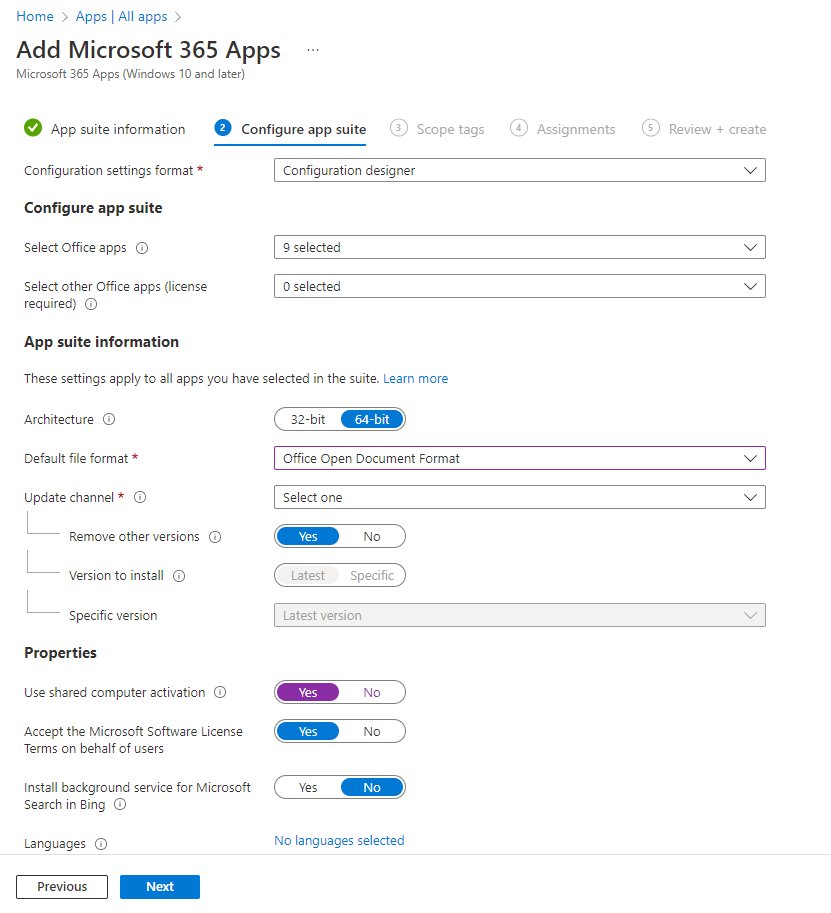
- On Configure app suite, keep Configuration designer, choose the apps in Select Office apps, set Architecture to 64-bit and pick an Update Channel.
- Set Remove other versions to Yes so older MSI Office installs are removed first.
- Select Next past Scope tags, then add a pilot group under Required on the Assignments page.
- Select Review + create, then Create.
Required assignments install silently, while Available for enrolled devices puts the suite in the Company Portal for users to install themselves.
Deploy Microsoft 365 Apps as a Win32 app or the native app type?
Intune offers a built-in Microsoft 365 Apps app type, and you can also wrap the Office Deployment Tool as a Win32 app. The table shows when each one fits.
| Your situation | Use this | Why |
|---|---|---|
| Standard Windows rollout to enrolled PCs | Native Microsoft 365 Apps app type with the configuration designer | Intune builds the configuration, reports status and handles MSI removal for you |
| Microsoft 365 Apps for business edition | Native app type with Enter XML data | Microsoft supports the business edition only when the suite is configured with XML |
| Settings the designer does not expose, such as device-based licensing or kept MSI products | Native app type with Enter XML data | XML accepts every Office Deployment Tool option |
| Windows Autopilot with Office tracked on the enrollment status page | Win32 app | Microsoft recommends it because the native app type is not managed by the Intune Management Extension and can collide with Win32 installs during ESP |
| Mac devices | Native macOS app type under Microsoft 365 Apps | It is a separate workflow with its own update engine |
Before you create the Microsoft 365 Apps app in Intune
Settle these points first, because several of them cannot be changed later without a redeployment.
| Requirement | Detail |
|---|---|
| Licenses | Each user needs a Microsoft 365 Apps license, or each device needs a device-based license |
| Windows version | Windows Creators Update (version 1703) or later; Windows Home, Team and Holographic editions are not supported |
| Older Office | MSI-based Office must be removed, or the Click-to-Run install fails |
| Store versions of Office | Do not install Microsoft Store Office apps on devices that receive the Intune suite, as this can corrupt data |
| One suite per device | Intune delivers only one Microsoft 365 Apps deployment to a device, so do not target overlapping groups with two suites |
| Open apps | Office apps that are open during install can make it fail and users can lose unsaved work |
| Network | Devices download from officecdn.microsoft.com, so the Office and Intune endpoints must be reachable without a slow central proxy |
| Decisions to make | 32-bit or 64-bit, update channel, languages, activation model and assignment groups |
1. Inventory existing Office installations
Find out which Office versions are already on your devices before you choose the removal and language settings. MSI installs, a 32-bit Click-to-Run copy and Store Office each change what the deployment must do.
- In the Intune admin center, select Apps > Monitor > Discovered apps.
- Search the list for Office, Visio, Project and Access entries and note the versions and device counts.
- Select Export to save the list as a .csv file for planning.
- For a single device, select Devices > All Devices, open the device and select Discovered Apps under Monitor.
- On a sample PC, open Word and go to File > Account to read the installed version and update channel.
On company-owned Windows devices, Windows Installer apps are inventoried every 24 hours when the Intune Management Extension is present; other data refreshes every seven days.
2. Create the native Microsoft 365 Apps app in Intune
The Microsoft 365 Apps suite shows as a single entry in the app list, whichever apps it contains.
- Sign in to the Microsoft Intune admin center.
- Select Apps > All Apps > Create.
- In the Select app type pane, select Windows 10 and later in the Microsoft 365 Apps section.
- Choose Select to open the Add Microsoft 365 Apps steps.
3. Select applications, products, architecture, and languages
Set Configuration settings format to Configuration designer on the Configure app suite page. Install only the apps each group needs; for example, include Access only where staff work with Microsoft Access databases in Office 365.
| Setting | What to choose | Note |
|---|---|---|
| Select Office apps | The standard apps the group uses | Leave out apps nobody needs |
| Select other Office apps (license required) | Project Online desktop client or Visio Online Plan 2 | Only if you own those licenses |
| Architecture | 64-bit for most PCs; 32-bit only for 32-bit Windows or add-ins that require it | 64-bit installs only on 64-bit devices, and a 64-bit install over 32-bit Office fails with 1603 |
| Default file format | Office Open XML Format or Office Open Document Format | Match what your organization exchanges |
| Update Channel | Monthly Enterprise Channel for predictable monthly releases, Current Channel for the newest features | Current Channel is the default for Microsoft 365 Apps |
| Remove other versions | Yes | Removes all MSI Office apps, not only the ones you selected |
| Version to install | Latest, or Specific to pin a build | Pinned builds show in Specific version |
| Use shared computer activation | On only for shared PCs | See step 7 |
| Automatically accept the app end user license agreement | On for silent installs | Users are not asked to accept the license |
| Languages | Extra languages only | Office installs the Windows display languages automatically |
4. Use XML when the designer is not precise enough
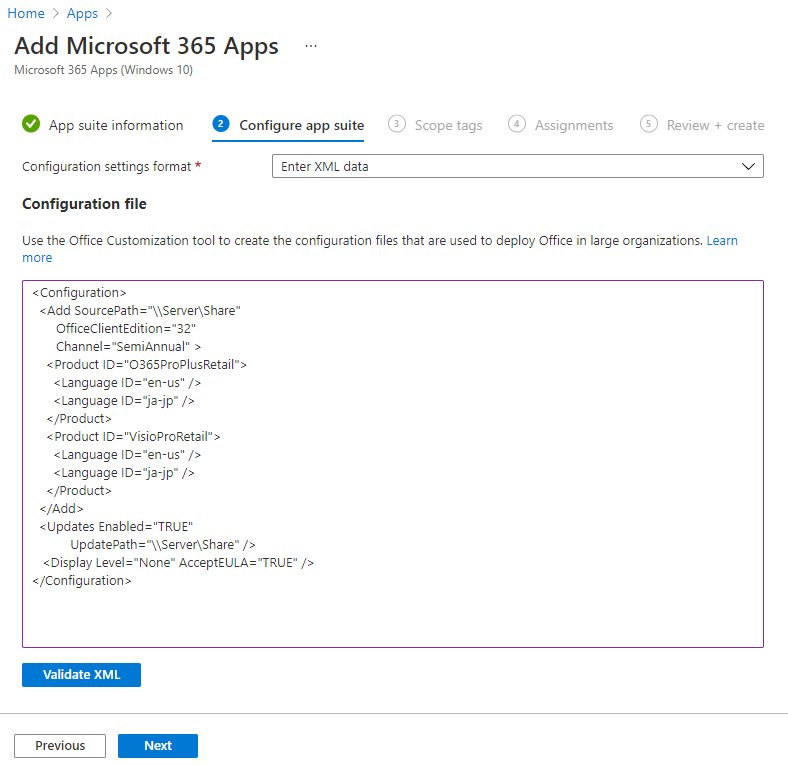
Switch Configuration settings format to Enter XML data when you need options the designer lacks: Microsoft 365 Apps for business (O365BusinessRetail), keeping an MSI Visio, matching old language packs or device-based licensing. This example installs 64-bit Monthly Enterprise Channel in English, removes MSI Office and keeps the languages from it.
<Configuration>
  <Add OfficeClientEdition="64" Channel="MonthlyEnterprise">
    <Product ID="O365ProPlusRetail">
      <Language ID="en-us" />
      <Language ID="MatchPreviousMSI" />
    </Product>
  </Add>
  <RemoveMSI />
</Configuration>
OfficeClientEdition sets the architecture, Channel sets the update channel, Product ID picks the edition, MatchPreviousMSI reinstalls the languages from the removed MSI Office, and RemoveMSI uninstalls Office, Visio and Project 2007 to 2016 MSI versions. Add <IgnoreProduct ID="VisPro" /> inside RemoveMSI to keep Visio Professional, or <Property Name="DeviceBasedLicensing" Value="1" /> for device licenses.
You should see: Intune accepts the XML and moves on to the Scope tags page. For custom XML installs, the install status reflects the installation attempt, not whether Office is still present later.
5. Configure app information, scope tags, and assignments
Suite names must be unique, because the Company Portal shows only one app when two share a name.
- On App suite information, set Suite Name and Suite Description, for example the list of included apps.
- Optionally pick a Category and tick Show this as a featured app in the Company Portal.
- On Scope tags, choose Select scope tags if separate IT teams should see only their own apps.
- On Assignments, add groups under Required for silent installs, Available for enrolled devices for self-service, or Uninstall to remove the suite.
- Select Next, review the summary on Review + create and select Create.
6. Build deployment rings instead of assigning everyone at once
Because a device receives only one Microsoft 365 Apps deployment, a ring is a group added to the same app's assignment over time. Reuse the pilot and broad groups that already stage your Windows 11 26H2 feature update rollout if they fit.
- Create Microsoft Entra security groups for the rings, for example IT pilot, early adopters and broad.
- Assign the app as Required to the IT pilot group only.
- Check Device install status after the pilot devices sync and fix any failures before going wider.
- Edit the app's Assignments and add the early adopters group under Required.
- Add the broad group once the second ring shows no new failures.
- Keep a small group on Current Channel (Preview) through a separate update-channel policy if you want early warning of feature changes.
7. Align activation with the device scenario
Activation decides who can edit documents on the device. A wrong choice leaves Office in reduced functionality mode, where users can view and print files but not edit them.
| Device scenario | Activation model | How to set it |
|---|---|---|
| Each person has their own PC | Standard user-based activation | Nothing extra; each user signs in with a licensed account |
| Several users sign in to the same PC, kiosk or Remote Desktop host | Shared computer activation | Tick Use shared computer activation, or add <Property Name="SharedComputerLicensing" Value="1" /> in XML |
| Shared devices licensed through an Enterprise Agreement device license | Device-based licensing | License an Entra device group in the Microsoft 365 admin center, then enable Use a device-based license for Office 365 ProPlus in a Settings Catalog profile |
Shared computer activation needs a plan that includes Microsoft 365 Apps for enterprise, a Project or Visio desktop plan, or Microsoft 365 Business Premium. It does not work on Office for Mac, and each user's token lasts 30 days before it renews.
Device-based licensing needs Version 1907 or later on Microsoft Entra joined or hybrid joined Windows devices. Assign the licenses before you turn the setting on, or users see errors.
8. Prevent update-channel conflicts
When the app uses the configuration designer and is assigned as Required, Intune re-applies its channel at every policy refresh. An Update Channel policy that names a different channel then flips devices back and forth, and Microsoft warns that conflicts can even trigger reinstallation.
| Priority | Source that sets the channel | Where it lands |
|---|---|---|
| 1st and 2nd | Cloud Update in the Microsoft 365 Apps admin center | HKLM\SOFTWARE\Policies\Microsoft\cloud\office\16.0\Common\officeupdate |
| 3rd and 4th | Group Policy or Intune Update Channel (2.0) policy | HKLM\SOFTWARE\Policies\Microsoft\office\16.0\Common\officeupdate |
| 5th | Office Deployment Tool XML, including the Intune app's own setting | HKLM\SOFTWARE\Microsoft\office\ClickToRun\Configuration |
| 6th and 7th | Unmanaged defaults | HKLM\SOFTWARE\Microsoft\office\ClickToRun\Configuration |
Make every update channel policy match the channel in the app, or manage the channel from one place only. Channel changes run through the Office Automatic Updates 2.0 scheduled task and can take up to 24 hours on a recently updated device.
macOS: use a separate Intune workflow
The macOS app type installs Word, Excel, PowerPoint, Outlook, OneNote, Teams and OneDrive with Microsoft AutoUpdate. There is no architecture, channel or activation choice in it.
- Select Apps > All Apps > Create.
- Select macOS in the Microsoft 365 Apps section of Select app type, then choose Select.
- Review App suite information, give the suite a unique Suite Name and select Next.
- Optionally add Scope tags, then select Next.
- Assign groups under Required or Available for enrolled devices.
- Select Review + create, then Create.
Intune-managed Macs need macOS 10.14 or later to receive the suite, and macOS Big Sur 11 or later to keep getting Office updates. Intune cannot uninstall the macOS suite.
9. Monitor the deployment and validate the result
Check both the Intune report and a real device. The report shows that the install ran; the device shows that Office is licensed and on the right channel.
- In the Intune admin center, select Apps > All Apps and open the Microsoft 365 Apps suite.
- Read the device graph for Installed, Failed, Install Pending and Not Applicable counts.
- Select Device install status under Monitor and sort by Status to list failed devices with their Status details.
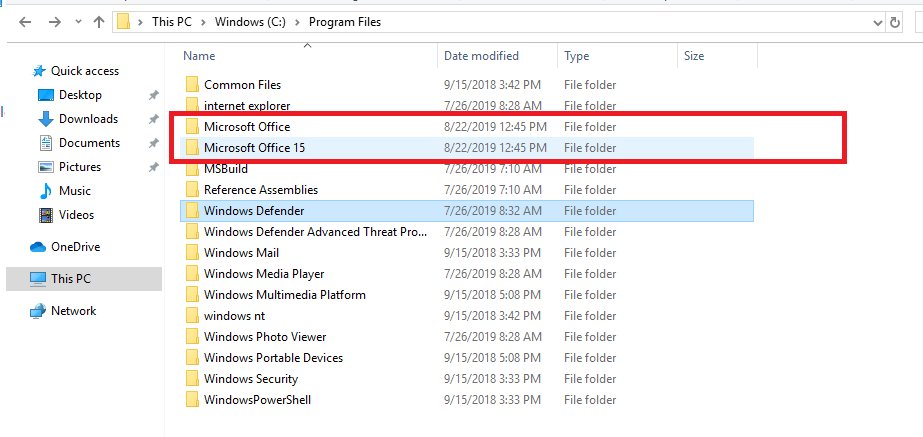
- On a pilot PC, confirm the Microsoft Office and Microsoft Office 15 folders exist under Program Files.
- Open Word, go to File > Account and confirm the product, version and update channel under About.
- On device-licensed PCs, confirm Product Information shows Belongs to: This device.
A practical go-live checklist for Microsoft 365 Apps in Intune
| Check | Done when |
|---|---|
| Licenses assigned | Every target user, or the device license group, has a Microsoft 365 Apps license |
| MSI Office handled | Remove other versions is Yes or the XML contains RemoveMSI |
| Architecture agreed | No 32-bit Click-to-Run remains where 64-bit is deployed |
| One suite per device | No device sits in groups assigned to two Microsoft 365 Apps suites |
| Channel policies match | Any Update Channel policy names the same channel as the app |
| Activation model set | Shared or device-based licensing is configured only where it applies |
| Autopilot plan | Office tracked on the enrollment status page is a Win32 app, not the native type |
| Network ready | Pilot devices download from officecdn.microsoft.com at normal speed |
| Pilot clean | Device install status shows no unexplained failures in the pilot ring |
| Users told | Users know to save work and close Office before the install window |
Windows troubleshooting sequence for Microsoft 365 Apps in Intune
Work from Intune to the network to Windows. The two Office folders in Program Files show whether Intune started the deployment at all.
No Microsoft Office folders appear in Program Files
Intune has not started the deployment on the device.
- Confirm the device is enrolled in Intune and shows a recent Last check-in.
- Confirm the device or its user is in a group assigned to the suite.
- Check that the device has a network connection and is not in airplane mode.
- Confirm the Intune and Office 365 network endpoints are reachable from the device.
The install starts but the download stalls
Bandwidth or a proxy is slowing the download from the Office CDN.
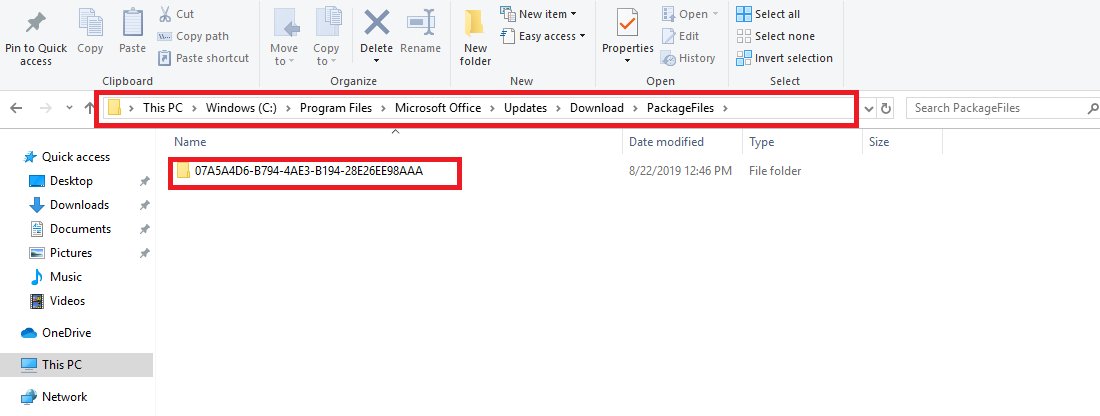
- Watch the size of C:\Program Files\Microsoft Office\Updates\Download.
- If it grows slowly or not at all, test the connection and bandwidth on that network.
- Route CDN traffic directly instead of through a central proxy.
Install fails with error 1603
A prerequisite check failed, usually MSI Office still present or a 64-bit install over 32-bit Office.
- Set Remove other versions to Yes, or add RemoveMSI to the XML.
- Match Architecture to the Office already on the device, or remove the old Click-to-Run copy first.
- Reassign the app and let the device sync.
Install fails with error 17002 or 17004
17002 means the install was cancelled, ran out of disk space or hit an unknown language ID; 17004 means an unknown product ID.
- Free disk space on the device.
- Check the XML for a mistyped Language ID or Product ID.
- Ask users to close Office apps, then retry the assignment.
The cause is still unclear
Windows or the Click-to-Run installer needs a closer look.
- Check Event Viewer under Windows Logs > Application.
- Turn on verbose logging with reg add HKLM\SOFTWARE\Microsoft\ClickToRun\OverRide /v LogLevel /t REG_DWORD /d 3 from an elevated prompt.
- Redeploy, wait 15 to 20 minutes, then open the newest {Machine Name}-{TimeStamp}.log files in %temp% and %windir%\temp.
- Turn logging off with reg delete HKLM\SOFTWARE\Microsoft\ClickToRun\OverRide /v LogLevel /f.
Office installs but users cannot edit documents
Activation failed, so Office is in reduced functionality mode.
- Confirm the user, or the device group, holds a Microsoft 365 Apps license.
- On shared PCs, confirm shared computer activation is on and reset activation for users who activated before it was enabled.
- For device licenses, wait up to one hour after adding the device to the licensed group, then reopen the app.
When outside help is justified for an Intune Office rollout
| Situation | Next step |
|---|---|
| Install or run-time errors on individual PCs | Run the Microsoft Support and Recovery Assistant on the affected device |
| Failures persist after the troubleshooting sequence and verbose logs | Open a support case with Microsoft and attach the Click-to-Run logs and Office CSP status code |
| Thousands of devices, several Office versions and strict change control | Bring in a partner or consultant who has run Click-to-Run migrations at that scale |
| Device-based licensing is needed but not available on your agreement | Contact your Microsoft account representative, since the device license is sold through Enterprise Agreement |
Microsoft 365 Apps Intune deployment FAQ
How do I deploy Microsoft 365 apps via Intune?
Go to Apps > All Apps > Create in the Intune admin center and select Windows 10 and later under Microsoft 365 Apps. Configure the apps, architecture and update channel, then assign the suite to a group as Required or Available.
How do users install Microsoft 365 desktop apps that Intune makes available?
Users open the Company Portal app and install the suite from there. This applies when the assignment is Available for enrolled devices. Required assignments install silently without any user action.
Where does Intune install Microsoft 365 apps from?
Devices download the installation files from the Office Content Delivery Network at officecdn.microsoft.com. The files land under Program Files in the Microsoft Office folder and are deleted after a successful install.
How do I add apps such as Project or Visio to Microsoft 365 Apps in Intune?
Pick them in Select other Office apps (license required) on the Configure app suite page. These licensed apps, such as Project Online desktop client and Visio Online Plan 2, need their own licenses.
Should Microsoft 365 Apps be packaged as a Win32 app in Intune?
Package it as a Win32 app when Office must be tracked on the Windows Autopilot enrollment status page. Microsoft recommends this because the native app type is not managed by the Intune Management Extension. For other rollouts, the native app type is simpler.
Can Office MSI and Microsoft 365 Apps Click-to-Run coexist?
No. Click-to-Run Office and MSI Office are not supported together, and the Intune install fails while MSI Office is present. Use Remove other versions, or RemoveMSI with IgnoreProduct to keep a specific MSI product such as Visio.
Do shared computers need shared computer activation?
Yes, when several users sign in to the same PC with their own accounts. Without it, each activation counts toward a user's device limit. Device-based licensing is the alternative where an Enterprise Agreement device license is available.
Can Intune uninstall Microsoft 365 Apps for macOS?
No. Intune cannot uninstall the Microsoft 365 Apps for macOS suite. The Windows suite does support an Uninstall assignment.
Can Intune deploy Microsoft 365 Apps for business?
Yes, but only with XML. Choose Enter XML data on the Configure app suite page and use the O365BusinessRetail product ID in the configuration.
Bottom line: should you use the native Microsoft 365 Apps app type in Intune?
Use the native Microsoft 365 Apps app type with the configuration designer for most Windows rollouts, switch to XML only when you need options the designer lacks, and use a Win32 package only for Autopilot enrollment-status tracking. The native type handles MSI removal, languages and status reporting with the least effort. Rings, one consistent update channel and the right activation model prevent most of the failures that show up after go-live.