To enable the Developer tab in Microsoft Office on Windows, select File > Options > Customize Ribbon, tick Developer under Main Tabs and select OK.
This guide covers Word, Excel, PowerPoint and classic Outlook on Windows, the Mac route, Office for the web, what the tab unlocks, and fixes for a tab that will not appear.
How to enable the Developer tab on the Microsoft Office Ribbon in Windows
The Developer tab is hidden by default in every desktop Office app. The same steps work in Word, Excel, PowerPoint and classic Outlook for Microsoft 365, Office 2024, 2021, 2019 and 2016.
- Open the Office app where you want the tab, such as Word or Excel.
- Select the File tab, then select Options at the bottom of the left pane.
- Select Customize Ribbon in the Options window.
- In the right-hand list, under Customize the Ribbon, make sure Main Tabs is selected.
- Tick the Developer check box.
- Select OK. The Developer tab now appears on the ribbon and stays there until you clear the box.
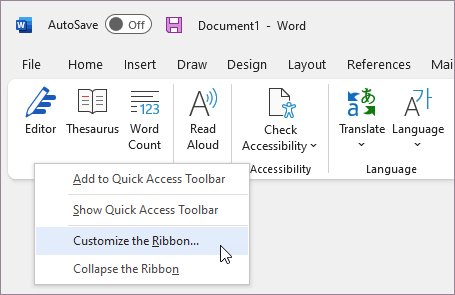
A quicker way into the same dialog is to right-click an empty area of the ribbon and select Customize the Ribbon.
Are you using desktop Office or Office for the web?
The Developer tab is a desktop feature. Check which version of the app you have open before you look for the setting.
| What you have open | Developer tab available? | What to do |
|---|---|---|
| Word, Excel, PowerPoint or classic Outlook for Windows | Yes, hidden by default | Use File > Options > Customize Ribbon |
| Word, Excel or PowerPoint for Mac | Yes, hidden by default | Use the app menu > Preferences > Ribbon & Toolbar |
| New Outlook for Windows | No | Switch to classic Outlook if you need the tab |
| Excel for the web in a browser | No VBA tools | Select Open in Desktop App to create, run or edit macros |
| Word or PowerPoint for the web | Not part of Microsoft's Developer tab instructions | Open the file in the desktop app |
Excel for the web keeps any macros already stored in a workbook, but it cannot create, run, edit or delete them.
How to enable the Developer tab on Mac
Office for Mac uses the app menu in the top-left corner instead of File > Options. The route is the same in Word, Excel and PowerPoint.
- Open Word, Excel or PowerPoint on your Mac.
- Select the app name in the menu bar, for example Excel, then select Preferences.
- Select Ribbon & Toolbar.
- Under Customize the Ribbon, make sure Main Tabs is shown.
- Tick Developer.
- Select Save, then close the Preferences window.
Microsoft documents this route for Word and Excel for Microsoft 365 for Mac, Office 2024 for Mac and Office 2021 for Mac.
Enable the Developer tab in Excel, Word, PowerPoint and Outlook
Each Office app keeps its own ribbon settings. Turning on the tab in Excel does not add it to Word, so repeat the steps in every app you use.
| App | Where to tick Developer | Notes |
|---|---|---|
| Excel (Windows) | File > Options > Customize Ribbon > Main Tabs | Adds macros, Visual Basic and form controls |
| Word (Windows) | File > Options > Customize Ribbon > Main Tabs | Word keeps its own setting, separate from Excel |
| PowerPoint (Windows) | File > Options > Customize Ribbon > Main Tabs | PowerPoint keeps its own setting too |
| Classic Outlook (Windows) | File > Options > Customize Ribbon > Main Tabs | Not available in new Outlook for Windows |
| Excel, Word, PowerPoint (Mac) | App menu > Preferences > Ribbon & Toolbar > Main Tabs | Select Save to apply |
Microsoft 365 versions of Word and Excel, sometimes called Word 365 and Excel 365, use exactly the same path as the perpetual 2016 to 2024 versions.
How to check the Developer tab is on the ribbon
- Look along the ribbon tabs at the top of the window for Developer.
- In Excel, select Developer and confirm the Code group shows Visual Basic, Macros and Record Macro.
- In Excel, press Alt + F8 and confirm the Macro dialog opens.
- Press Alt + F11 and confirm the Visual Basic Editor opens in a separate window.
- Close and reopen the app to confirm the tab is still there.
If the setting is ticked but no tab appears, jump to the checkbox fix further down this page.
What does the Developer tab do?
The Developer tab gathers the tools for automation and interactive documents in one place.
| Task | Developer tab tool | Notes |
|---|---|---|
| Record a macro | Record Macro, then Stop Recording | In Excel, Use Relative References records moves relative to the active cell |
| Run or delete a recorded macro | Macros | Excel shortcut: Alt + F8 |
| Write VBA code | Visual Basic | Opens the Visual Basic Editor; shortcut Alt + F11 |
| Change macro security | Macro Security | Opens the Trust Center macro settings |
| Add form controls to a worksheet | Form controls and ActiveX controls | Form controls are an Excel feature |
| Work with XML data | XML commands | Desktop apps only |
| Build solutions for Office | Add-in and application tools | For apps used with Microsoft 365 programs |
| Edit shape formulas and create stencils | ShapeSheet, new shapes and stencils | Visio only |
The tab exists only in the desktop apps of the Microsoft Office suite, so the same toolset is not available in a browser.
Which Office versions include the documented Developer-tab workflow?
| Office version | Windows | Mac |
|---|---|---|
| Microsoft 365 (subscription) | File > Options > Customize Ribbon | App menu > Preferences > Ribbon & Toolbar |
| Office 2024 | File > Options > Customize Ribbon | App menu > Preferences > Ribbon & Toolbar |
| Office 2021 | File > Options > Customize Ribbon | App menu > Preferences > Ribbon & Toolbar |
| Office 2019 | File > Options > Customize Ribbon | Not covered by current Microsoft pages |
| Office 2016 | File > Options > Customize Ribbon | Not covered by current Microsoft pages |
| New Outlook for Windows | Not available | Not applicable |
| Office for the web | No Developer tab | No Developer tab |
If your Options window looks different from these steps, check for Office updates so your build matches the current documentation.
Do you need the whole Developer tab?
You can skip the full tab if you only need one or two tools. Keyboard shortcuts and a custom group are lighter options.
| What you actually need | Lighter option | How |
|---|---|---|
| Open the macro list in Excel | Keyboard shortcut | Press Alt + F8 |
| Open the Visual Basic Editor | Keyboard shortcut | Press Alt + F11 |
| One or two Developer commands on another tab | A custom group | In Customize Ribbon, select a tab, select New Group, pick commands from All Commands and select Add |
| A command always in view | Quick Access Toolbar | Add the command from the Quick Access Toolbar settings |
| Regular macro, form or add-in work | The full Developer tab | Tick Developer under Main Tabs |
How to hide or remove the Developer tab again
- Right-click an empty area of the ribbon and select Customize the Ribbon.
- Under Main Tabs, clear the Developer check box.
- Select OK. The tab disappears from that app only.
- To clear every ribbon change at once, select Reset > Reset all customizations instead. This also restores the default Quick Access Toolbar.
- On a Mac, open the app menu > Preferences > Ribbon & Toolbar, clear Developer and select Save.
Why is the Developer tab missing in Outlook?
No Developer check box anywhere in Outlook settings
You are using new Outlook for Windows, which has no Developer tab.
- Confirm whether you are running new Outlook for Windows or classic Outlook.
- Open classic Outlook instead, if it is installed and your organisation allows it.
- In classic Outlook, select File > Options > Customize Ribbon.
- Tick Developer under Main Tabs and select OK.
Developer is ticked in Word or Excel but not shown in Outlook
Ribbon settings are saved per app, so Outlook needs its own change.
- Open classic Outlook.
- Select File > Options > Customize Ribbon.
- Tick Developer and select OK.
What should you do if the Developer checkbox is selected but the tab is not visible?
No tabs are visible at all
The ribbon is in Full-screen mode, which hides the tabs.
- Select the ellipsis (…) at the top right of the window, or press Alt, to show the ribbon temporarily.
- Select Ribbon Display Options in the lower-right corner of the ribbon.
- Choose Always show Ribbon.
Tab names show but the Developer commands vanish
The ribbon is collapsed or set to Show tabs only.
- Right-click any ribbon tab.
- Clear Collapse the Ribbon.
- If the menu offers it, switch Ribbon Display Options to Always show Ribbon.
Developer is ticked in one app but missing in another
You changed the setting in a different Office app.
- Note which app is missing the tab.
- Open File > Options > Customize Ribbon in that app.
- Tick Developer under Main Tabs and select OK.
If the whole ribbon keeps disappearing in Word, you can bring the Word ribbon back with the display options.
Why did the Developer tab disappear after reinstalling Office?
Developer tab gone after a reinstall or repair
Reinstalling an Office program resets its ribbon, including the Developer check box.
- Open the affected app and select File > Options > Customize Ribbon.
- Tick Developer under Main Tabs.
- Select OK, then repeat in each Office app you use.
Custom tabs and groups lost along with the Developer tab
Ribbon customizations were not exported before Office was removed.
- Before the next reinstall, open Customize Ribbon and select Import/Export > Export all customizations.
- Save the file somewhere outside the Office folders.
- After reinstalling, select Import/Export > Import customization file and choose the saved file.
- Note that importing replaces any ribbon changes already made in that app.
The same applies when you move Office to a new computer: export the ribbon file first, then import it on the new PC.
Does showing the Developer tab enable macros?
No. Showing the tab only adds buttons to the ribbon. Your macro security setting stays exactly as it was.
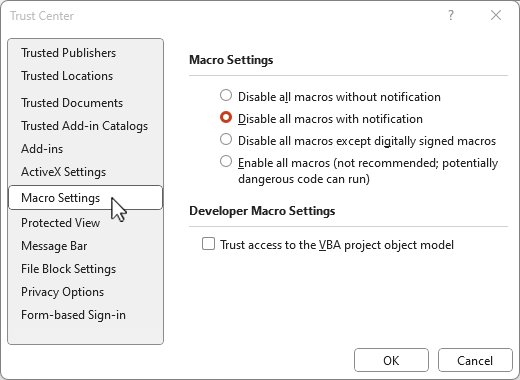
Show the Developer tab freely, but keep macros set to Disable VBA macros with notification (Excel) or Disable all macros with notification (other apps). Macro behaviour is controlled in File > Options > Trust Center > Trust Center Settings > Macro Settings, which the Macro Security button on the Developer tab opens. The Enable all macros option lets potentially dangerous code run without asking, and each change applies only to the app you make it in.
Frequently asked questions about the Office Developer tab
How do I enable the Developer tab in Excel?
In Excel for Windows, select File > Options > Customize Ribbon, tick Developer under Main Tabs and select OK. On a Mac, select Excel > Preferences > Ribbon & Toolbar, tick Developer and select Save. The tab then holds Record Macro, Macros and Visual Basic.
How do I enable the Developer tab in Word?
In Word for Windows, select File > Options > Customize Ribbon and tick Developer under Main Tabs. On a Mac, select Word > Preferences > Ribbon & Toolbar, tick Developer and select Save. The tab stays visible until you clear the box or reinstall Word.
How do I enable the Developer tab in Outlook?
In classic Outlook for Windows, select File > Options > Customize Ribbon and tick Developer under Main Tabs. New Outlook for Windows has no Developer tab, so switch back to classic Outlook if you need VBA or macro tools.
How do I enable the Developer tab in PowerPoint?
Open PowerPoint, select File > Options > Customize Ribbon, tick Developer under Main Tabs and select OK. On a Mac, use PowerPoint > Preferences > Ribbon & Toolbar instead. The setting applies only to PowerPoint, not to your other Office apps.
Is the Developer tab different in Word 365 or Excel 365?
No. Word and Excel for Microsoft 365 use the same File > Options > Customize Ribbon path as Office 2016, 2019, 2021 and 2024. Tick Developer under Main Tabs and select OK.
Do I need to enable the Developer tab separately in each Office app?
Yes. Ribbon customizations apply only to the Office program you change them in. Turning on Developer in Excel does not add it to Word or PowerPoint. You can export your ribbon customizations from one app's Customize Ribbon window as a file.
Can I enable the Developer tab in Office for the web?
No. Microsoft documents the Developer tab only for the desktop apps. Excel for the web keeps macros stored in a workbook but cannot create, run, edit or delete them. Select Open in Desktop App to work with macros in desktop Excel.
Why is the Developer tab hidden by default in Microsoft Office?
Office ships with the Developer tab turned off, and its tools are aimed at macros, VBA, ActiveX controls and add-in work. Showing it is a one-time change per app, made in File > Options > Customize Ribbon on Windows or Preferences > Ribbon & Toolbar on a Mac.
How do I get to the Developer tab once it is turned on?
Select Developer among the ribbon tabs at the top of the app window. In Excel you can also reach its main tools by keyboard: Alt + F8 opens the Macro list and Alt + F11 opens the Visual Basic Editor.
The bottom line on the Office Developer tab
Turn on the Developer tab through File > Options > Customize Ribbon in each desktop Office app where you build macros, forms or add-ins. It is a per-app ribbon change that adds tools without changing macro security, and it is undone just as quickly. Use classic Outlook or the desktop apps, because new Outlook and Office for the web do not offer it.

![Outlook: not all emails are showing in inbox [resolved]](https://techdows.com/wp-content/uploads/2026/10/Outlook-on-the-web-inbox-with-Focused-and-Other-tabs-and-the-Filter-menu.jpg)