To change the Microsoft Edge background, open a new tab, select the gear icon and pick a daily image, no image or your own upload; colors and themes live in Settings > Appearance.
This guide covers the new tab background, your own photo, light and dark mode, themes from Edge Add-ons and the Chrome Web Store, accessibility colors, and fixes when the background will not change.

The fastest way to change the Microsoft Edge background
The new tab page is where Edge shows its background image. These steps change it in under a minute.
- Press Ctrl + T to open a new tab.
- Select the gear icon in the top corner of the page to open the new tab page settings.
- Select Change background (on the classic page, look for the Background options in the same panel).
- Choose the daily image, no image, or upload an image from your PC.
- Close the panel and open another new tab to see the result.
To change the color of the browser frame, toolbar and menus instead, go to Settings and more (…) > Settings > Appearance.
Which Edge background or theme setting should you change?
| What you want to change | Where to change it | What it affects |
|---|---|---|
| The picture behind the new tab page | New tab page gear icon > background options | New tabs only |
| Use your own photo | New tab page gear icon > upload an image | New tabs only |
| Light, dark or match Windows | Settings > Appearance > Overall appearance | Edge's frame, menus, settings pages and new tab page |
| A colored or illustrated browser theme | Settings > Appearance, or the Microsoft Edge Add-ons website | Frame, tabs and toolbar colors |
| Background color of web pages themselves | Settings > Accessibility > Page colors | Website content, by default only when a Windows contrast theme is on |
| Colors across every app | Windows Settings > Personalization > Colors, or Accessibility > Contrast themes | Windows and apps that follow it, Edge included |
Customize the Microsoft Edge new tab page background
Edge supports two background image types on the new tab page: a daily image that changes on its own, and a custom image you upload. You can also turn the image off and hide the news feed for a cleaner page.
- Open a new tab with Ctrl + T.
- Select the gear icon on the new tab page.
- Select Change background.
- Choose the option that refreshes the image daily to get a new picture every day.
- Choose no image if you want a plain background with no photo.
- Close the settings panel; the change applies to every new tab.
The panel looks different depending on whether your Edge shows the classic new tab page or the newer Copilot new tab page. On the Copilot page, Microsoft lists refresh daily, no image, upload an image and a different theme under Change background.
Change the Edge background image or use your own photo
Uploading your own photo replaces the daily image. Use a landscape picture at roughly your screen's resolution so it fills the page without stretching.
- Save the photo you want to a folder on your PC, such as Pictures.
- Open a new tab and select the gear icon.
- Select Change background, then choose to upload an image.
- Browse to your photo, select it and open it.
- Open a new tab to confirm the photo now fills the background.
- To swap it later, repeat these steps and upload a different image.
Edge has supported custom new tab images since it was in testing; the custom image option in Edge Canary was the first version of this setting.
If the upload option is missing, an administrator may have blocked custom images. The troubleshooting section below explains how to check.
Apply a Microsoft Edge theme from Settings or Add-ons
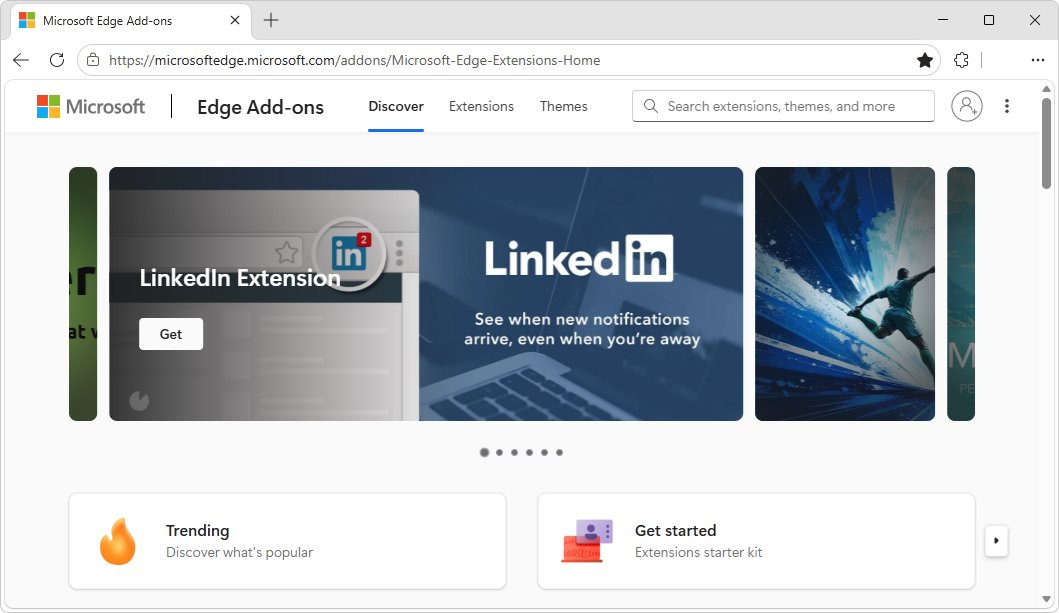
A theme recolors the browser frame, tabs and toolbar, and some themes add artwork to the new tab page. Microsoft's Add-ons website lists themes alongside extensions.
- Select Settings and more (…) > Settings.
- Select Appearance.
- Pick one of the built-in themes or colors shown on the page.
- For more designs, open the Microsoft Edge Add-ons website at
microsoftedge.microsoft.com. - Type a theme name or color in the Search extensions, themes, and more box and open a result.
- Select Get and confirm the prompt to apply the theme.
Microsoft has published themes in its store for years, starting with a set of 23 Edge themes in 2020. In 2024, Microsoft also launched an AI theme generator powered by Microsoft Designer, which builds a theme from a text description and lets you match the frame color to it.
Install Chrome Web Store themes in Microsoft Edge
Edge is built on Chromium, and Microsoft documents installing items from the Chrome Web Store once you allow extensions from other stores. Microsoft documents this route for extensions; it does not document theme support from that store, so prefer an Edge Add-ons theme when one exists.
- In Edge, open the Chrome Web Store at
chromewebstore.google.com. - Search for the theme and select its tile to open the details page.
- Select Get extension on the banner at the top, or the install button on the page.
- If Edge shows Allow extensions from other stores, select Allow.
- Confirm the install prompt, then open a new window to check the colors.
- If the page offers no install button in Edge, search the Edge Add-ons website for a similar theme instead.
To manage or remove a Chrome Web Store theme, return to Settings > Appearance and pick a different theme or the default one. Items listed under Extensions > Manage extensions can be removed with Remove from Microsoft Edge > Remove.
Switch between light, dark, and system appearance modes
The dark theme replaces Edge's bright default background with a darker color. The system setting makes Edge follow the mode you chose in Windows.
- Select Settings and more (…) > Settings.
- Select Appearance.
- Under Overall appearance, select Light for a white background, Dark for a dark one, or System default to match Windows.
- Open a new tab and the Settings page to see the new colors.
Dark mode changes Edge itself, not the websites you visit. To darken or whiten page content too, use Page colors, covered in the next section.
Adjust Windows or accessibility colors that affect Edge
Three settings outside the Edge theme also change what Edge looks like. Use them when you need stronger contrast or a page background color, not just a new look.
| Setting | Where to find it | What it does to Edge |
|---|---|---|
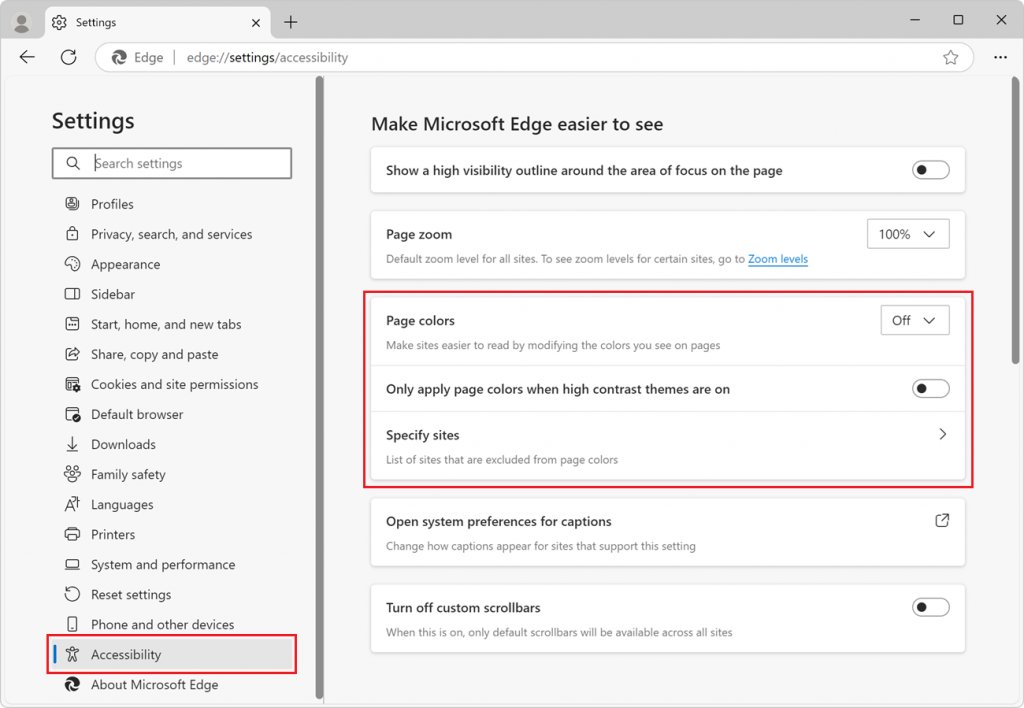
| Edge Page colors | Edge Settings > Accessibility > Page colors | Recolors web pages with Dusk, Desert, Black or White. Turn off Only apply page colors when high contrast themes are on to use it all the time. Add exceptions with Specify sites. Available from Edge 130 on Windows and macOS |
| Windows 11 contrast themes | Settings > Accessibility > Contrast themes, pick a theme, select Apply | Forces high-contrast colors in Windows and in Edge; Page colors then apply by default |
| Windows 10 high contrast | Settings > Ease of Access > High contrast, turn on Turn on high contrast, choose a theme, select Apply | Same effect as contrast themes on Windows 11 |
| High contrast shortcut | Press Left Alt + Left Shift + Print Screen | Turns high contrast on or off |
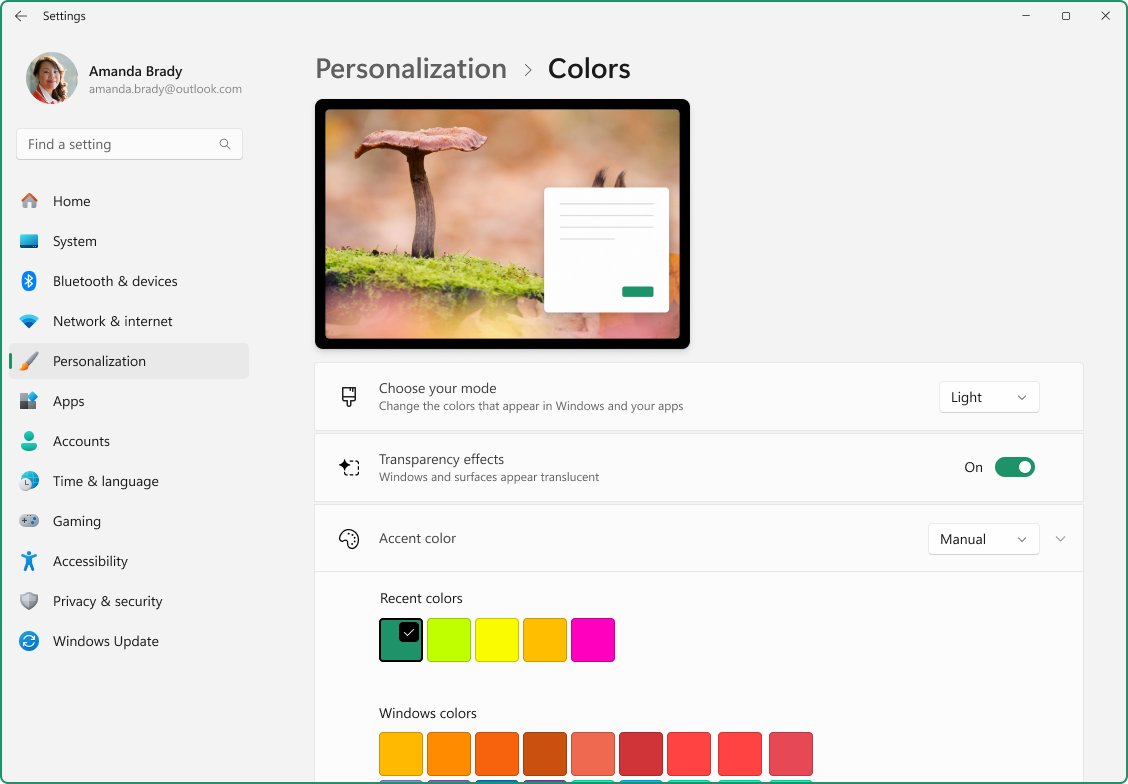
| Windows color mode | Settings > Personalization > Colors > Choose your mode | Light, Dark or Custom; Edge follows it when Overall appearance is System default |
| Immersive Reader themes | Open a page in Immersive Reader > Text preferences | Changes the reading page theme to one of 23 options |
How to check the Edge background and theme changed
- Press Ctrl + T; the new tab should show your chosen image, the daily image or a plain background.
- Close Edge completely and reopen it; the background should still be there.
- Open Settings > Appearance; the theme and Overall appearance choice you made should be selected.
- Open any website; with Page colors turned on for all pages, its background should use the scheme you picked.
Why can't I change the Microsoft Edge background?
The upload or daily image option is missing or greyed out
An organization has set the NewTabPageAllowedBackgroundTypes policy, which can disable the daily image, custom images, or all background images.
- Type
edge://policyin the address bar and press Enter. - Look for NewTabPageAllowedBackgroundTypes in the list.
- A value of 1 blocks the daily image, 2 blocks custom images, and 3 blocks all background images.
- On a work or school device, ask your IT admin to change it; a mandatory policy cannot be overridden from Settings.
The new tab page looks different from these steps
Your organization has turned on the Copilot new tab page, or Edge is rolling out a refreshed design gradually.
- Update Edge to the latest version, then check Settings > Appearance for the current options.
- Open the gear icon on the new tab page and look for Change background.
- If your device is managed, ask IT whether the Copilot new tab page is turned on for your account.
Edge is dark but websites are still white
Overall appearance only changes Edge's own interface, not page content.
- Go to Settings > Accessibility > Page colors.
- Choose Black or Dusk.
- Turn off Only apply page colors when high contrast themes are on.
- Reload the website.
Edge keeps switching between light and dark mode
Overall appearance is set to System default, so Edge follows every Windows mode change.
- Go to Settings > Appearance.
- Under Overall appearance, select Light or Dark to fix the mode.
- If a tool switches Windows between modes on a schedule, Edge stops following it after this change.
A theme or background changed on its own after installing something
An installed extension can change the new tab page or settings.
- Select Extensions > Manage extensions.
- Turn off any extension you do not recognize.
- Open a new tab and set the background again.
How to reset the Edge background and theme to default
- Open a new tab, select the gear icon and choose the daily image again under Change background.
- Go to Settings > Appearance and pick the default theme.
- Set Overall appearance back to System default.
- In Settings > Accessibility, turn Only apply page colors when high contrast themes are on back on.
- Remove any Chrome Web Store theme or extension you no longer want from Extensions > Manage extensions.
Microsoft Edge background and theme FAQ
Can I change my Microsoft Edge background?
Yes. Open a new tab, select the gear icon and choose Change background to pick the daily image, no image or your own upload. The browser colors change separately in Settings > Appearance. On work devices, an admin policy can block background changes.
How do I change the Microsoft Edge background image?
Press Ctrl + T, select the gear icon on the new tab page, then choose Change background. Pick the daily image or upload an image from your PC. The new picture appears on every new tab you open.
How do I change the Microsoft Edge background photo to my own picture?
Open a new tab, select the gear icon, choose Change background and upload an image. Select the photo from your PC and open it. A landscape photo near your screen's resolution fills the page best.
How do I change the Microsoft Edge background color?
Go to Settings and more > Settings > Appearance. Choose Light, Dark or System default under Overall appearance, or pick a colored theme. For web page backgrounds, use Settings > Accessibility > Page colors instead.
How do I change the Microsoft Edge background to white?
Select Light under Settings > Appearance > Overall appearance to make Edge's interface white. To force white page backgrounds as well, choose White under Settings > Accessibility > Page colors and turn off the high-contrast-only option.
Can I use a GIF as the Microsoft Edge background?
Microsoft documents a daily image, no image and an uploaded image as the new tab background choices. It does not list GIF or animated backgrounds as a supported option, so plan on a still picture.
Why can't I change the Microsoft Edge background?
The usual cause is the NewTabPageAllowedBackgroundTypes policy, set by a workplace or school, which can block the daily image, custom images or all images. Check edge://policy for it, and ask your IT admin to change it.
What is the difference between an Edge theme and a new tab background?
A theme changes the colors of Edge's frame, tabs and toolbar everywhere. A new tab background is only the picture behind the new tab page. You can use both at once.
Can I install Google Chrome themes in Microsoft Edge?
Edge can install items from the Chrome Web Store after you allow extensions from other stores. Microsoft documents that route for extensions, not themes, so check the theme installs, or use a theme from the Microsoft Edge Add-ons website.
Why does Edge keep changing between light and dark mode?
Overall appearance is set to System default, so Edge follows Windows each time its mode changes. Select Light or Dark in Settings > Appearance to keep one mode.
Bottom line: the best way to change the Microsoft Edge background
Change the picture from the new tab page gear icon and the colors from Settings > Appearance; reach for Page colors only when you need web pages recolored. The new tab background and the browser theme are separate settings, and mixing them up is why most changes seem not to work. Page colors and Windows contrast themes are accessibility tools, so they change every website, not only Edge's look.

![Dual boot Linux Mint and Windows 10 or 11 [beginner’s guide]](https://techdows.com/wp-content/uploads/2026/10/Linux-Mint-live-session-desktop-with-the-application-menu-open.jpg)
![Microsoft refund : Store & Xbox A-Z refund guide [2026]](https://techdows.com/wp-content/uploads/2026/10/Xbox-Support-Request-a-refund-for-digital-games-page-with-Sign-In-button-600x338.jpg)
![How to use a laptop screen as an external monitor [tutorial]](https://techdows.com/wp-content/uploads/2026/10/macOS-Displays-settings-with-an-iPad-added-as-an-extended-display-600x338.jpg)