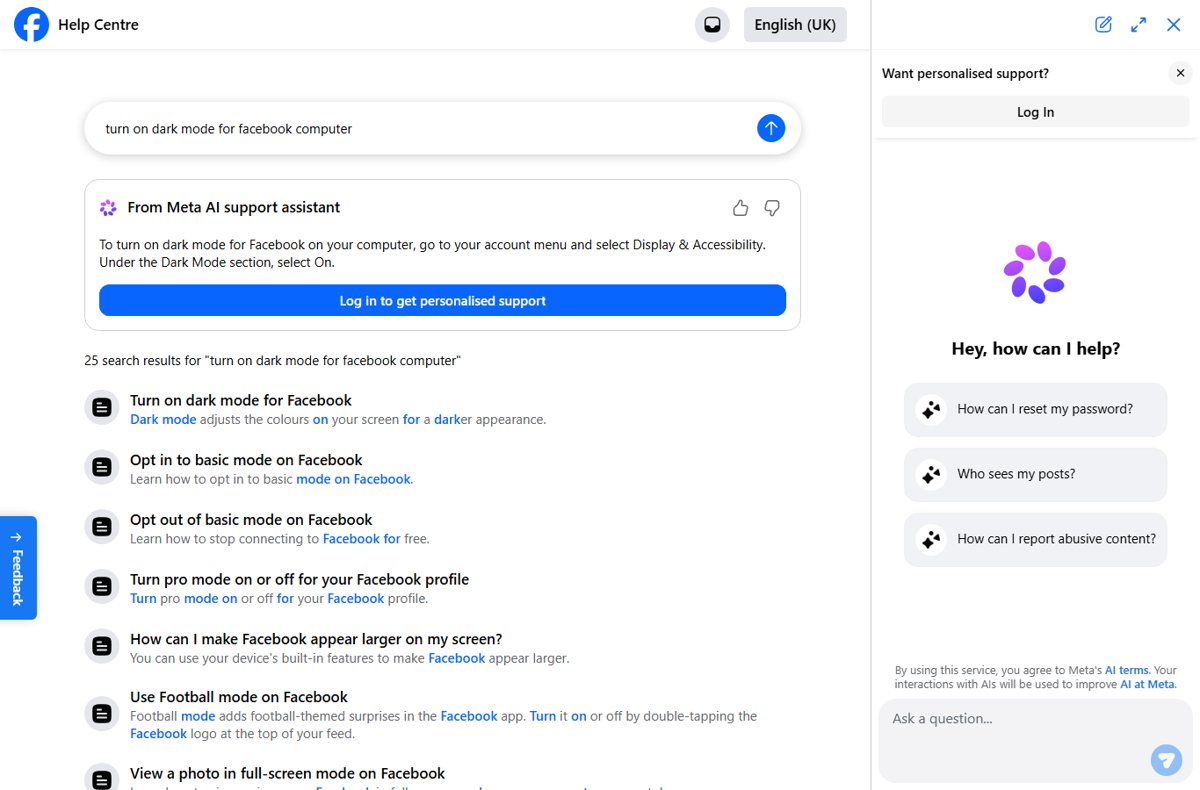
To enable Facebook dark mode on the desktop version, open your account menu, select Display & Accessibility, and set Dark Mode to On.
This guide covers the official setting on a PC or laptop browser, the same switch in the Facebook app, how to confirm it worked, how to turn it off, and how it differs from Windows dark mode.
How to turn on Facebook dark mode on a PC or laptop
Dark mode is a built-in Facebook setting, so you do not need a browser extension or a separate theme. The switch lives in the account menu on facebook.com and works in any desktop browser you sign in with.
- Open facebook.com in your browser and sign in to your account.
- Select your profile picture to open the account menu.
- Select Display & Accessibility.
- Under Dark Mode, select On.
- Look at your Feed: the background turns dark and the text turns light straight away.
No page reload or sign-out is needed. If you use Facebook on several browsers or computers, repeat the steps on each one where the page still looks light.
Facebook dark mode on PC, laptop or the app: which setting to use
Where you change the setting depends on how you open Facebook. Match your device to a row and use the route in the middle column.
| How you use Facebook | Where to turn on dark mode | Why |
|---|---|---|
| Browser on a Windows PC, Mac or laptop | Account menu > Display & Accessibility > Dark Mode > On | This is the official desktop setting on facebook.com |
| Facebook app on Android or iPhone | Facebook Settings > Preferences > Dark mode > On | The app keeps its own dark mode switch under Preferences |
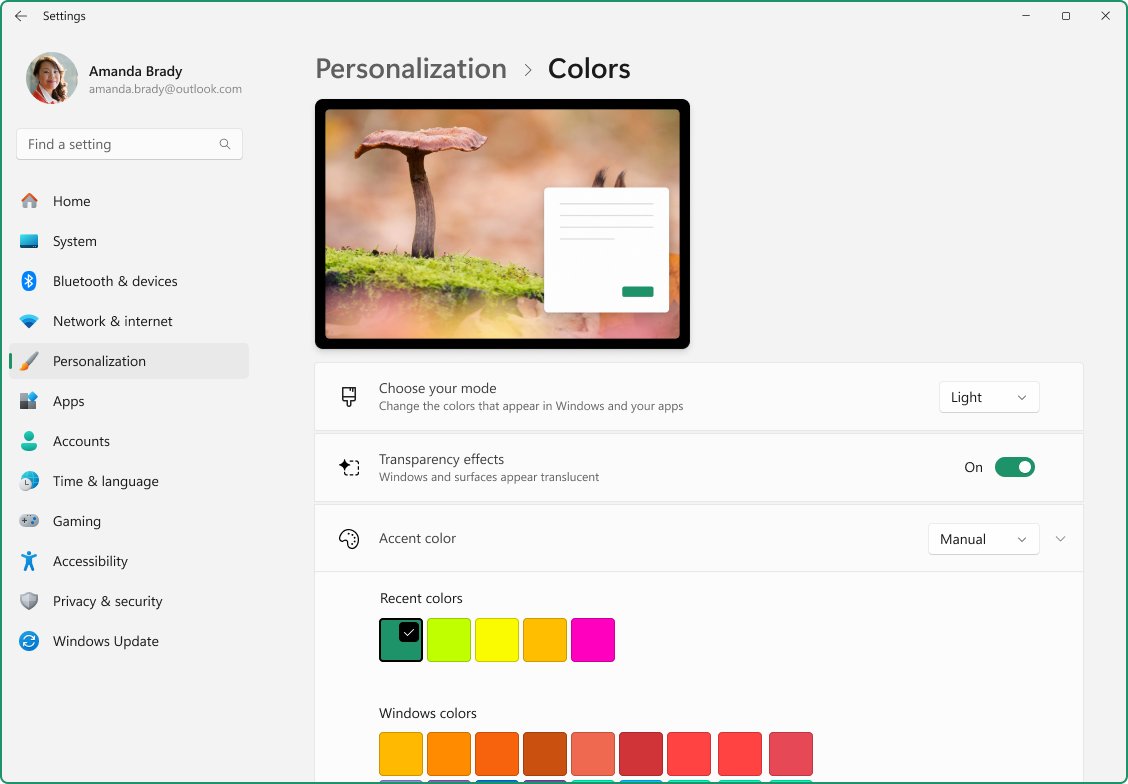
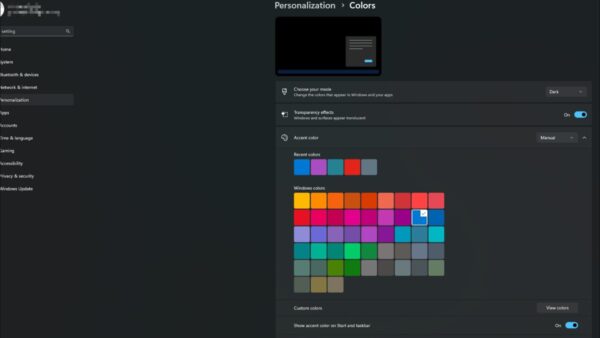
| You want the Windows taskbar and Start menu dark too | Windows Settings > Personalization > Colors > Choose your mode > Dark | Windows dark mode covers Windows surfaces; Facebook keeps its own switch |
| Dark mode is on but text is still hard to read | Windows Settings > Accessibility > Contrast themes | Facebook points readers to device settings for text contrast |
How to turn on dark mode in the Facebook app for Android and iPhone
If you also read Facebook on your phone, the app has its own dark mode switch. Turning it on in the app does not depend on the desktop setting, so set each one where you want it.
- Open the Facebook app and sign in.
- Open the app's Settings.
- Tap Preferences.
- Tap Dark mode.
- Select On.
On some devices the option sits directly in Preferences; on others it appears under Display & Accessibility. Look for whichever of the two your app shows.
How to check that Facebook dark mode is on
The change is visual, so the check takes a few seconds. Use these steps to confirm the setting saved rather than relying on how the page looked at one moment.
- Reload the facebook.com tab in your browser.
- Confirm the Feed background stays dark and post text stays light after the reload.
- Open the account menu again and select Display & Accessibility.
- Confirm On is selected under Dark Mode.
- Open a different page, such as your profile, and confirm it is dark too.
If the page is light again after a reload, the selection did not save. Select On again and wait a moment before you close the menu.
What is Facebook dark mode?
Facebook dark mode is an official display setting that adjusts the colours on your screen for a darker appearance. It changes Facebook itself, not your browser or the rest of the web.
| Question | Answer |
|---|---|
| What it changes | Facebook's colours: dark backgrounds with light text |
| Where the desktop switch is | Account menu > Display & Accessibility > Dark Mode |
| Where the app switch is | Facebook Settings > Preferences > Dark mode |
| What it costs | Nothing; it is a standard Facebook setting |
| What it does not change | Other websites, your browser's own menus or the Windows taskbar |
| Text size and contrast | Handled by your device or browser settings, not by Facebook's dark mode switch |
Facebook dark mode vs Windows dark mode
Readers often turn on Windows dark mode and expect Facebook to follow. The two are separate settings with different reach.
| Setting | Where to find it | What it darkens |
|---|---|---|
| Facebook dark mode | facebook.com account menu > Display & Accessibility > Dark Mode | Facebook pages in that browser |
| Windows dark mode | Settings > Personalization > Colors > Choose your mode > Dark | The Start menu, taskbar and action center |
| Windows Custom mode | Settings > Personalization > Colors > Choose your mode > Custom | Lets you set Windows and apps to different modes |
| Windows contrast themes | Settings > Accessibility > Contrast themes | A high-contrast colour scheme across Windows |
Microsoft notes that some apps let you set dark or light mode on their own, separate from the Windows colour mode, and not every app supports dark mode. Facebook is one of the services with its own switch. To darken the rest of your desktop as well, turn on Windows 11 dark mode separately.
Make Facebook easier to read in dark mode with Windows contrast themes
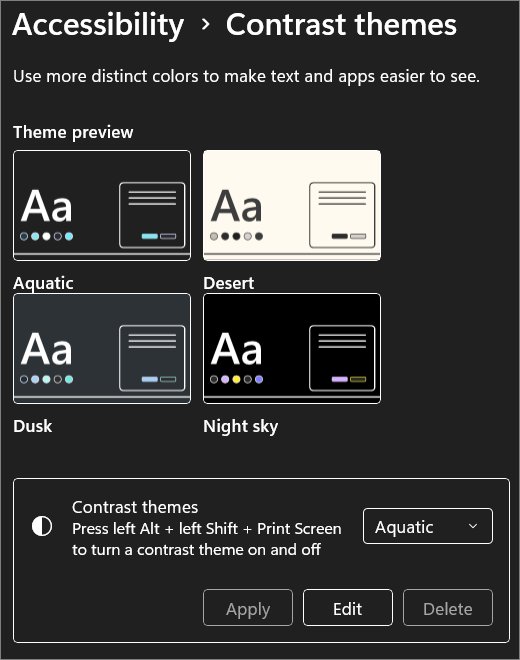
Facebook's help pages say text contrast and on-screen size are adjusted in your device settings. On Windows 11, a high contrast theme is the built-in way to raise contrast if dark mode alone is not enough.
- Select the Start button, then select Settings.
- Select Accessibility, then Contrast themes.
- Choose a theme from the Contrast themes drop-down menu.
- Select Apply.
- Return to the facebook.com tab and check the text is easier to read.
Press left Alt + left Shift + Print Screen to switch high contrast on or off quickly. Contrast themes change colours across all of Windows, so use them only if you want that everywhere.
How to turn off Facebook dark mode on desktop
Switching back to the light theme uses the same menu. The change applies immediately.
- Select your profile picture on facebook.com to open the account menu.
- Select Display & Accessibility.
- Under Dark Mode, select Off.
- Confirm the Feed background is white again.
In the Facebook app, go to Settings > Preferences > Dark mode and select Off to switch the app back as well.
Facebook dark mode FAQ
Does Facebook have dark mode?
Yes. Facebook has an official dark mode on the desktop website and in the mobile app. On a computer it sits in the account menu under Display & Accessibility. In the app it is under Settings, then Preferences, then Dark mode.
What is dark mode on Facebook?
Dark mode is a Facebook display setting that adjusts the colours on your screen for a darker appearance. Backgrounds turn dark and text turns light. It changes Facebook only, not other websites or your operating system.
How do I enable dark mode on Facebook on a PC?
Sign in at facebook.com, select your profile picture to open the account menu, and select Display & Accessibility. Under Dark Mode, select On. The page switches to the dark theme immediately, with no reload needed.
How do I put Facebook in dark mode on a laptop?
A laptop uses the same steps as a desktop PC because both use the facebook.com website. Open the account menu, select Display & Accessibility, and choose On under Dark Mode. Repeat it in each browser where Facebook still looks light.
How do I turn on dark mode in the Facebook app?
Open the Facebook app, go to Settings, tap Preferences, then tap Dark mode and select On. The app setting is separate from the desktop one, so turn it on in both places if you use both.
Does Windows dark mode make Facebook dark?
Windows dark mode darkens the Start menu, taskbar and action center, and Microsoft notes that some apps set their own mode separately. To make Facebook dark, use Facebook's own Dark Mode switch under Display & Accessibility.
Do I need an extension for Facebook dark mode on desktop?
No. Facebook dark mode is a built-in, official setting on facebook.com. You turn it on from the account menu under Display & Accessibility, so no browser extension or third-party theme is required.
How do I turn off dark mode on Facebook?
Open the account menu on facebook.com, select Display & Accessibility, and choose Off under Dark Mode. In the app, go to Settings, then Preferences, then Dark mode, and select Off.
Bottom line: should you use Facebook dark mode on desktop?
Use Facebook's own Dark Mode switch under Display & Accessibility if you want a dark Facebook on your PC or laptop. It is the official setting, it applies instantly, it costs nothing and needs no extension, and you can switch it off from the same menu at any time.
Many other sites keep their own switch in the same way, so you can turn on YouTube dark mode separately if you want both dark.

![Dual boot Linux Mint and Windows 10 or 11 [beginner’s guide]](https://techdows.com/wp-content/uploads/2026/10/Linux-Mint-live-session-desktop-with-the-application-menu-open.jpg)