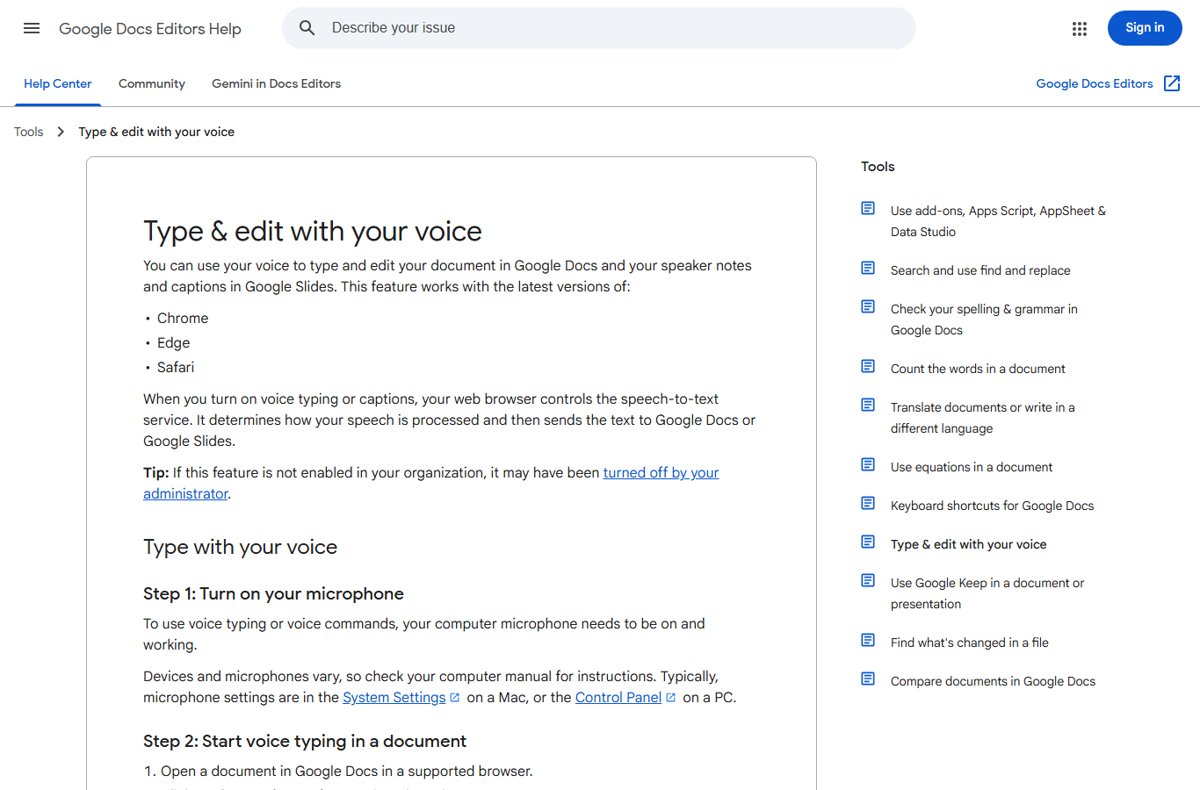
To use voice typing in Google Docs on a Windows PC or Mac, open the document in Chrome, Edge or Safari, click Tools > Voice typing, then click the microphone and speak.
The Google Docs app on iPhone and Android has no voice typing menu, so on a phone you dictate through the keyboard microphone instead: Apple Dictation on iPhone and iPad, Gboard on Android.
This guide covers each platform, the punctuation and editing commands, and fixes for the microphone and permission errors that stop it working.
How to turn on voice typing in Google Docs on a computer
This route works on Windows, macOS and ChromeOS in the latest versions of Chrome, Edge and Safari.
- Open the document at docs.google.com in a supported browser.
- Click where you want the text to start.
- Click Tools > Voice typing, or press Ctrl + Shift + S (Windows and ChromeOS) or Cmd + Shift + S (Mac). A microphone box appears.
- Click the microphone and allow the browser to use it if a permission prompt appears.
- Speak clearly at a normal volume and pace. Say "period", "comma" or "new paragraph" for punctuation.
- Click the microphone again when you are done.
G
o
o
g
l
e
l
i
s
t
s
t
h
e
k
e
y
b
o
a
r
d
s
h
o
r
t
c
u
t
a
s
a
v
a
i
l
a
b
l
e
i
n
C
h
r
o
m
e
,
s
o
u
s
e
t
h
e
*
*
T
o
o
l
s
*
*
m
e
n
u
i
f
t
h
e
s
h
o
r
t
c
u
t
d
o
e
s
n
o
t
h
i
n
g
i
n
E
d
g
e
o
r
S
a
f
a
r
i
.
Google Docs voice typing on Windows, Mac, iPhone and Android compared
| Your device | Use this | How to start it | Voice editing commands |
|---|---|---|---|
| Windows PC or laptop | Google Docs voice typing in Chrome or Edge | Tools > Voice typing or Ctrl + Shift + S | Yes, in English |
| Mac | Google Docs voice typing in Chrome or Safari | Tools > Voice typing or Cmd + Shift + S | Yes, in English |
| iPhone or iPad | Apple Dictation in the Google Docs app | Tap the microphone key on the onscreen keyboard | Apple's own commands (select, delete, change) |
| Android phone or tablet | Gboard voice typing in the Google Docs app | Tap Microphone at the top of Gboard | Punctuation only |
| Any Windows app, not just Docs | Windows voice typing | Press Windows key + H | Punctuation and "stop listening" |
What is Google Docs voice typing and how does it work?
Voice typing is the speech-to-text tool built into Google Docs on the web. It also dictates speaker notes and captions in Google Slides.
| Question | Answer |
|---|---|
| Who converts the speech? | Your web browser controls the speech-to-text service and sends the finished text to Google Docs. |
| Which browsers work? | The latest versions of Chrome, Edge and Safari. |
| Does the mobile Docs app have it? | No. Google's instructions cover desktop browsers only; on a phone you use the keyboard's dictation. |
| Which languages? | Dozens of languages and regional accents can be dictated. |
| Which languages take voice commands? | English only, and both your account language and the document language must be English. |
| Can a work or school account block it? | Yes. An administrator can turn the feature off for an organisation. |
Benefits of voice typing in Google Docs
| Benefit | What it means in practice |
|---|---|
| Hands-free first drafts | You can talk through notes, letters or essays and fix the wording afterwards. |
| Accessibility | People who find typing painful or slow can enter and edit text by voice. |
| Edit without the mouse | In English, commands such as "select paragraph", "italics" or "go to the end of the line" format and move around the document. |
| Fix as you go | You can move the cursor to a mistake and correct it without turning the microphone off. |
| Nothing to install | It runs inside the browser on any Windows PC, Mac or Chromebook with a working microphone. |
Setting up Google Docs for voice typing
Voice typing needs a working microphone and permission for the browser to use it. Set both up once and the Tools menu works every time.
- Connect a microphone, or use the one built into your laptop.
- On a Mac, choose Apple menu > System Settings > Privacy & Security > Microphone and turn on access for your browser.
- On Windows, make sure your microphone is the default recording device and its input level is not muted.
- In Chrome, open More > Settings > Privacy and security > Site settings > Microphone and pick the right device from the drop-down list.
- Open a document, start voice typing, and choose Allow while visiting the site when Chrome asks for the microphone.
- Set your Google Account language and the document language to English if you want voice commands as well as dictation.
Using voice typing on Google Docs for Windows and Mac
The steps are identical on a Windows PC, an HP or other laptop, a Mac and a Chromebook. Only the shortcut key changes.
- Open the document in Chrome, Edge or Safari and click where the text should go.
- Press Ctrl + Shift + S on Windows or Cmd + Shift + S on Mac, or click Tools > Voice typing.
- Click the microphone in the box that appears when you are ready to speak.
- Dictate, saying punctuation aloud: "period", "comma", "exclamation point", "question mark", "new line", "new paragraph".
- Right-click any word underlined in gray to see suggested alternatives.
- Say "stop listening" or click the microphone to stop. Say "resume" to carry on where you stopped.
T
o
d
i
c
t
a
t
e
G
o
o
g
l
e
S
l
i
d
e
s
s
p
e
a
k
e
r
n
o
t
e
s
,
o
p
e
n
t
h
e
p
r
e
s
e
n
t
a
t
i
o
n
a
n
d
c
l
i
c
k
*
*
T
o
o
l
s
*
*
>
*
*
D
i
c
t
a
t
e
s
p
e
a
k
e
r
n
o
t
e
s
*
*
i
n
s
t
e
a
d
.
Using voice typing on Google Docs for iPhone and iPad
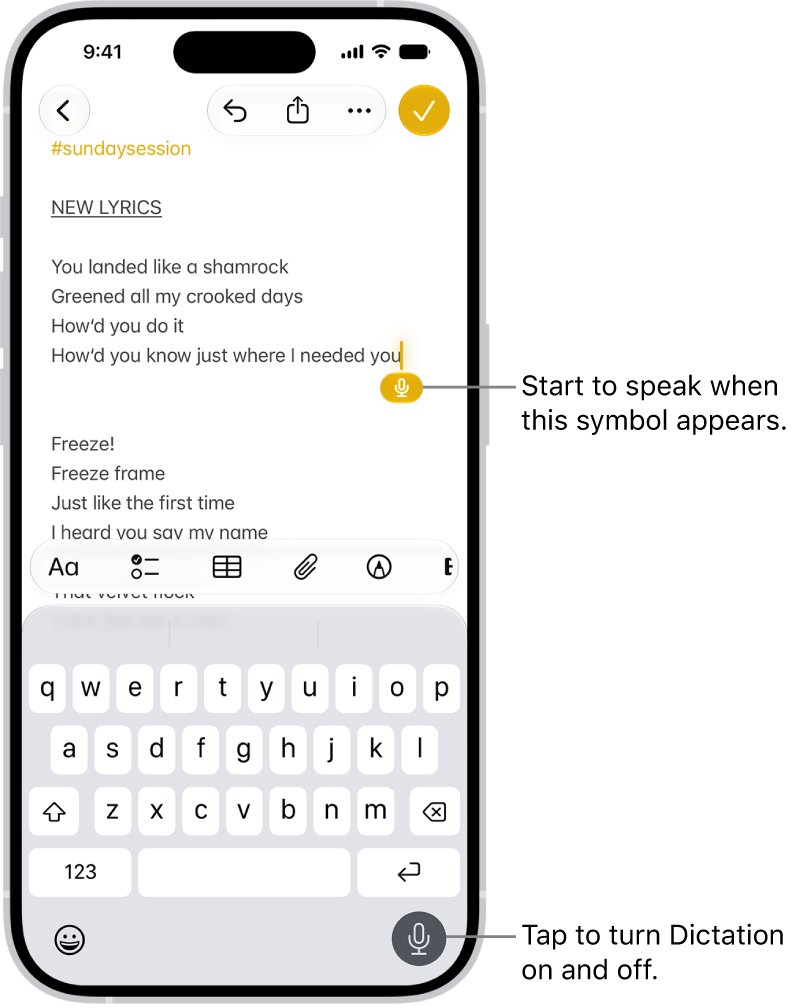
Apple Dictation works anywhere you can type, including inside the Google Docs app and in Safari.
- Open Settings > General > Keyboard and turn on Enable Dictation. Tap Enable Dictation again if a prompt appears.
- Open your document in the Google Docs app and switch it to editing so the keyboard appears.
- Tap where you want the text to begin.
- Tap the microphone key on the onscreen keyboard and start speaking when it appears next to the cursor.
- Say punctuation such as "comma" or "question mark", and "new line" or "new paragraph" for breaks.
- Tap the microphone again, say "stop dictation", or stay silent for 30 seconds to stop.
I
n
s
u
p
p
o
r
t
e
d
l
a
n
g
u
a
g
e
s
D
i
c
t
a
t
i
o
n
a
d
d
s
c
o
m
m
a
s
,
p
e
r
i
o
d
s
a
n
d
q
u
e
s
t
i
o
n
m
a
r
k
s
o
n
i
t
s
o
w
n
.
T
u
r
n
t
h
a
t
o
f
f
u
n
d
e
r
*
*
S
e
t
t
i
n
g
s
*
*
>
*
*
G
e
n
e
r
a
l
*
*
>
*
*
K
e
y
b
o
a
r
d
*
*
>
*
*
A
u
t
o
–
P
u
n
c
t
u
a
t
i
o
n
*
*
i
f
i
t
g
e
t
s
i
n
t
h
e
w
a
y
.
Using voice typing on Google Docs for Android
Gboard, Google's keyboard, handles voice typing on Android phones and tablets in any app with a text field.
- Install Gboard from the Play Store if your phone uses a different keyboard, and set it as your keyboard.
- Open your document in the Google Docs app and switch it to editing so the keyboard appears.
- Tap where the text should go.
- Tap Microphone at the top of the keyboard.
- When you see Speak now, say what you want written, including "period", "comma" or "new paragraph".
- To replace a word, touch and hold it, tap Microphone, then say the new word.
O
n
a
t
a
b
l
e
t
,
G
b
o
a
r
d
m
a
y
a
s
k
w
h
e
t
h
e
r
t
o
a
l
l
o
w
r
e
c
o
r
d
i
n
g
*
*
W
h
i
l
e
u
s
i
n
g
a
p
p
*
*
,
*
*
O
n
l
y
t
h
i
s
t
i
m
e
*
*
o
r
*
*
D
o
n
'
t
a
l
l
o
w
*
*
;
c
h
o
o
s
e
o
n
e
o
f
t
h
e
f
i
r
s
t
t
w
o
.
How to check Google Docs voice typing is listening
- Click where the text should go and start voice typing from Tools > Voice typing.
- Say a short test sentence and watch it appear at the cursor within a second or two.
- Say "period" and confirm a full stop appears rather than the word.
- In English, say "select paragraph" and check the paragraph highlights; that proves voice commands work too.
- On iPhone and Android, confirm the dictated words appear in the document, not only in the keyboard's suggestion bar.
Tips for optimizing voice typing accuracy in Google Docs
| Tip | Why it helps |
|---|---|
| Dictate in a quiet room | Background noise is the first thing Google suggests ruling out when it cannot hear you. |
| Use an external or headset microphone | A microphone near your mouth picks up your voice over room noise. |
| Speak at a normal pace and volume | Google's instructions ask for clear speech at a normal volume and pace, not slow, separated words. |
| Pause before and after commands | A short pause helps Docs treat "italics" or "new paragraph" as a command, not text. |
| Use one of the supported languages | Google lists dozens of supported languages and regional accents; dictating in an unsupported one gives poor results. |
| Fix mistakes with the mic on | Click the mistake, correct it, then click back where you want to continue. |
| Say "undo" after a wrong command | The bubble shows the last command heard; "undo" reverses it. |
Google Docs voice typing not working: troubleshooting common issues
Voice typing is missing from the Tools menu
The browser is not supported, you are in the mobile app, or a work or school administrator has turned the feature off.
- Open the document in the latest Chrome, Edge or Safari on a computer.
- On a phone, use the keyboard microphone method for iPhone or Android above.
- On a work or school account, ask your administrator whether voice typing is enabled.
"We're having trouble hearing you"
The microphone signal is too weak or there is too much background noise.
- Move to a quiet room.
- Plug in an external microphone.
- Raise the input volume of your microphone in your system sound settings.
The microphone is not working
The browser lacks microphone permission, another app holds the microphone, or the wrong device is selected.
- In Chrome, go to Settings > Privacy and security > Site settings > Microphone and allow docs.google.com.
- Pick the correct microphone from the drop-down on that page.
- On a Mac, turn on your browser under System Settings > Privacy & Security > Microphone.
- Close any other app that is using the microphone, such as a video call.
- Restart your computer and try again.
Voice commands are typed as words instead of running
Commands work only in English, or Docs did not hear a clear pause around the command.
- Set both your Google Account language and the document language to English.
- Speak slowly and pause before and after each command.
- Check the bubble that shows the last command; if it is wrong, say "undo".
Google Slides voice typing does not work
Slides offers dictation only for speaker notes and captions, and voice commands are not available in speaker notes.
- Click Tools > Dictate speaker notes in the presentation.
- Click the microphone and speak; add punctuation by saying it.
- Type slide text directly, or dictate it in Docs and paste it into the slide.
No microphone key on the iPhone or Android keyboard
Dictation is switched off on iPhone, or the Android keyboard is not Gboard or the language is not supported.
- On iPhone, open Settings > General > Keyboard and turn on Enable Dictation.
- On Android, switch to Gboard as your keyboard.
- Check that your keyboard language supports voice typing; not every language does.
Real-world applications of voice typing in Google Docs
| Use | Best tool | Note |
|---|---|---|
| Students drafting essays and notes | Docs voice typing on a laptop | Edit the draft by voice in English, or by keyboard afterwards. |
| Meeting or lecture notes | Docs voice typing with a headset microphone | It transcribes your voice; it is not built to transcribe a room of speakers. |
| Presentation scripts | Tools > Dictate speaker notes in Slides | Speaker notes accept dictation but not voice commands. |
| Quick notes away from a desk | Apple Dictation or Gboard in the Docs app | Open the document on your phone and tap the keyboard microphone. |
| Accessibility and hands-free writing | Docs voice typing plus voice commands | Select, format, edit, add tables and move around the document by voice. |
| Writing in Word or other Windows apps | Windows voice typing (Windows key + H) | Needs an internet connection and a cursor in a text box. |
Google Docs voice typing FAQ
How do I turn on voice typing in Google Docs?
Open the document in Chrome, Edge or Safari on a computer, click Tools > Voice typing, then click the microphone. In Chrome you can press Ctrl + Shift + S on Windows or Cmd + Shift + S on a Mac instead of using the menu.
How do I use voice typing on a Windows laptop or PC?
In Google Docs, use Tools > Voice typing. Everywhere else in Windows 11, press Windows key + H with the cursor in a text box and wait for the listening alert. Windows voice typing needs an internet connection and a working microphone, and this works the same on HP and other laptops.
How do I use voice typing on Android?
Tap a text field, then tap Microphone at the top of Gboard and speak when you see Speak now. This works in the Google Docs app and any other app where you can type. Install Gboard from the Play Store if your phone uses a different keyboard.
How do I use voice typing on a tablet?
On an iPad, turn on Enable Dictation under Settings > General > Keyboard, then tap the keyboard microphone. On an Android tablet, tap Microphone in Gboard and allow recording when asked. In both cases you dictate into the Google Docs app through the keyboard.
Can I use voice typing in Microsoft Word?
Yes. On Windows 11, place the cursor in your Word document and press Windows key + H to start Windows voice typing. It inserts text into any app with a text box, needs an internet connection, and stops when you say "stop listening".
Why can't I use Google Slides voice typing?
Google Slides only supports dictation for speaker notes and captions, not slide text boxes. Click Tools > Dictate speaker notes to start it. Voice commands do not work in speaker notes, and an administrator can turn the feature off for work or school accounts.
How does voice typing work in Google Docs?
When you turn on voice typing, your web browser controls the speech-to-text service. It processes what you say and sends the text to Google Docs, which is why it only works in supported browsers such as Chrome, Edge and Safari.
How do I add punctuation with Google Docs voice typing?
Say the name of the mark: "period", "comma", "exclamation point" or "question mark". Say "new line" or "new paragraph" to break the text. Google notes that punctuation commands are not available in every language.
How do I stop and restart voice typing in Google Docs?
Say "stop listening" or click the microphone to stop. Say "resume" to carry on where you left off, or "resume with" followed by a word or phrase to continue from that spot. Resume commands work only in English.
Does Google Docs voice typing work in other languages?
Yes, dictation supports dozens of languages and regional accents, including Arabic, Spanish, French, German, Japanese and Hindi. Voice commands for editing and formatting, however, work only when both your account and document language are English.
Bottom line: which Google Docs voice typing option should you use?
On a Windows PC or Mac, use Tools > Voice typing in Chrome; on iPhone use Apple Dictation, and on Android use Gboard's microphone inside the Docs app. Only the desktop version of Google Docs has its own voice typing with editing commands, while the phone apps rely on the keyboard's dictation, which works in any text field.

![How to enable DLNA media server in Windows 11 [solution]](https://techdows.com/wp-content/uploads/2026/10/Windows-11-Network-folder-banner-offering-to-turn-on-network-discovery.jpg)