Press F5 or Ctrl + R to refresh the current tab in Microsoft Edge, and press Ctrl + Shift + R or Shift + F5 to hard refresh it so Edge ignores cached content.
This guide covers both on Windows 11 and Windows 10, plus the DevTools empty-cache reload, manual cache clearing, tabs, extensions, sync, mobile, InPrivate and fixes when a refresh changes nothing.
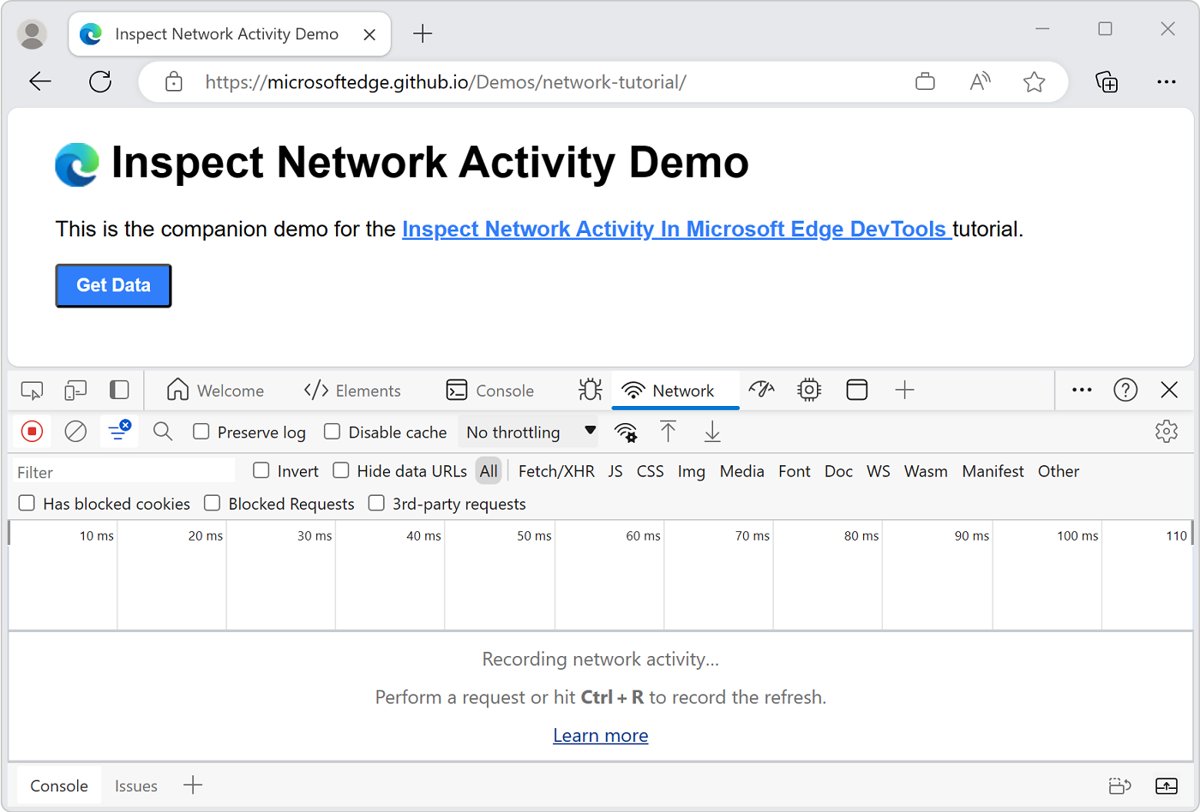
Common Edge refresh shortcuts summary
These are the keys Microsoft lists for Edge on Windows and Mac. Each one acts on the tab you are looking at.
| Keys | Platform | What it does |
|---|---|---|
| F5 | Windows | Reload the current tab |
| Ctrl + R | Windows | Reload the current page |
| Shift + F5 | Windows | Reload the current tab, ignoring cached content (hard refresh) |
| Ctrl + Shift + R | Windows | Reload the current page, ignoring cached content (hard refresh) |
| Ctrl + Shift + Delete | Windows | Open the clear browsing data options |
| Esc | Windows and Mac | Stop a page that is still loading |
| Command + R | Mac | Reload the current tab |
| Command + Shift + R | Mac | Reload the current tab, ignoring cached content |
Microsoft's Edge shortcut list does not include Ctrl + F5, so use Ctrl + Shift + R or Shift + F5 when you need a hard refresh you can rely on.
Understanding refresh vs hard refresh in Microsoft Edge
A normal refresh asks the site for the page again but lets Edge reuse files it already saved. A hard refresh tells Edge to ignore that saved copy for the tab you reload.
| Type | Shortcut | Uses cached files? | Best for |
|---|---|---|---|
| Normal refresh | F5 or Ctrl + R | Yes, where the site allows it | Updating a feed, retrying a slow load |
| Hard refresh | Ctrl + Shift + R or Shift + F5 | No, cached content is ignored | Seeing a changed stylesheet, script or image |
| Empty cache and hard refresh | DevTools open, right-click Refresh | No, Edge goes to the network for every resource | Web developers testing a first visit |
| Clear browsing data | Ctrl + Shift + Delete | Deletes stored copies for the chosen time range | Broken layouts that survive a hard refresh |
Why you may need to refresh Microsoft Edge
Why refresh is important comes down to one fact: Edge keeps copies of pages, images and other media on your device so sites load faster. That saved copy can fall behind the live site.
| What you see | Refresh to use |
|---|---|
| A news page or inbox that has not updated | Normal refresh |
| A page that stopped half way or shows a timeout | Normal refresh |
| Old styling, a missing button or an outdated image after a site change | Hard refresh |
| A form or login loop that keeps failing | Clear cookies and cached files, then refresh |
| A developer's change that will not appear | Empty cache and hard refresh in DevTools |
Method 1: Standard refresh using keyboard shortcut
- Click anywhere on the page you want to reload so the Edge window has focus.
- Press F5, or press Ctrl + R if your laptop needs the Fn key for F5.
- Wait for the loading spinner on the tab to stop.
- Press Esc if the page hangs and you want to stop loading it.
Method 2: Refresh using browser refresh button
- Open the tab you want to reload.
- Click the Refresh button in the browser toolbar, next to the address bar.
- Wait for the loading indicator on the tab to stop.
- Click Refresh again if the page is still incomplete, or press Esc to stop a load that hangs.
Method 3: Hard refresh Microsoft Edge using keyboard shortcuts
A hard refresh reloads the current tab while ignoring cached content. It does not sign you out or delete saved passwords.
- Open the tab that shows the outdated page.
- Press Ctrl + Shift + R.
- If nothing changes, press Shift + F5 instead; both do the same job.
- On a Mac, press Command + Shift + R.
Method 4: Empty cache and hard refresh using Edge developer tools
Edge calls this option Empty cache and hard refresh, not "hard reload". It only appears while DevTools is open, and it forces Edge to fetch every resource from the network.
- Open the page you want to reload.
- Press F12 or Ctrl + Shift + I to open DevTools.
- Right-click the Refresh button in the browser toolbar, or long-press it.
- Select Empty cache and hard refresh.
- Press F12 again to close DevTools once the page has loaded.
For a site that uses a service worker, F5 may keep serving old files. Open DevTools, go to Application > Service workers and select Bypass for network, or use Empty cache and hard refresh.
Method 5: Clear browser cache manually in Edge
Clearing cached images and files removes the saved copies for every site in the chosen time range. Leave Cookies and other site data unticked if you want to stay signed in.
- Select Settings and more (the three dots) > Settings.
- Select Privacy, search, and services.
- Under Clear browsing data, select Choose what to clear next to Clear browsing data now.
- Under Time range, pick a range such as All time.
- Tick Cached images and files.
- Select Clear now, then reload the page with F5.
Keyboard shortcut to open clear browsing data in Edge
Ctrl + Shift + Delete skips the menus in Method 5 and opens the same dialog. On a Mac the keys are Command + Shift + Delete.
- Press Ctrl + Shift + Delete in any Edge window.
- Choose the Time range.
- Tick Cached images and files and untick anything you want to keep.
- Select Clear now.
When to use hard refresh in Edge
| Your situation | Use this | Why |
|---|---|---|
| Page content is simply out of date | F5 or Ctrl + R | Fastest, and cached files are still fine |
| Site changed its look but you still see the old one | Ctrl + Shift + R | Ignores cached content for this tab only |
| Hard refresh did not fix the layout | Clear Cached images and files | Removes stored copies Edge may still use |
| You build or test the site yourself | Empty cache and hard refresh | Fetches every resource from the network |
| Every site misbehaves, not just one | Troubleshooting steps below | The cause is Edge or the network, not one page |
Benefits of hard refresh in Microsoft Edge
| Benefit | What it means for you |
|---|---|
| Shows the current version of the page | Changed scripts, styles and images load fresh |
| Limited to one tab | Other sites keep their cached files and stay fast |
| Keeps you signed in | Cookies and saved passwords are not touched |
| Takes one key combination | No settings page or DevTools needed |
Potential downsides of a hard refresh or cache clear
| Downside | Applies to | How to limit it |
|---|---|---|
| Slower page load, since every file downloads again | Hard refresh and cache clear | Use a normal refresh unless the page looks wrong |
| More data used on a metered connection | Hard refresh and cache clear | Clear a short Time range instead of All time |
| Unsaved form text is lost | Every kind of refresh | Copy what you typed before reloading |
| Sign-outs from websites | Clearing Cookies and other site data | Tick only Cached images and files |
How to refresh specific tabs only in Edge
Every refresh shortcut acts on the active tab only, so switch to the tab first.
- Press Ctrl + 1 through Ctrl + 8 to jump to that tab by position, or click the tab.
- Press F5 for a normal refresh or Ctrl + Shift + R for a hard refresh.
- Leave the other tabs alone; they keep their current state.
Refresh multiple tabs in Microsoft Edge
Microsoft's shortcut list has no single key that reloads every open tab. Cycling through them with the keyboard is the quickest documented route.
- Click the first tab you want to reload.
- Press F5.
- Press Ctrl + Tab to move to the next tab, then press F5 again.
- Repeat until each tab has reloaded; press Ctrl + Shift + Tab to go back one tab.
Refresh Microsoft Edge after browser updates
Edge downloads updates in the background but needs a restart to finish installing them. If Edge is missing entirely, you can download Microsoft Edge again before you start.
- Select Settings and more > Help and feedback > About Microsoft Edge, or type
edge://settings/helpin the address bar. - Wait while Edge checks for and downloads any update.
- When the page shows To finish updating, restart Microsoft Edge, select Restart.
- Press Ctrl + Shift + T to reopen a tab that did not come back after the restart.
Refresh Edge extensions
Turning an extension off and on again reloads it. Content blockers such as AdGuard in Microsoft Edge are worth testing first when one site breaks.
- Select Extensions to the right of the address bar, then select Manage extensions.
- Select the toggle next to the extension to turn it off.
- Reload the page with F5 and check whether the problem is gone.
- Select the toggle again to turn the extension back on.
Refresh Edge profile sync
When favorites or passwords on one PC do not match another, switching the affected sync item off and on prompts Edge to sync it again.
- Select Settings and more > Settings.
- Under Profiles, select your profile, then select Sync.
- Turn off the toggle for the item that is out of date, such as Favorites.
- Turn the same toggle back on.
- Close and reopen Edge, then check the item on both devices.
Hard refresh on Microsoft Edge mobile
Edge for Android and iPhone has no documented hard refresh command. The documented way to drop stale files is to clear browsing data, then reload the page.
- Open the Edge app and tap the menu ….
- Tap Settings > Privacy (or Privacy and security on some Android versions).
- Tap Clear browsing data.
- Choose the data to clear, keeping cookies if you want to stay signed in, and confirm.
- Open the page again.
Refreshing Edge in InPrivate mode
Refresh works the same way in an InPrivate window. When you close all InPrivate windows, Edge deletes that session's browsing history, cookies and site data, which makes InPrivate a quick clean-slate test.
- Press Ctrl + Shift + N to open an InPrivate window.
- Open the problem page there.
- Press F5 or Ctrl + Shift + R to reload it.
- If the page works in InPrivate but not in a normal window, clear cookies and cached files for your normal profile.
How to check an Edge hard refresh loaded the latest page
- Look for the change you expected, such as new text, a new logo or a fixed layout.
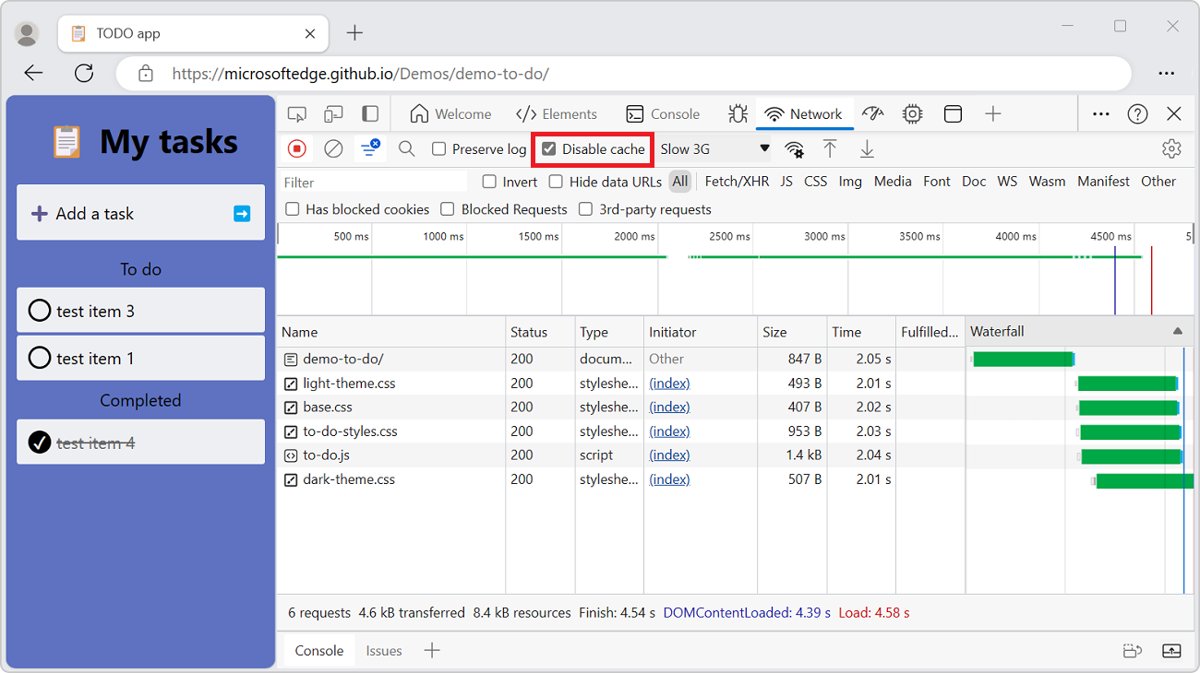
- Press F12, select the Network tab, then press Ctrl + Shift + R.
- Check that the Network Log lists the page's files with a Status for each request.
- To rule out the cache entirely, tick Disable cache in the Network tool and reload once more.
- Close DevTools with F12 when you are done.
Troubleshooting if Edge refresh does not work
The page still shows the old version after a hard refresh
Stored site data or a service worker is still serving old files.
- Press Ctrl + Shift + Delete.
- Set Time range to All time and tick Cached images and files.
- Select Clear now and reload the page.
- Test the page in an InPrivate window with Ctrl + Shift + N.
Refresh spins forever or the page will not load
The connection, a VPN or the site itself is failing, not the cache.
- Press Esc to stop loading, then press F5 once.
- Open a different website to check your internet connection.
- Turn off any VPN, including the built-in VPN in Microsoft Edge, and reload.
- Restart your modem and router if no site loads.
- Try the page in another browser; if it fails there too, the site is down.
Edge freezes or refreshes slowly on every site
A busy tab, an extension or a stuck Edge process.
- Press Shift + Esc to open the Browser Task Manager, sort by CPU or Memory, and select End process on the heavy item.
- Go to
edge://extensions/, turn off all extensions and test again. - Close every Edge window and reopen Edge.
- Restart your computer if Edge is still slow.
Pages break after a refresh even with extensions off
Changed settings or a damaged Edge install.
- Go to
edge://settings/resetand select Restore settings to their default values. Favorites, history and saved passwords are kept; pinned tabs, startup page, search engine and extensions are reset. - If that fails, close Edge and open Start > Settings > Apps > Installed apps.
- Select Microsoft Edge, choose Modify, then select Repair. Repair should not affect your browser data, so try it before you remove Microsoft Edge completely.
Advanced tips for Edge performance
These settings reduce how often you need to refresh because tabs stall or Edge runs short of memory.
- Go to
edge://settings/system/managePerformanceand turn on Save resources with sleeping tabs. - Adjust the inactivity timeout, and add sites that must never sleep to the exception list.
- Go to
edge://settings/systemand turn off Continue running background extensions and apps when Microsoft Edge is closed. - On the same page, make sure Use graphics acceleration when available is turned on.
- Go to
edge://gpuand check Graphics Feature Status for hardware acceleration.
Tips for optimizing browsing experience in Microsoft Edge
| Tip | Where | Effect |
|---|---|---|
| Keep Edge updated | edge://settings/help |
Fixes and security patches install after a restart |
| Clear data automatically | Privacy, search, and services > Choose what to clear every time you close the browser | Starts each session without stale cached files |
| Remove unused extensions | Extensions > Manage extensions | Fewer add-ons slowing or breaking pages |
| Close tabs you no longer need | Press Ctrl + W | Frees memory for the tabs you use |
| Reopen a tab closed by mistake | Press Ctrl + Shift + T | Brings back the last closed tab |
Microsoft Edge refresh and hard refresh: frequently asked questions
What is the shortcut to hard refresh in Microsoft Edge?
Press Ctrl + Shift + R or Shift + F5 on Windows 11 and Windows 10. Both reload the current tab while ignoring cached content. On a Mac, press Command + Shift + R.
Does Ctrl + F5 hard refresh in Edge?
Microsoft's official Edge shortcut list does not include Ctrl + F5. The documented hard refresh keys are Ctrl + Shift + R and Shift + F5, so use one of those when you need Edge to skip cached content.
Does a hard refresh delete cookies or passwords in Edge?
No. A hard refresh only reloads the current tab without using cached content. Cookies, saved passwords and history stay in place. Only Clear browsing data removes them, and only the types you tick.
Why can't I see Empty cache and hard refresh in Edge?
The Empty cache and hard refresh option only appears while DevTools is open. Press F12, then right-click or long-press the Refresh button in the browser toolbar to see it.
How do I refresh every tab in Edge at once?
Edge has no documented shortcut that reloads all tabs together. Press F5 on the active tab, press Ctrl + Tab to move to the next one, and repeat until each tab has reloaded.
How do I hard refresh Edge on Android or iPhone?
Edge mobile has no hard refresh command. Tap … > Settings > Privacy > Clear browsing data, clear the cached data, and open the page again to load fresh copies.
Does a hard refresh clear the cache for every website?
No. A hard refresh affects only the tab you reload. To remove cached files for every site, press Ctrl + Shift + Delete, tick Cached images and files and select Clear now.
Does resetting Edge settings delete my favorites?
No. Restore settings to their default values keeps favorites, history and saved passwords. It resets pinned tabs, the startup page, the search engine and extensions, so expect to turn extensions back on afterwards.
Should you refresh or hard refresh Microsoft Edge?
Use F5 for everyday reloads and switch to Ctrl + Shift + R only when a page looks outdated or broken; clear Cached images and files if even that fails. A normal refresh is the fastest and keeps cached files working for you, while a hard refresh fixes stale content for one tab without signing you out of anything.

![Allow apps to access your microphone Windows 11 [tutorial]](https://techdows.com/wp-content/uploads/2026/10/Windows-10-Privacy-Microphone-page-with-the-apps-access-switch-on.jpg)