To recall an email in Gmail, click Undo in the "Message sent" notice that appears right after you send it, before the cancellation period of up to 30 seconds runs out.
This guide covers the five steps, how to set a longer Undo Send window, unsending in the Android and iPhone apps, and what to do once the window has closed.
How to recall an email in Gmail: the straightforward 5-step method
Gmail has no true recall feature. It holds each sent message for a short cancellation period, and Undo cancels it before it leaves.
These steps work in Gmail on a computer. The phone apps follow the same idea and are covered further down.
- Send your email as usual by clicking Send at the bottom of the compose window.
- Look at the bottom left of the screen for the Message sent notice with Undo and View message.
- Click Undo straight away, before the notice disappears.
- Edit the message that reopens: fix the recipient, the subject, the text or the missing attachment.
- Click Send to resend the corrected email, or close the window to keep it as a draft.
If the notice is already gone, Undo Send can no longer help. The sections on limitations and troubleshooting cover your remaining options.
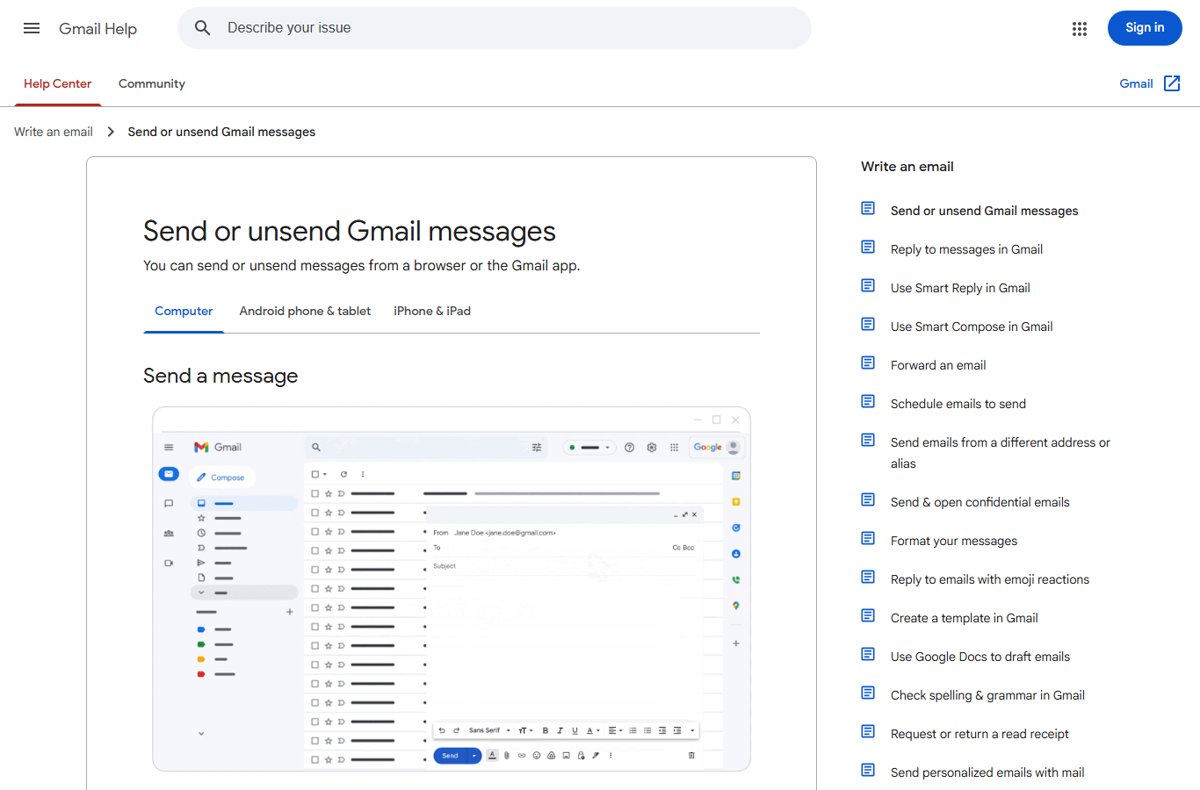
Understanding Gmail's "Undo Send" feature
Undo Send is a short delay, not a recall. Gmail waits for the cancellation period you set, then delivers the message.
| Question | Gmail Undo Send | Outlook message recall |
|---|---|---|
| What it does | Cancels a message during a delay of 5, 10, 20 or 30 seconds | Tries to remove a message that was already delivered |
| Who it works with | Any recipient, because the email has not left yet | Only senders and recipients on Microsoft 365 accounts in the same organization |
| Gmail recipients | Covered, as long as you act within the window | Not covered: messages to Gmail or Outlook.com can't be recalled |
| After the window | Nothing can be undone | Recall may still work inside the same organization |
The traditional recall that Outlook offers works on delivered mail, which Gmail cannot do. If you also use a work account, you can recall an email in Outlook under those organization rules.
How to enable and configure "Undo Send" in Gmail
Undo Send is always on, so there is nothing to enable. What you can change is the cancellation period, and 30 seconds gives you the most time.
- Open Gmail in a browser on your computer.
- Click Settings at the top right, then click See all settings.
- Find the Undo Send row on the settings page.
- Open the Send cancellation period list and select 30 seconds.
- Scroll to the bottom of the page and click Save changes.
You can return to the same row at any time to change the cancellation period to 5, 10 or 20 seconds instead.
How to unsend an email in the Gmail app on Android and iPhone
The Gmail app for Android, iPhone and iPad shows its own Undo option right after you send.
- Open the Gmail app and write your message.
- Tap Send at the top of the screen.
- Watch the bottom of the screen for the Sent notice with Undo.
- Tap Undo before the notice disappears.
- Edit the reopened message, then tap Send again or leave it as a draft.
Combine Gmail Undo Send with other features: Schedule send and confidential mode
Two other Gmail features give you a safer way to communicate when 30 seconds is not enough. Schedule send keeps the email in your account until a set time, and confidential mode lets you remove access later.
Hold an email back with Schedule send
A scheduled email stays in your Scheduled folder until it sends, so you can cancel it at any point before then.
- Click Compose and write your email.
- Click the Down arrow next to Send at the bottom left.
- Click Schedule send and pick a date and time.
- To pull it back, click Scheduled in the left panel and open the email.
- Click Cancel send at the top right. The email becomes a draft again.
Remove access later with confidential mode
A confidential email can expire or have access removed, even after the recipient has received it.
- Click Compose, then click Toggle confidential mode at the bottom of the compose window.
- Set an expiration date and choose No SMS passcode or SMS passcode, then click Save.
- Send the email as usual.
- To revoke it, click Sent on the left and open the confidential email.
- Click Remove access.
In the Android app, Schedule send sits under More at the top right of the compose screen. You can have up to 100 scheduled emails at a time.
How to check a Gmail email was unsent
A successful Undo leaves clear signs in your account. Check them before you assume the message is gone.
- Confirm the compose window reopened with your message in it after you clicked Undo.
- Click Sent in the left panel and check that the email is not listed there.
- Click Drafts if you closed the window, and find the message saved as a draft.
- Open Scheduled if you used Schedule send, and confirm the email is no longer listed.
If the email still shows in Sent, the window had closed and it was delivered. It helps to check sent emails in Gmail on the same account you sent from.
Advanced tips and best practices for recalling emails in Gmail
| Tip | What to do | Why it helps |
|---|---|---|
| Act quickly | Click Undo the moment you spot the mistake | The option disappears when the cancellation period ends |
| Use keyboard shortcuts | Turn on Keyboard shortcuts on in settings, then press z to undo your last action | Faster than reaching for the notice; Ctrl + Enter (Cmd + Enter on Mac) sends |
| Adjust the cancellation period to your needs | Set Undo Send to 30 seconds if you often catch errors late | Every extra second is more time to react |
| Use drafts for sensitive emails | Leave the email in Drafts and reread it before sending | A draft has not gone anywhere, so nothing needs recalling |
| Combine Undo Send with delayed delivery | Use Schedule send for anything that can wait | You can cancel it up until the scheduled time |
| Be mindful of the recipient's email client | Remember that Undo Send works only before delivery | Once the email reaches another service, Gmail cannot remove it |
Troubleshooting common issues when recalling Gmail emails
The "Undo" option doesn't appear
The notice closed before you saw it, or you clicked elsewhere and it went away.
- Open Settings > See all settings and set the Send cancellation period to 30 seconds.
- Click Save changes.
- Keep your eye on the bottom left of the screen each time you send.
- Press z for undo only after turning Keyboard shortcuts on in settings.
Why can't I recall an email? The recall window has passed
Gmail delivered the message once the cancellation period ended, and there is no recall after delivery.
- Open Sent and confirm the email was delivered.
- Send a short follow-up that corrects the mistake.
- Use Schedule send or confidential mode next time for emails you may want back.
The email was already opened by the recipient
A delivered standard email sits in the recipient's mailbox, outside your control.
- Reply to the same thread so the correction stays next to the original.
- Ask the recipient to delete the message if it contained something sensitive.
- If you sent it in confidential mode, open it in Sent and click Remove access.
Why would a recall email fail with multiple recipients?
Undo cancels the send for everyone at once, so a partial recall is not possible after delivery.
- Click Undo within the window to cancel the message for all recipients.
- Remove or correct the wrong address in the To, Cc or Bcc field.
- Click Send again.
Limitations of Gmail Undo Send and the need for additional solutions
| Limitation | What it means | Additional solution |
|---|---|---|
| 30 seconds at most | The longest cancellation period is 30 seconds | Schedule send for anything you are unsure about |
| No recall after delivery | Gmail cannot pull a message out of another inbox | Confidential mode with Remove access |
| Confidential mode is not copy-proof | Recipients can still take screenshots or photos | Leave the most sensitive details out of email |
| Scheduled timing is approximate | Scheduled emails may send a few minutes late | Schedule a little earlier than you need |
Recall email in Gmail: frequently asked questions (FAQs)
Can I recall an email in Gmail?
Only during the Undo Send window. Gmail holds a sent message for 5, 10, 20 or 30 seconds, and clicking Undo in that time cancels it. After the window closes, the email is delivered and Gmail cannot take it back.
How long do I have to unsend a Gmail message?
Up to 30 seconds. Set the Send cancellation period under Settings > See all settings > Undo Send to 5, 10, 20 or 30 seconds, then click Save changes. Gmail offers no longer period.
Can I recall an email in the Gmail app on my phone?
Yes. In the Gmail app for Android, iPhone and iPad, a Sent notice with Undo appears right after you send. Tap Undo before the notice disappears to cancel the message and reopen it.
Why can't I recall an email in Gmail?
The cancellation period has ended, so the message was delivered. Gmail has no recall for delivered mail. Send a correction, or use Schedule send or confidential mode next time when you may need to pull a message back.
How do I recall an email in Outlook?
Outlook can recall a message only when you and the recipient both use Microsoft 365 accounts in the same organization. Messages sent outside the organization, or to personal accounts such as Outlook.com or Gmail, cannot be recalled.
Can I recall an email in Outlook 365 that I sent to a Gmail address?
No. Microsoft states that messages sent to people outside your organization, or to personal accounts such as Gmail, cannot be recalled. Only recipients in your own Microsoft 365 organization are covered by Outlook recall.
Can I recall an email in Hotmail?
Hotmail addresses now run on Outlook.com, a personal account. Outlook recall needs both people on Microsoft 365 accounts in the same organization, and Microsoft lists Outlook.com among the personal accounts whose messages cannot be recalled.
Does the recipient see an email I unsent in Gmail?
No. Clicking Undo cancels the message during the cancellation period, before Gmail sends it on. The email reopens in your compose window instead of reaching the recipient's inbox.
Bottom line: can you recall an email in Gmail?
Set Gmail's Undo Send period to 30 seconds today, and use Schedule send for any email you might want to stop. Gmail can only cancel a message before it is delivered, so the longest window plus a scheduled delay gives you the best chance of pulling a mistake back.