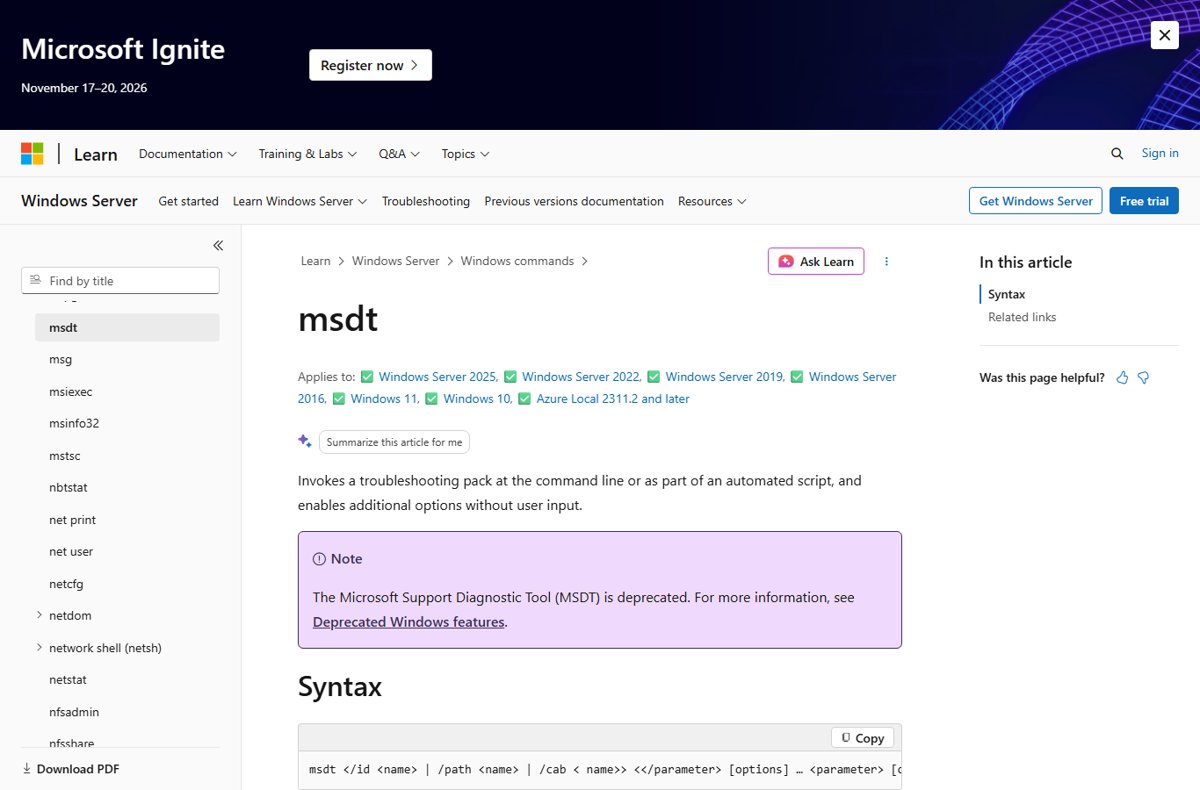
To run the Hardware and Devices troubleshooter on Windows 11, press Windows logo key + R, type msdt.exe /id DeviceDiagnostic and press Enter; it has no entry in Settings, so the command is the only way in.
The command works on Windows 11 version 22H2 and older, because Microsoft removed this troubleshooter from newer releases. This guide covers the command, what the troubleshooter checks, the Device Manager and Settings fixes that replace it on newer builds, and what to do when Windows still does not detect a device.
Run Hardware and Devices troubleshooter with msdt.exe on Windows 11
DeviceDiagnostic is the troubleshooting pack ID Microsoft lists for hardware and devices. The Run box is the shortest route to it.
- Plug in and switch on the device that is giving you trouble.
- Press Windows logo key + R to open Run.
- Type
msdt.exe /id DeviceDiagnosticand press Enter. - Follow the prompts on the troubleshooter's welcome page to start the scan.
- Approve the User Account Control prompt if Windows asks for administrator permission.
- Review each problem it reports and apply the fixes it recommends.
- Restart the PC and test the device again.
If the command returns an error or nothing opens, your build no longer has the troubleshooter. Skip to the Settings alternatives and Device Manager checks below.
Use Windows Settings troubleshooters as alternatives
On Windows 11 releases newer than 22H2, Microsoft redirected the device-specific troubleshooters to the Get Help app and removed Hardware and Devices without a replacement. Pick the one that matches the device.
| Your situation | Use this | Why |
|---|---|---|
| Windows 11 22H2 or older, any device | msdt.exe /id DeviceDiagnostic |
The legacy troubleshooter is still installed on these versions |
| Newer Windows 11, no sound from speakers or headset | Audio under Other troubleshooters, or audio troubleshooter in Get Help |
Microsoft's replacement route for sound devices |
| Newer Windows 11, Bluetooth device will not pair | Bluetooth, or Bluetooth troubleshooter in Get Help |
Microsoft's replacement route for Bluetooth devices |
| Newer Windows 11, webcam not detected | Camera, or camera troubleshooter in Get Help |
Microsoft's replacement route for cameras |
| Newer Windows 11, printer offline or not found | Printer, or printer troubleshooter in Get Help |
Replaces the removed Devices and Printers troubleshooter |
| Network adapter missing or Wi-Fi gone | connect to network and internet in Get Help |
Microsoft's replacement route for network adapters |
| Keyboard, touchpad, USB drive or any other device | Device Manager | No device-specific troubleshooter exists for these on newer builds |
Open these from Start > Settings > System > Troubleshoot > Other troubleshooters, then select Run next to the device. They sit alongside the other Windows troubleshooters on that page, and Get Help needs you signed in with a Microsoft account or a work or school account.
Check your Windows 11 version before running msdt
Microsoft's MSDT retirement applies to Windows 11 releases after 22H2. Your version decides which route works.
- Right-click Start and select Settings.
- Select System, then scroll down and select About.
- Read the version under Windows specifications.
- If it shows 22H2 or an older version, use the msdt command.
- If it shows a newer version, use the Settings troubleshooters and Device Manager instead.
Type ms-settings:about in the Run box to open the same page in one step.
What the Hardware and Devices troubleshooter does
Microsoft describes the DeviceDiagnostic pack as one that troubleshoots problems using hardware and access devices connected to the computer. Every cause it checks ends in one of four states.
| Result for a cause | What it means | Your next step |
|---|---|---|
| Fixed | The troubleshooter found the problem and corrected it | Restart and test the device |
| Not fixed | It found the problem but its fix did not work | Update or reinstall the driver in Device Manager |
| Detected (not fixable) | It found a problem it has no automatic fix for | Follow its advice, often a driver from the manufacturer |
| Not found | None of its checks matched a problem | Check the Device status box in Device Manager |
Problems it can help fix include a device that Windows has disabled, a driver that is missing or failed to start, and hardware that needs a fresh scan to be picked up. It cannot repair a failed component, such as a dead USB port or a broken webcam.
Run the Hardware and Devices troubleshooter using Command Prompt
Use this command-based method when the Run box is blocked, or when you are already working in a terminal. You do not need to run Command Prompt as administrator to start the troubleshooter; Windows asks for permission if a fix needs it.
msdt.exe /id DeviceDiagnosticStarts the Microsoft Support Diagnostic Tool with the DeviceDiagnostic troubleshooting pack. Type cmd in the Start search box, open Command Prompt, type the command and press Enter.
You should see: The Hardware and Devices troubleshooter window opens on its welcome page. An error or no window means your Windows 11 build no longer includes it.
Add /custom to the end of the command to make the troubleshooter ask before it applies each fix. Results are saved in %LOCALAPPDATA%\Diagnostics, or in %LOCALAPPDATA%\ElevatedDiagnostics for runs that needed administrator rights.
Apply recommended fixes and restart your PC
The troubleshooter lists each problem it detected and offers a fix where it has one. Most driver and device fixes only take effect after a restart.
- Read the description of each problem before you accept the fix.
- Apply the fix for problems that match the device you are troubleshooting.
- Skip a fix that affects a device you are not having trouble with.
- Write down any problem marked as not fixed; you need it for the Device Manager checks.
- Close the troubleshooter when it shows its summary.
- Select Start > Shut down or sign out > Restart.
- Reconnect the device after the restart and test it.
If the troubleshooter recommends a fix you cannot apply, such as a driver it cannot find, get the driver from the device maker's website and install it through Device Manager.
Check Device Manager for driver or hardware errors
Device Manager shows the exact error Windows has recorded for a device. Right-click Start, select Device Manager, expand the category, right-click the device, select Properties and read the Device status box.
Rolling back or uninstalling a driver needs administrator rights, so open Device Manager as administrator if you use a standard account.
| Device status shows | What it means | Fix in Device Manager |
|---|---|---|
| Code 1: This device is not configured correctly | No driver, or a misconfigured one | Driver tab > Update Driver |
| Code 10: This device cannot start | The driver failed to start the device | Driver tab > Update Driver |
| Code 22: This device is disabled | The device was turned off in Windows | Select the device, then Action > Enable Device |
| Code 28: The drivers for this device are not installed | Windows has no driver for it | Uninstall the device, then Action > Scan for hardware changes |
| Code 39: Windows cannot load the device driver | The driver is corrupted or missing | Uninstall the device, then Action > Scan for hardware changes |
| Code 43: Windows has stopped this device because it has reported problems | The device or its driver reported a failure | Reinstall the driver; contact the manufacturer if it returns |
| Code 45: This hardware device is not connected | Windows remembers a device that is unplugged | Reconnect it; no fix is needed |
| Code 52: Windows cannot verify the digital signature | The driver is unsigned or damaged | Install the latest driver from the manufacturer |
A device that broke after a driver update needs the reverse: open its Properties, select the Driver tab, select Roll Back Driver, choose a reason and select Yes.
Confirm the hardware troubleshooter fixed the device
- Use the device for the task that failed before: print a page, play a sound, type, or open the camera.
- Right-click Start and open Device Manager.
- Check that the device appears under its category with no warning icon.
- Open the device's Properties and confirm the Device status box says the device is working properly.
- Disconnect and reconnect the device once to confirm Windows picks it up again on its own.
A run that ended with every cause marked not found, and a device that still fails this check, points to a driver or hardware fault rather than a Windows setting.
What to do if Windows 11 still does not detect the device
The device does not appear in Device Manager at all
Windows has not enumerated the hardware since it was connected.
- Plug the device into a different port, directly on the PC rather than through a hub.
- In Device Manager, select Action > Scan for hardware changes.
- Restart the PC with the device connected.
- Try the device on another computer; if it fails there too, the device is faulty.
The device shows a warning icon after the troubleshooter ran
The driver is still missing, damaged or the wrong version.
- Right-click the device and select Update driver.
- Select Search automatically for updated driver software.
- If nothing is found, select Search for updated drivers on Windows update.
- If that fails, right-click the device, select Uninstall device, then Uninstall, and restart so Windows reinstalls it.
Windows has no driver for the device
Optional drivers are not installed automatically by Windows Update.
- Select Start > Settings > Windows Update > Advanced options.
- Turn on Receive updates for other Microsoft products.
- Under Additional options, select Optional updates.
- Select the driver for your device, then select Download and install.
- Restart the PC when the install finishes.
Optional updates fail to download or install
Windows Update itself is stuck, so drivers from it cannot arrive.
- Run the Windows Update troubleshooter and restart.
- Download the driver from the device maker's website for your Windows version.
- In Device Manager, select Update driver > Browse my computer for drivers, then Browse… to the downloaded folder.
- Select OK, then Next, then Close.
msdt.exe -id DeviceDiagnostic does nothing on Windows 11
Microsoft removed the Hardware and Devices troubleshooter from Windows 11 releases after 22H2.
- Confirm your version under Settings > System > About.
- Run the device-specific troubleshooter from Settings > System > Troubleshoot > Other troubleshooters.
- For devices without one, use the Device Manager error-code table above.
Hardware and Devices troubleshooter FAQ
How do I run the hardware and device troubleshooter?
Press Windows logo key + R, type msdt.exe /id DeviceDiagnostic and press Enter, then follow the prompts. This works on Windows 10 and on Windows 11 version 22H2 and older. Newer Windows 11 builds no longer include this troubleshooter.
Where is the Hardware and Devices troubleshooter in Windows 11?
It has no entry in Settings or the Troubleshoot page. On Windows 11 22H2 and older you open it with msdt.exe /id DeviceDiagnostic. On newer releases Microsoft removed it, so use the device-specific troubleshooters under Other troubleshooters instead.
Do I need to run Command Prompt as administrator?
No. A standard Command Prompt starts the troubleshooter with msdt.exe /id DeviceDiagnostic. If a fix needs administrator rights, Windows shows a User Account Control prompt during the run, and you approve it there.
What kinds of problems can the Hardware and Devices troubleshooter fix?
It fixes configuration problems with connected hardware: a disabled device, a driver that failed to start or is missing, and devices Windows needs to rescan. It cannot repair physical faults, such as a broken port or a failed webcam.
What should I do after the troubleshooter applies a fix?
Restart the PC, reconnect the device and test it. Then open Device Manager and confirm the device's Device status box says it is working properly. If it still fails, update or reinstall the driver.
What if Windows 11 still does not detect my device?
Try another port, then select Action > Scan for hardware changes in Device Manager. Install optional drivers from Windows Update > Advanced options > Optional updates, or the maker's driver. If another PC cannot see it either, the device is faulty.
How do I connect a hardware device to my computer?
Plug it in and switch it on; Windows installs a driver automatically for most devices. If it does not appear, open Device Manager and select Action > Scan for hardware changes, or install the driver from the manufacturer's website.
Why was the Hardware and Devices troubleshooter removed?
Microsoft deprecated the Microsoft Support Diagnostic Tool (MSDT), the engine behind the legacy troubleshooters. On Windows 11 releases after 22H2, some troubleshooters moved to Get Help and others, including Hardware and Devices, were removed.
Bottom line: is the Hardware and Devices troubleshooter still worth running?
Run msdt.exe /id DeviceDiagnostic first on Windows 11 22H2 or older; on newer builds go straight to the device-specific troubleshooter and Device Manager. The legacy troubleshooter only exists on older releases, while the Device status error code tells you the exact fault on every version.

![Windows Update cleaning up [fully explained]](https://techdows.com/wp-content/uploads/2026/10/Disk-Cleanup-for-drive-C-with-Windows-Update-Cleanup-ticked-at-the-top-600x338.jpg)

![AWS Secrets Manager: everything you need to know [2026]](https://techdows.com/wp-content/uploads/2026/10/AWS-Secrets-Manager-product-page-with-the-Get-started-button-600x338.jpg)