You get a Microsoft Office product key by buying a one-time-purchase version of Office from the Microsoft Store or a product key card from a retailer, then redeeming it once at microsoft365.com/setup; a Microsoft 365 subscription bought online needs no key at all.
This guide covers where genuine keys come from, how to redeem and activate one, where to find a key you already bought, free and school options, and what each redemption error means.
Purchasing a Microsoft Office Product Key
Microsoft's own advice is to buy directly from the Microsoft Store if Office is asking for a key, because that copy is sure to activate.
- Choose a product: a one-time purchase such as Office 2024, or a Microsoft 365 subscription.
- Buy it from the Microsoft Store at microsoftstore.com, or buy a Microsoft 365 or Office product key card from a retailer.
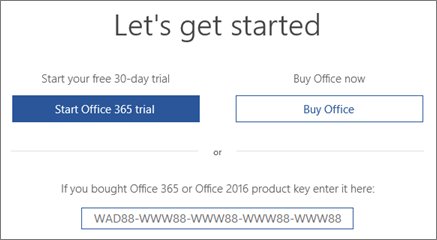
- On a card, carefully scratch off the silver foil to reveal the 25-character key in the format XXXXX-XXXXX-XXXXX-XXXXX-XXXXX.
- Go to www.office.com/setup or Microsoft365.com/setup.
- Sign in with your Microsoft account, or create one. Remember it, because it replaces the key for later reinstalls.
- Enter the product key without hyphens if prompted, then follow the prompts to finish redemption and install Office.
A key bought on the Microsoft Store for a one-time purchase appears in your order history. A Microsoft 365 subscription bought online does not come with a key and does not need one.
Understanding Microsoft Office Product Keys
| Fact | What it means for you |
|---|---|
| Format | 25 characters in five groups: XXXXX-XXXXX-XXXXX-XXXXX-XXXXX. Other codes on a card are not the key. |
| Redeemed once | A key can be redeemed only once; after that your Microsoft account takes its place. |
| Microsoft 365 subscriptions | Bought online, they use your Microsoft account instead of a key. Key cards are used for new subscriptions or renewals. |
| Office preinstalled on a new PC | If you paid for it, a digital key is sent to the PC when Windows activates; there is no printed key. |
| Not shown inside Office | For security, Office never displays the full key. File > Account shows the Microsoft account it belongs to. |
| Keys that do not match | The key on your account's Services & subscriptions page always differs from the card or receipt key. That is normal. |
| Supported versions | Office 2024 and Microsoft 365 are supported; support has ended for Office 2021, 2019 and 2016. |
Which route fits your situation?
| Your situation | Do this | Why |
|---|---|---|
| You want Office for good with no subscription | Buy Office 2024 from the Microsoft Store or a retail key card | One-time purchases come with a product key |
| You want the latest apps and cloud storage | Subscribe to Microsoft 365 online | No key needed; your account activates it |
| You are a student or teacher | Check your school's Office 365 Education plan | Microsoft donates Office 365 A1 to eligible institutions |
| Your employer offers the Workplace Discount Program | Buy through the program | Office Professional Plus, Visio and Project come with a key you enter in the app |
| You use Office at work under volume licensing | Ask your IT admin | Volume license keys come from the organization, not retail |
| You only need to open and edit files | Use Word, Excel and PowerPoint for the web | Free with a Microsoft account, no key |
Alternative Ways to Get a Microsoft Office Product Key
| Source | What you get | How to start |
|---|---|---|
| Educational institutions | Office 365 A1 (web apps) free for eligible schools; A3 adds desktop apps on up to five PCs or Macs per user | Use Get started for students on Microsoft's Office 365 Education page, or ask your school |
| College student offer | For a limited time, 12 months of Microsoft 365 Premium with a college email | Microsoft's education page lists the offer |
| Microsoft Workplace Discount Program | Office Professional Plus, Visio Professional or Project Professional with a product key | Your employer's program page; older keys appear on the Order Details page |
| Microsoft volume licensing | Office Professional Plus for organizations | Contact your IT administrator for the key |
| A new Windows PC | A digital key if you paid for Office with the PC; otherwise a one-month Microsoft 365 Family trial | Start Word and follow the activation screen |
| A lost or damaged key | A possible replacement with valid proof of purchase | Contact Microsoft support |
Activating Microsoft Office with a Product Key
For a new key, redeem it first at office.com/setup as shown above. These steps cover activating during installation and on an existing installation.
- Open any Office app, such as Word.
- When prompted to activate, sign in with the Microsoft account you used to buy or redeem Office.
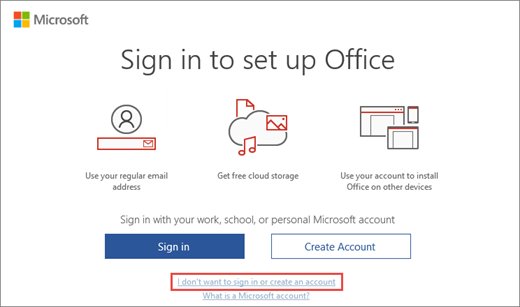
- If you bought through the Workplace Discount Program, select I don't want to sign in or create an account at the bottom of the window instead.
- Enter the product key without hyphens and follow the prompts.
- If Office prompts for a key and you have a new, unused key card for a Microsoft 365 renewal, you can enter that key here.
To replace the key on an existing Office Home & Business, Office Professional or individual-app install, use Microsoft's Change your Office product key steps; most Office 2024, 2021 and 2019 installs only need you to sign in.
How to find a product key you already bought
If you bought a one-time purchase from the Microsoft Store and have not installed it, the key is in your order history.
- Go to www.microsoftstore.com and select Sign in in the upper-right corner.
- Sign in with the account you used to buy Office.
- Select your name in the upper-right corner, then Order History.
- Find the Office purchase and select Install Office to view the key. This does not actually install Office.
For a copy that is already installed and linked to your account, you need the account rather than the key; see how to find the key behind an installed copy of Office and its limits.
How to check Office is activated
- Open a document in Word or any Office app.
- Select File > Account.
- Look under the product name for Belongs to followed by your Microsoft account email.
- Confirm there is no yellow or red banner such as PRODUCT NOTICE or SUBSCRIPTION EXPIRED at the top of the app.
Tips for Avoiding Illegal Product Keys
| Warning sign | Why it matters |
|---|---|
| A key sold on its own, separate from the software | Microsoft says such keys are very often stolen or fraudulently obtained and later blocked |
| A key printed on a card with a download link to Microsoft software | Counterfeit labels and cards are a known form of fraud |
| Promotional, OEM reinstallation or program-specific media for sale | This media is not authorized for resale |
| A key that worked and then stopped | It was likely blocked; ask the seller for a refund |
| A seller you cannot verify | Use Microsoft's How to Tell site to check genuine software and report counterfeits |
| Programs that claim to reveal or generate keys | Office never displays its full key; your Microsoft account is the real proof of purchase |
Using Microsoft 365 without a Product Key
| Option | What you get | Key needed? |
|---|---|---|
| Microsoft 365 subscription bought online | Desktop apps, installed and activated with your Microsoft account | No |
| Reinstalling Office you already own | Install again from the Microsoft account Services & subscriptions page | No (except Workplace Discount Program) |
| Microsoft 365 for the web | Free Word, Excel and PowerPoint in the browser plus 5 GB of cloud storage | No, a free Microsoft account |
| Microsoft 365 Family sharing | Up to 5 other people install Office through your subscription invitation | No; never share the key, which fails for them |
| One-month Microsoft 365 Family trial on a new PC | Full apps for a month | No |
Fix product key errors at office.com/setup
"This product key has already been used"
Keys can be redeemed only once, and yours already was.
- Sign in to account.microsoft.com with the account the key was redeemed to.
- Install Office from the Services & subscriptions page.
"Sorry, we can't find this product key in our database" (ERR_INVALID_TOKEN)
The key is for a version not offered at office.com/setup, such as Office 2010 or Office 2011 for Mac.
- Check which product the key is for.
- Use Microsoft's Virtual support agent, which can link a download for supported versions or say whether the key is blocked.
"Sorry, we can't set up your account right now" (NoMatchingOrEligibleProductsFound) or "This product key isn't meant for your region"
Keys must be redeemed in the country or region where they were bought.
- Redeem the key from the region where you bought it, or contact Microsoft support.
- For a renewal key from another region, redeem it to a different Microsoft account or wait until the current subscription expires.
Office keeps asking for a product key
Office is not linked to the account you are signed in with, or it is a trial.
- Sign in with the Microsoft account you used to buy Office instead of entering a key.
- On a new PC with a trial, start the trial, buy Office, or enter a new key card.
Key does not work or stopped working
It was probably sold separately and blocked.
- Contact the seller and request a refund.
- Buy Office directly from the Microsoft Store.
Frequently asked questions
How do I get a product key for Microsoft Office?
Buy a one-time-purchase version of Office, such as Office 2024, from the Microsoft Store or a retailer key card. Then redeem the 25-character key once at office.com/setup or Microsoft365.com/setup with your Microsoft account, which you use for every later reinstall.
How do I get a product key for Microsoft 365?
A Microsoft 365 subscription bought online does not use a key; your Microsoft account activates it. You only get a key if you buy a Microsoft 365 product key card from a retailer, which you redeem at Microsoft365.com/setup to start or renew a subscription.
How do I get a product key for Word or Excel?
Buy Word or Excel as an individual app from the Microsoft Store, or buy an Office suite or Microsoft 365. One-time purchases from the Store come with a key shown in Order History. Word and Excel for the web are free with a Microsoft account.
How do I buy a product key?
Buy from the Microsoft Store at microsoftstore.com or buy an Office product key card from a retailer. Avoid keys sold on their own without the software, because Microsoft warns many are stolen or fraudulently obtained and later blocked.
How do I enter a product key in Office?
For a new key, go to office.com/setup, sign in with your Microsoft account and enter the key without hyphens. For Workplace Discount Program purchases, open an Office app, select I don't want to sign in or create an account, then type the key.
Why is Microsoft asking for a product key?
Office asks when it is not activated: it may be a trial on a new PC, linked to a different Microsoft account, or the subscription expired. Sign in with the account you used to buy Office first; you rarely need to type the key again.
Can I see my Office product key after installing?
No. Office never shows the full key for security reasons, and it is not displayed online either. File > Account shows the Microsoft account Office belongs to, which you can use instead of the key to reinstall and activate.
How do I get a new product key if mine was lost?
If you have valid proof of purchase, Microsoft support may replace a damaged key or offer other options. If Office was already redeemed to your Microsoft account, you do not need the key at all; reinstall from Services & subscriptions.
How do I obtain a product key for free?
Microsoft does not give away Office keys, but you can use Office without one: Word, Excel and PowerPoint for the web are free, eligible schools get Office 365 A1 at no cost, and new PCs often include a one-month Microsoft 365 Family trial.