Windows 11 26H2 is installed if winver or Settings > System > About shows Version 26H2 with an OS build that starts with 26300.
This guide covers the winver and Settings checks, the command-line checks, how to tell 26H2 apart from 25H2 and 26H1 by build number, and what to do when your PC is not on Windows 11 version 26H2 yet.
Check if Windows 11 26H2 is installed from Winver
The About Windows dialog is the quickest check because it opens with one command and shows the version and build together. Microsoft names winver as one of the places where the 26H2 version label appears.
- Select the Search box on the taskbar.
- Type
winverand press Enter. - Read the version line in the About Windows window.
- Confirm it says Version 26H2 and that the OS build starts with 26300.
- Select OK to close the window.
If the window shows Version 25H2 or Version 24H2, your PC has not moved to 26H2 yet. The table further down explains what each other result means.
Check if Windows 11 26H2 is installed from Settings
The About page in Settings shows the same information as winver, plus the edition, in one place. Microsoft's own support page uses this route to answer "which version of Windows do I have".
- Right-click the Start button and select Settings.
- Select System in the left pane.
- Scroll down and select About.
- Expand Windows specifications.
- Check that Version reads 26H2.
- Check that OS build starts with 26300.
The same page lists Edition, so you can confirm Home, Pro, Enterprise or Education at the same time. Device specifications above it also shows the processor, whether Windows is 64-bit, and how much RAM is installed on Windows 11.
Which check should you use?
Every method below reads the same installed version. They differ in whether they show the 26H2 label or only the build number, which matters when you check remotely or from a script.
| Your situation | Use this | What it shows |
|---|---|---|
| You want the answer in five seconds | winver | Version label and OS build in one dialog |
| You also need the edition | Settings > System > About | Edition, Version and OS build under Windows specifications |
| You are in Command Prompt or PowerShell | systeminfo with findstr | OS name and OS version with the build number |
| You are scripting or checking many PCs | Get-ComputerInfo -Property "*version" | OsVersion with the build number |
| You want a full hardware and software report | msinfo32 (System Information) | Version details alongside hardware data |
| You want to know when the switch happened | Settings > Windows Update > Update history | Installed updates and the date each one went on |
Check the Windows version from Command Prompt or PowerShell
Microsoft documents this systeminfo filter for finding the Windows version from a command line. It works the same in Command Prompt and PowerShell and needs no admin rights.
systeminfo | findstr /B /C:"OS Name" /B /C:"OS Version"systeminfo collects system details, and findstr keeps only the lines that begin with OS Name and OS Version.
You should see: The OS Name line reads Microsoft Windows 11 and the OS Version line contains 10.0.26300, which is the 26H2 build.
In PowerShell, Get-ComputerInfo -Property "*version" lists every version property, and OsVersion carries the same 10.0 build number. Ignore the WindowsVersion field: in Microsoft's own example output it reads 2009 on a much older build, so it does not track feature updates.
Both commands report the build number, not the word 26H2. Match the number against the build table in the next section.
Do I have Windows 11 26H2 or 25H2? Read the build number
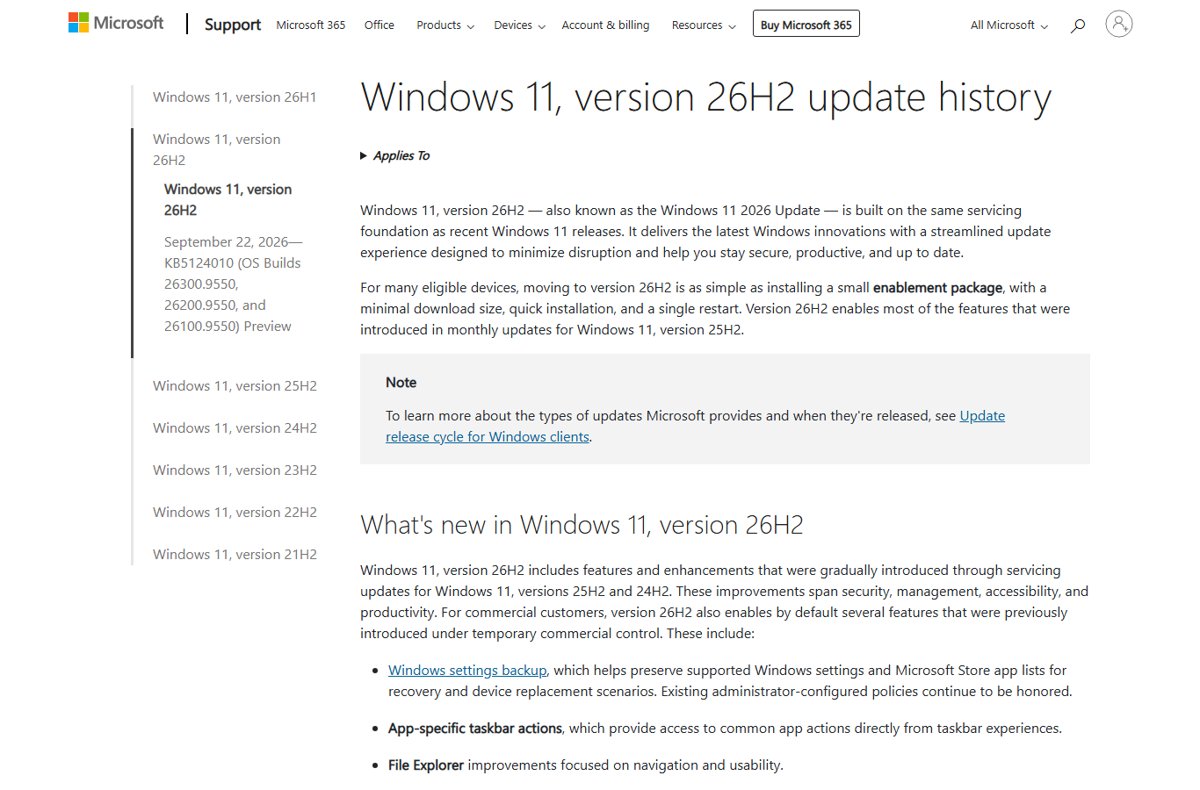
Each Windows 11 version has its own OS build number, so the digits before the dot settle which version you run. Microsoft publishes these in its Windows 11 release information table, last updated on 29 September 2026.
Revision numbers after the dot can match across versions. On 29 September, 26H2 was at 26300.9550 while 25H2 was at 26200.9550, so compare the first five digits, not the ending. The 26H2 build numbers explained in more depth show how the three builds relate.
| Version shown | OS build starts with | Latest build (29 Sep 2026) | What it means |
|---|---|---|---|
| 26H2 | 26300 | 26300.9550 | Windows 11 2026 Update is installed; released 29 September 2026 |
| 26H1 | 28000 | 28000.3086 | Version for new devices from early 2026; it cannot update to 26H2 |
| 25H2 | 26200 | 26200.9550 | Eligible for 26H2 through the enablement package |
| 24H2 | 26100 | 26100.9550 | Eligible for 26H2; Home and Pro updates end on 13 October 2026 |
| 23H2 | 22631 | 22631.7584 | Home and Pro are past end of updates; not eligible for the enablement package |
Windows 11 26H1 runs on a different Windows core than 24H2, 25H2 and 26H2, so Microsoft does not offer 26H2 to it. The differences between 26H1 and 26H2 explain why two 2026 versions exist.
Confirm when 26H2 was installed in Update history
Update history lists which updates were installed and when, so it shows the date your PC changed version. Most PCs moved from 24H2 or 25H2 through the KB5121794 enablement package, a small update that switches on 26H2 features already stored on the PC.
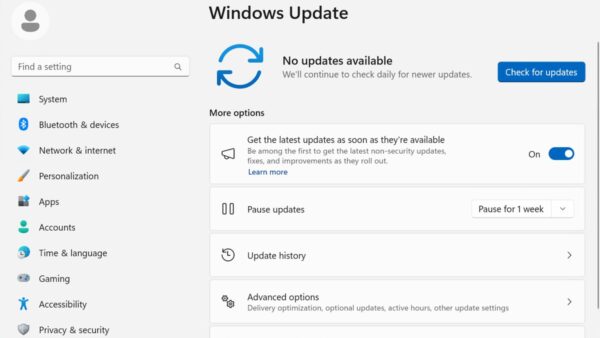
- Select Start > Settings > Windows Update.
- Select Update history.
- Expand the list of installed updates.
- Look for an entry naming Windows 11, version 26H2 or KB5121794, and note its date.
- Return to System > About and confirm Version reads 26H2.
Treat Update history as supporting evidence and the About page as the proof. A PC that was clean installed from 26H2 media never needed the enablement package, so its history can lack that entry while still running 26H2.
What to do if your PC is not on 26H2 yet
Microsoft is rolling 26H2 out in phases over the next few months, so most eligible PCs were not offered it on day one. A 25H2 or 24H2 result on 30 September is normal, and the 26H2 rollout timeline shows when later waves arrive.
| What you see | Why | What to do |
|---|---|---|
| Version 25H2 or 24H2, nothing offered | Controlled feature rollout; your PC is not in the current wave | In Settings > Windows Update, turn on Get the latest updates as soon as they're available, then select Check for updates |
| Windows 11, version 26H2 is available on the Windows Update page | Your PC is eligible now | Select Download & install, then restart when asked; one restart completes it |
| Update installed but About still shows 25H2 | The restart that finishes the enablement package has not happened | Restart the PC, then check winver again |
| Still 25H2 or 24H2 after several days with the toggle on | A safeguard hold, a missing prerequisite update, or a managed device policy | Work through the fixes when 26H2 is not showing in Windows Update |
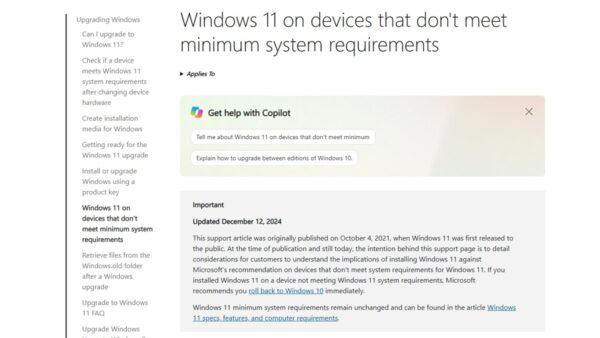
| Version 23H2 | The enablement package needs 24H2 or 25H2 first | Use a full upgrade from the official 26H2 install options |
| Version 26H1 (build 28000) | 26H1 is on a different core and cannot update to 26H2 | Nothing to do; Microsoft says 26H1 devices get a path to a future release |
| Work or school PC on 24H2 or 25H2 | IT controls the version through Autopatch, Intune or WSUS | Ask your IT department; the target version is set centrally |
The enablement package also needs the 22 September 2026 KB5124010 preview update, or a later cumulative update, installed first. A PC that skipped that preview meets the requirement once a later monthly cumulative update is installed.
Frequently Asked Questions
How do I know if I have Windows 11 26H2?
Type winver in the taskbar search box and press Enter. If the About Windows dialog shows Version 26H2 and an OS build starting with 26300, you have Windows 11 26H2. Settings > System > About shows the same details under Windows specifications.
Do I have Windows 11 26H2 or 25H2?
Check the OS build in winver or Settings > System > About. A build starting with 26300 is 26H2, and one starting with 26200 is 25H2. The revision after the dot can be identical on 26H2 and 25H2, so compare the first five digits.
What is the build number of Windows 11 26H2?
Windows 11 26H2 is OS build 26300. On its release day, 29 September 2026, Microsoft listed builds 26300.9457 and 26300.9550, with 26300.9550 tied to update KB5124010. Later monthly updates raise the number after the dot, but the 26300 prefix stays.
Why does my PC still show 25H2 after 26H2 was released?
Microsoft releases 26H2 through a controlled rollout that expands over several months, so most PCs are not offered it right away. Safeguard holds also block PCs with known compatibility problems. Turning on Get the latest updates as soon as they're available puts an eligible PC near the front.
Will Windows 11 26H2 install automatically?
Yes, on an eligible PC. Microsoft states that when 26H2 is ready for a device with Get the latest updates as soon as they're available turned on, it downloads and installs automatically and one restart completes it. Managed work PCs follow the policy their IT department sets.
Can a Windows 11 26H1 PC show version 26H2?
No. Windows 11 26H1 (build 28000) is built on a different Windows core, and Microsoft does not offer 26H2 to it as an update. A 26H1 device stays on 26H1 until Microsoft provides a path to a future Windows release.
Does the version number change as soon as the enablement package downloads?
No. The enablement package needs a restart before the new version takes effect. Until you restart, winver and the About page keep showing 24H2 or 25H2, even though Windows Update has already downloaded KB5121794.
Is Windows 11 26H2 the latest version of Windows 11?
Yes. Microsoft's release information table lists 26H2 as the newest General Availability Channel version, released on 29 September 2026. Home and Pro editions get updates until 10 October 2028, and Enterprise and Education until 9 October 2029.
What if 26H2 is installed and something stopped working?
Check the known issues Microsoft lists for 26H2, which on 30 September covered USB audio, domain trust and black-screen problems. The 26H2 known issues and fixes collect the workarounds. If you need to go back, follow the steps to safely uninstall 26H2.